To access the instructors' report, please follow the steps below:
Log in to Moodle using your AU email and password.
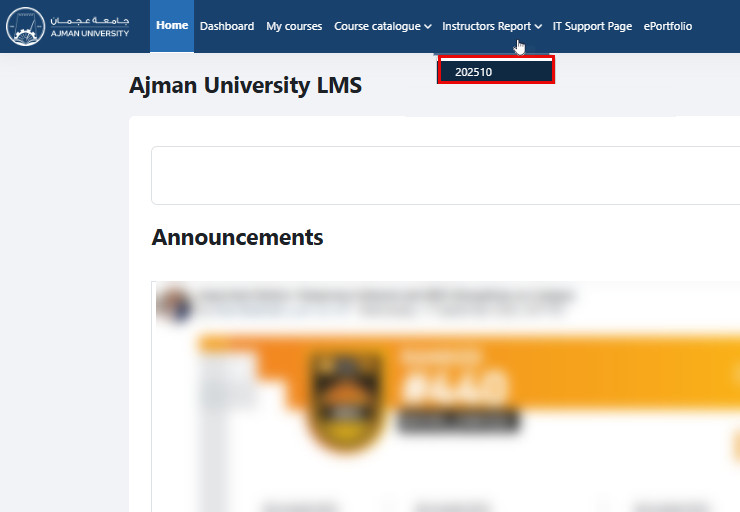
On the homepage, click on Instructors Report in the main menu at the top of the page, and then select semester 202510.
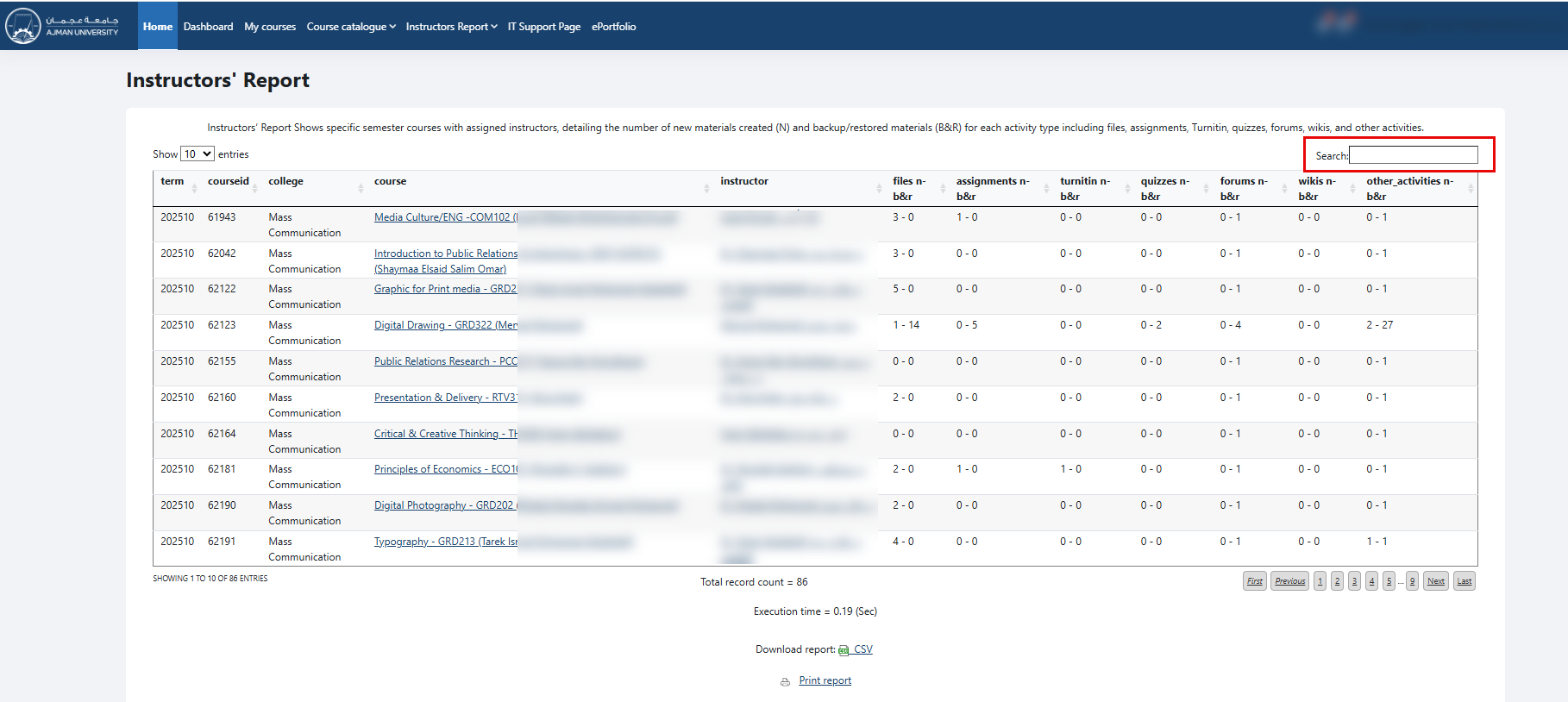
The Instructors’ Report displays all instructors and courses by default, and both are clickable. Click on a course name to go directly to the course, or on an instructor’s name to view their profile. You can also use the search box to find a specific course, course code, or instructor.
Note:
The columns are separated to show newly added materials/activities (N) and those added through the Backup & Restore function (B&R).
This applies to each activity type, including files, assignments, Turnitin, quizzes, forums, wikis, and other activities.
Example: Files N-B&R: 0 - 1
This follows the N - B&R format, where:
N (New): The first number shows how many new materials or activities were added directly in the course.
B&R (Backup & Restore): The second number shows how many materials or activities were brought into the course through the Backup & Restore process.
0 = No new files were added manually.
1 = One file was added through Backup & Restore.
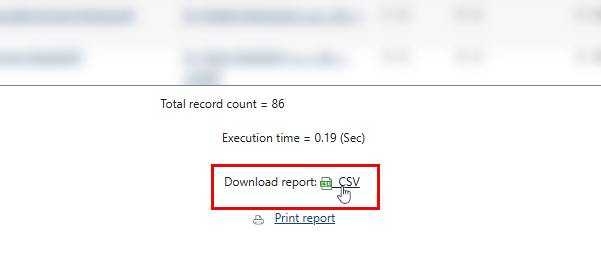
You can export the report to Microsoft Excel to run different analyses, as needed, by clicking on the Microsoft Excel icon.
Notes:
The report shows the number of files, assignments, Turnitin assignments, quizzes, and other materials uploaded in Moodle for each course by each instructor in your college.
The report provides up-to-date and accurate data.