This user manual is currently under review. A revised version reflecting the new Redwood user interface will be available soon.
Actions
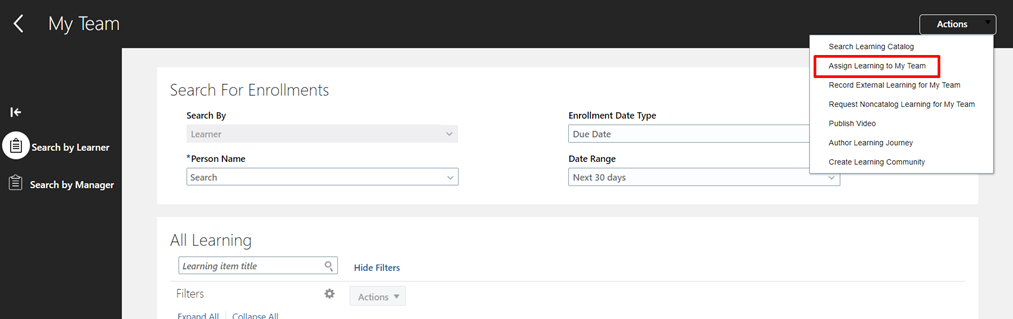
You can perform the following actions from the "Action" tab located in My Team > Learning.
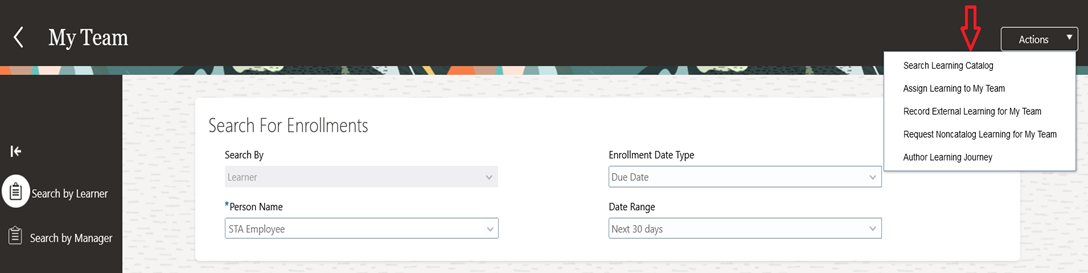
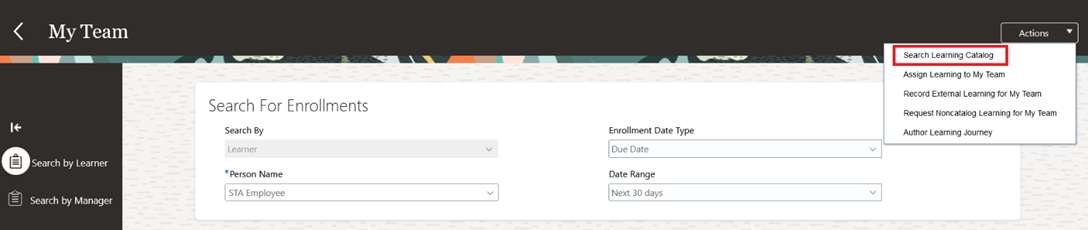
Search Learning Catalog
By clicking on "Search by Catalog", you can access the Learning Catalog and view all the learning items (courses/offerings) you have access to. From the Actions menu, you can also request a non-catalog learning item for yourself or your team.
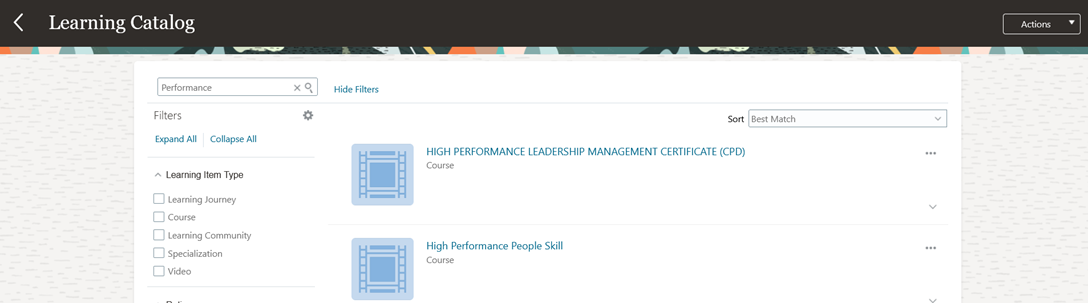
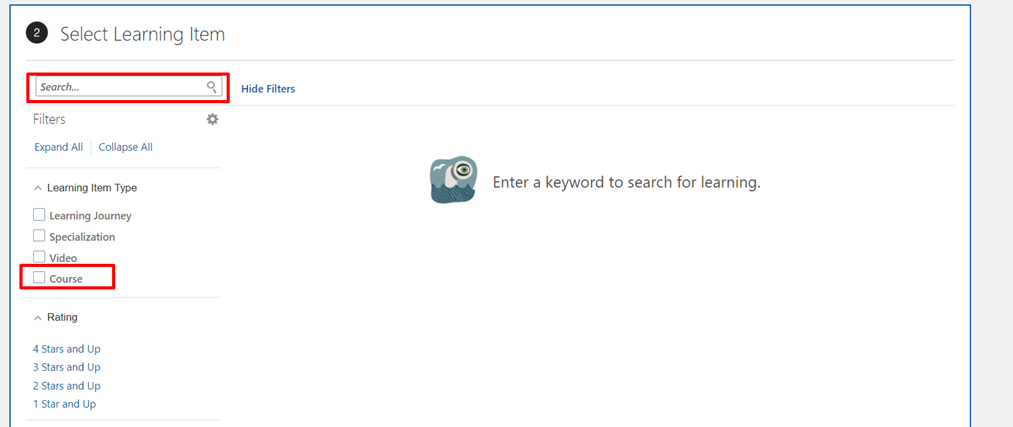
Type the course name in the search bar and press Enter to run the search.
Assign Learning to Team
By selecting this option, you can assign the required or voluntary assignment to your team.
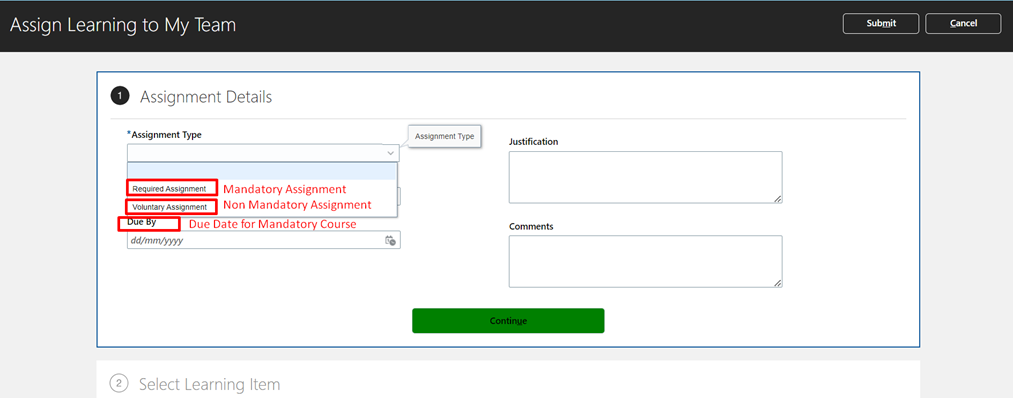
Fill in the required details:
-
Assignment Type: Select the assignment type, whether it is required or voluntary. If it's required, provide the due date and input any other applicable details. Then, click "Continue".
-
Type the name of the learning item.
-
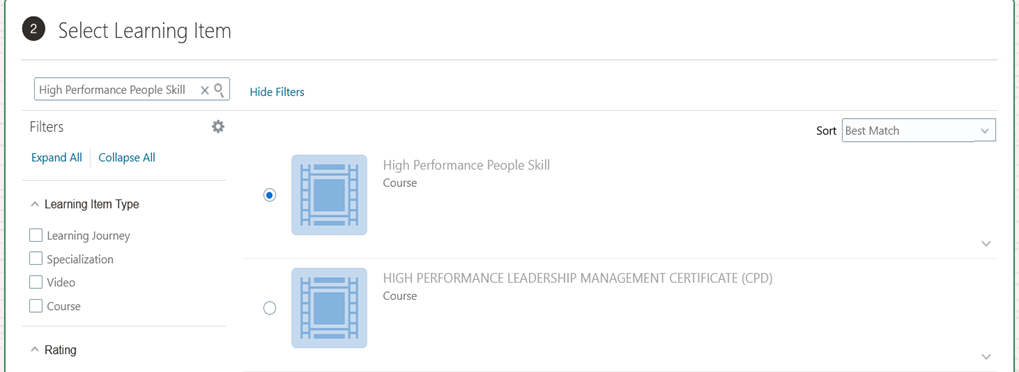
Click the checkbox next to the course name, and then verify the details in the "Assign As" and "Requested By" fields.
-
In the Select Learners section, all your direct reports are displayed by default.
-
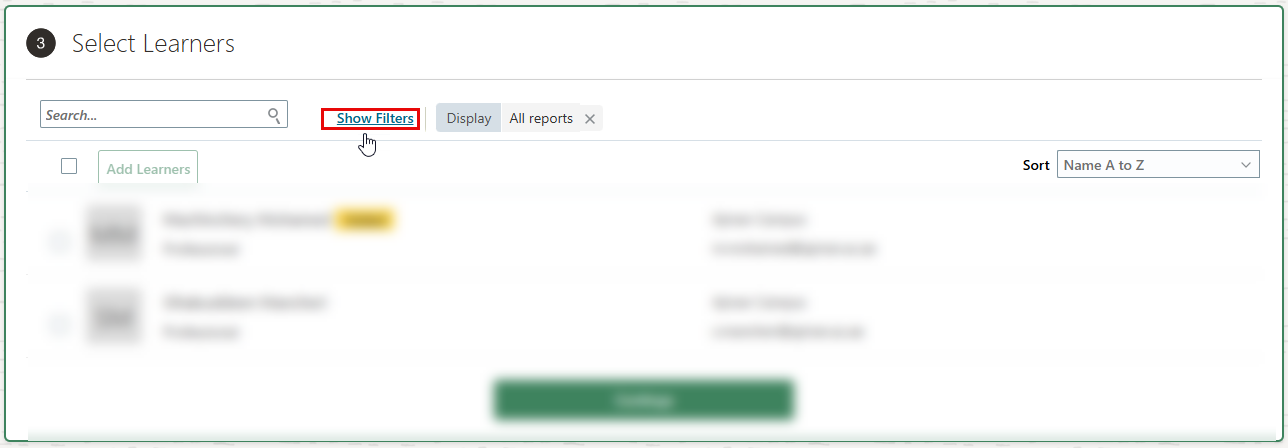
To view all reports for the assignment, click on “Show Filters” and select “All Reports” under the “Display option”.
-
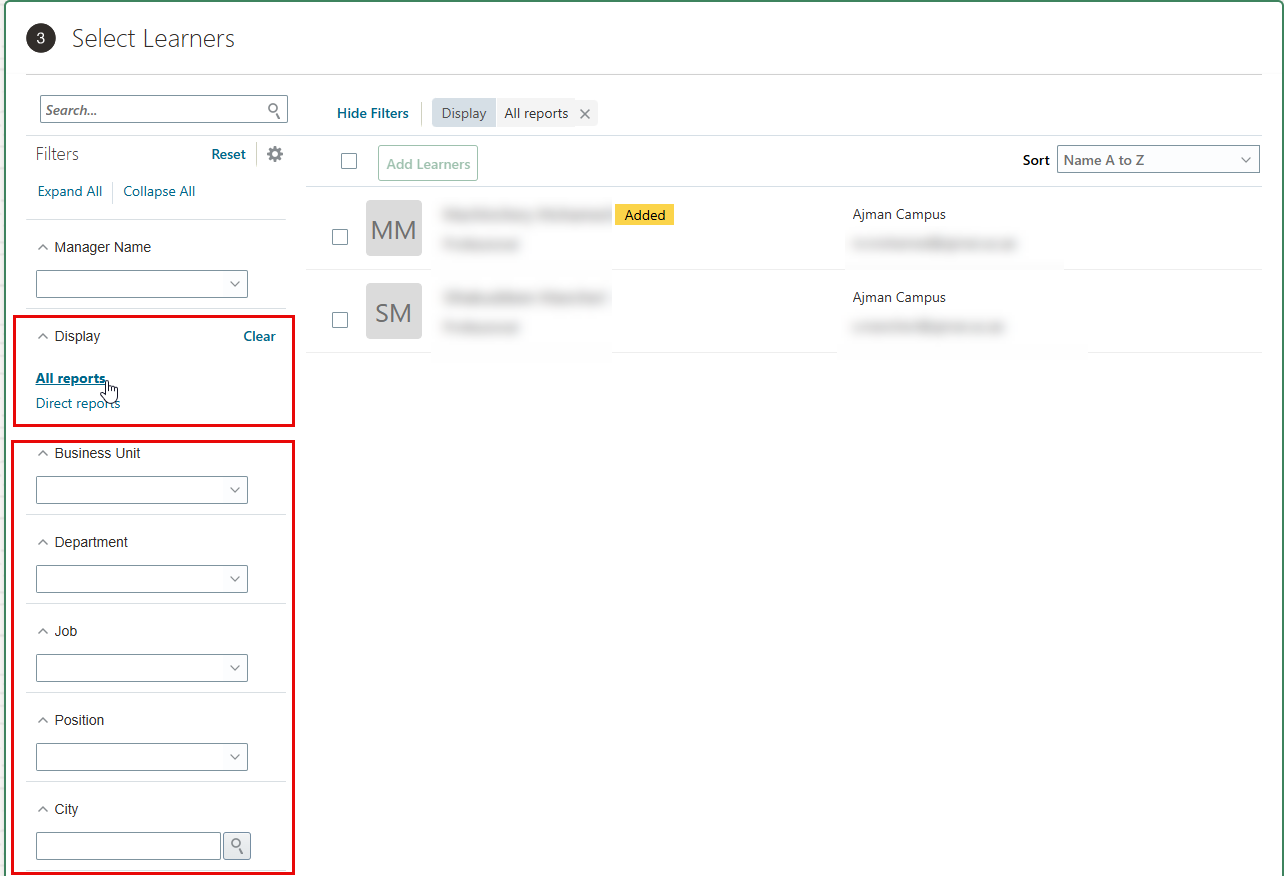
You can also use the Filter option to refine the list of learners based on the available filter criteria.
-
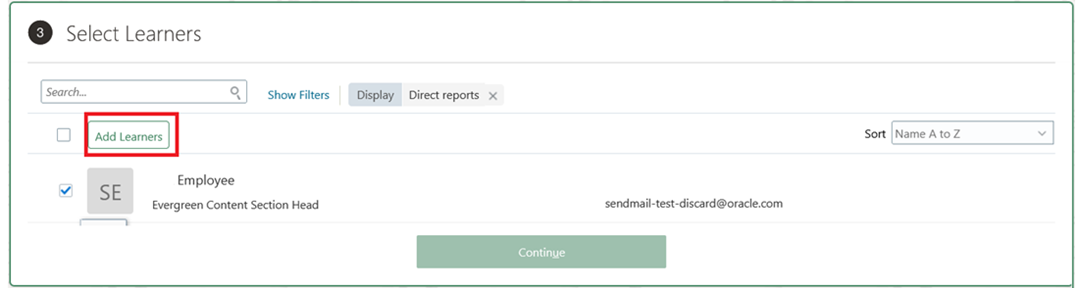
To add learners, select the learners you want to assign to this assignment and click on the "Add Learner" tab.
-
Upon clicking "Add Learner," you will see the "Added" icon enabled next to the selected learner. Click "Continue."

-
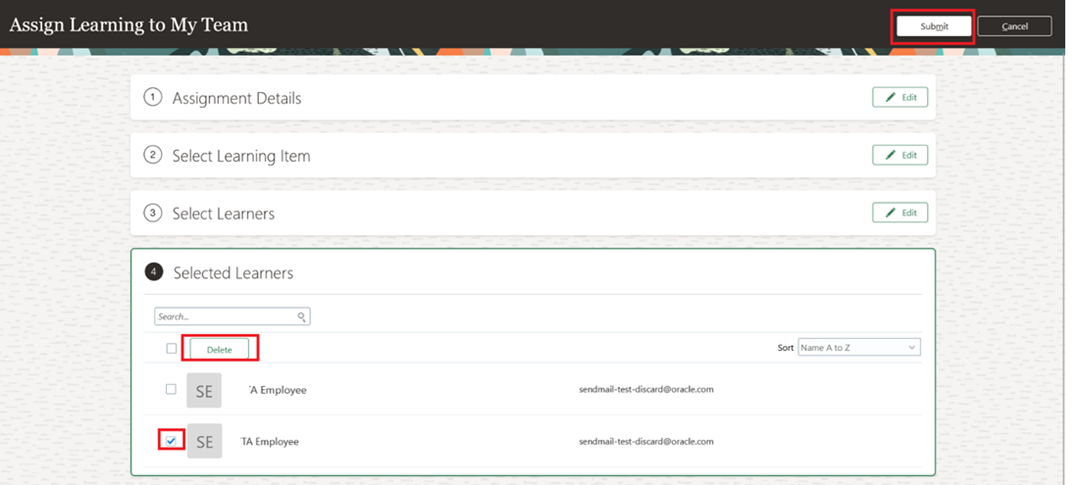
Under the "Selected Learners" section, you can review the final list of added learners. You also have the option to delete any learners if needed. Once finalized, click "Submit."