CRM Advise allows students to schedule advising appointments with their assigned advisors. This feature helps ensure timely guidance and organized communication between students and advisors.
Accessing the Appointment Scheduling Page
-
You can access the CRM Advise Student Portal using the following link:
https://ajmanacae.elluciancrmadvise.com/StudentSelfService/ -
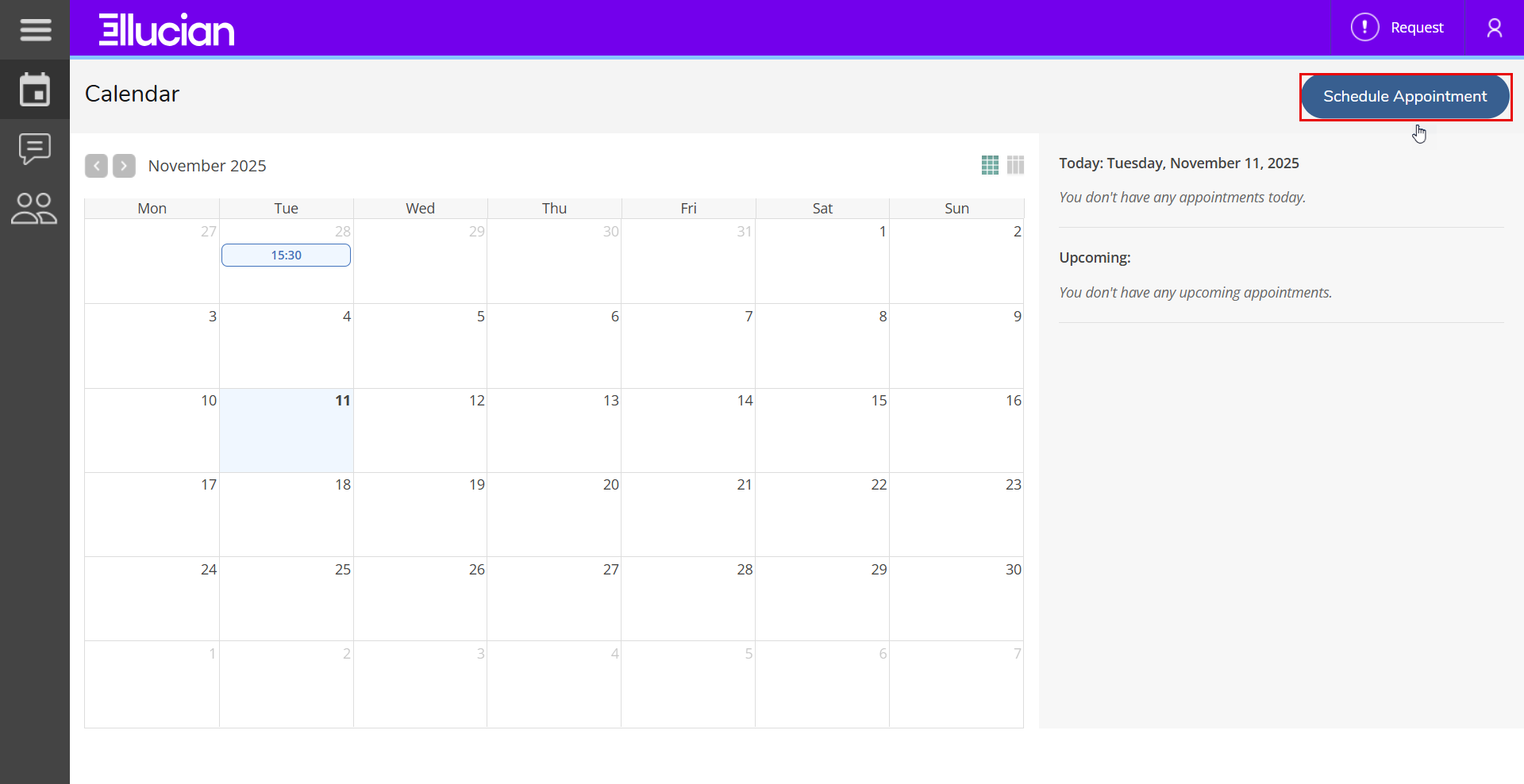
Once logged in, click “Schedule Appointment” from the main dashboard.
Creating a New Appointment
After clicking Schedule Appointment, a New Appointment window will appear.
Follow these steps to complete your booking:
-
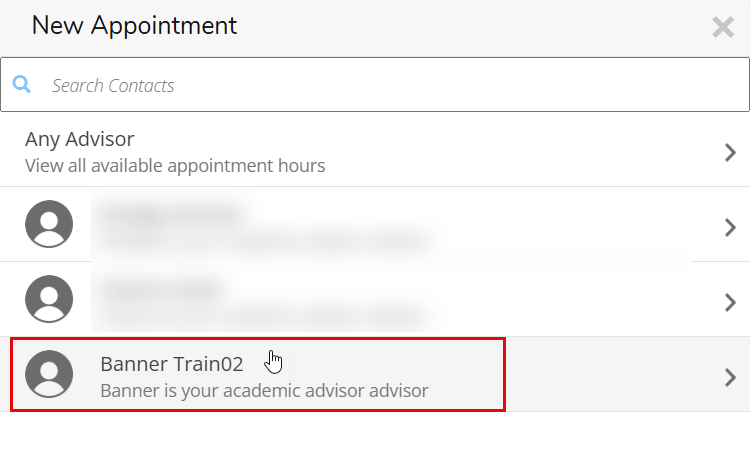
Select Advisor:
- Choose your advisor’s name from the list.
- The system will automatically display the advisor’s available time slots based on their office hours.
-
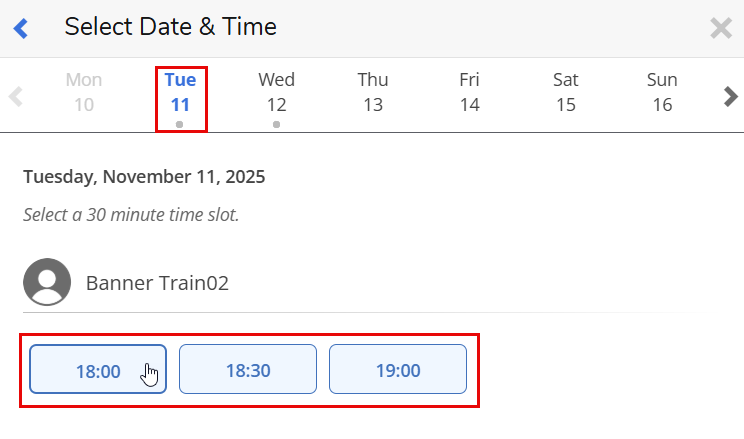
Choose Date and Time:
- Select your preferred date and time for the meeting from the available options.
- Ensure the selected slot fits your schedule and does not overlap with your classes.
-
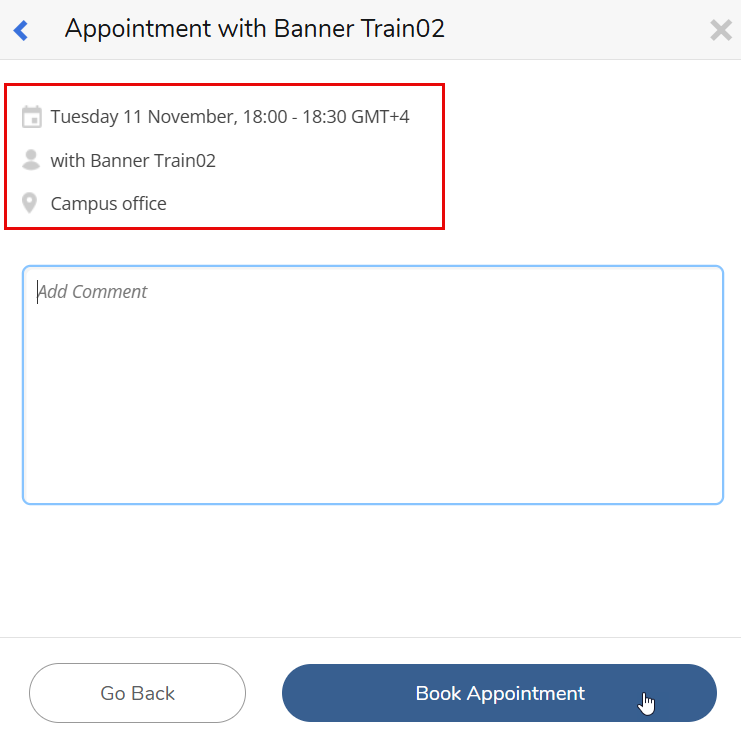
Review Appointment Details:
- The system will display a summary of your appointment, including:
- Date and Time
- Advisor Name
- Office Location
- Review all details before confirming.
- The system will display a summary of your appointment, including:
-
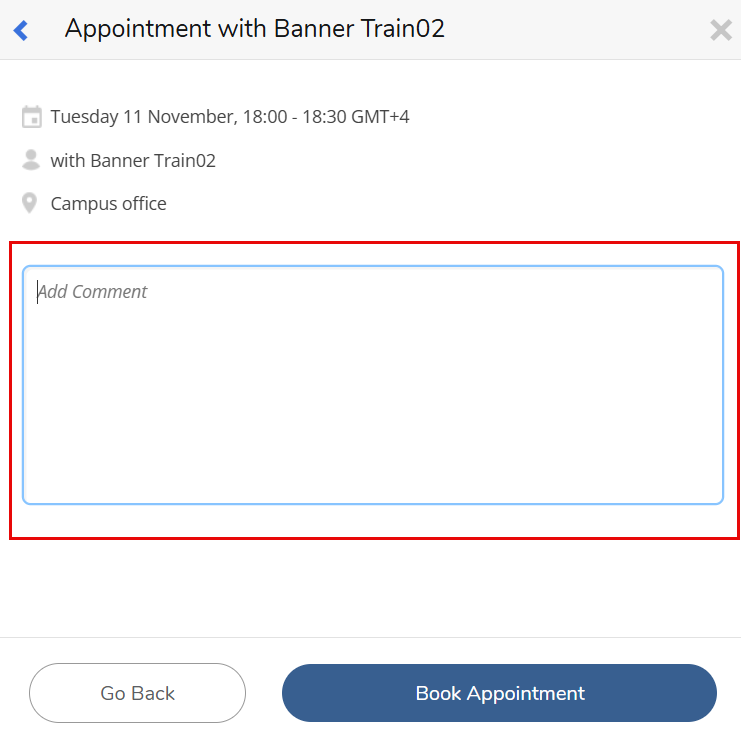
Add Comments (Optional):
- You may include a short comment or note describing the reason for your appointment (e.g., “Course selection,” “Academic progress review,” etc.).
- This helps your advisor prepare for the meeting.
-
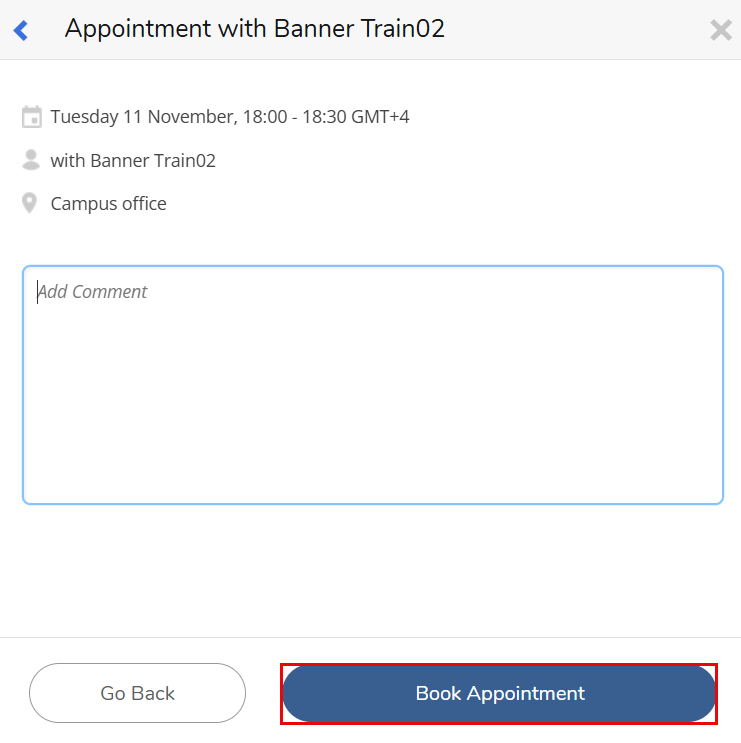
Book Appointment:
-
Click “Book Appointment” to confirm your appointment.
-
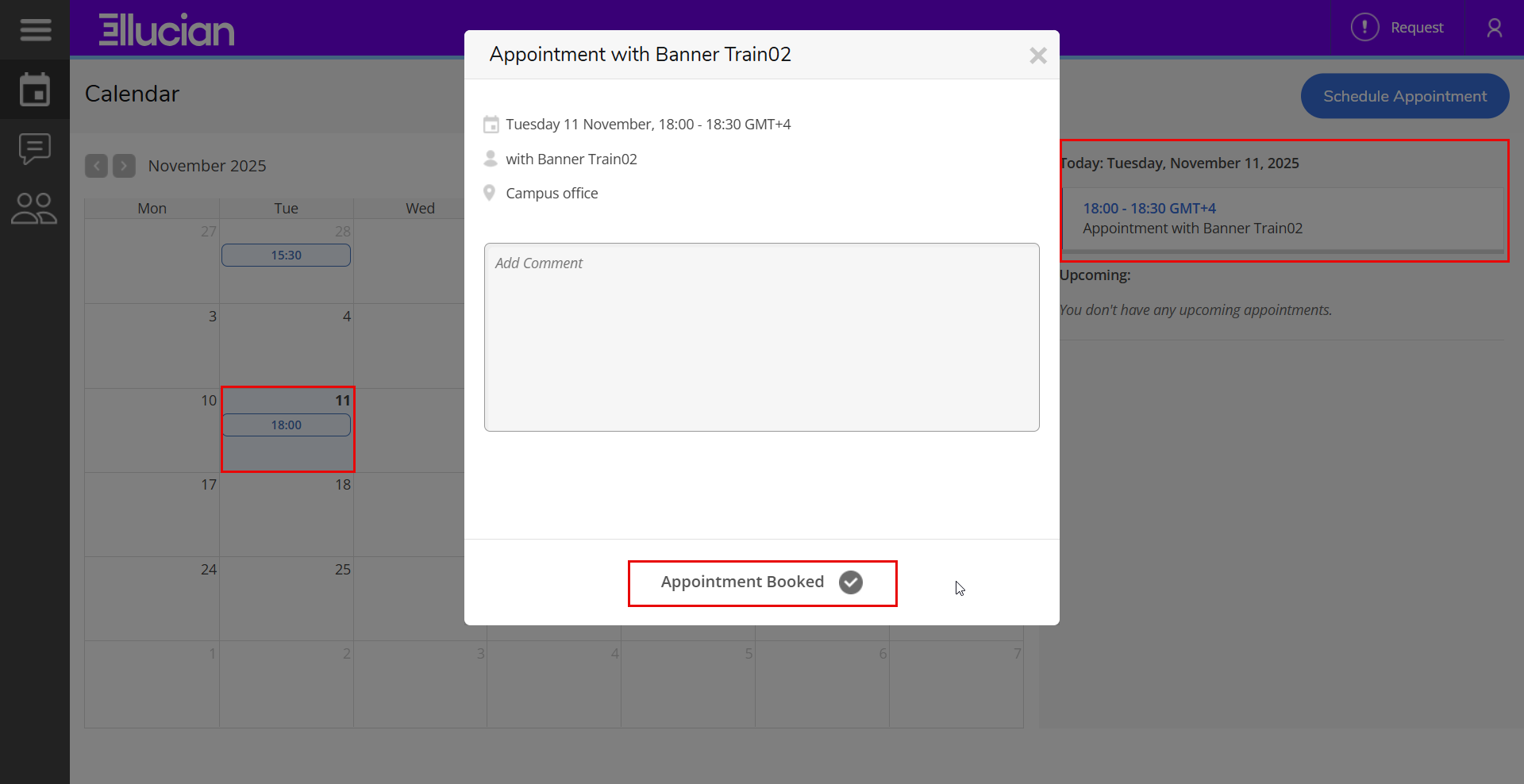
A confirmation message will appear, and your scheduled appointment will be visible in your CRM Advise Calendar, as well as under “Upcoming Events” on the left side of the page.
-
Cancelling an Appointment
If you can no longer attend a scheduled advising appointment, you can easily cancel it through CRM Advise. This helps your advisor manage their schedule and frees up the time slot for other students.
To cancel an appointment:
- Go to your Calendar or the Upcoming Events section on the left side of the page.
- Locate and click on the appointment you wish to cancel.
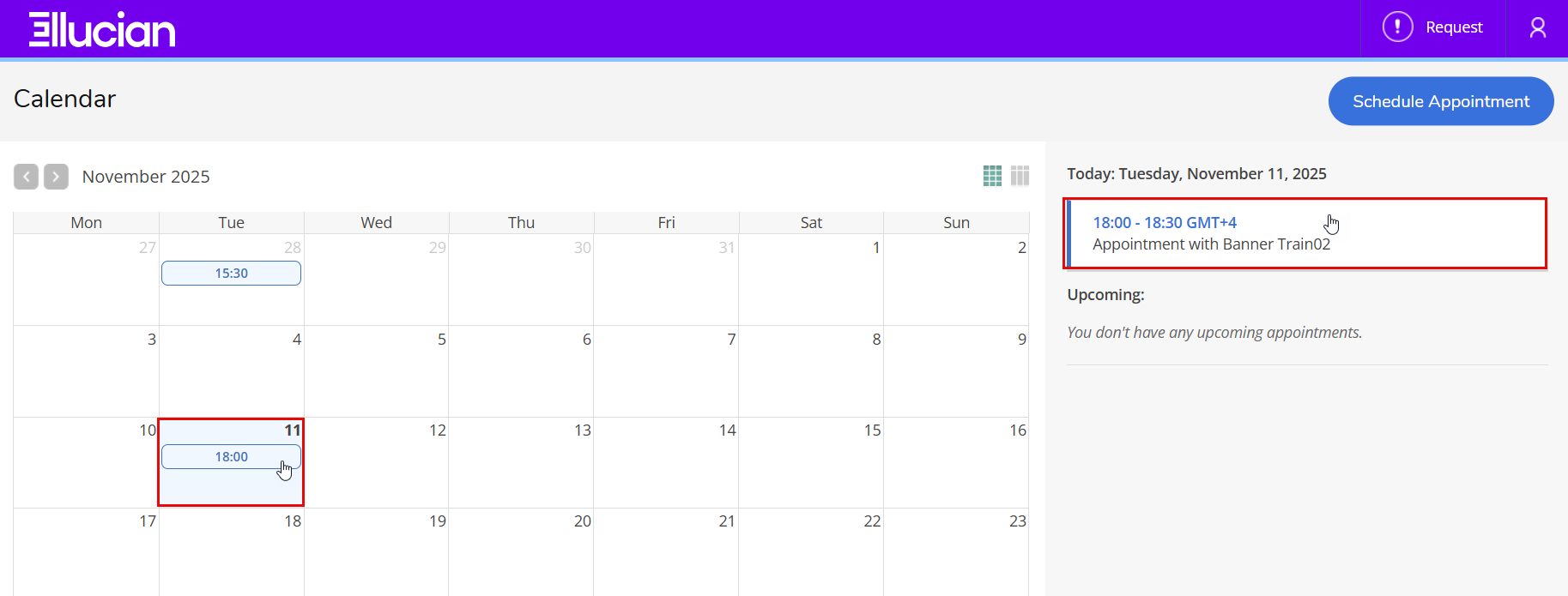
- Click "Cancel Appointment."
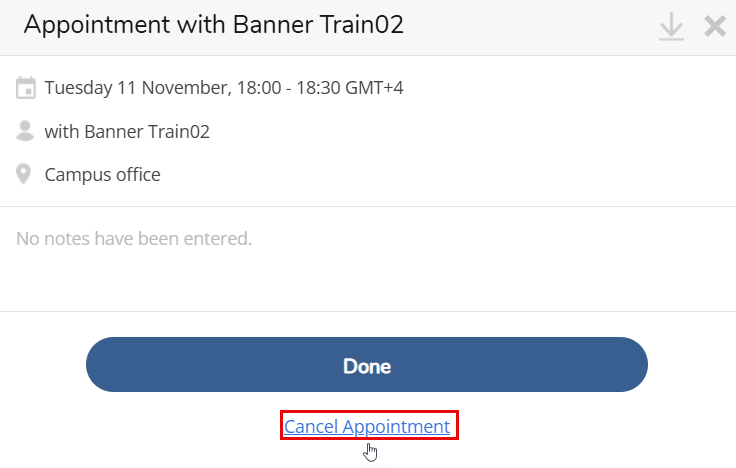
- Confirm the cancellation when prompted.
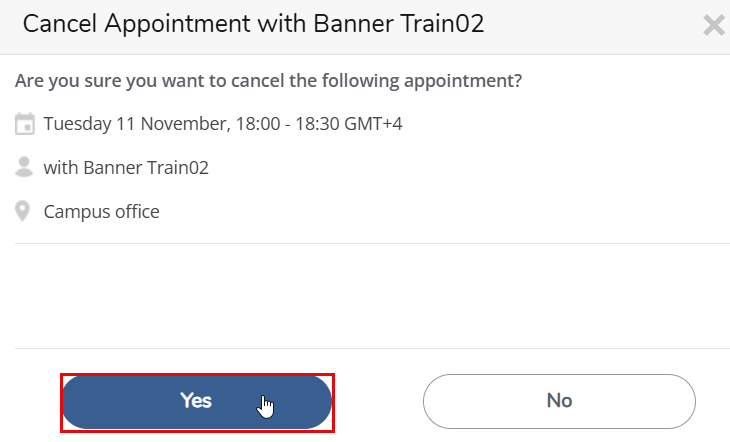
Once cancelled:
- The appointment will be removed from your CRM Advise Calendar and the Upcoming Events list.
If you want to reschedule, you can book a new appointment following the same process under Schedule Appointment.