You can create a purchase requisition for Software or Application by following the steps below:
- Initiate a new purchase requisition by following the steps in the ”Create Purchase Requisitions” article.
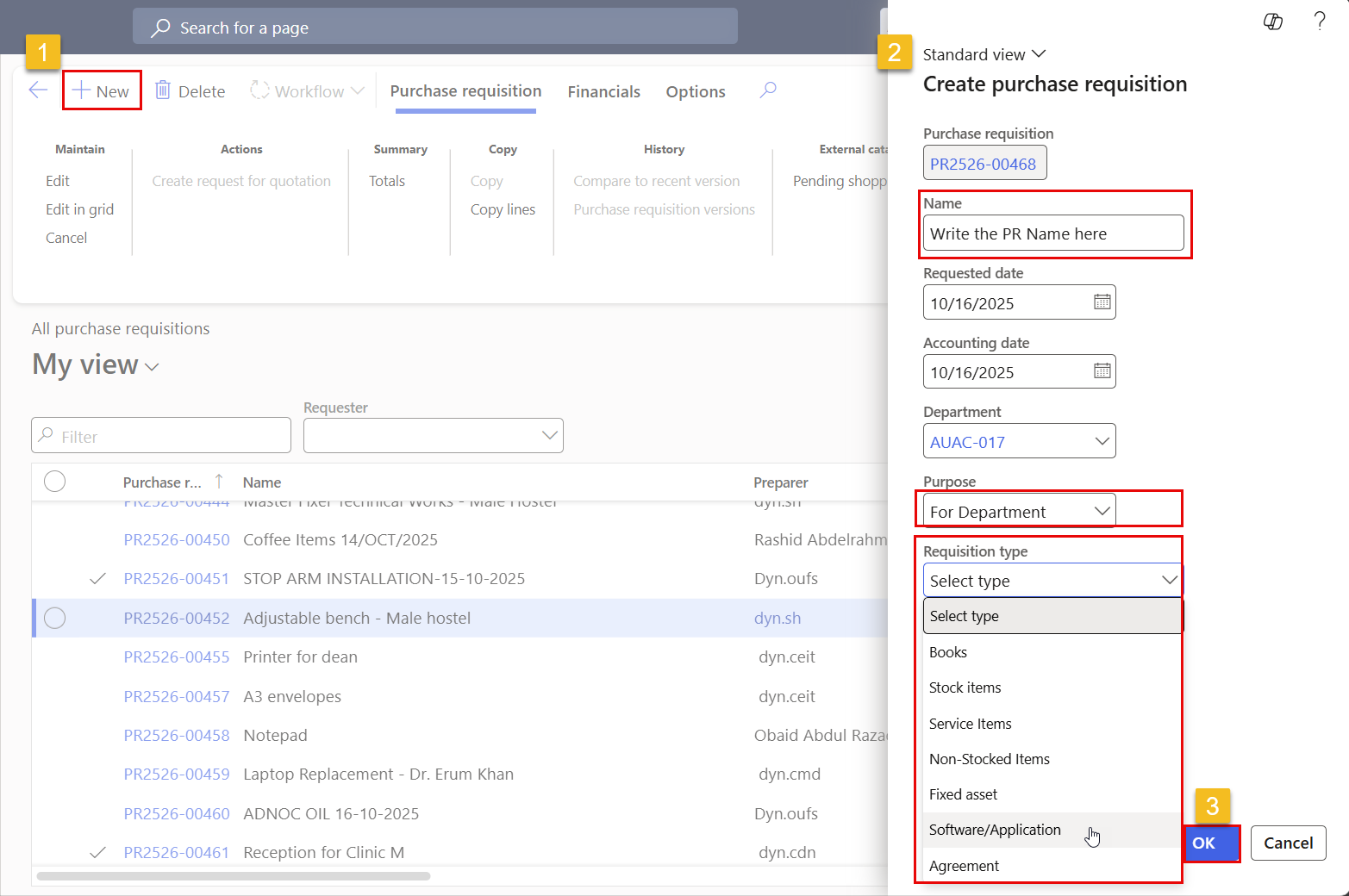
- Once you click “New”, the page below will be displayed. Fill in the required details:
- Name: Enter the name of the new purchase requisition (PR).
- Department: Select the name of your Office or College.
- Purpose: Choose “for Department.”
- Requisition Type: Select Software/Application.
-
Once all details are entered, click OK.
-
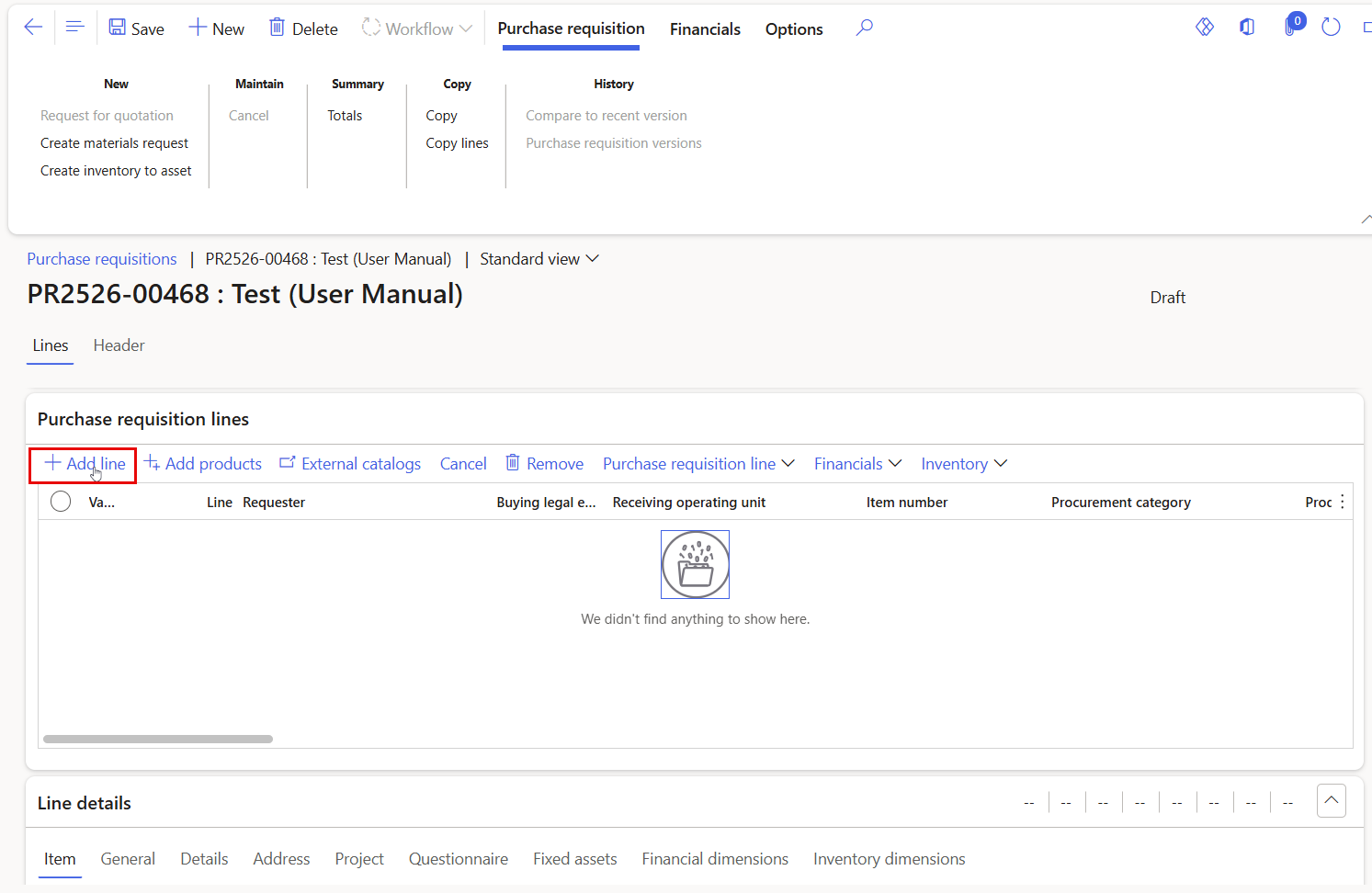
Navigate to the Purchase requisition Line section and click “Add Line.” This will create a blank row in the grid where you can enter the details for the new requisition line.
-
Fill in all necessary information for the requisition, then click “Save” once all required fields are completed.
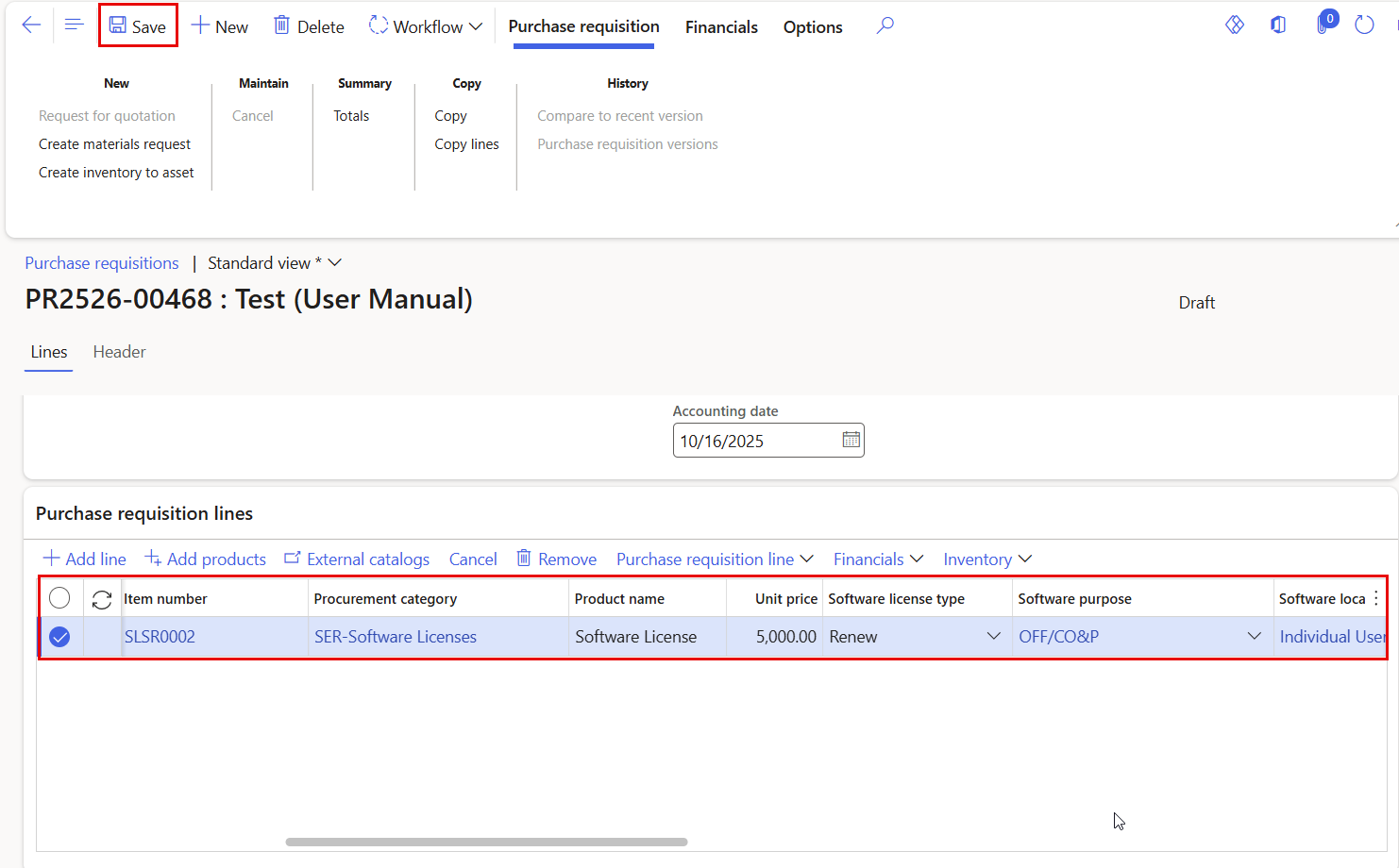
- Item Number: Select the appropriate item number. If you are unsure which item number to use, please contact the Office of Procurement for assistance.
- Unit Price: Enter the unit price of the software according to the quotation, excluding VAT. Consult with the Procurement Office if guidance is needed.
- Software License Type: Specify whether the license is New, Replacement, or Renewal:
- New: A first-time purchase of the software.
- Replacement: Replacing existing software with a different version or product.
- Renewal: Extending the validity of an existing license or subscription.
- Software Purpose: Indicate the intended use of the software by selecting one of the following options:
- Academic/Research: Software intended for use by faculty members, researchers, or students for academic or research purposes.
- College/Office Operations: Software required for administrative, operational, or departmental processes.
- Software Location: Identify where the software will be installed or used:
- Individual Users: Installed on specific user devices.
- Lab Devices: Installed on shared lab computers.
-
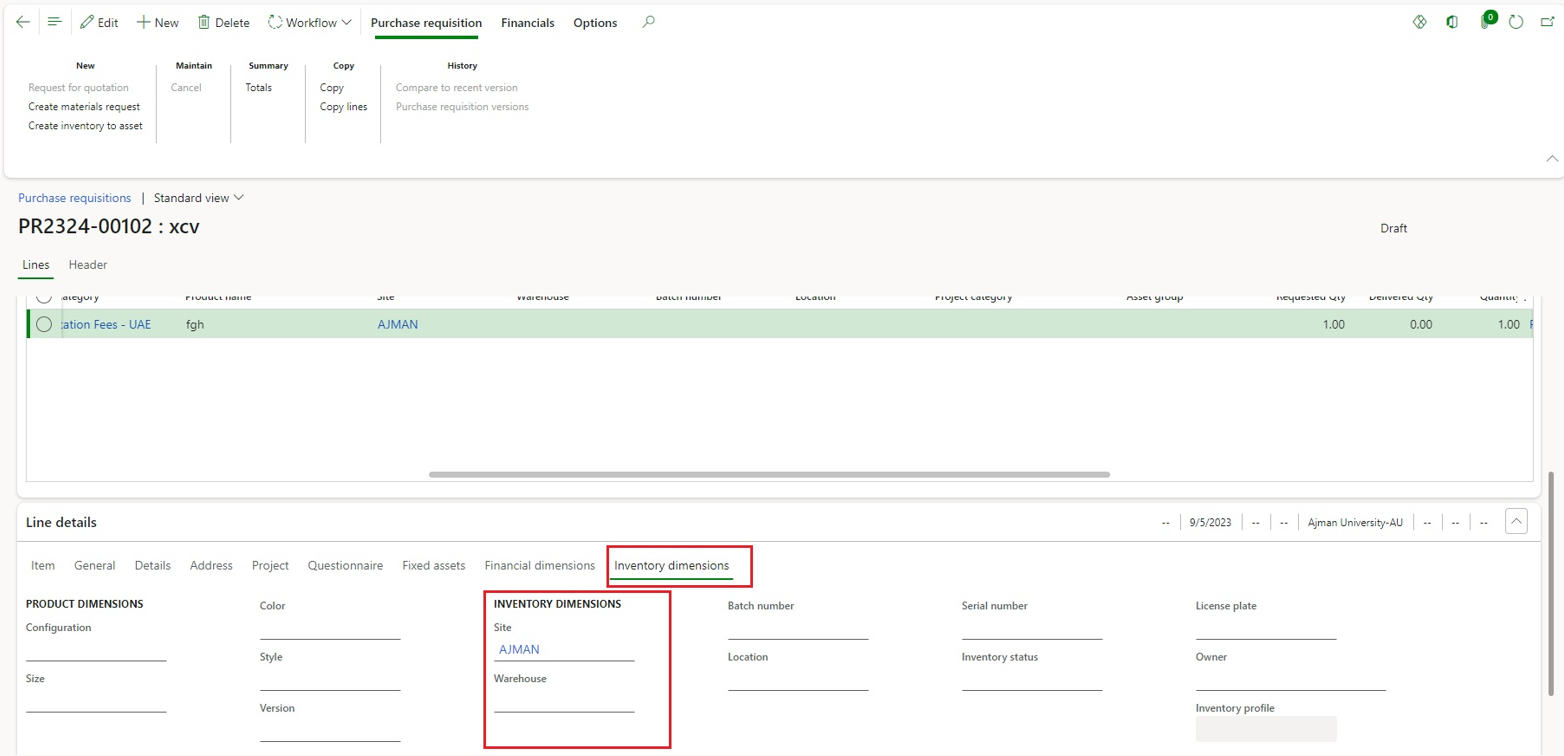
Navigate to “Inventory Dimensions” under Line Details. Select “AJMAN” from the Site drop-down menu, then click “Save.”
-
Navigate to the Purchase Requisition Header and click anywhere within the header section. Then, click the Attachment icon to upload and attach the required files.
For more information on adding attachments, refer to the “Add Attachments” article.
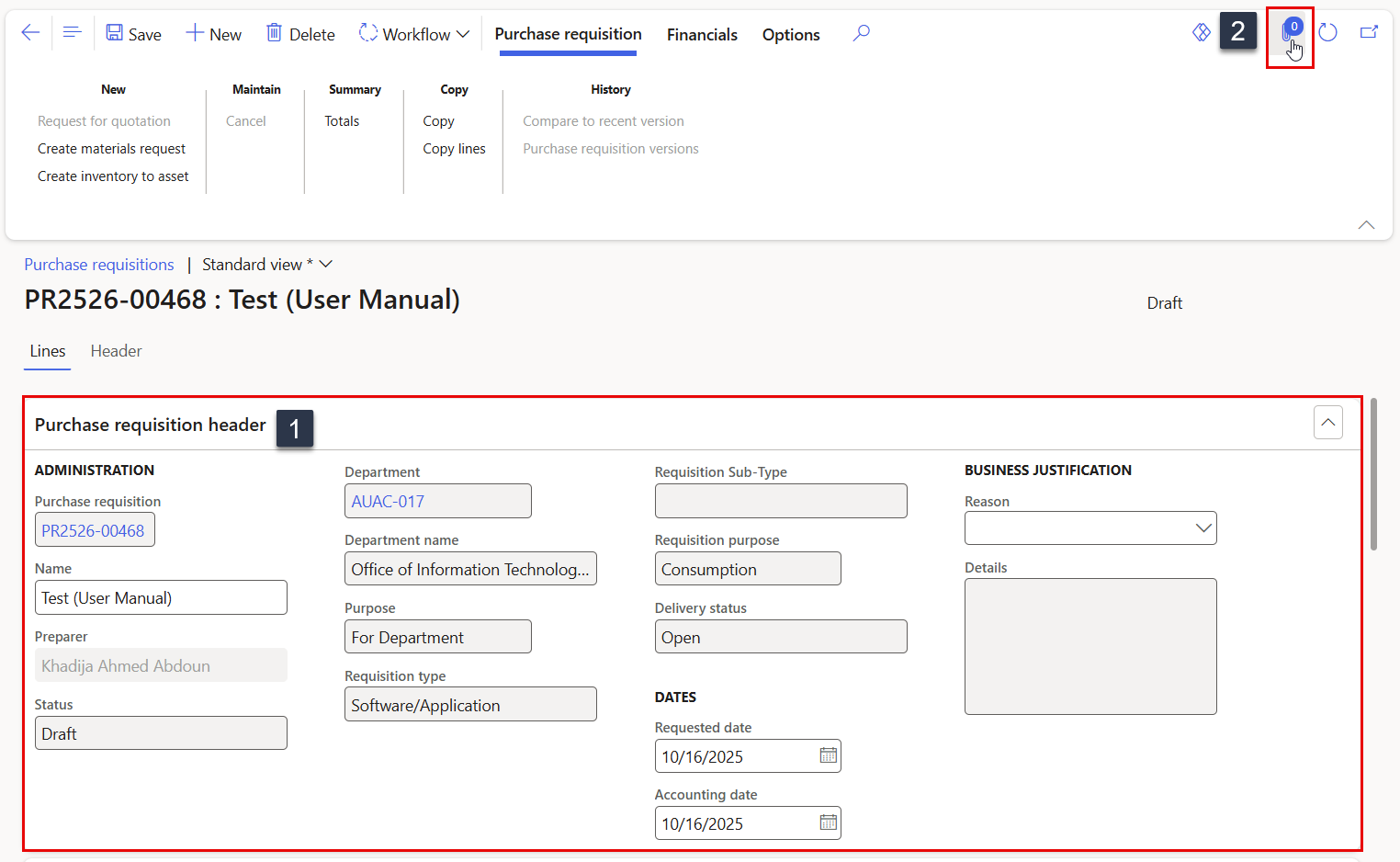
This step is mandatory for this type of Purchase Requisition, and it is required to upload the following two attachments at the header:
1. Quotation or offer.
2. Brief description of the software/application.
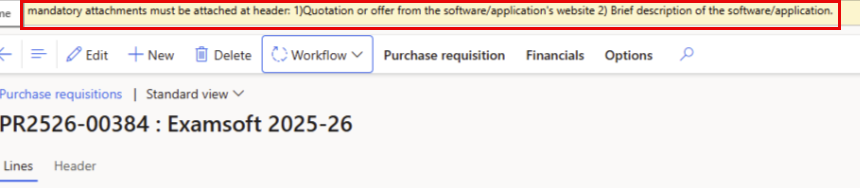
Failure to attach both files will prevent workflow submission and display an error message, as illustrated below.
-
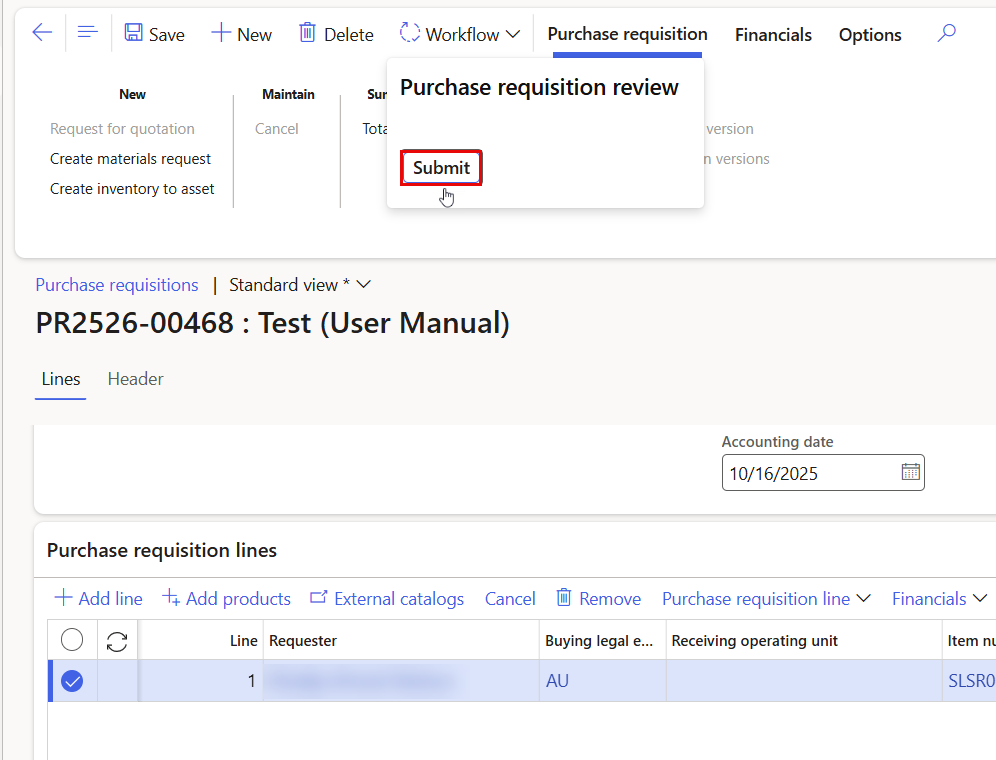
Click on “Workflow”, then “Submit.”
-
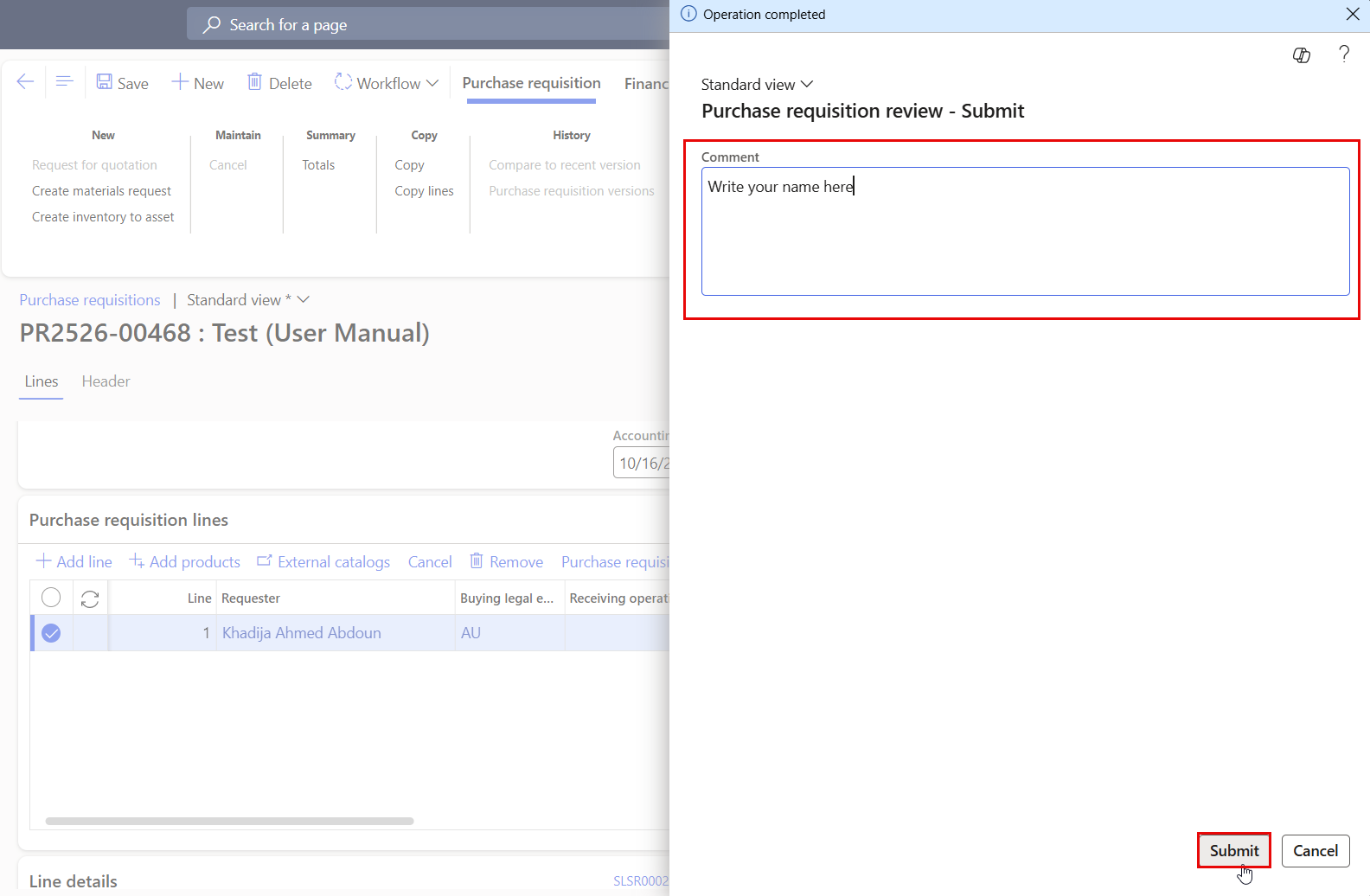
Type your name in the designated Comment box, then click Submit to finalize the requisition.
- The requisition will go through an approval workflow. It will be sent to the appropriate approvers based on predefined rules and permissions.
- The requester has the option to modify the requisition after submission by selecting the “Recall” button in the Workflow tab.
- Note: Recalls are only permitted when the status is “In Review.”