The system will notify employees, and you will receive an email from the Office of HR when the End-of-Year Performance Review is launched. You can either click the URL in the notification to go directly to the performance review page or follow the steps outlined in this article to navigate manually.
Before starting the process, please review the important information below:
- At this stage, do not change your approved goals, including the goal name, description, or weight. Also, do not modify any details in the measurement section, such as the unit of measure, measurement name, or target value.
- The only changes you should make are adding your actual values to your goals, uploading evidence, and updating their status to In Progress only.
- Avoid changing the status to Completed to ensure proper calculation by the system.
- These changes must be done through the Performance page, not the Goals Center page.
- Make sure to enter your Actual Values before adding your comments to your goals.
- The correct process is through Career and Performance > Performance. Avoid accessing your goals via Career and Performance > Goals.
Access Career and Performance Module
-
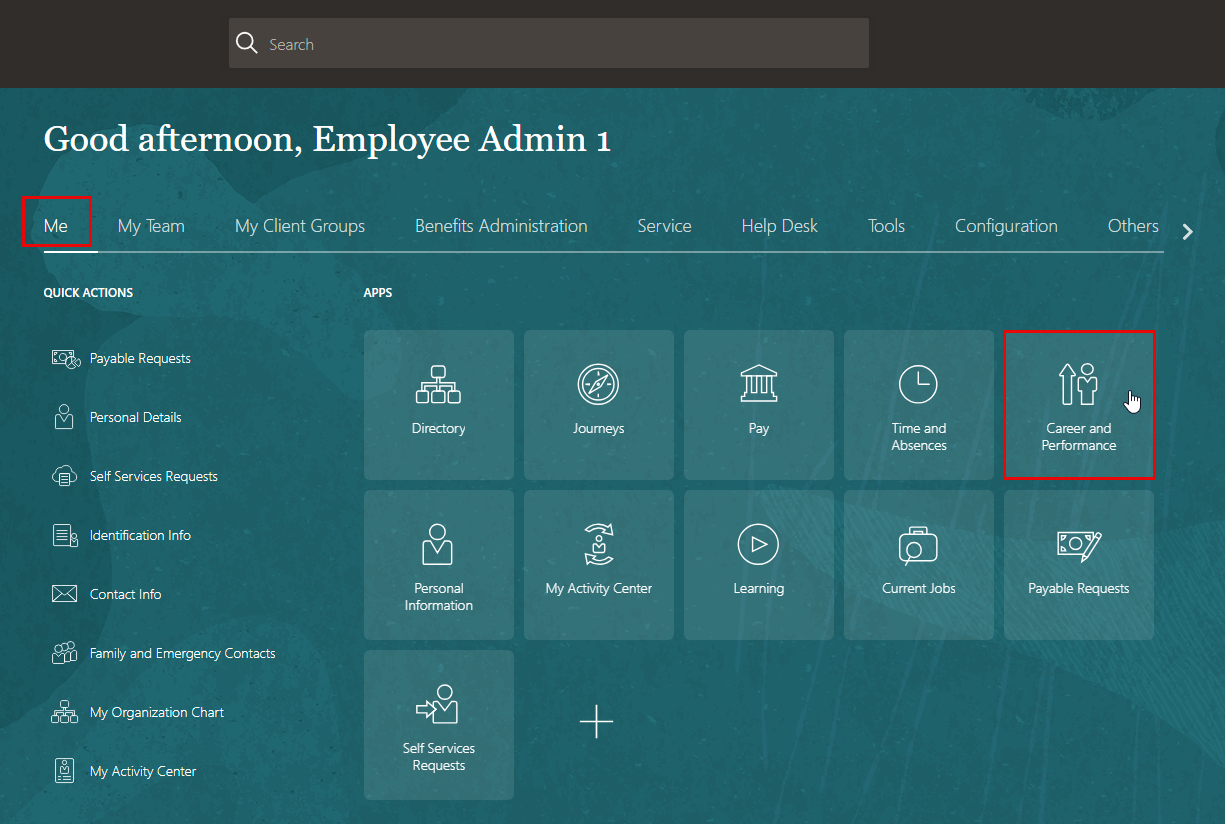
On the Home page, click on "Me" then select "Career & Performance."
-
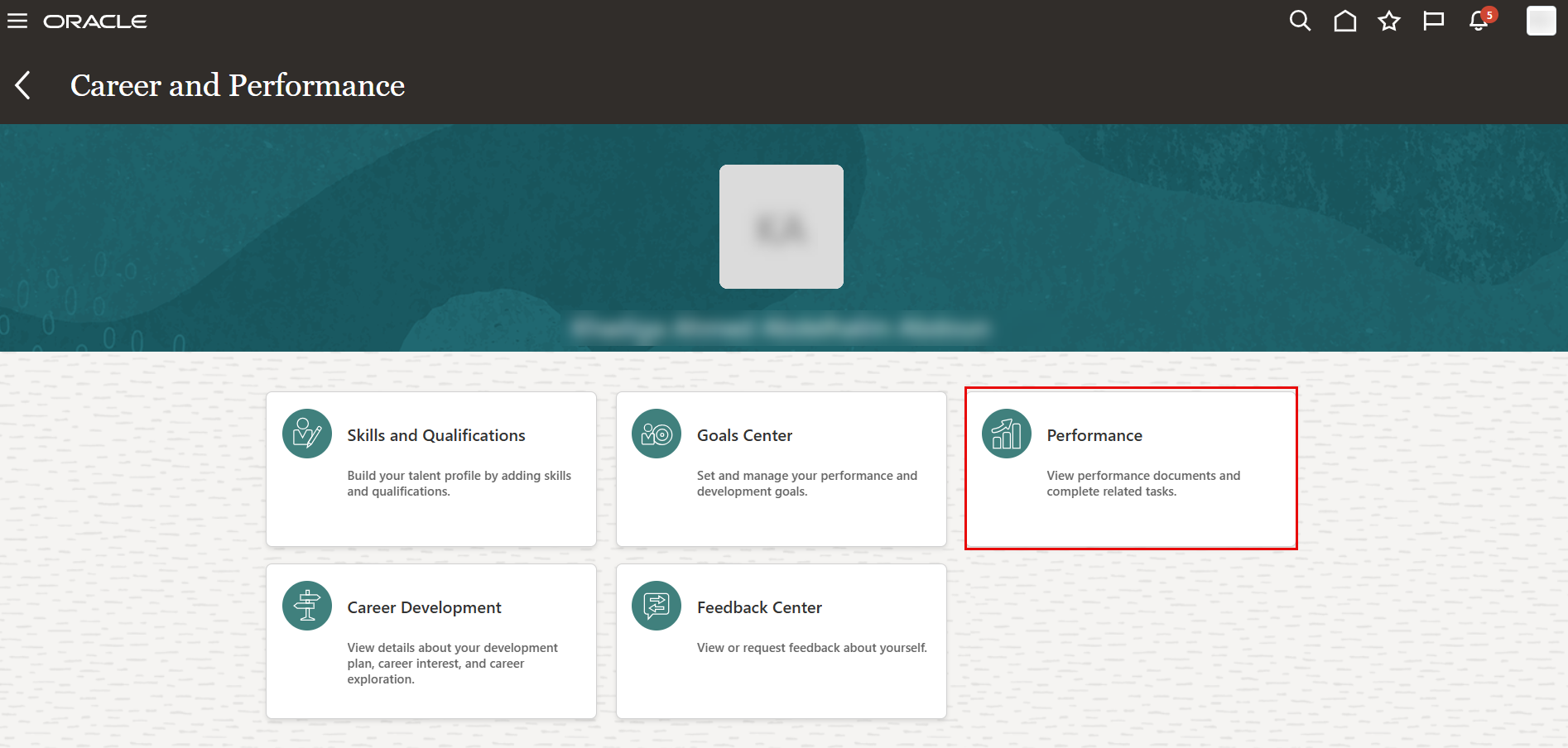
Click on "Performance."
-
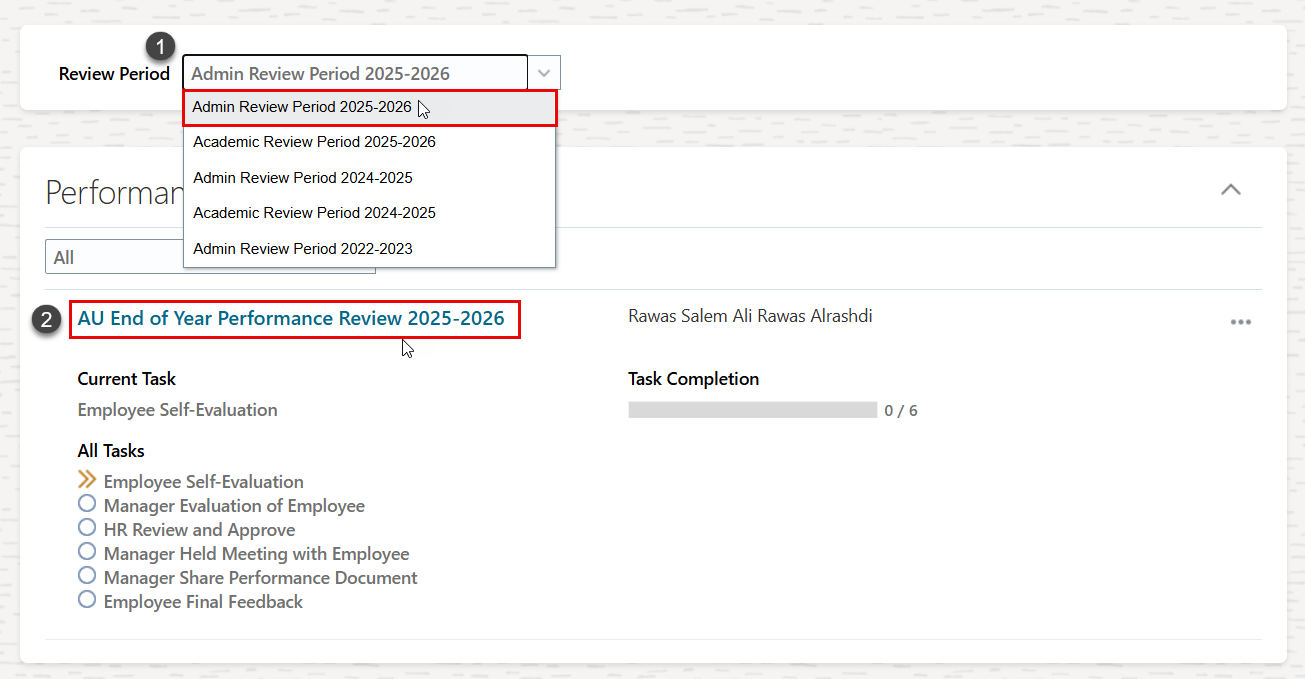
Select "Review Period", and then open "Employee End of Year Performance Review."
Adding your Actual Values and Evidence
The self-evaluation process starts with adding your actual values against the assigned targets of your goals. Evidence must be attached to each goal as a supporting document.
To add your actual values, follow the steps outlined in the following section.
-
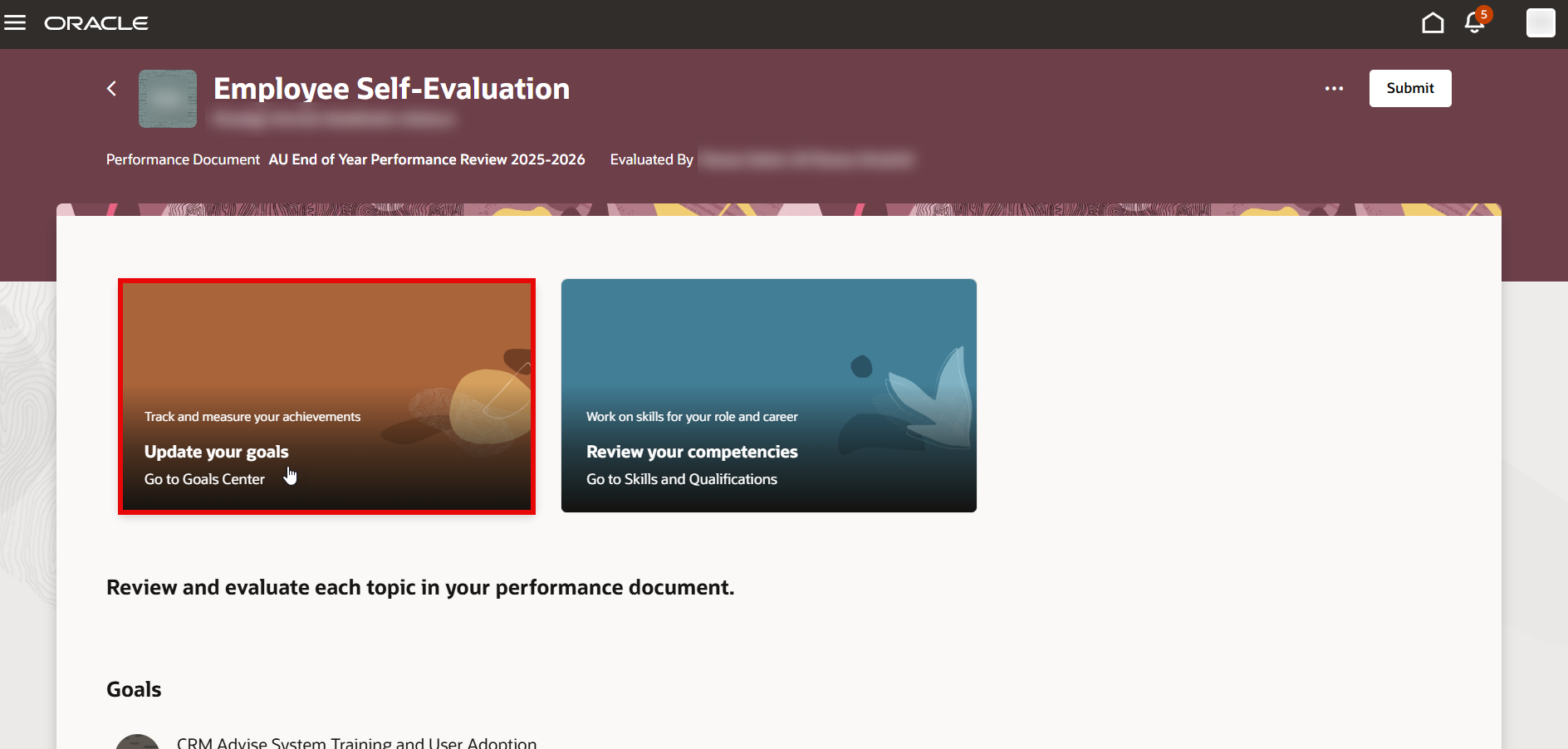
Once you open the performance document, as outlined in the previous section, click "Update Your Goals." This will take you to the Goal Center, where you can start entering your actual values.
-
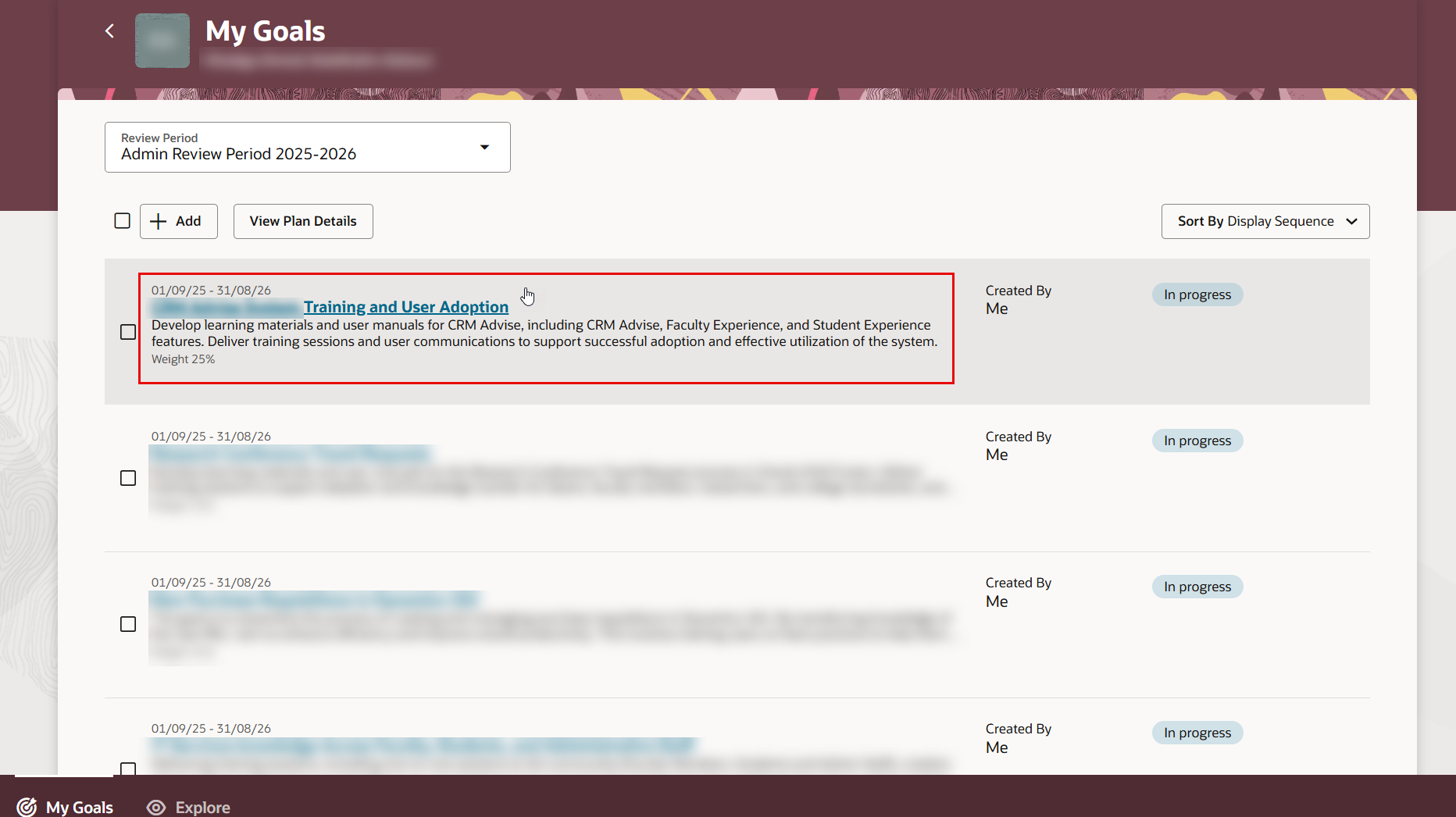
Your approved goals will be listed, open each goal to start the process.
-
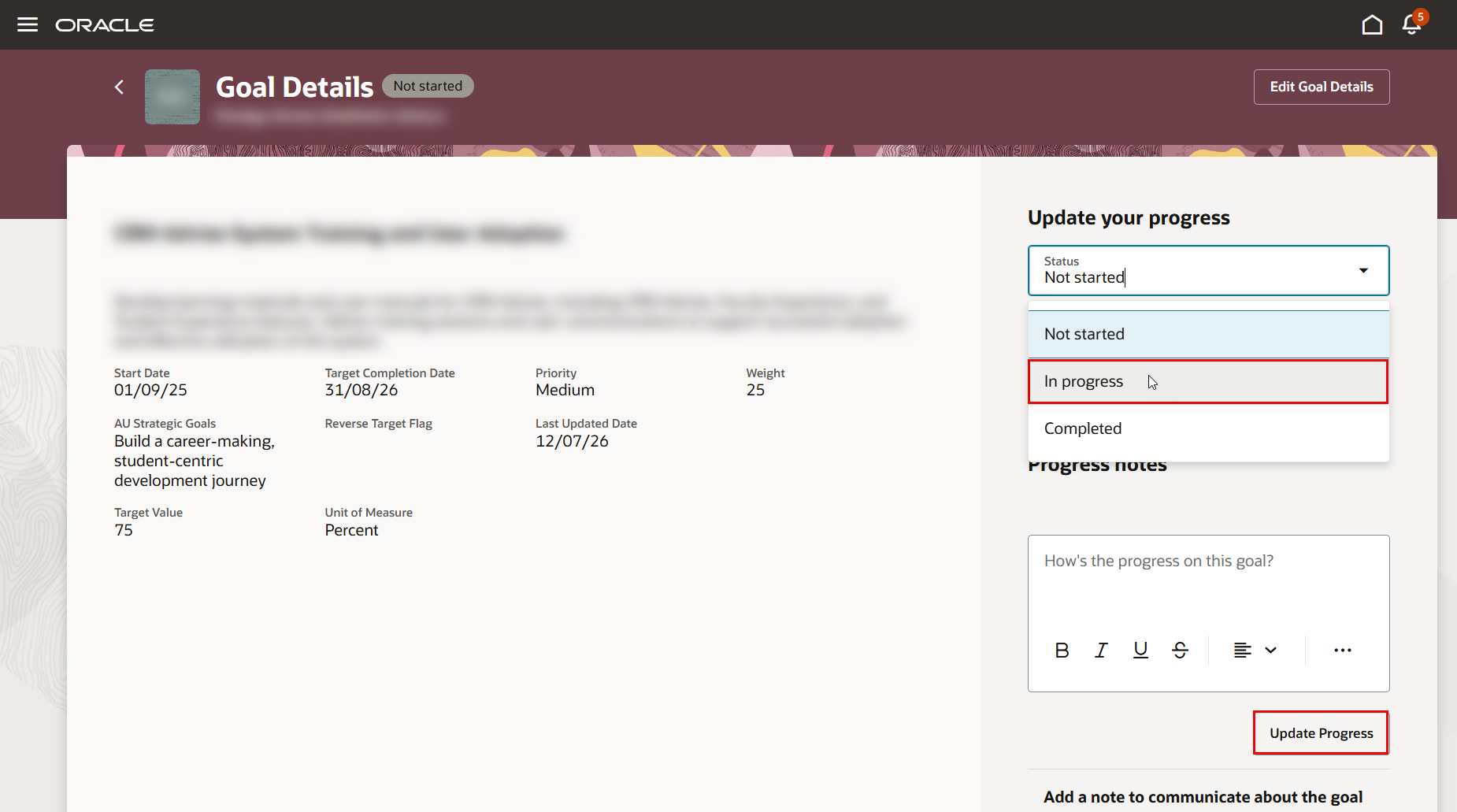
Change the status to "In Progress," then click "Update Progress." Avoid selecting "Not Started" or "Completed".
-
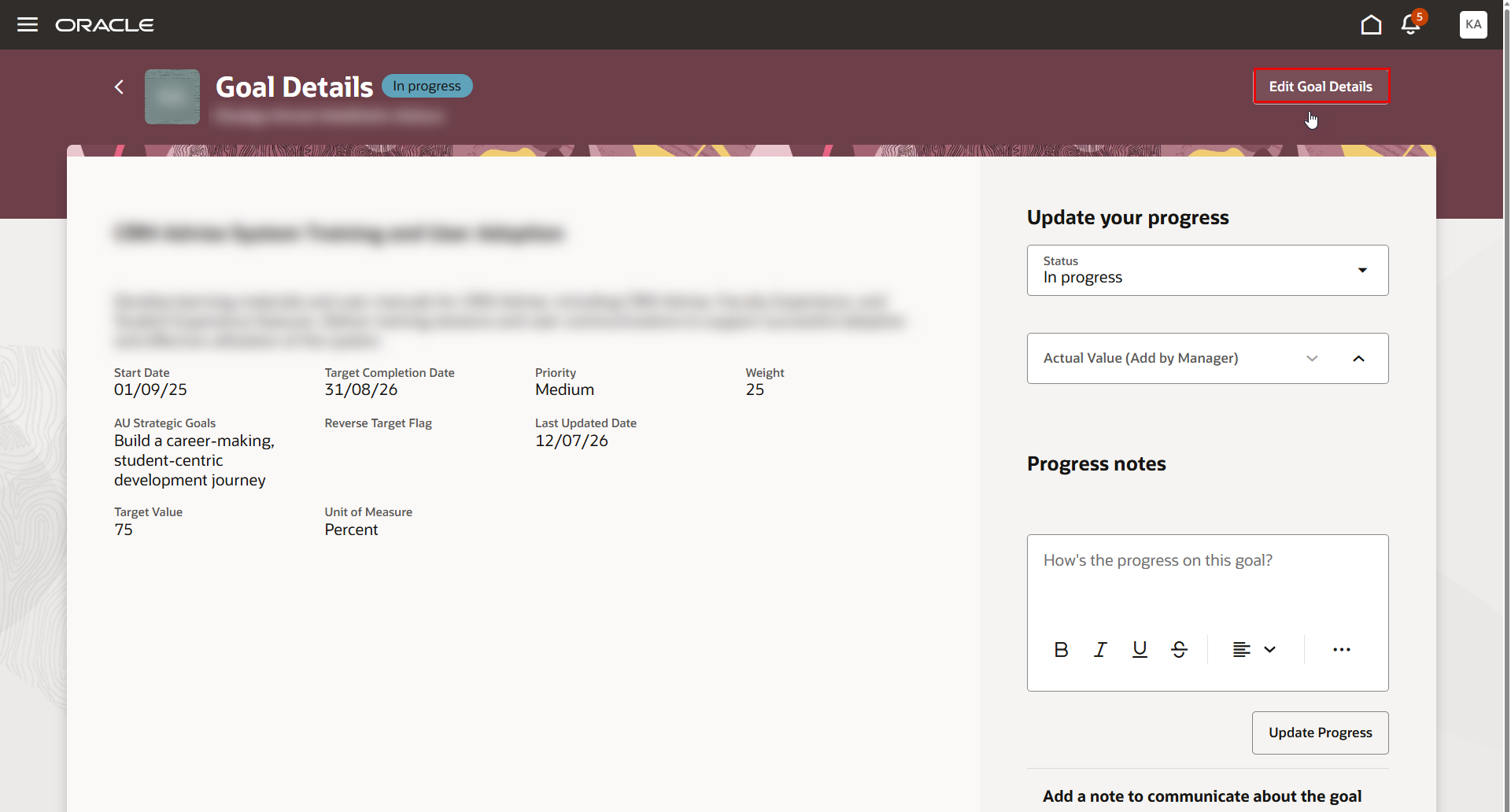
In the goal page, click "Edit Goal Plan".
-
Scroll down to the Measurement section and enter the actual value of the goal. If the actual value exceeds the target value, add supporting evidence in the Supporting Documents section. Once completed, click "Update" to save the changes.
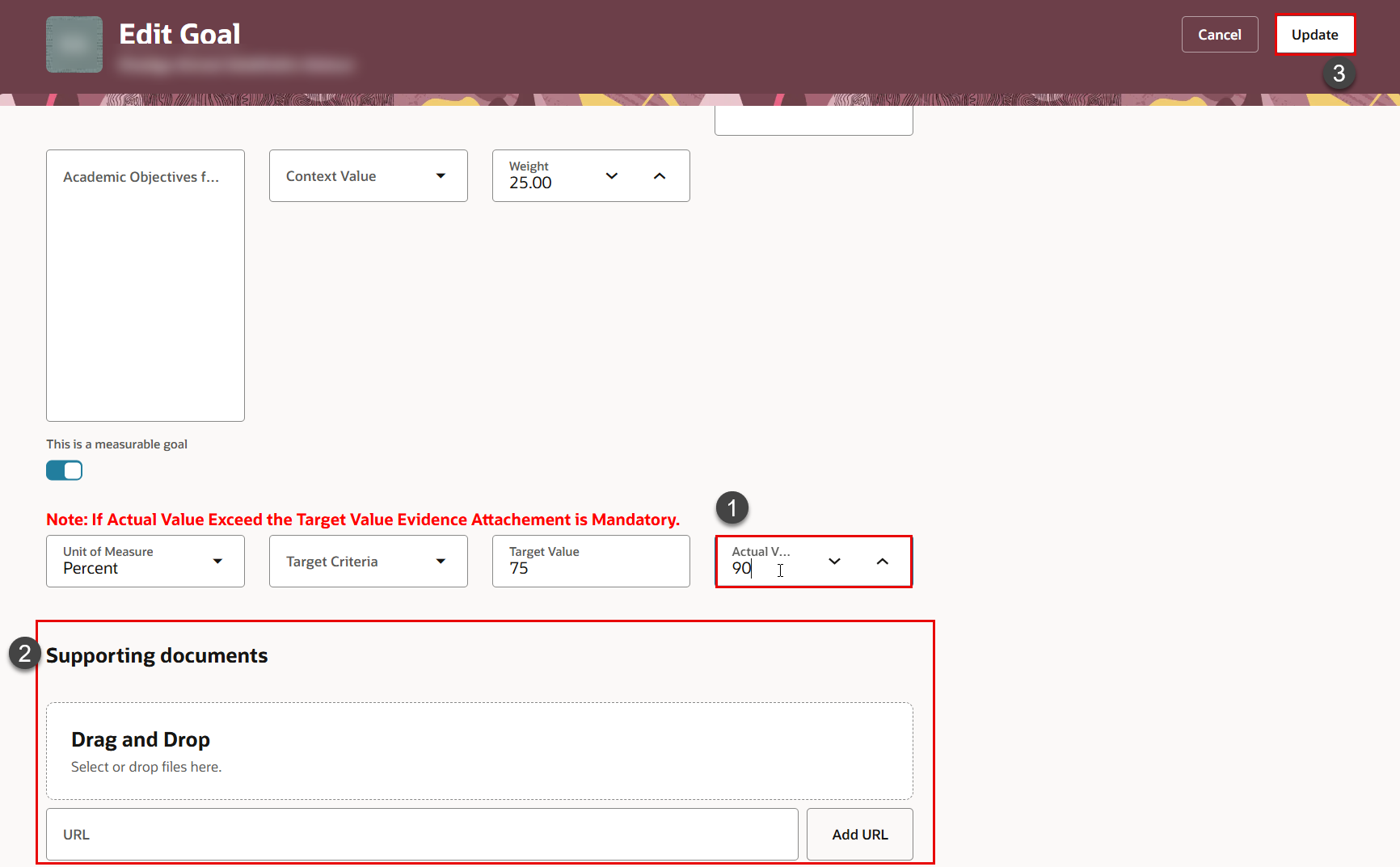
-
Repeat the same steps for the remaining goals.
Evaluate your Goals
- To start evaluating your goals, go back to the self-evaluation page and click on the goal name.
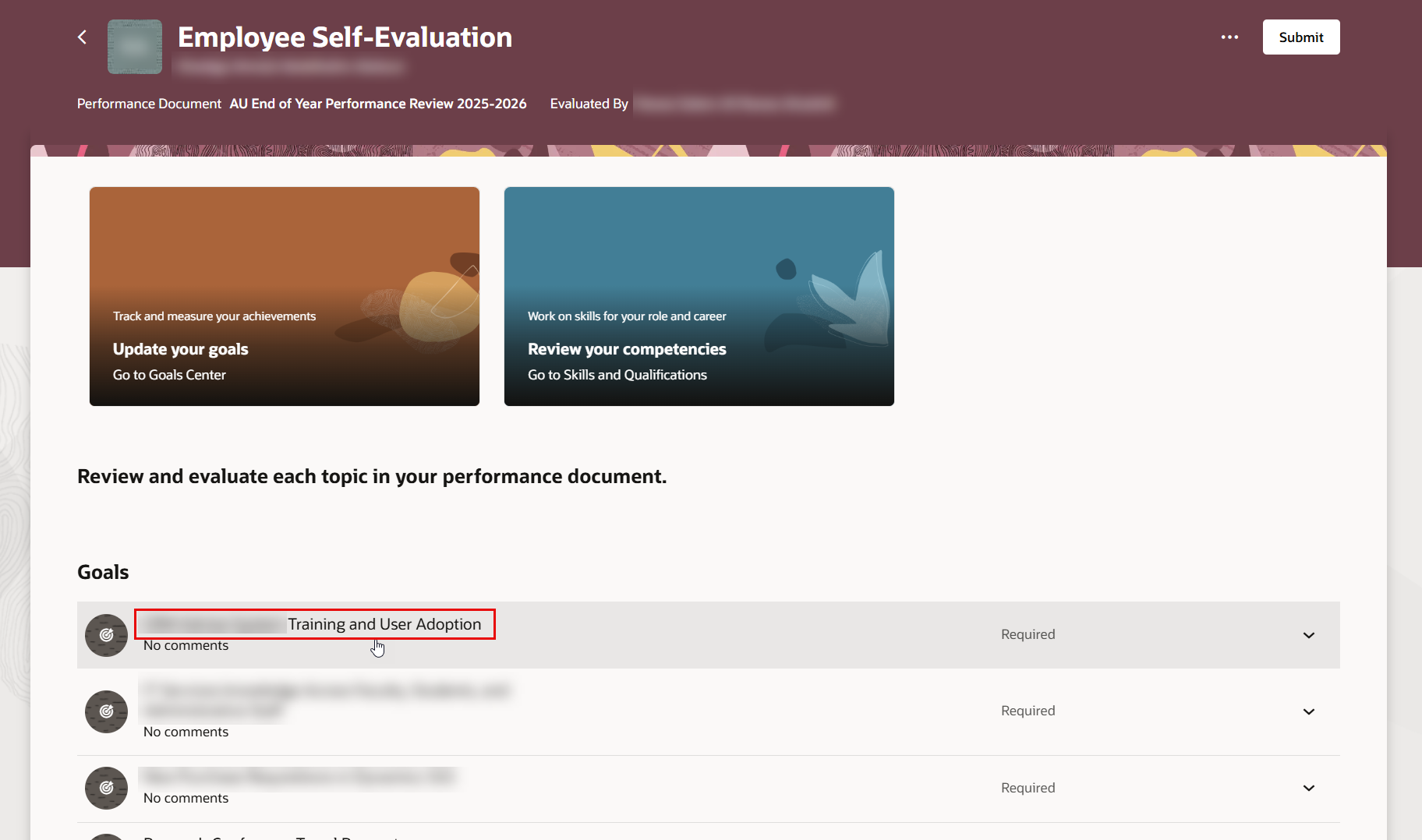
- Your KPI will be evaluated automatically based on your actual value in the measurement section against the assigned target.
- If you haven’t entered your actual values yet, follow the steps in the previous section: open your goal through the Career and Performance > Performance page, go to the Measurement section, click Edit Goal Plan, and add the values in the Actual Value (Add by Employee) field. Repeat these steps for each of your goals.
-
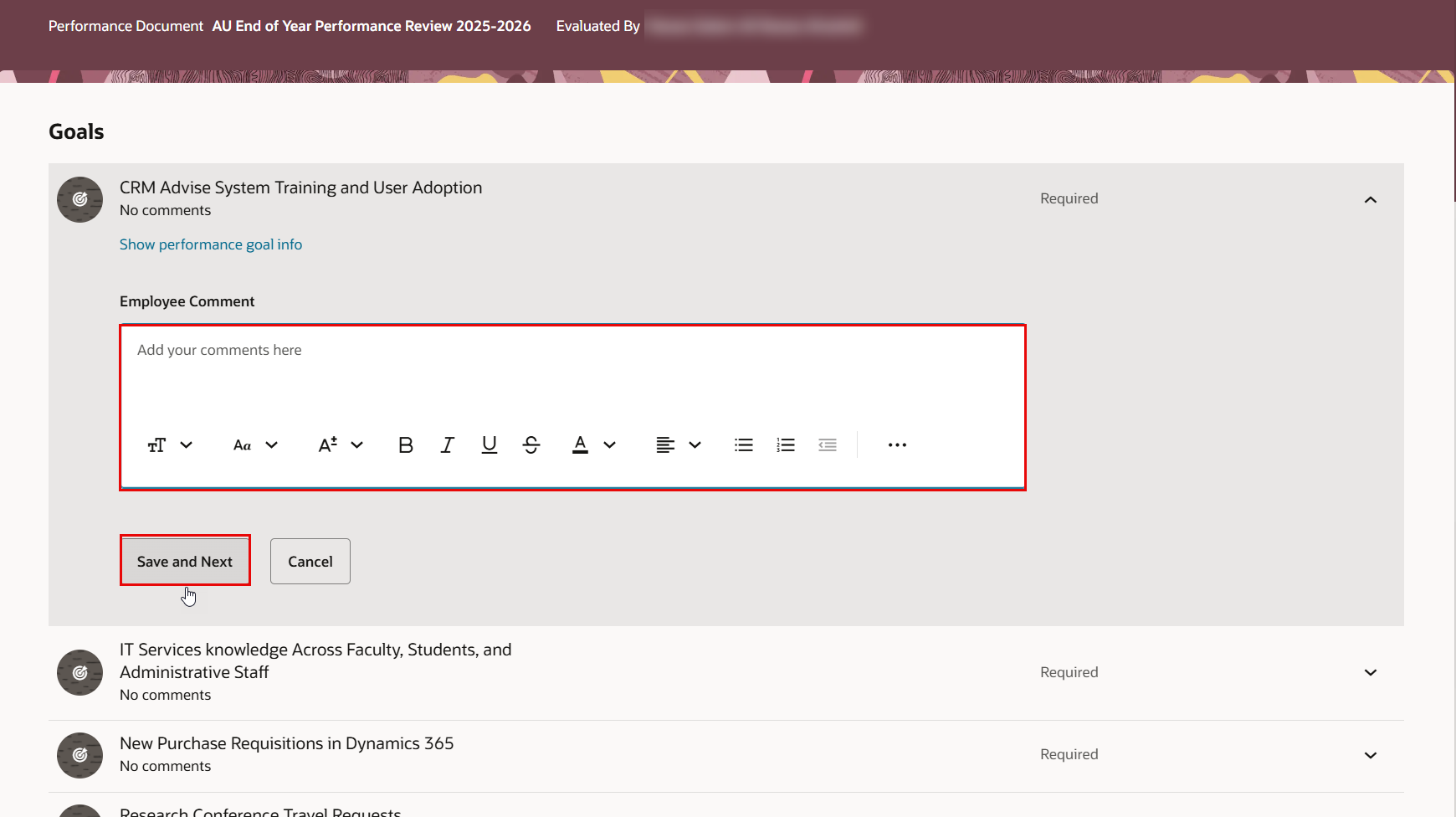
Add your comments to the goal, then click “Save and Next” to evaluate the next goal.
-
Once you complete adding comments to all of your goals, go to the Summary of Goals section, enter your overall comments, and then click "Save and Close."
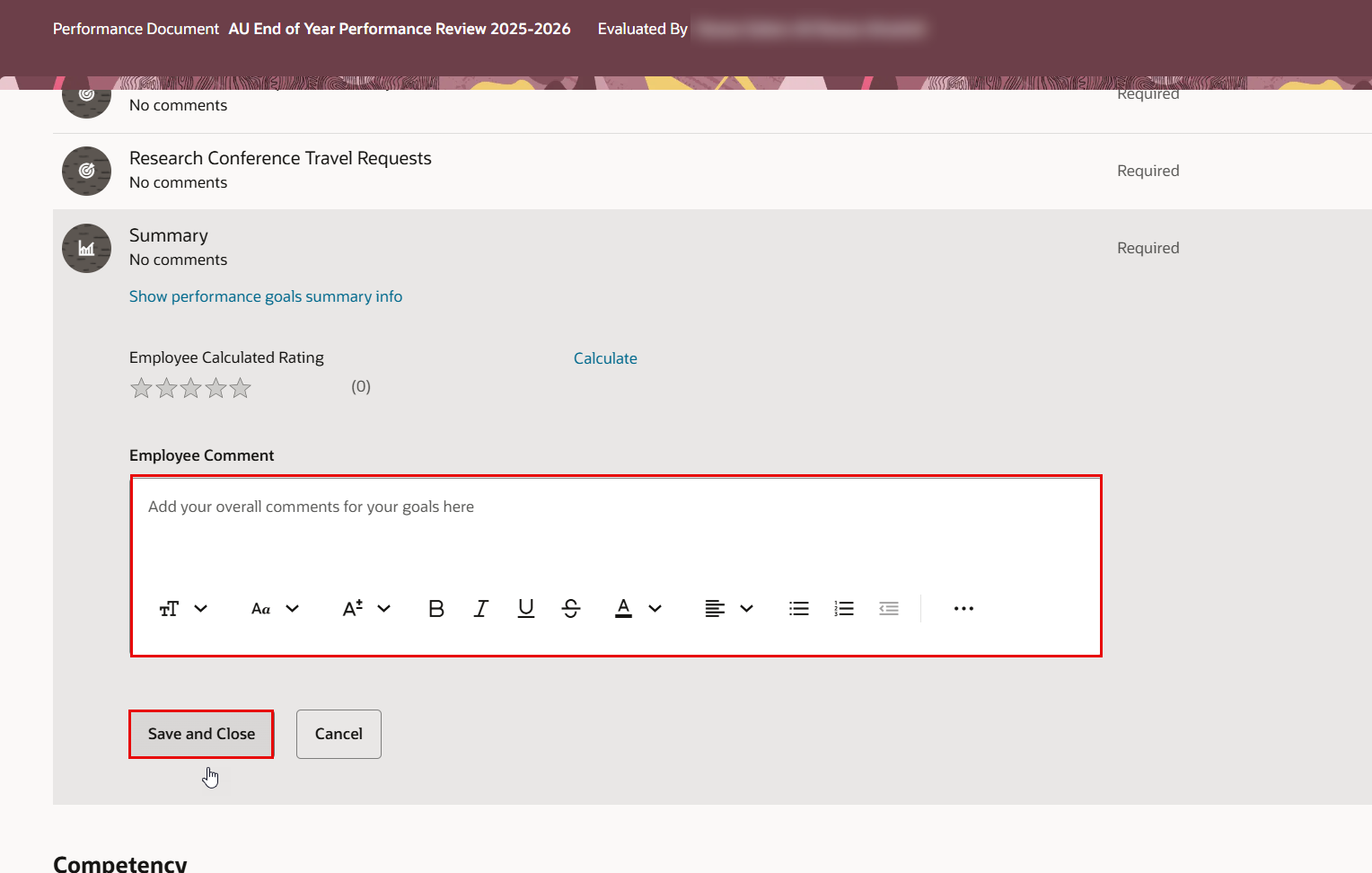
The Calculate option in the summary section will provide the average calculated rating for the goals only, excluding the competency ratings.
Evaluate your Competencies
-
To start evaluating your competencies, click on the competency name.
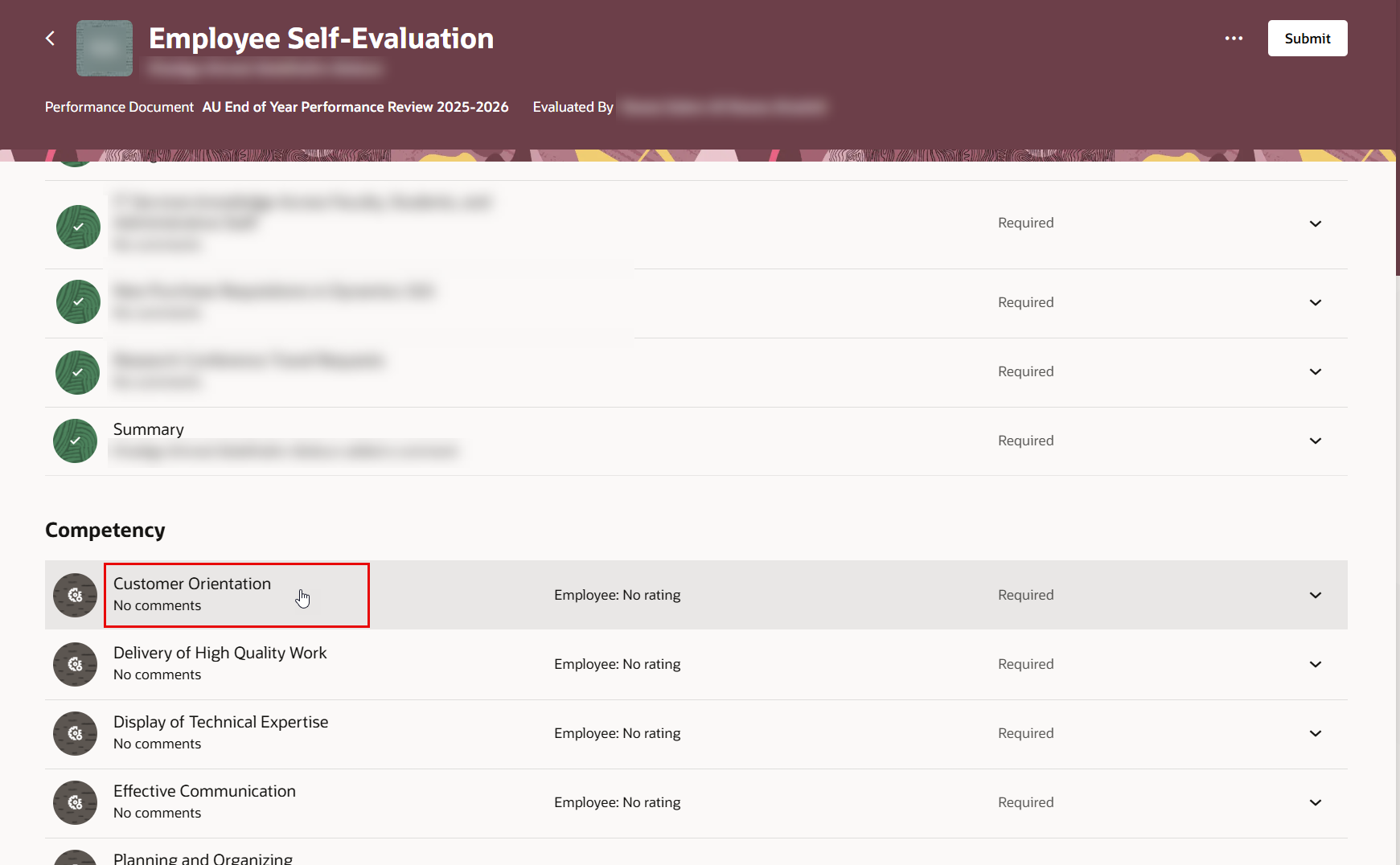
-
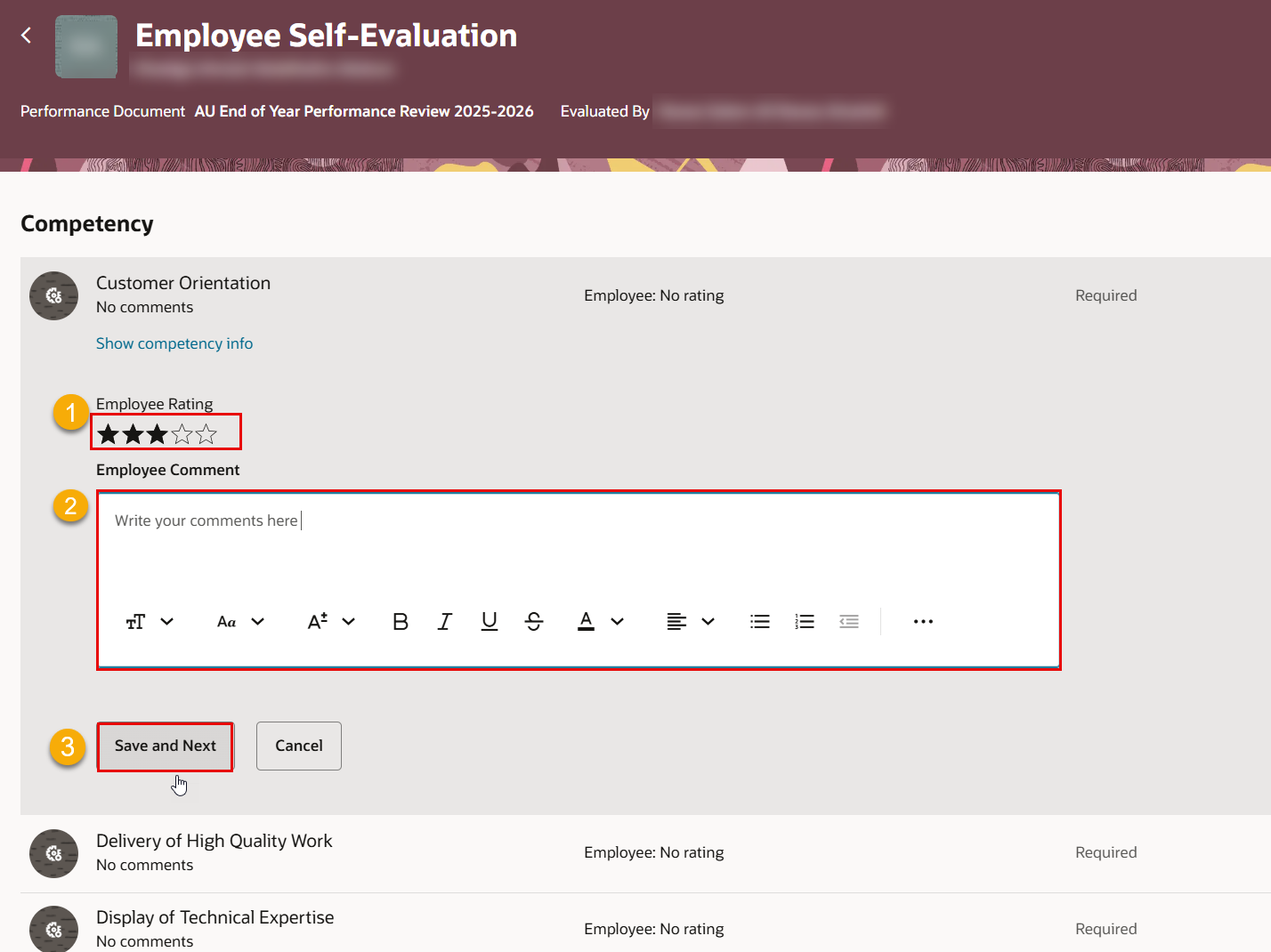
Rate the competency items and add your comments. Click “Save and Next” when you are finished to evaluate the next competency.
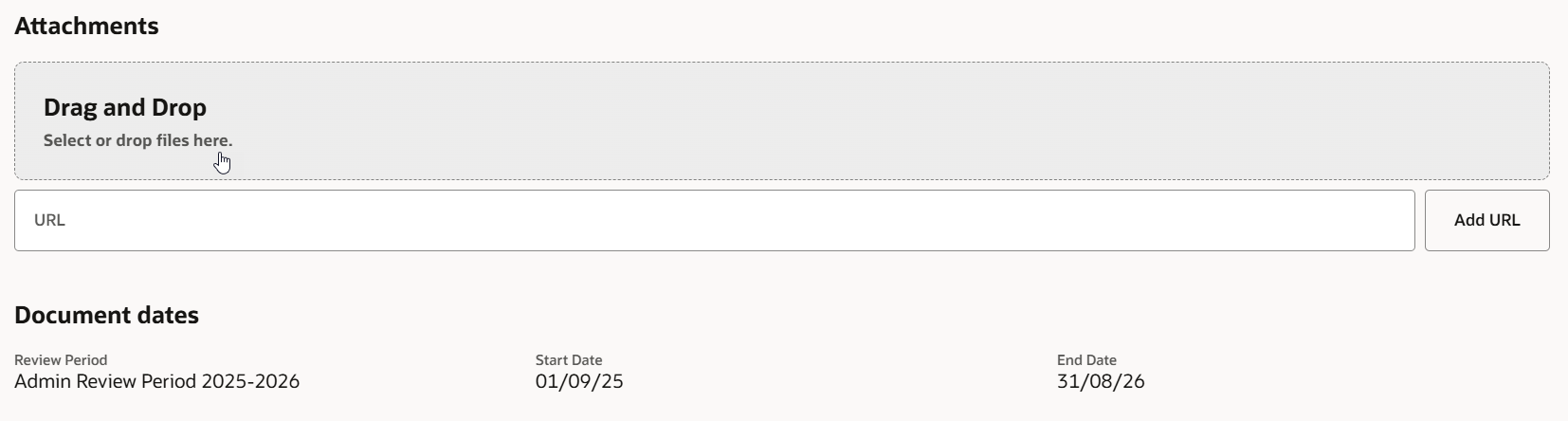
- If the actual value exceeds the target value, scroll down to the attachment section at the end of the page to add evidence as supporting documents.
- Once you complete adding comments to all of your competencies, go to the Summary of Competency section, enter your overall comments, and then click "Save and Close."
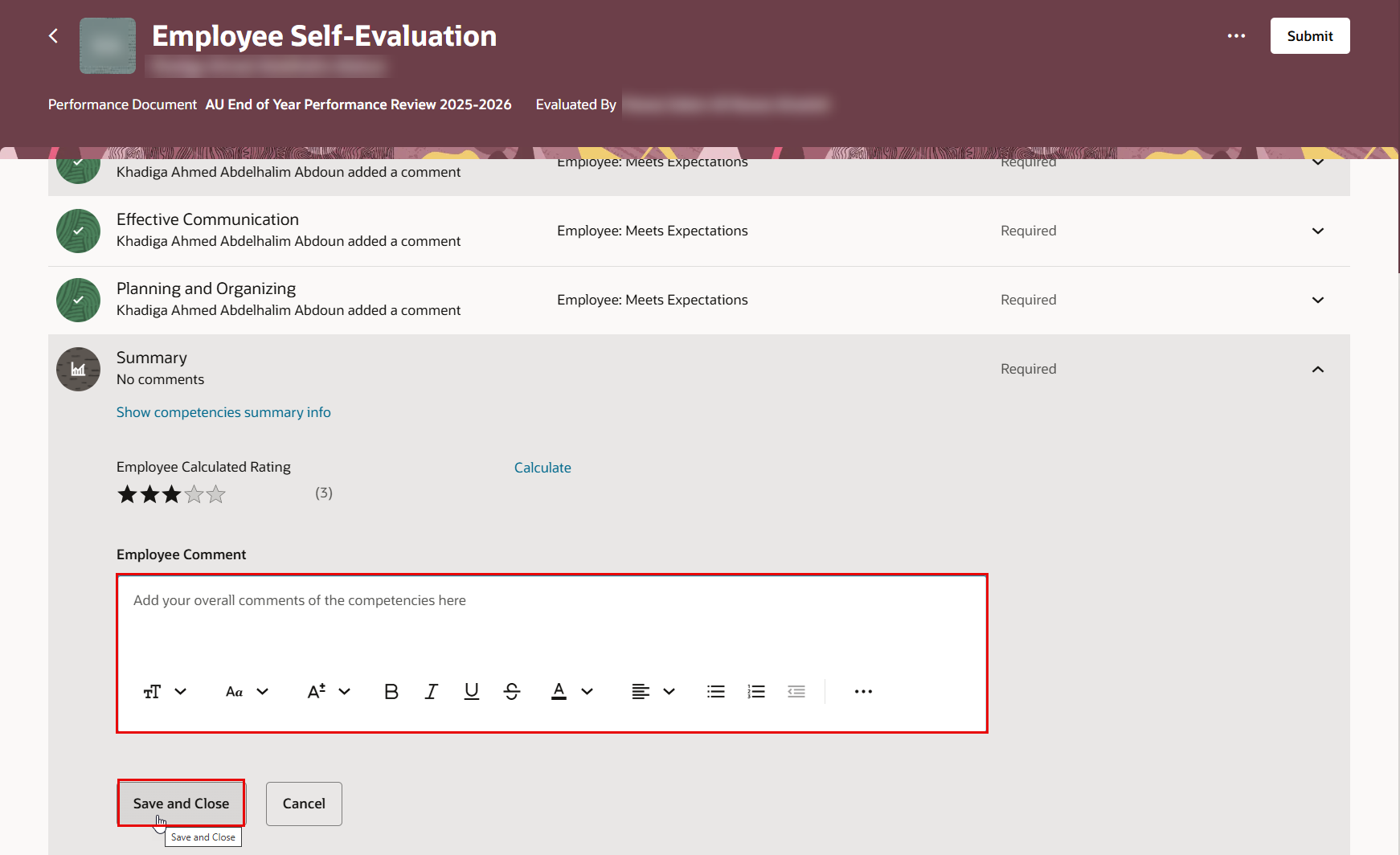
The Calculate option in the summary section will provide the average calculated rating for the competencies only, excluding the goal ratings.
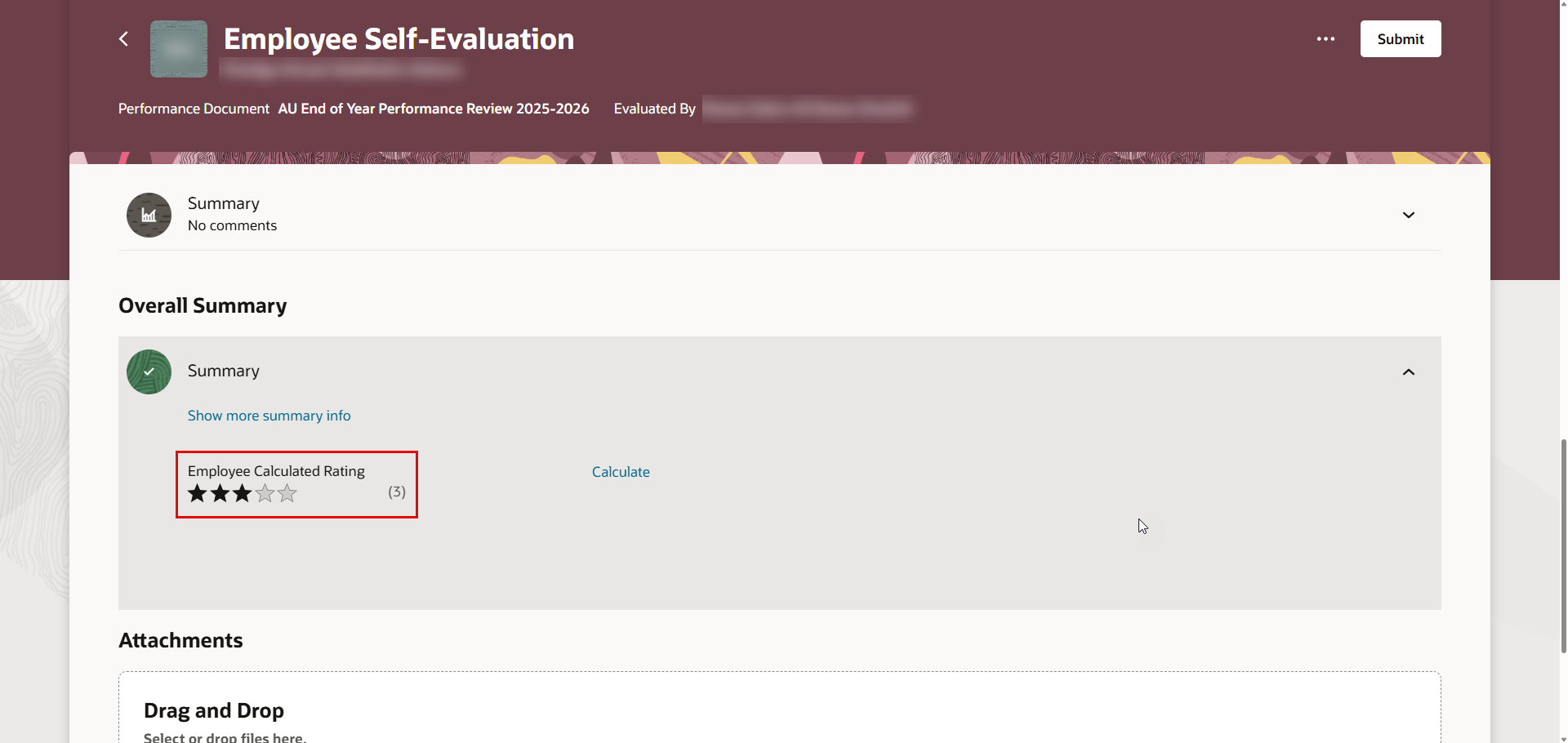
Overall Summary
- You can view your calculated rating in the Overall Summary section. This calculation includes the employee’s final rating for both goals and competencies.
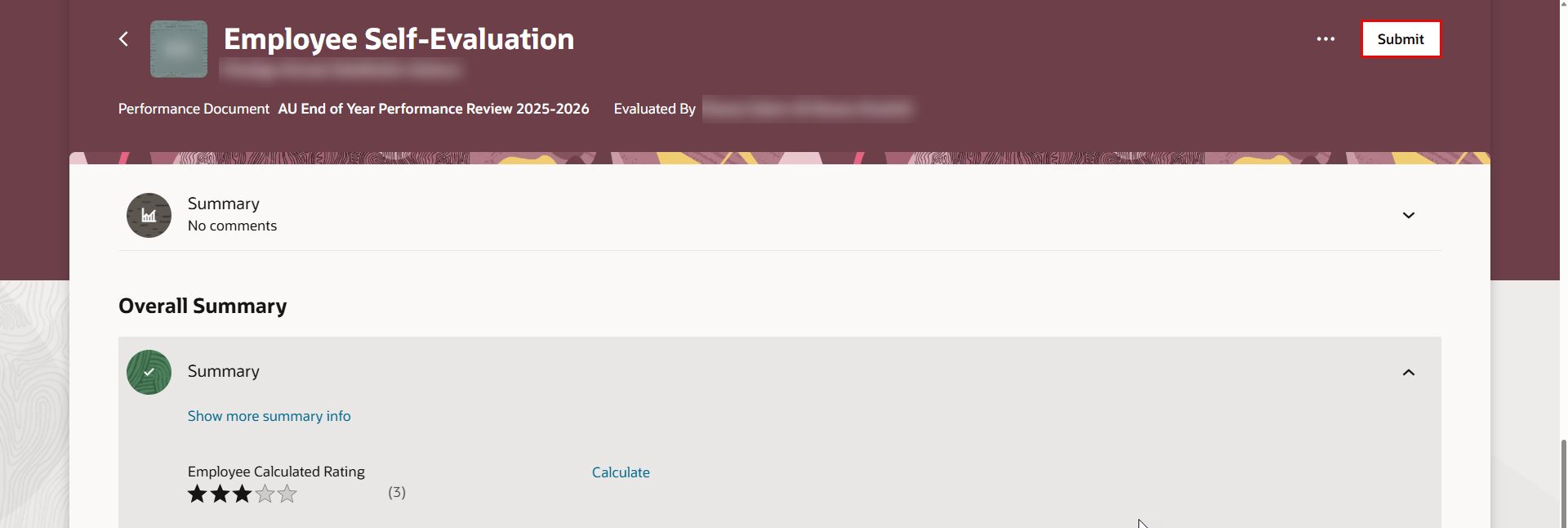
Submit your End-of-Year Performance Review
- Once you have completed your self-evaluation for goals and competencies, review the entered comments to ensure you have completed all required fields, then click "Submit," available at the top-right of the page.
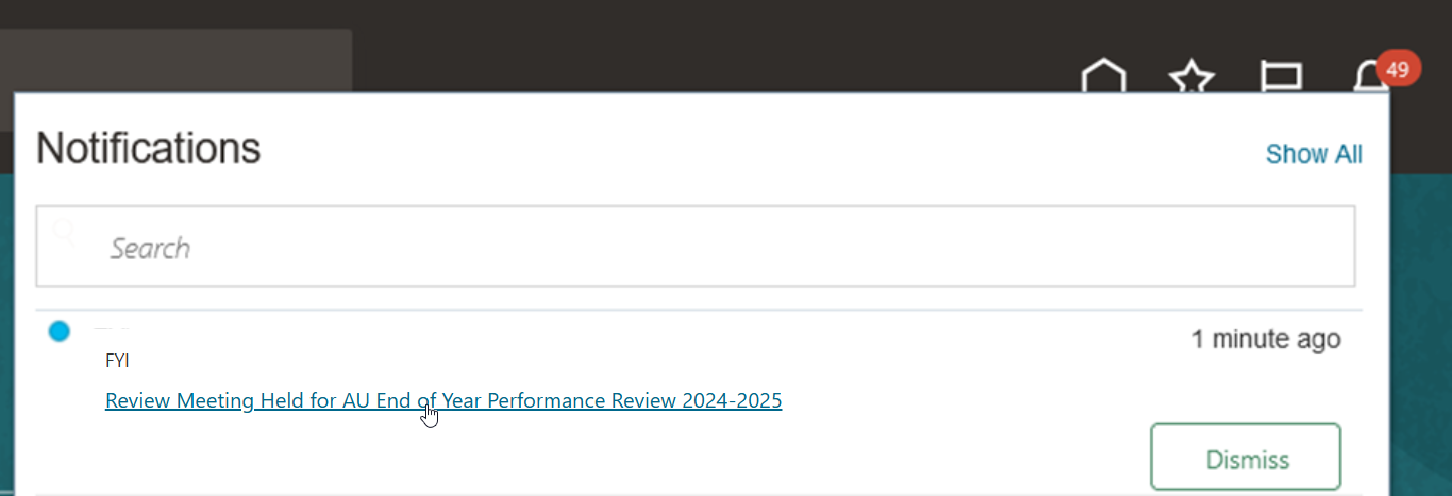
Meeting for End-of-Year Performance
- A notification will be received after your manager indicates that the review meeting for your End-of-Year Performance Review has been held.
The following sections are currently under review. A revised version reflecting the new Redwood user interface will be available soon.
Provide your Final Feedback
-
You will receive a notification when your manager shares the performance document for your review.
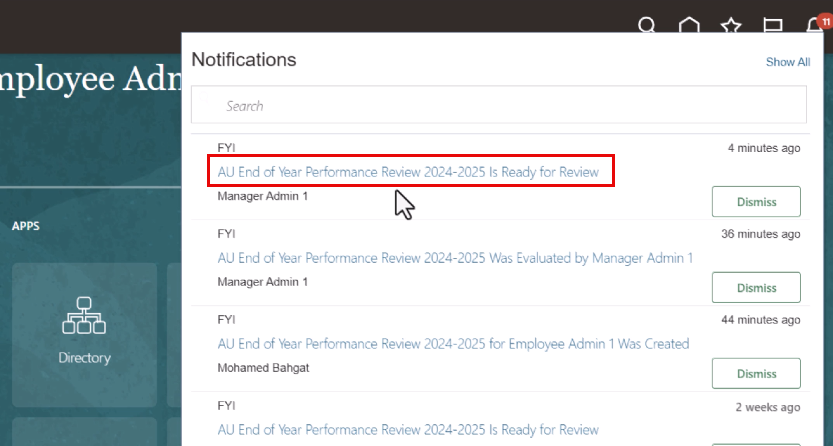
-
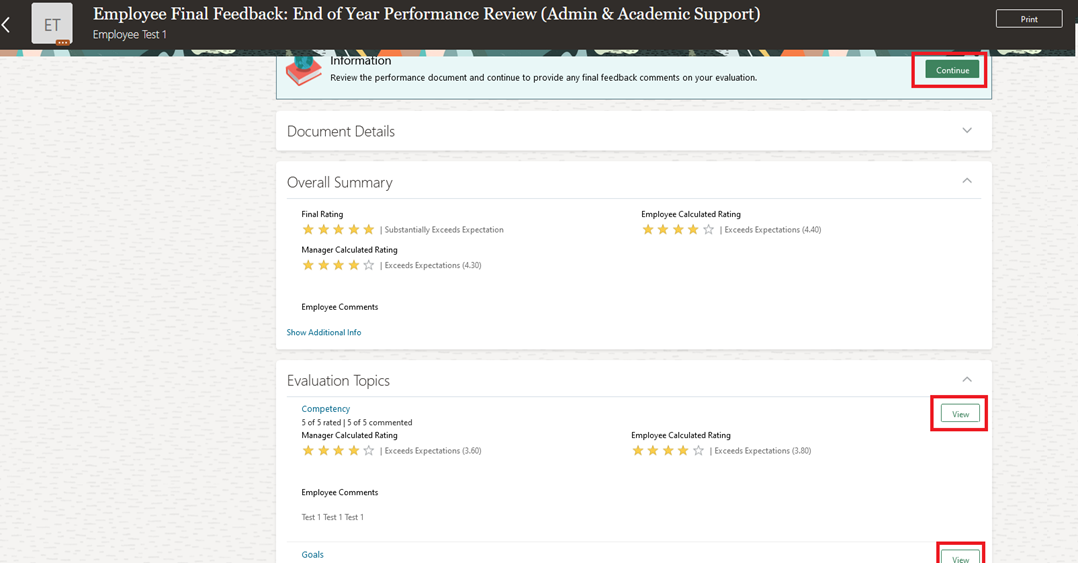
Review the evaluation details shared by your manager.
-
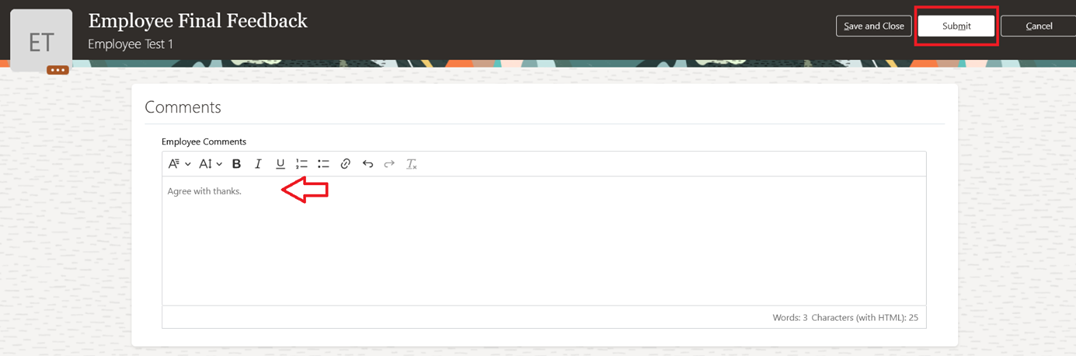
Review the End-of-Year Performance Evaluation and submit your final feedback.