The Faculty Experiance in Ellucian CRM Advise allows instructors to proactively communicate student performance concerns, attendance issues, or other important observations to their advisors. By creating alerts/cases, faculty can help ensure early intervention, timely support, and improved student outcomes.
This process provides a structured way for faculty to identify at-risk students, recognize positive progress, and share relevant notes with advisors who can follow up appropriately. Each alert/case raised is routed to the assigned advisor, allowing for coordinated, data-informed action to enhance student success and engagement.
Creating an Alert/Case
Faculty members can use the Alert/Case feature in CRM Advise to notify advisors about academic, attendance, or behavioral concerns. This enables early intervention and ensures that students receive timely support.
Accessing the Alert/Case Creation Page
Faculty can access the CRM Advise Faculty Self-Service Portal through two entry points provided.
-
You may access the page directly using the following URL:
https://ajmanacae.elluciancrmadvise.com/FacultySelfService/ -
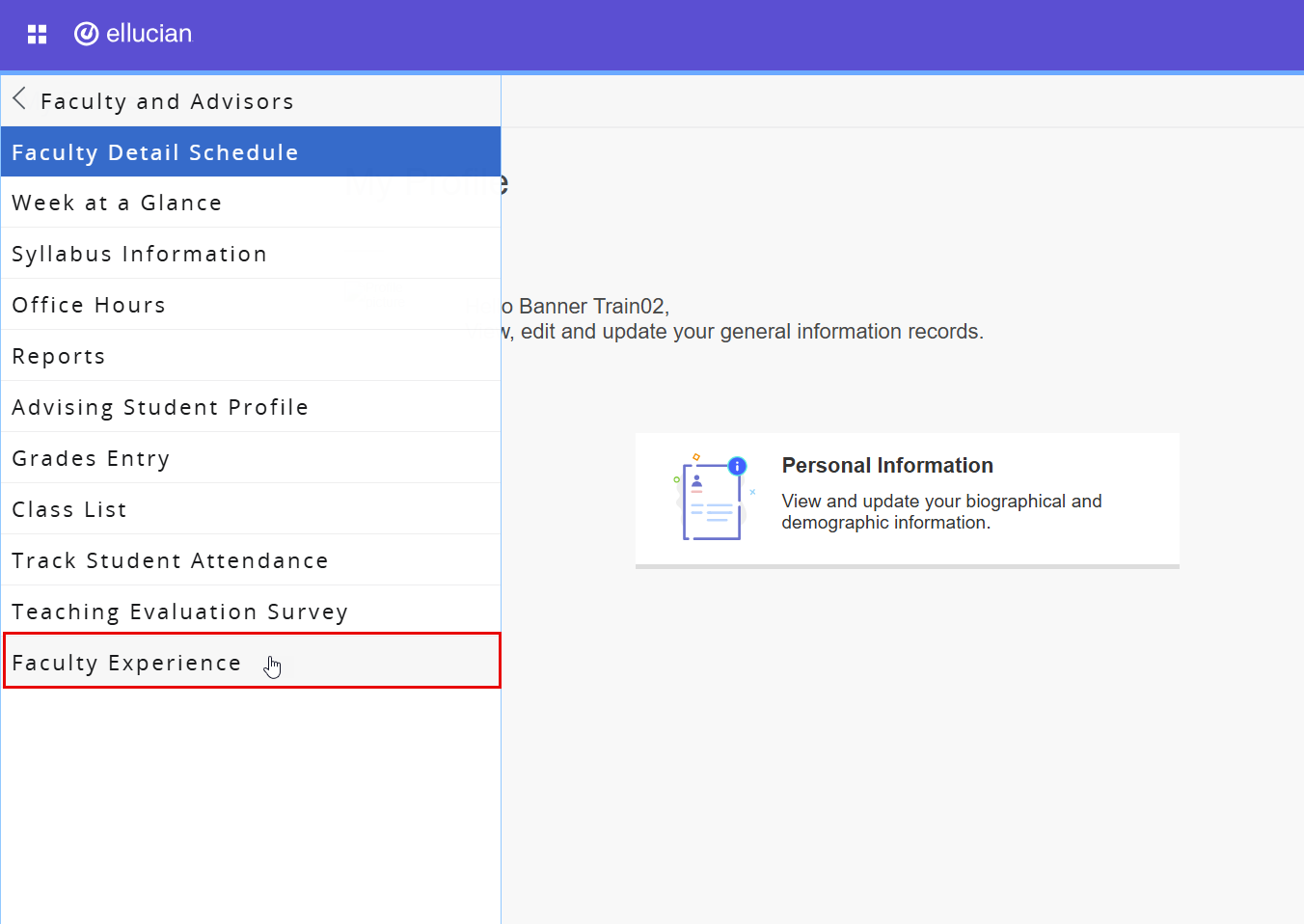
Alternatively, you can access it through Banner SIS Faculty Self-Service by navigating to:
Home Page→Banner Menu→ Faculty and Advisors → Faculty Experiance
-
Log in using your university credentials (username and password).
Selecting CRNs and Students
-
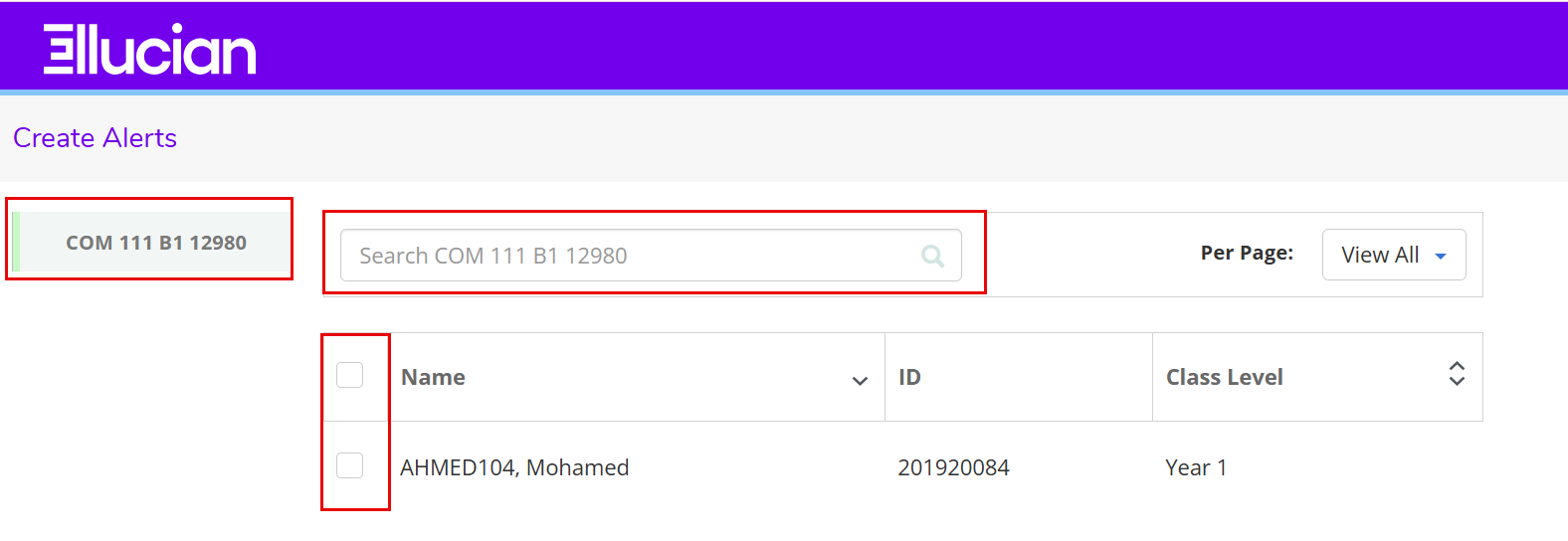
The page will show all of your CRNs and the enrolled students for the chosen course.
-
You can also use the Search bar to locate a specific student by name or ID.
-
Use the checkboxes to select one or more students.
-
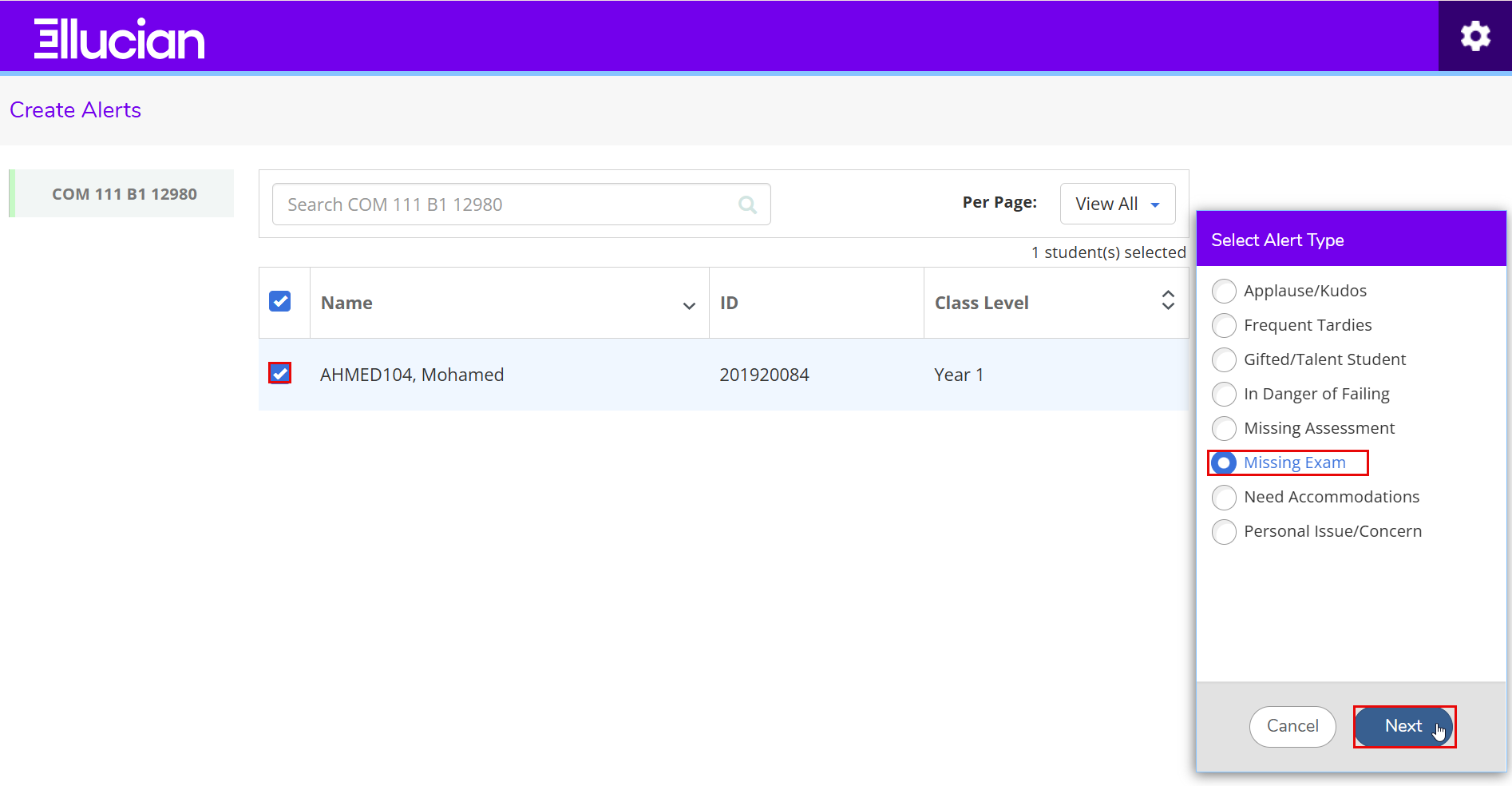
Once students are selected, the alert type panel will appear on the right side of the screen.
Choosing the Alert Type
- From the Select Alert Type list on the right-hand panel, choose the alert that best describes the concern:
- After choosing the appropriate alert type, click Next to proceed.
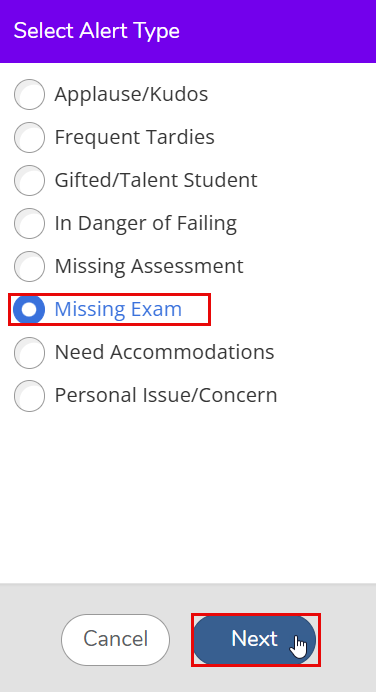
- The first six types: Applause/Kudos, Frequent Tardies, Gifted/Talent Student, In Danger of Failing, Missing Assessment, and Missing Exam, are created as Alerts.
- The last two types, Need Accommodations and Personal Issue/Concern, are created as Cases instead of alerts.
Adding Notes
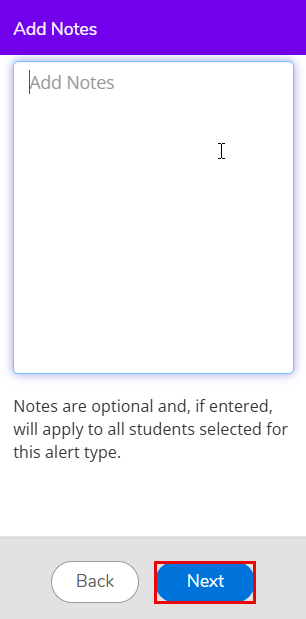
The Notes field allows you to provide additional information related to the alert.
This step is optional, but highly recommended when further clarification can help advisors understand the concern.
- In the Notes field, you can add any relevant information.
- Notes should be brief, factual, and directly related to the issue or behavior being reported.
- If no additional comments are needed, you may proceed without entering notes.
- Once complete, click Next to continue.
Reviewing the Alert/Case Summary
- The system will display a summary of your alert/case for final confirmation, showing:
- Student Name(s)
- Selected Alert Type
- Alert Owner
- Notes (if entered)
- Review all details carefully before submitting.
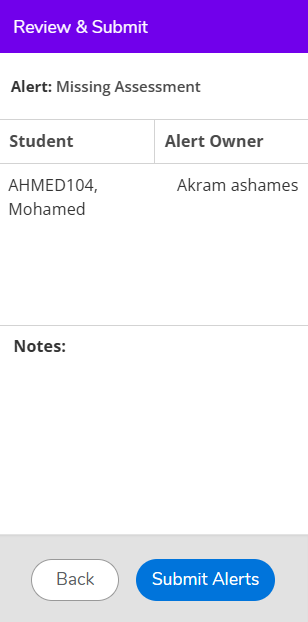
- For these two types: Need Accommodations and Personal Issue/Concern, the Alert Owner field will not be displayed.
Submitting the Alert/Case
-
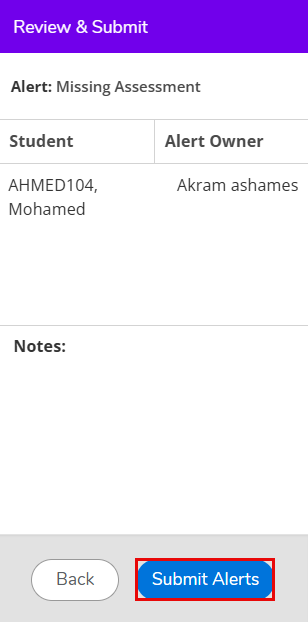
Click Submit Alerts to finalize.
-
A confirmation message will appear once the alert has been successfully submitted.
-
The alert will be automatically routed to the assigned advisor.