This user manual is currently under review. A revised version reflecting the new Redwood user interface will be available soon.
The system will send an email to initiate the Employee Probation Period Performance Review.
-
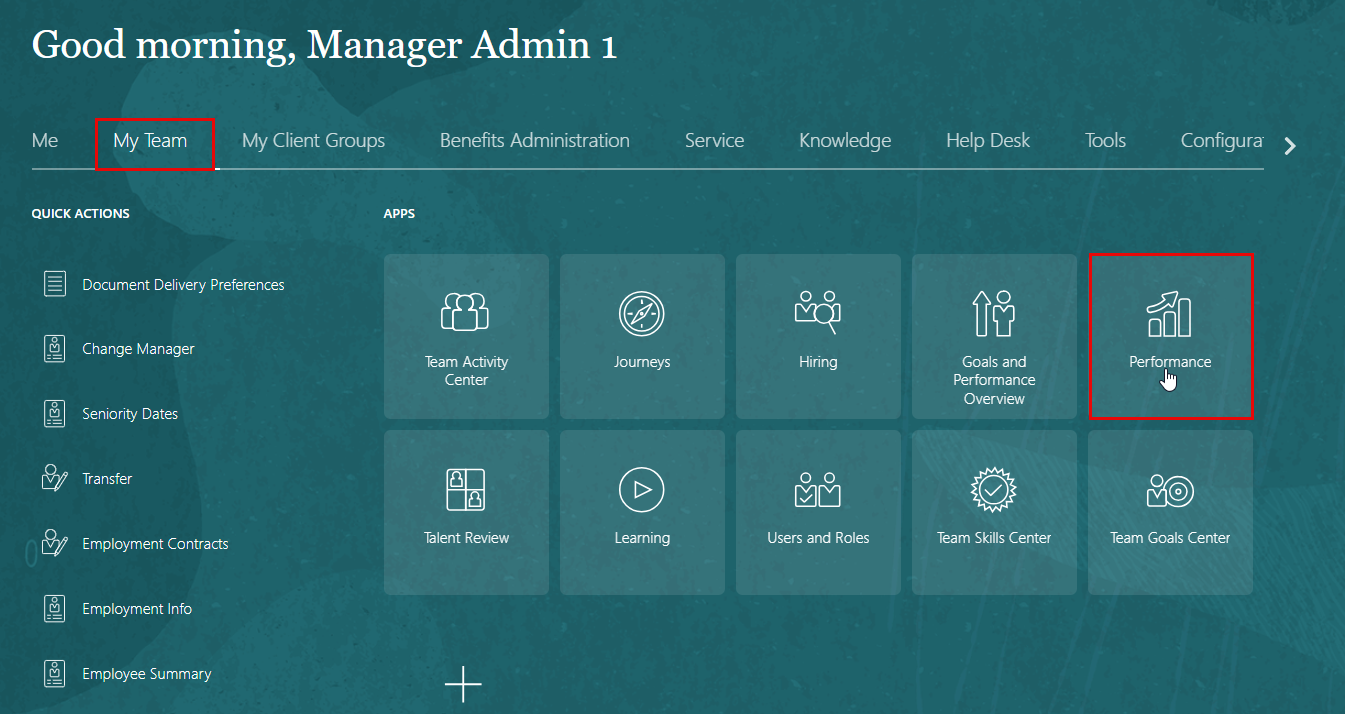
On the Home page, click on "My Team", then select "Performance".
-
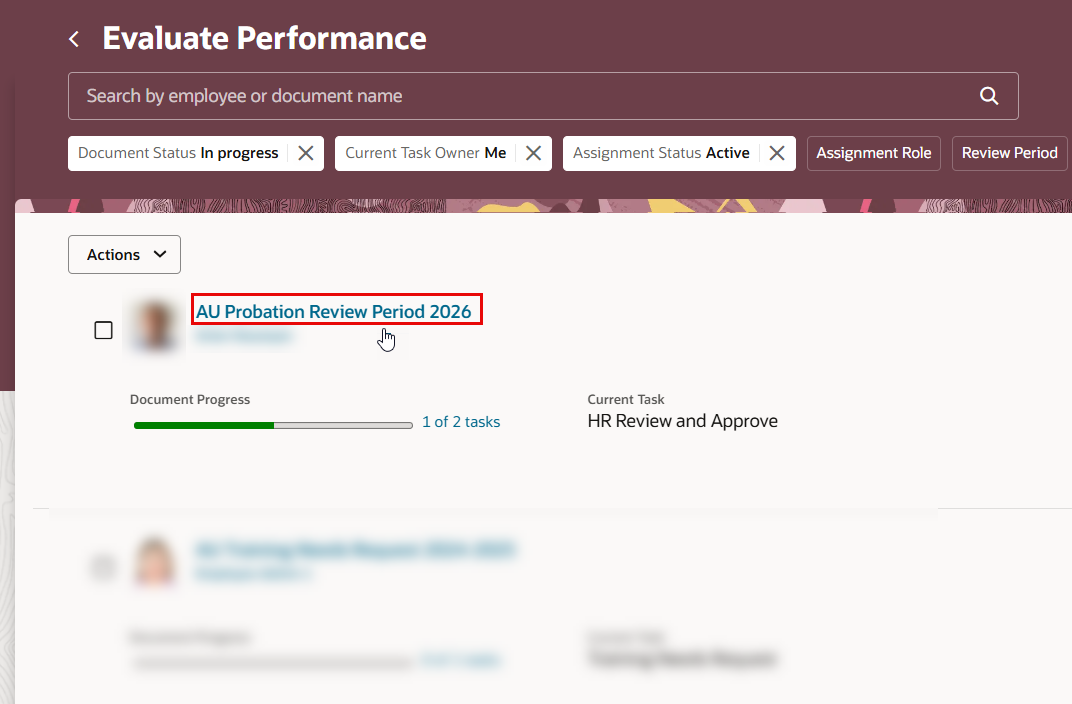
Click on "AU Probation Review Period" under the employee name that you want to evaluate.
Evaluate Probation Period Goal Plan
- Open each goal to add your comments and rating. Once done, click Save and Next to evaluate the next goal.
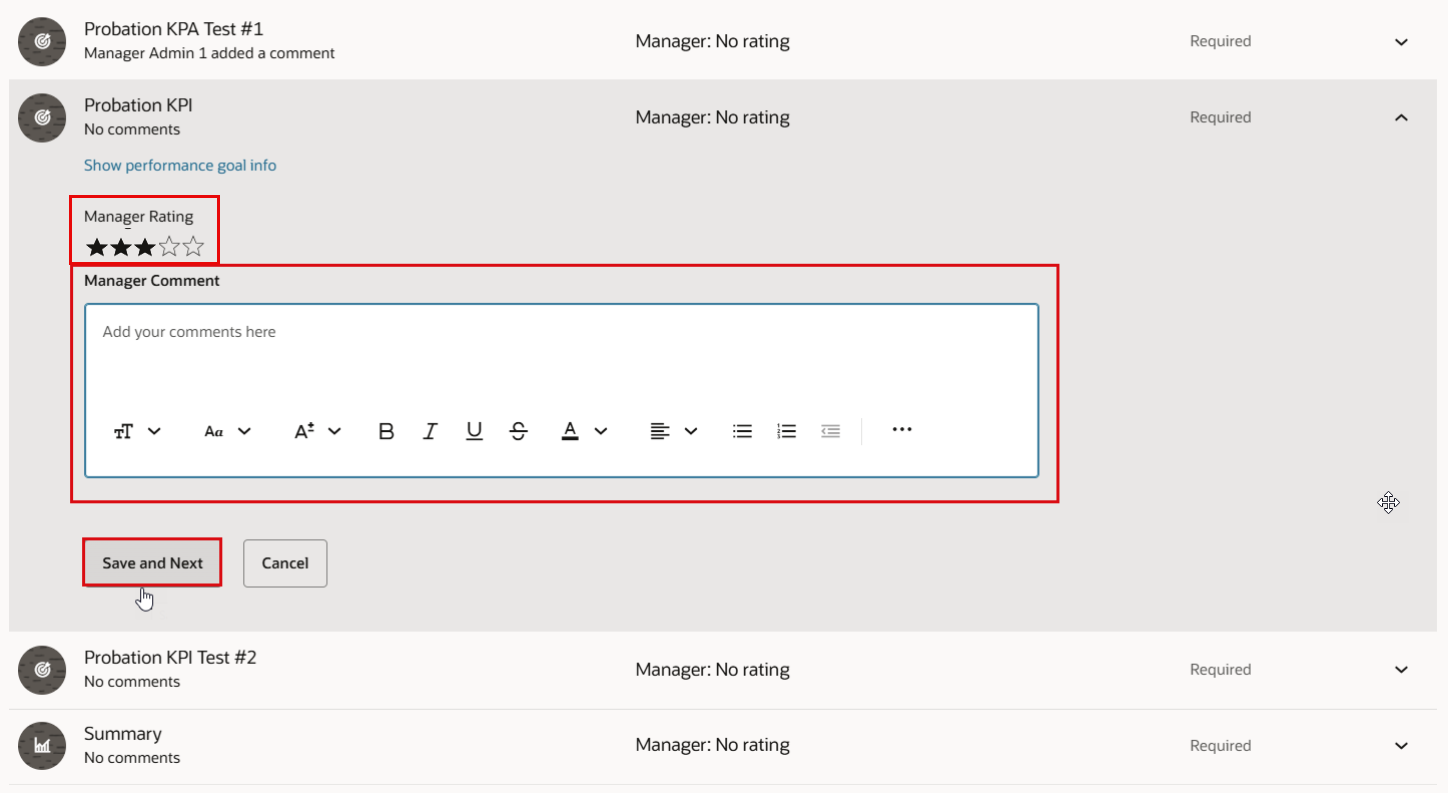
Repeat these steps to enter your comments for the remaining goals.
Evaluate Competencies
- Open each competencey, select the rating and add your comments. Once done, click Save and Next to evaluate the next competencey.
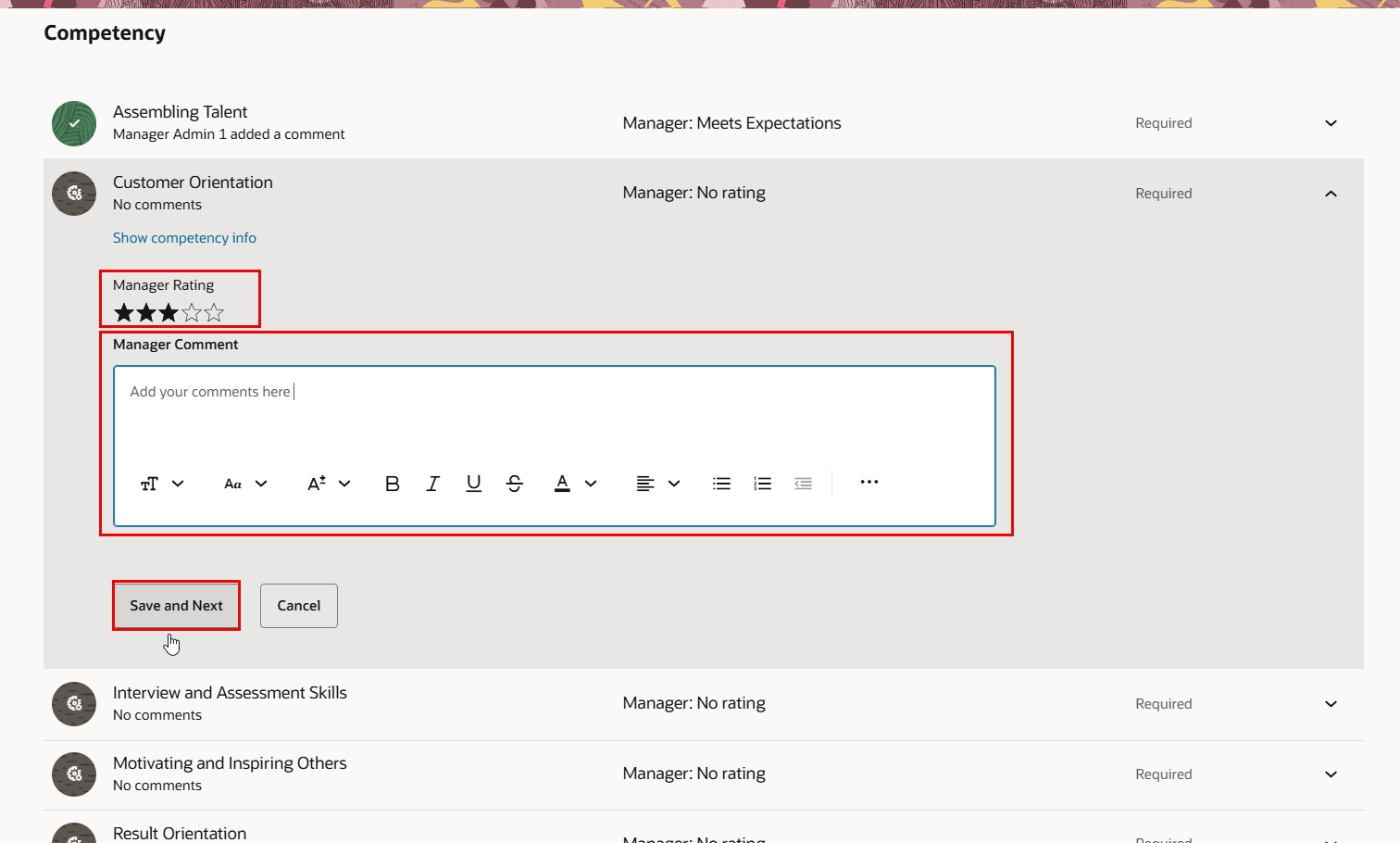
Repeat the same steps to evaluate the remaining competencies.
Overall Summary
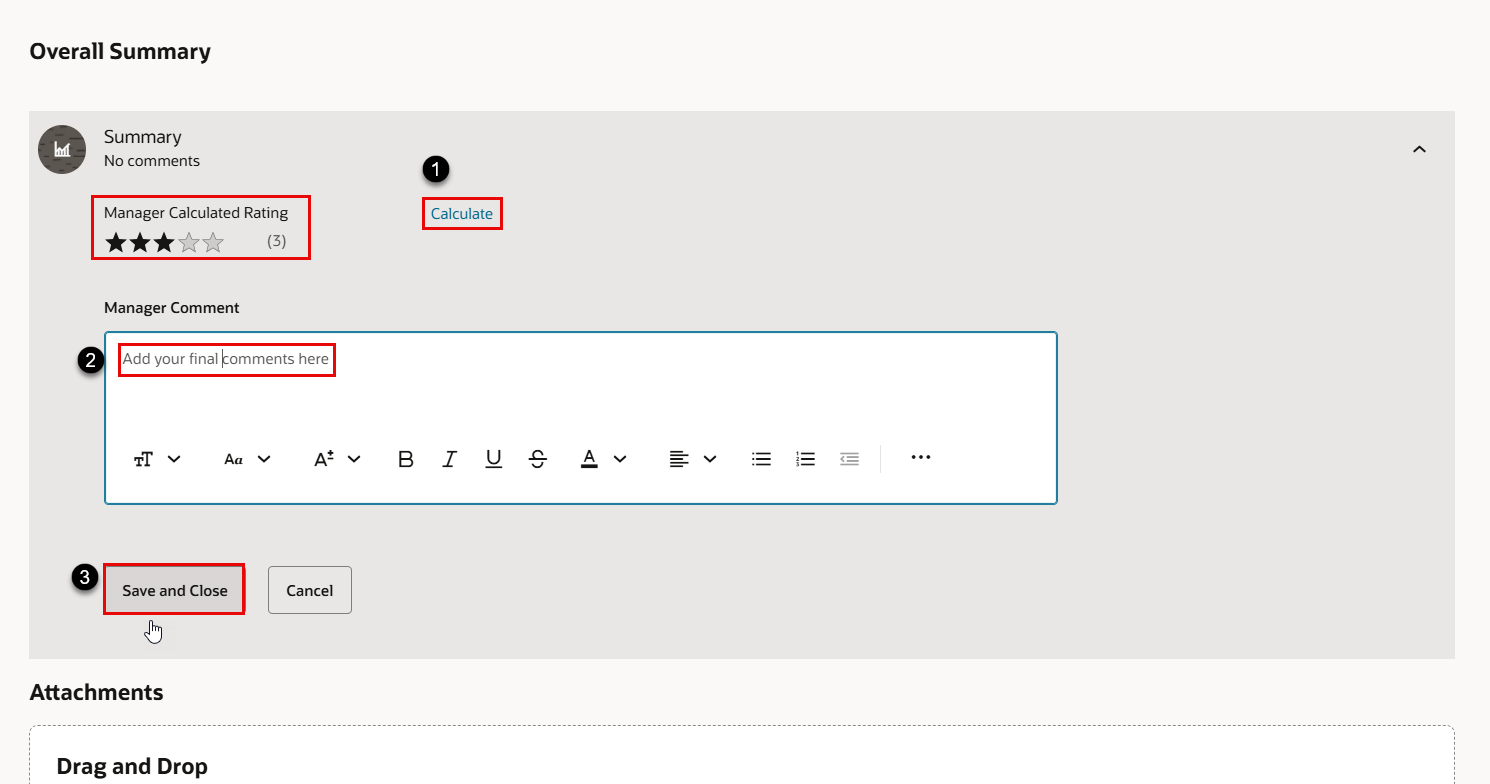
- Go to the Overall Summary section and open it. Click Calculate to update and review the final rating after evaluating the goal plan and competencies. Add your comments, then click “Save and Close”.
Probation Decision
The probation decision evaluates an employee’s performance during the probation period to determine whether to confirm or terminate employment.
-
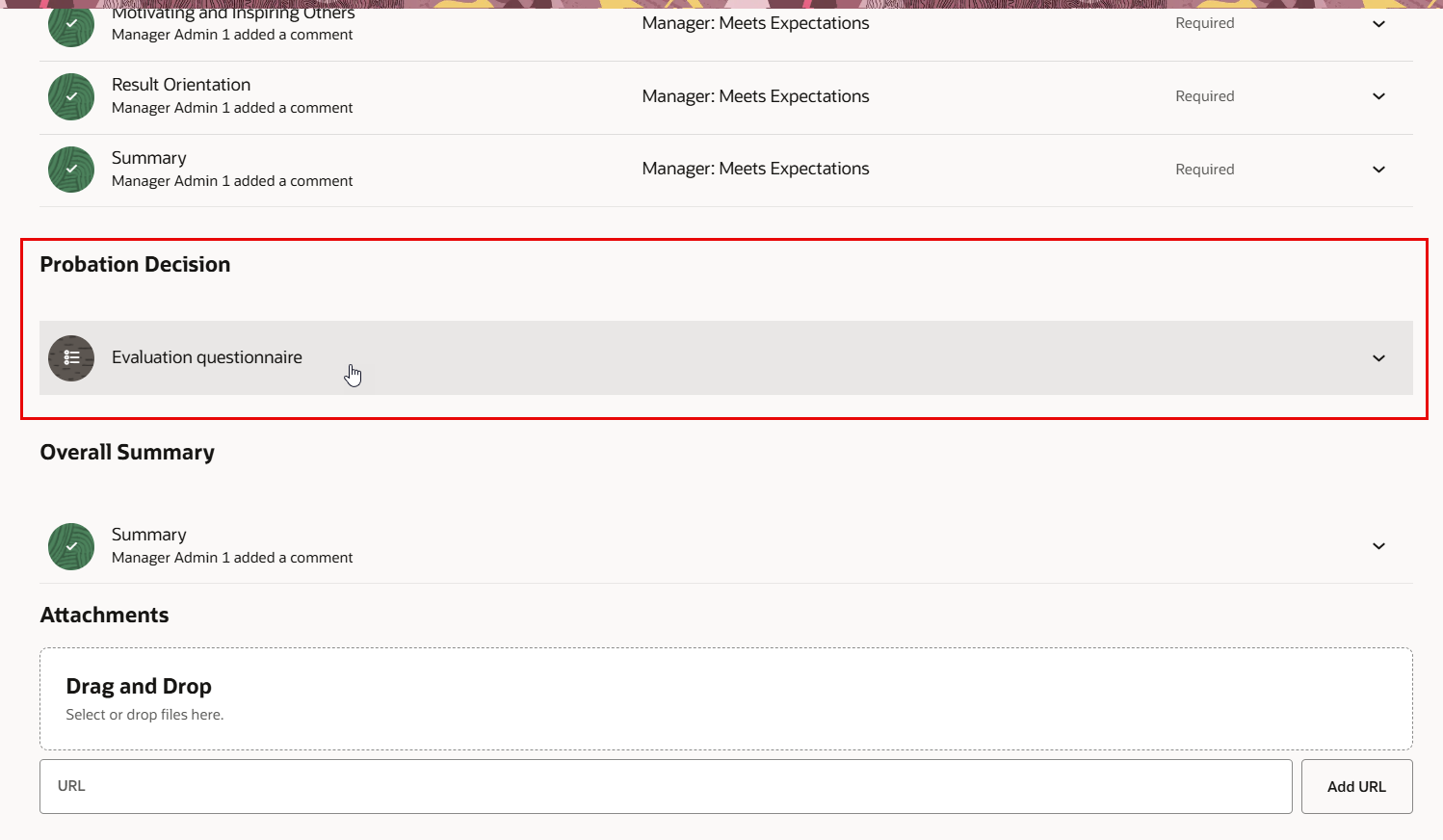
Go to the Probation Decision section and open it to provide your probation decision.
-
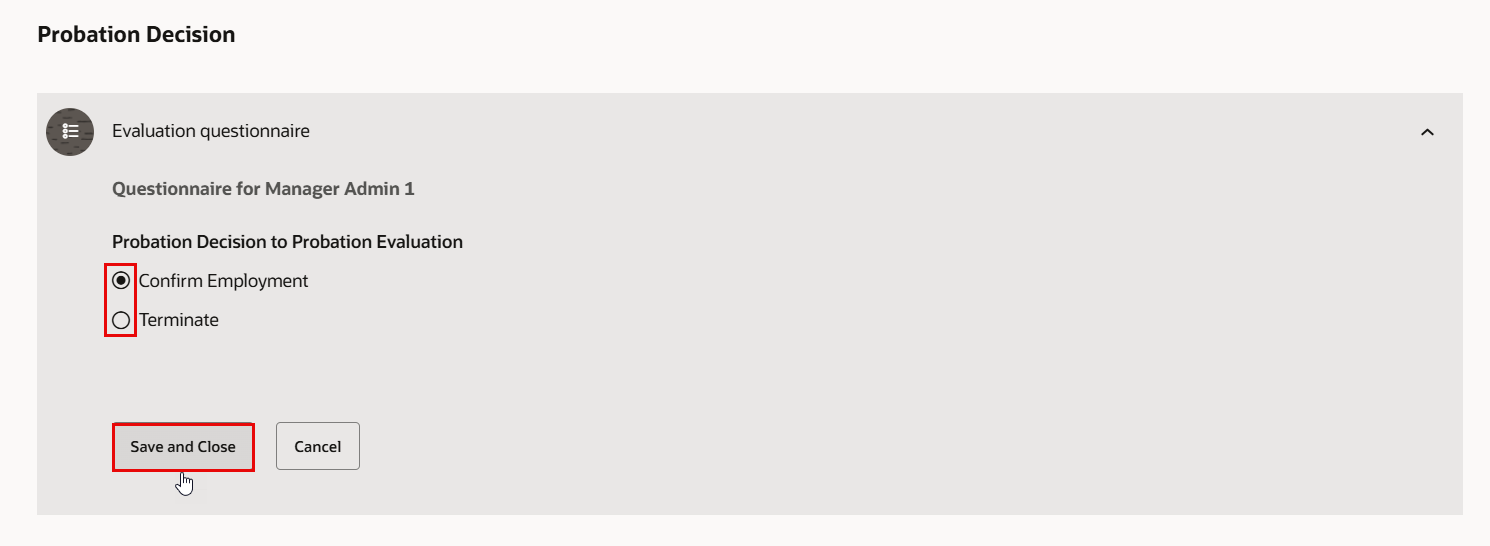
Provide the probation decision (either Confirm Employment or Terminate), and click "Save and Close when finished.
-
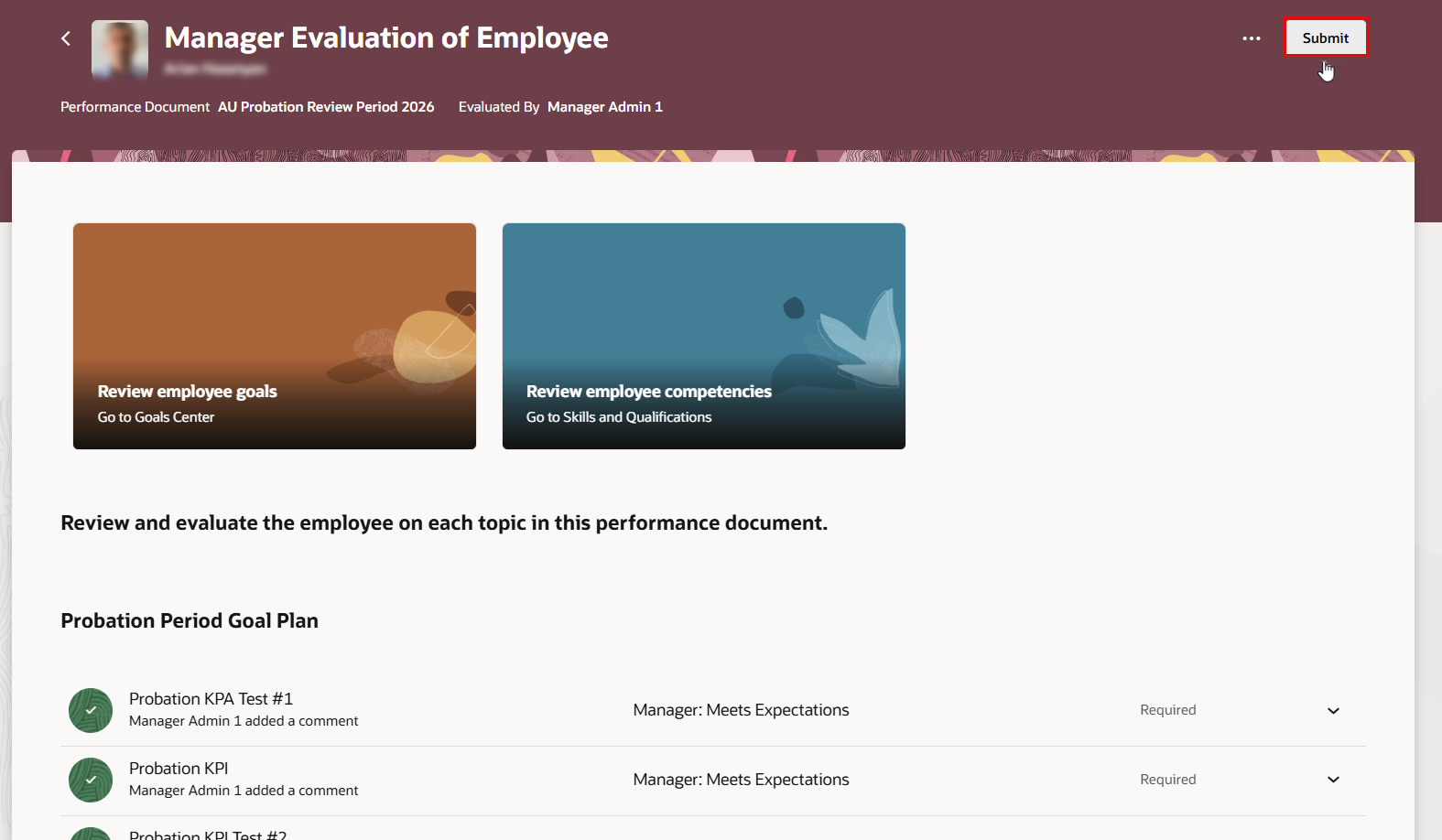
Click Submit, located in the top-right header of the page.