Restrict Access is a feature that allows students enrolled in specific section(s) or CRN(s) to view and access an activity or resource (such as a file, assignment, Turnitin assignment, or quiz) in a Moodle course.
Restricting access to an activity or resource while uploading or creating it
While uploading the activity or resource, go to the Restrict access section in the options and follow these steps:
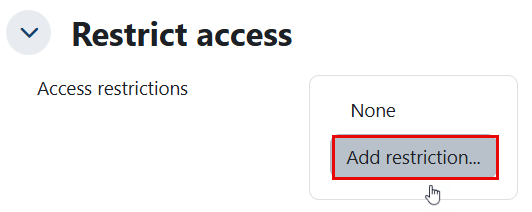
- Click the Add Restriction button.
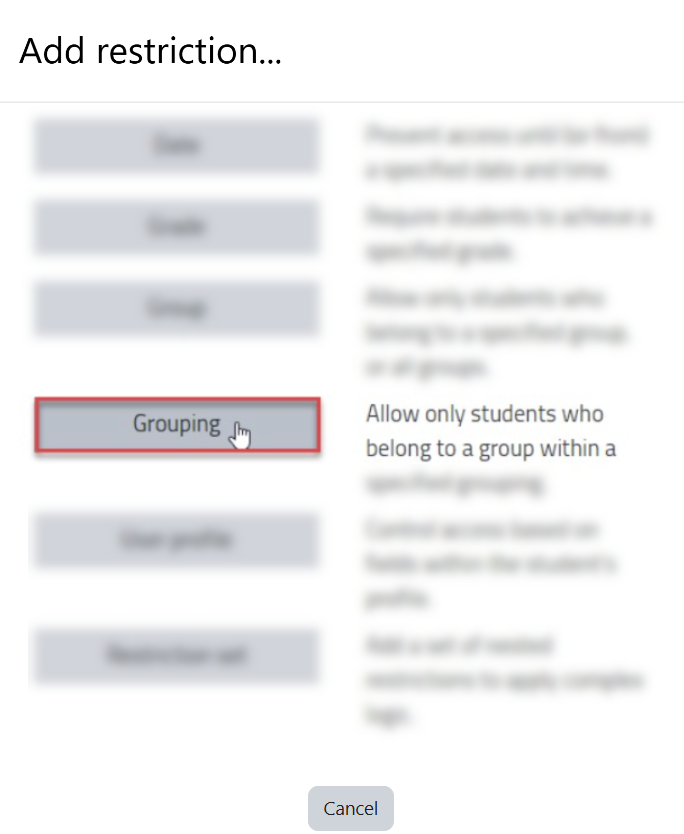
- Choose Grouping from the list to give access based on CRN.
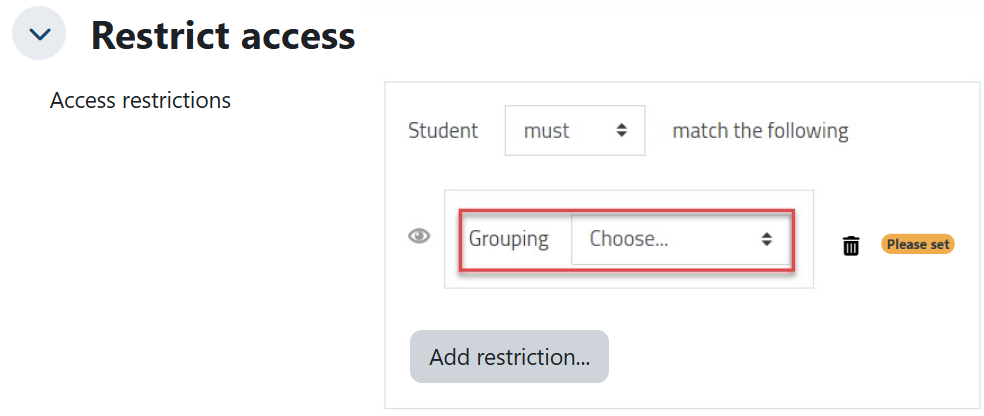
- Select a grouping or CRN that should have access to this part of the course.
- To add multiple sections, click Add restriction again (as shown below). Otherwise, skip to step 8 in this section.
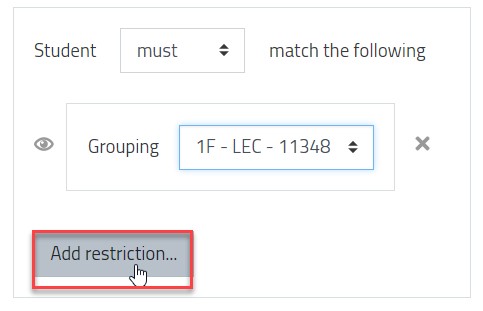
- Select Grouping again.
- Select another grouping or CRN that should have access to this part of the course.
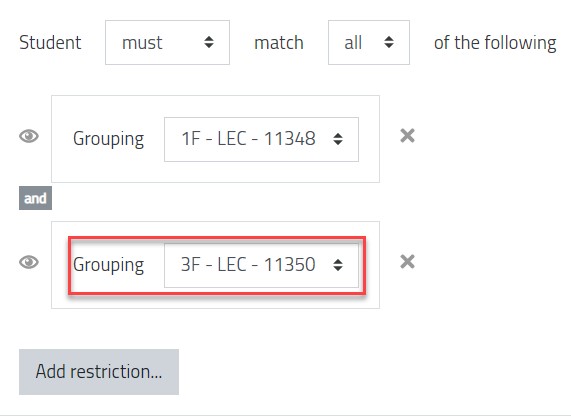
- Change the matching settings to Any.
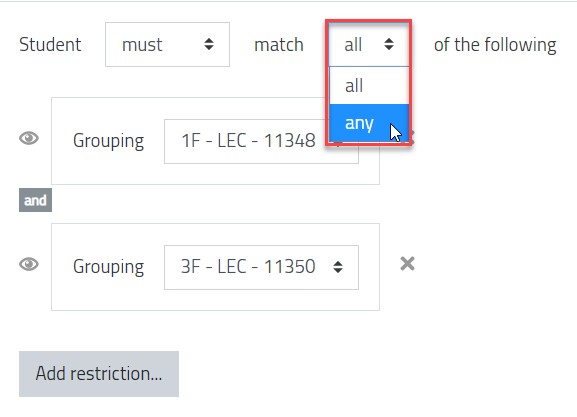 What is the difference between “All” and “Any” in the matching option?
- All: The student must be registered in all listed sections/CRNs to view this part. Choosing this option will effectively restrict access for all students, since no student is registered in more than one section/CRN for the same subject.
- Any: The student must be registered in at least one of the listed sections/CRNs to view this part.
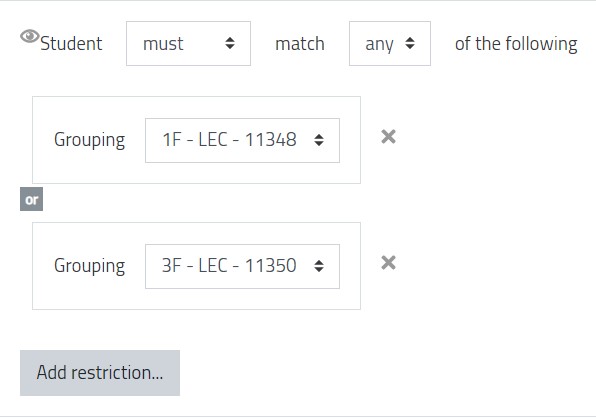
- Once all groupings have been added, click the Save changes button.
Restricting access to existing activity/resource
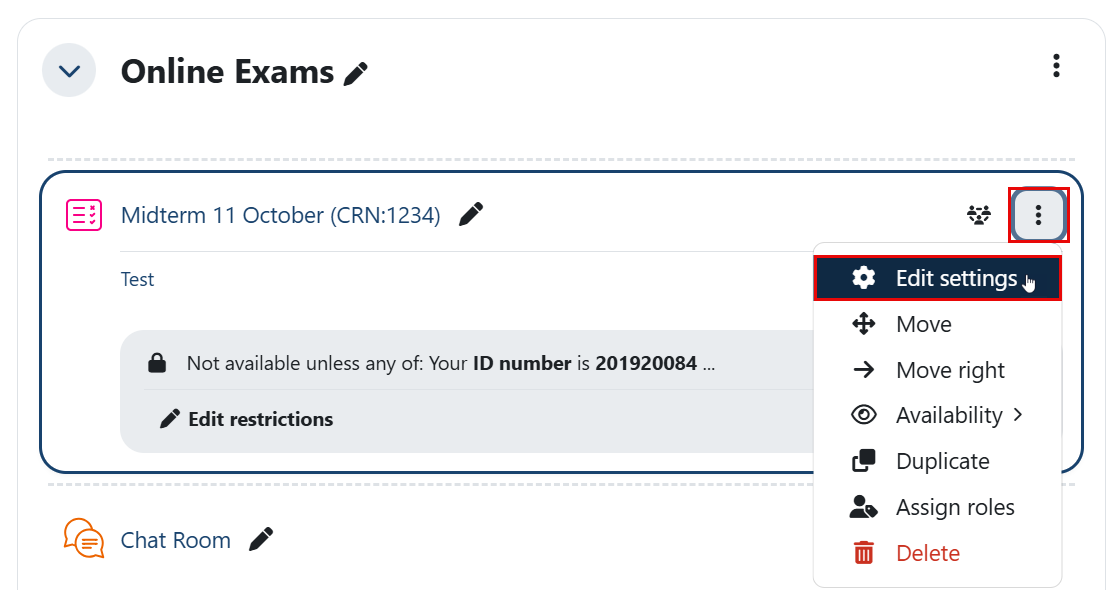
To restrict access to an activity or resource after it has been added to the Moodle course, follow these steps:
- Inside the course, enable editing by clicking the "Edit mode" toggle switch, as illustrated below:
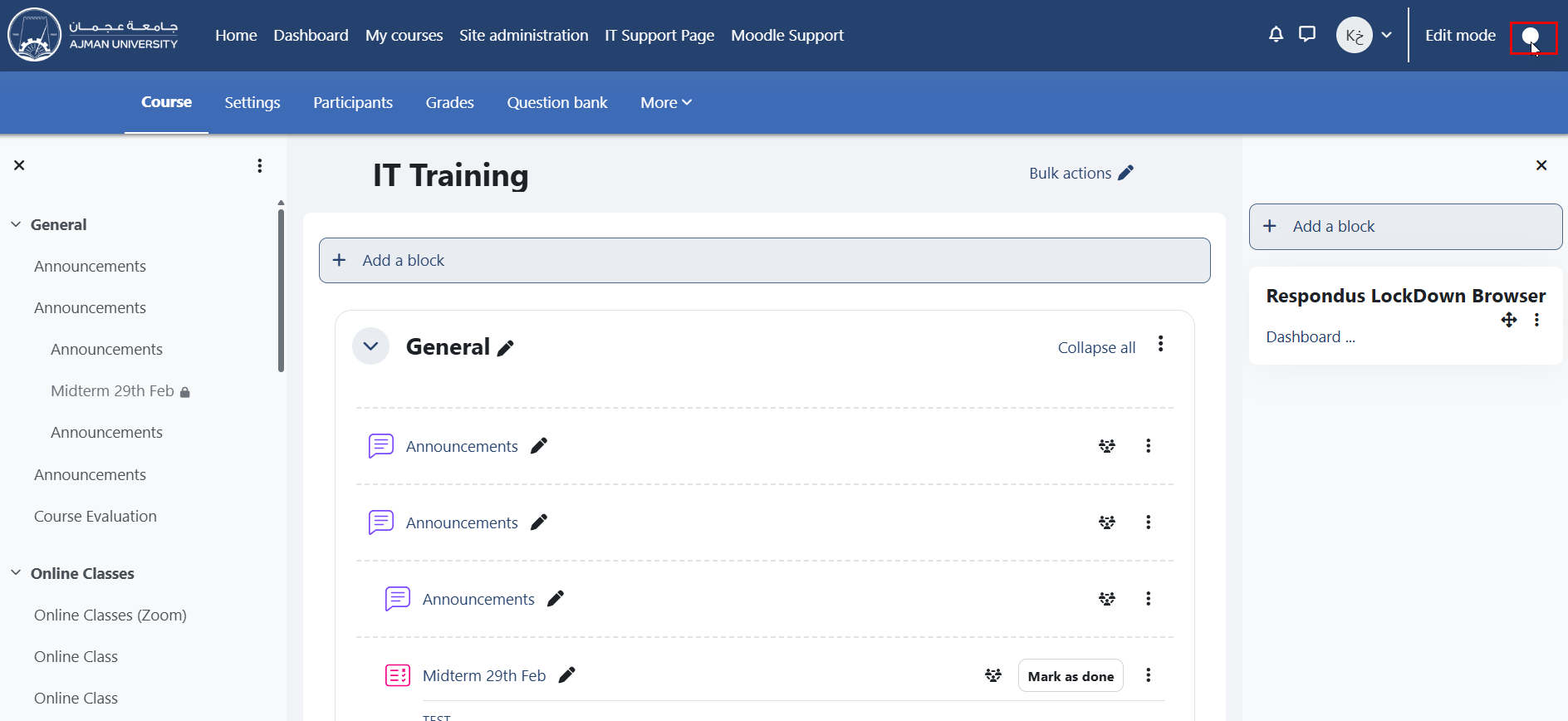
- Navigate to the activity or resource you want to restrict, click the ellipsis (⋮) icon, and then click Edit settings.
- Follow the steps outlined in the previous section.
Restricting access to a section/topic
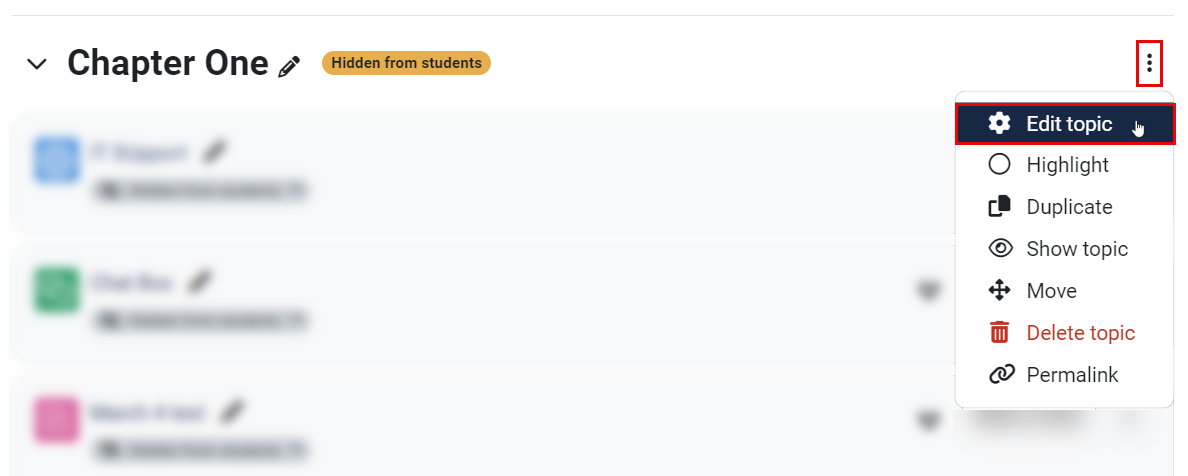
To restrict access to a section or topic for a specific group of students (for example, a particular CRN) in a Moodle course, follow these steps:
- Inside the course, enable editing by clicking the "Edit mode" toggle switch, as illustrated below:
- Navigate to the topic or section you want to restrict, click the ellipsis (⋮) icon, and then click Edit settings.
- Follow the steps outlined in the first section.