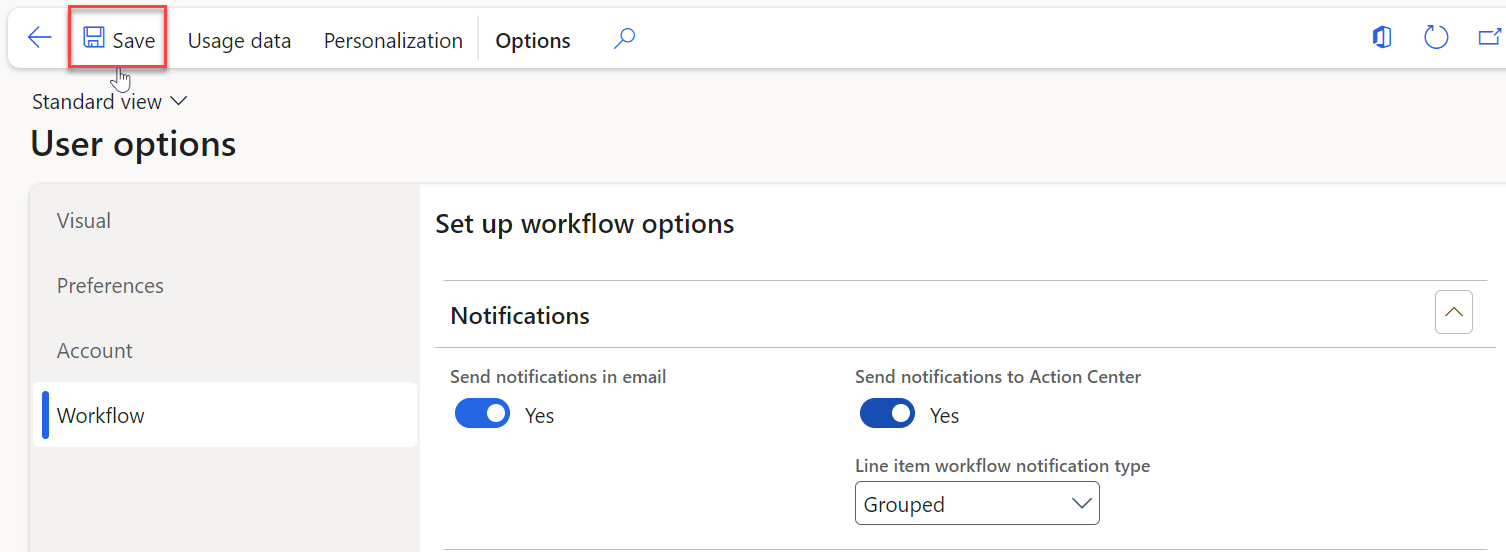
This article will guide you through setting up notifications in Dynamics 365. Notifications are essential to keep you informed of actions within workflows. By following the steps, you will enable notifications to be sent to your department email and to the Action Center.
Once you are logged in, follow these steps to access workflow settings:
-
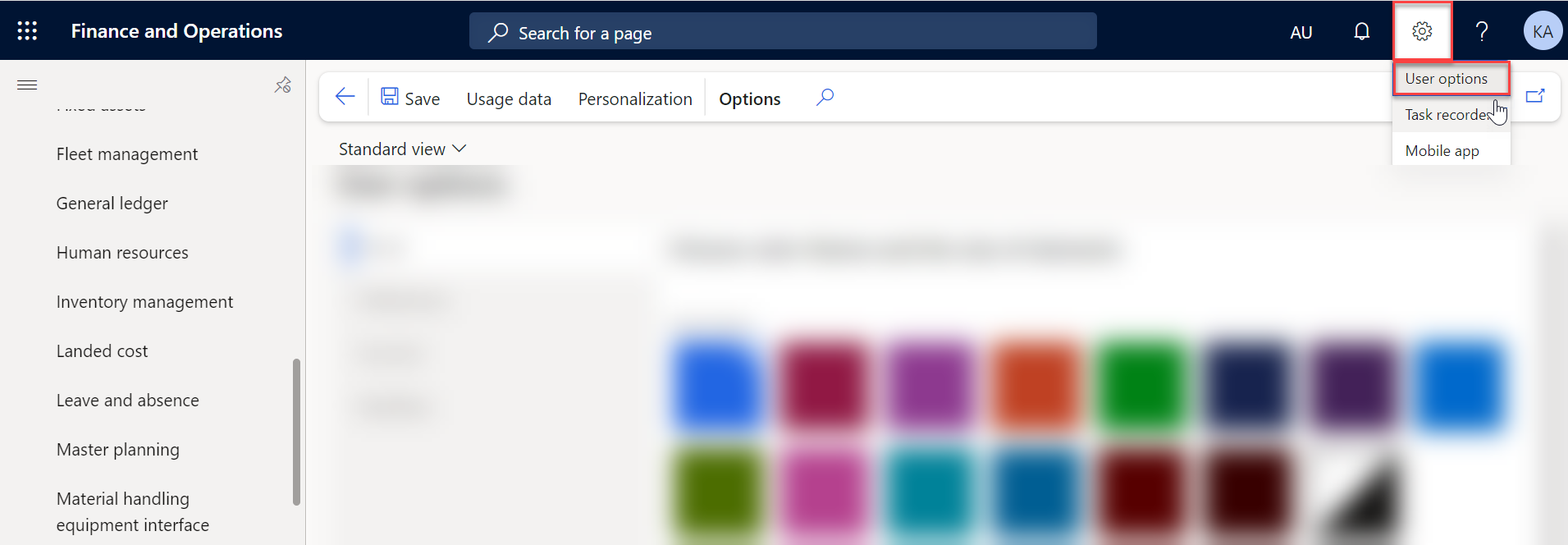
Once you have logged in, you will be on the Dynamics 365 home page. At the top of the page, locate and click on the Settings icon, followed by clicking on "User Option".
-
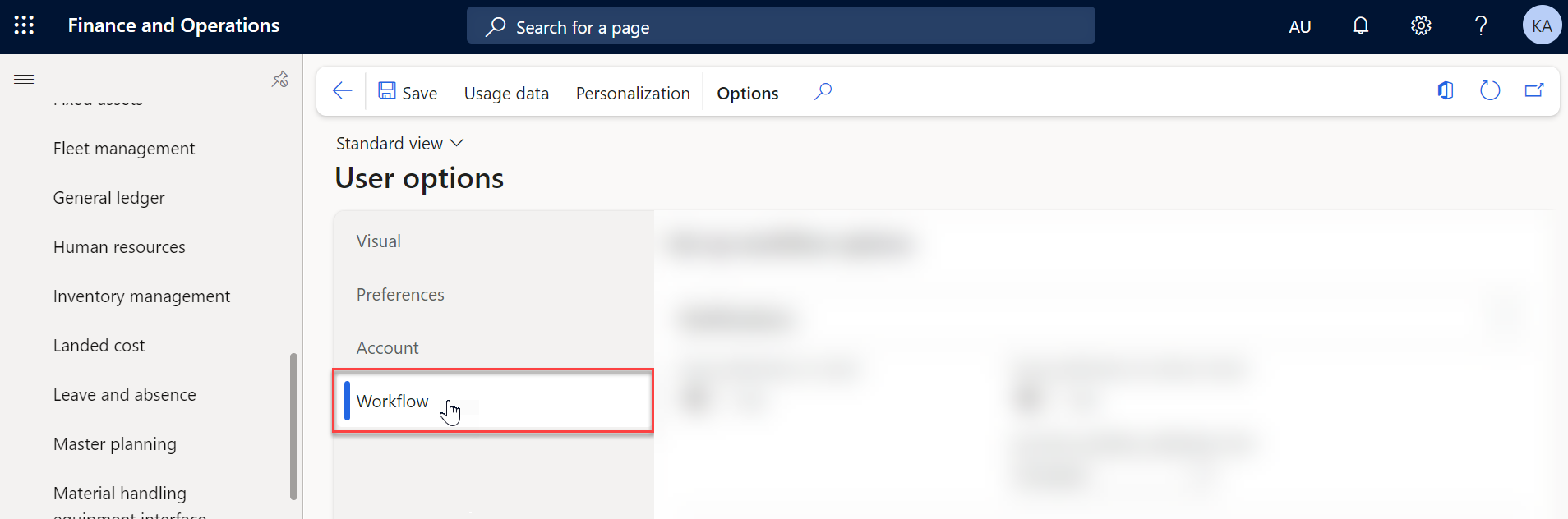
Click on "Workflow" option.
-
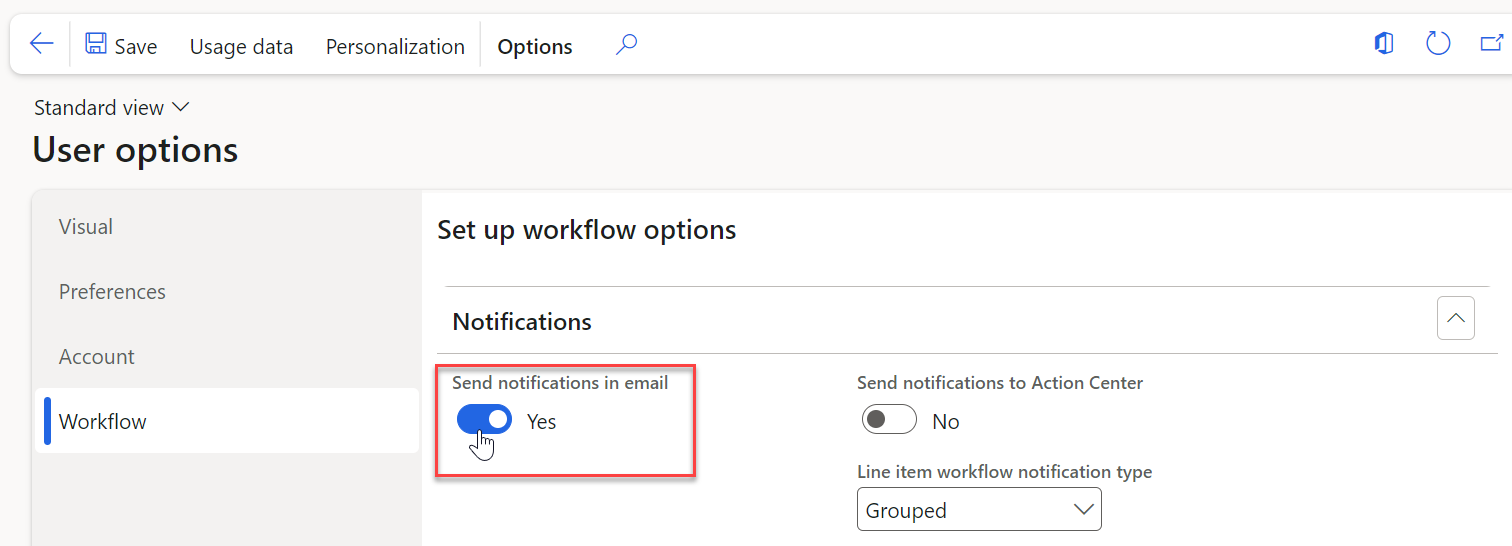
Toggle ON the "Send notifications in email" option. Then you will receive workflow notifications directly in your registered email.
-
Toggle ON the "Send notifications to Action Center" option to enable it. With this setting enabled, notifications will appear in the Dynamics 365 Action Center, which serves as an in-app notification center.
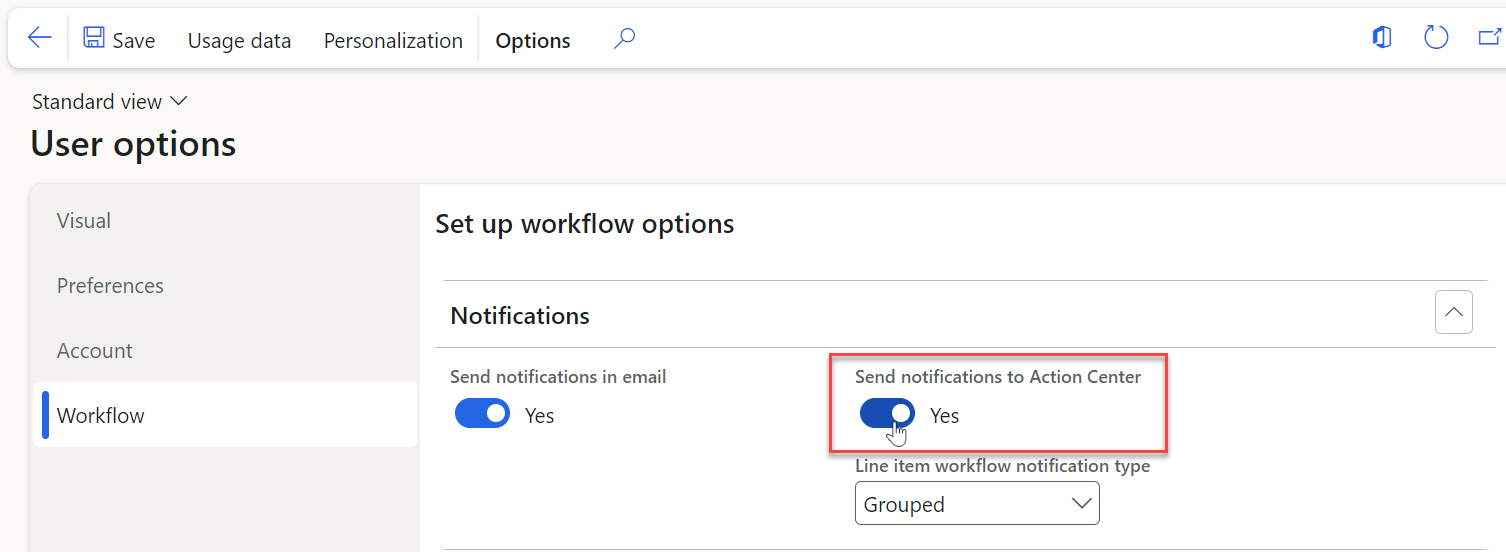
It's recommended to maintain the "line item workflow notification type" in the Grouped mode as the default setting.
- Click on the "Save" button to save changes.