The chat is a text-based discussion tool that you can use when you want to have real-time, synchronous text-based discussion with your students in an online chat room. It can support a variety of teaching strategies, including discussion, brainstorming, group work, and questioning.
Creating a chat activity
To create a Chat activity, follow the steps below:
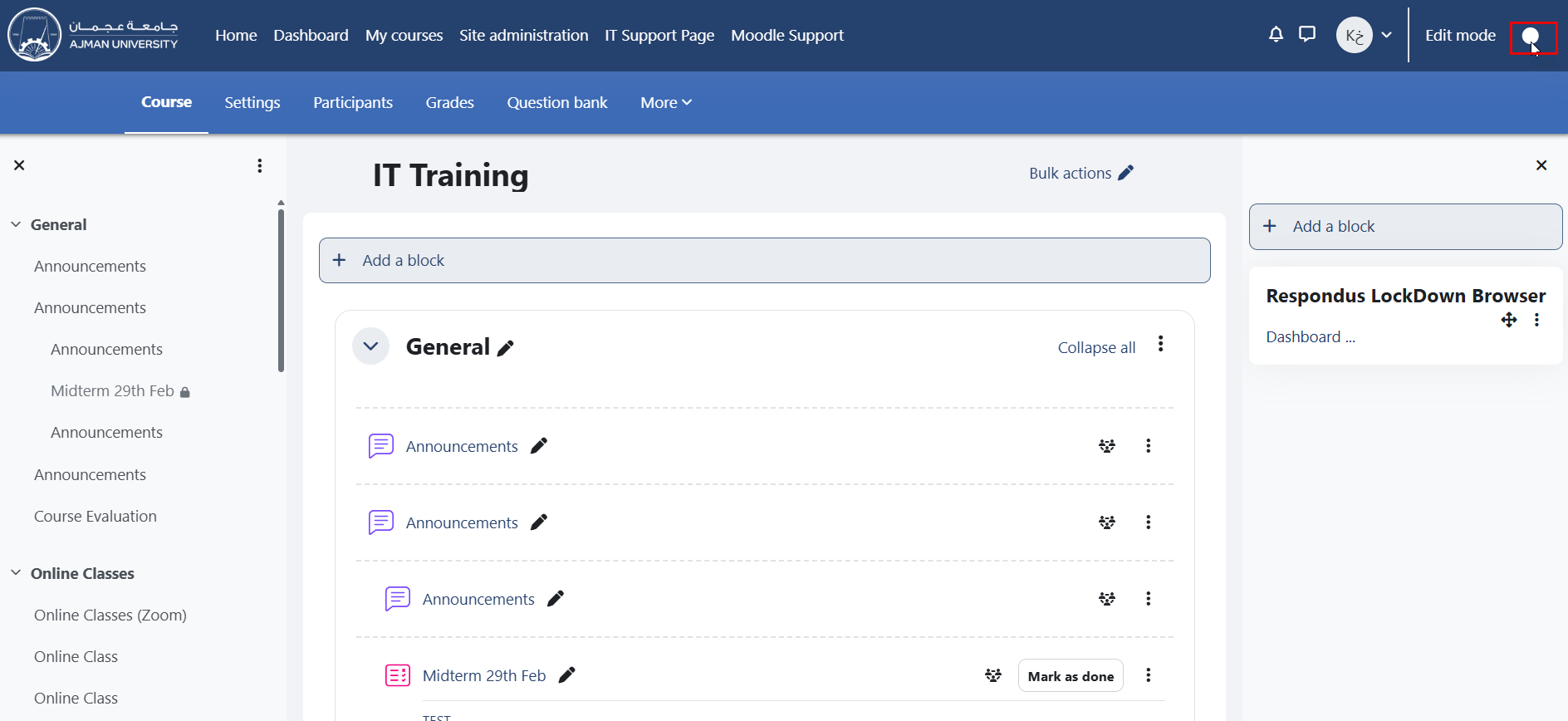
- In the course, enable editing by clicking the “Edit mode” toggle switch, as shown below.
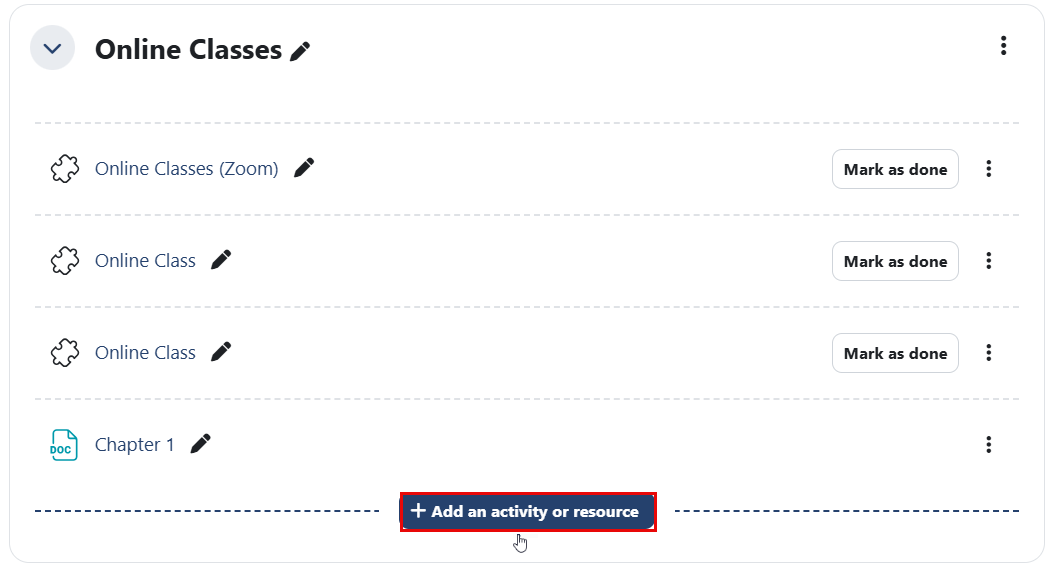
- Under a specific topic, click the “Add an activity or resource” button.
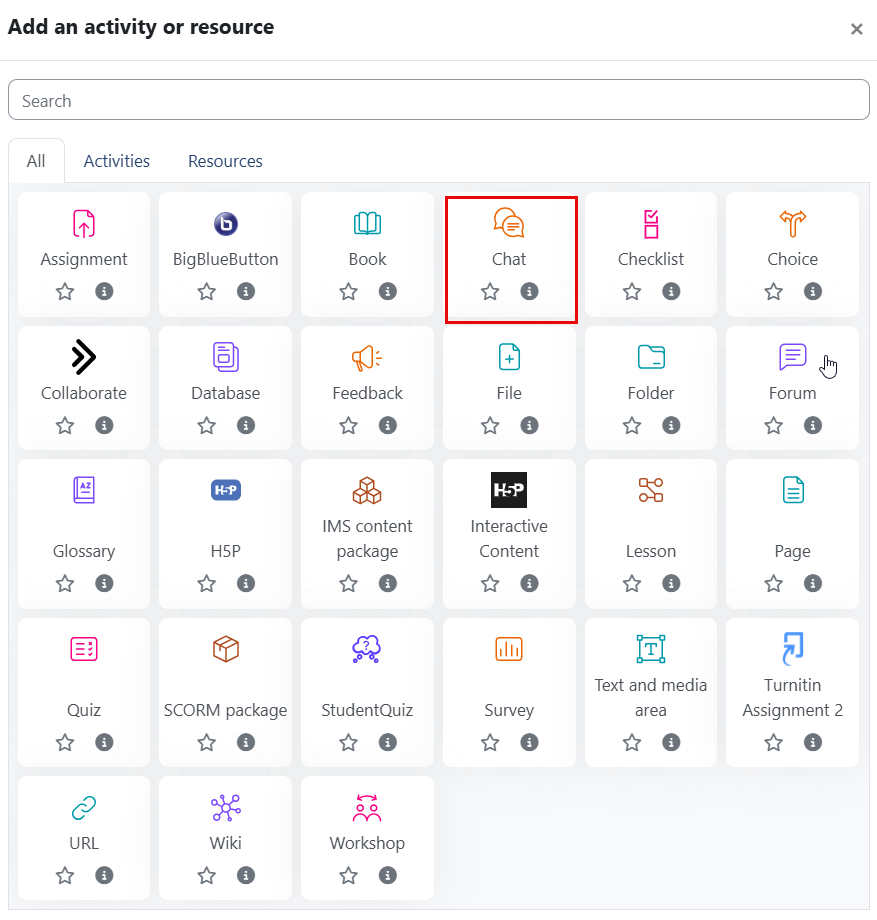
- Select Chat as the activity type.
- Enter the chat room name and description, as needed.
- In the Chat sessions settings, specify when you want the chat to start, and leave the remaining options as they are.
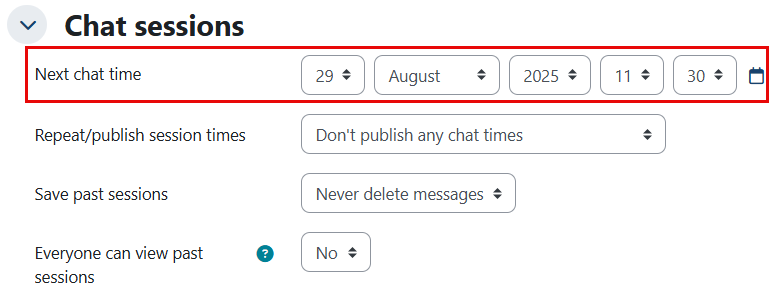
- You can use the Restrict Access feature to allow students from a specific CRN to access the chat and interact only with each other. If you do not set Restrict Access, students in all CRNs will be able to join the chat room.
- Click the Save button.
During a Chat Session
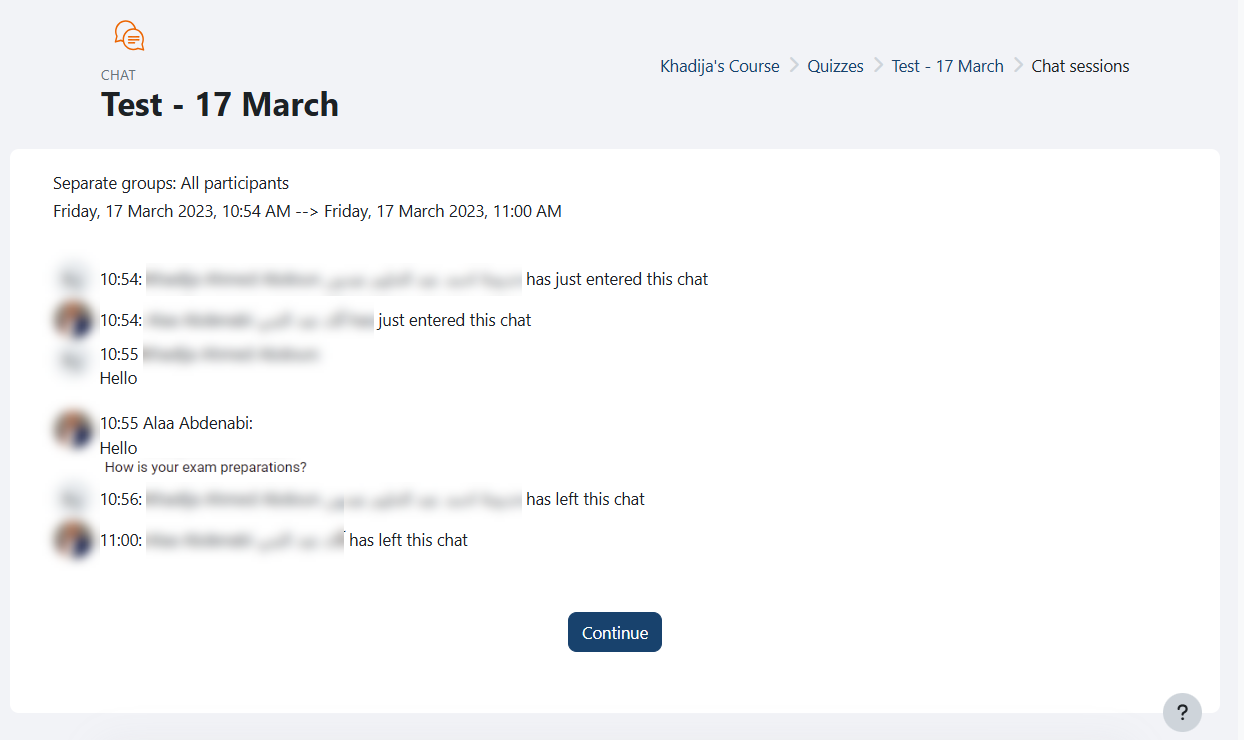
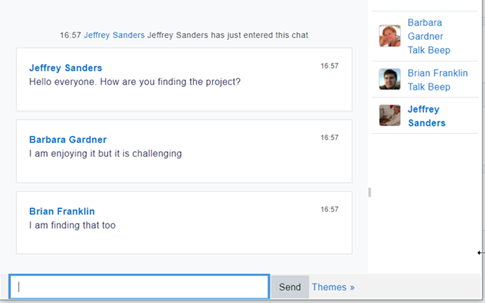
During a Chat session, attendees can view the details of everyone who joins the chat room, as well as all messages. Note that this feature does not include private messaging or audio/video capabilities. The example below shows the view during Chat sessions:
Viewing Past Chat Sessions
To view past Chat sessions, follow the steps below:
- Open the Chat activity in your Moodle course.
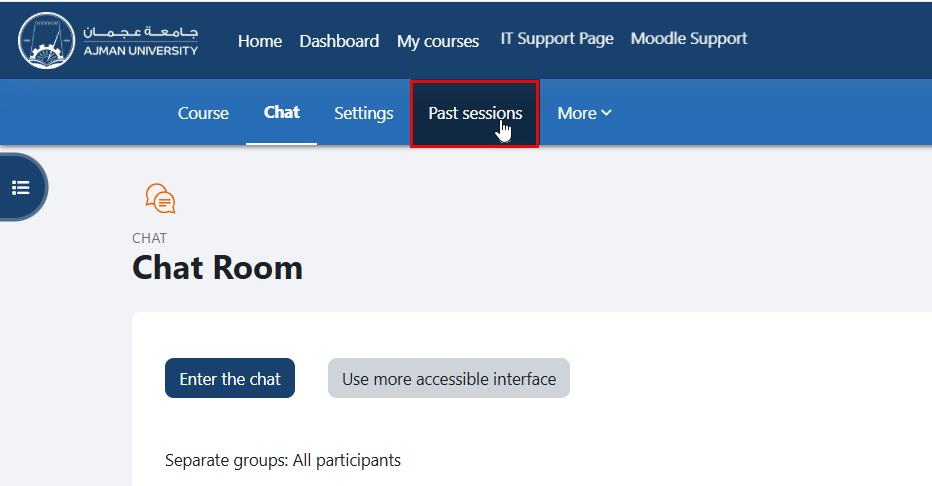
- Click "Past sessions" located in the secondary menu.

- Click "See this session."
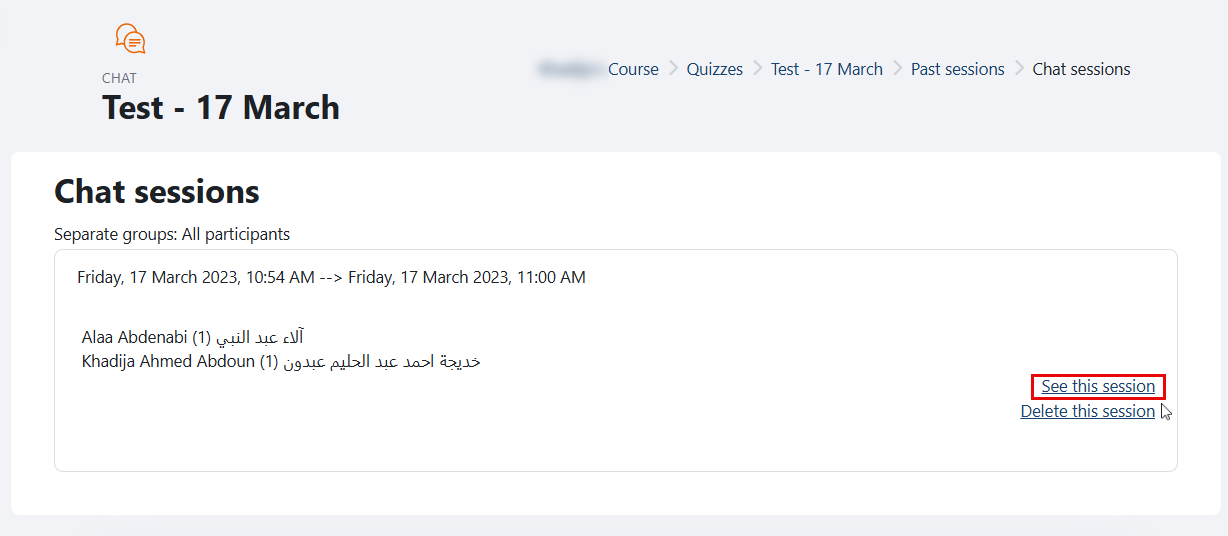
You can view all chat details, including messages with time stamps, and logs showing when participants entered and left the chat.