You can create purchase requisitions for agreements by following the steps below:
- Initiate new purchase requisition by following the steps in "Create Purchase Requisitions" article.
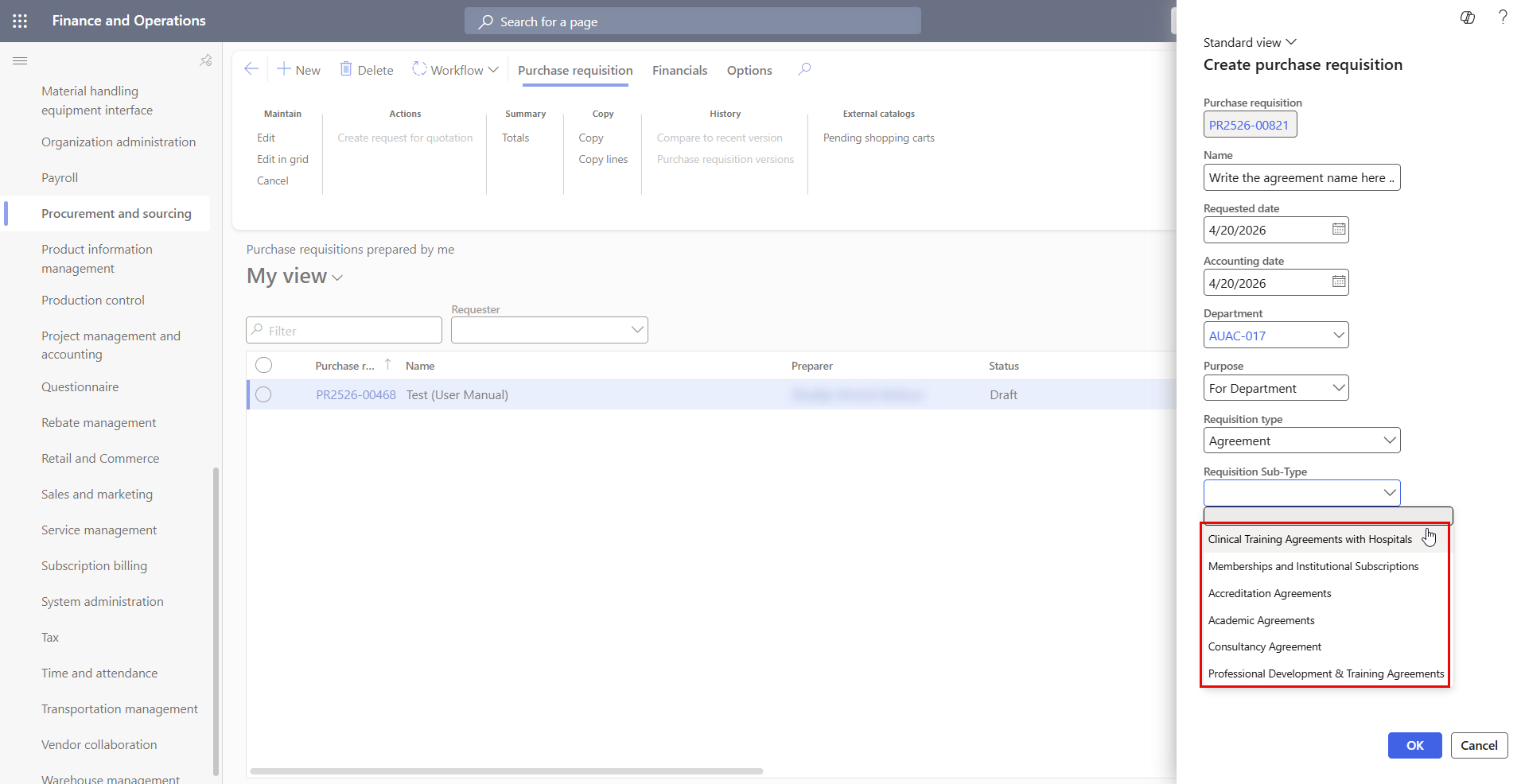
- Once you click on “New”, the page below will be displayed, where you need to add the following details:
- Name: Enter the name of the new purchase requisition (PR).
- Department: Select your office/college name.
- Purpose: Select “For Department”.
- Requisitions Type: Select "Agreements".
- Select Requisition Sub-Type: Choose one of the following requisition sub-types:
- Clinical Training Agreements with Hospitals
- Memberships and Institutional Subscriptions
- Accreditation Agreements
- Academic Agreements
- Consultancy Agreement
- Professional Development & Training Agreements
-
Once done, click on “OK".
-
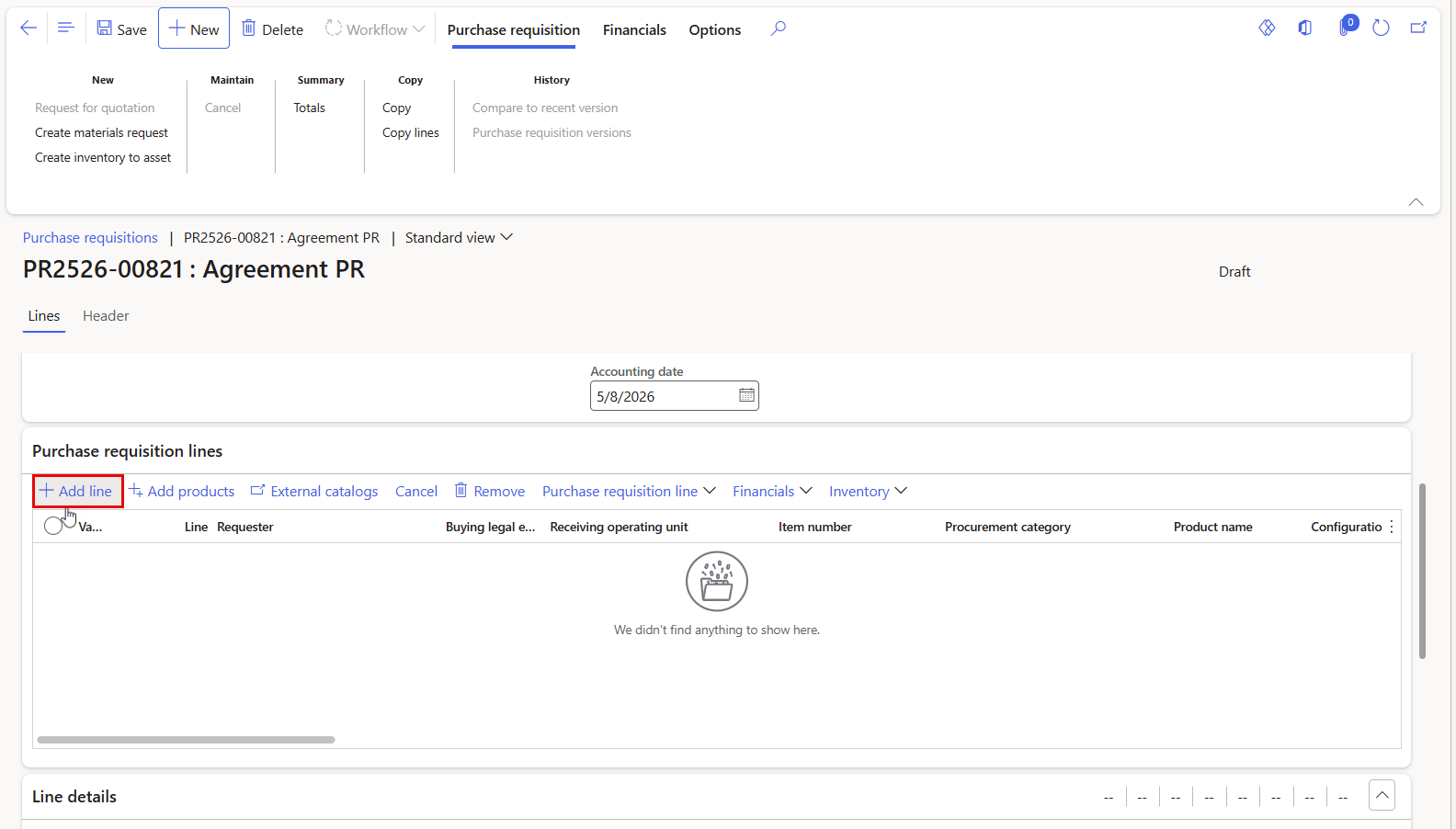
Click on “+ Add Line”. This will create a blank row in the grid where you can enter the details for the new requisition line.
5.Fill in all necessary information for the requisition, then click “Save” once all required fields are completed.
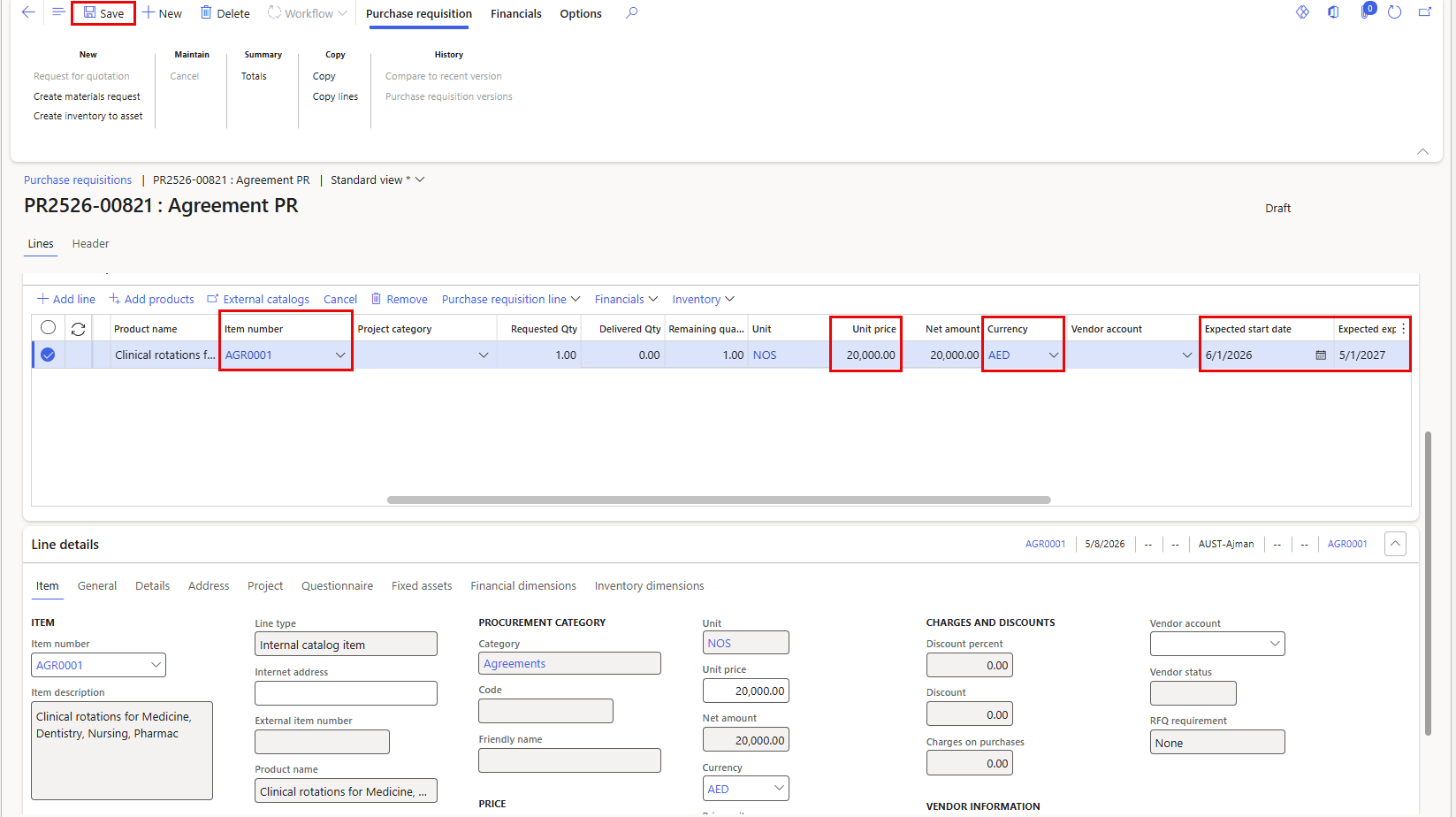
- Item Number: Select the appropriate agreement item number (e.g., AGR0001). If you are unsure which item number to use, please contact the Office of Procurement for assistance.
- Unit Price: Enter the unit price according to the quotation, excluding VAT. Consult with the Office of Procurement if guidance is needed.
- Expected Start Date: Specify the expected start date of the agreement.
- Expected Expiry Date: Specify the expected end date or expiry date of the agreement.
- Currency: Select the applicable currency based on the quotation or agreement terms.
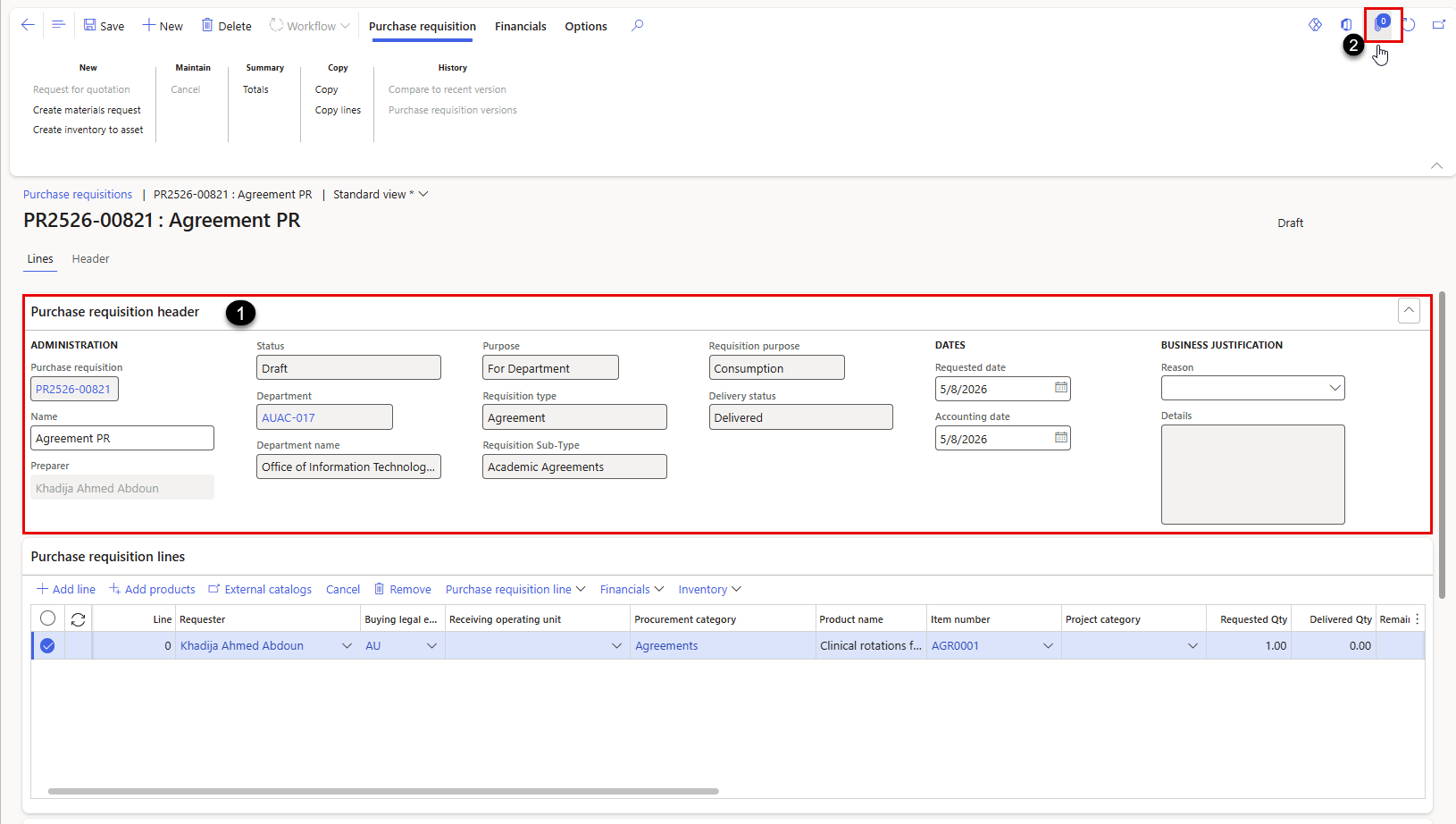
- Navigate to the Purchase Requisition Header and click anywhere within the header section. Then click the Attachment icon to upload and attach the required files.
For more information on adding attachments, refer to the “Add Attachments” article.
Important:
- This step is mandatory for this type of Purchase Requisition, and it is required to upload the following attachments in the header:
1. Trade License
2. Power of Attorney (if the name of the signatory is not mentioned on the Trade License)
3. VAT Certificate (for UAE suppliers)
4. Signatory details: name, email, designation, and Emirates ID
5. Supplier’s proposal (quotation)
Failure to attach the required files will prevent workflow submission and will display an error message, as illustrated below.

-
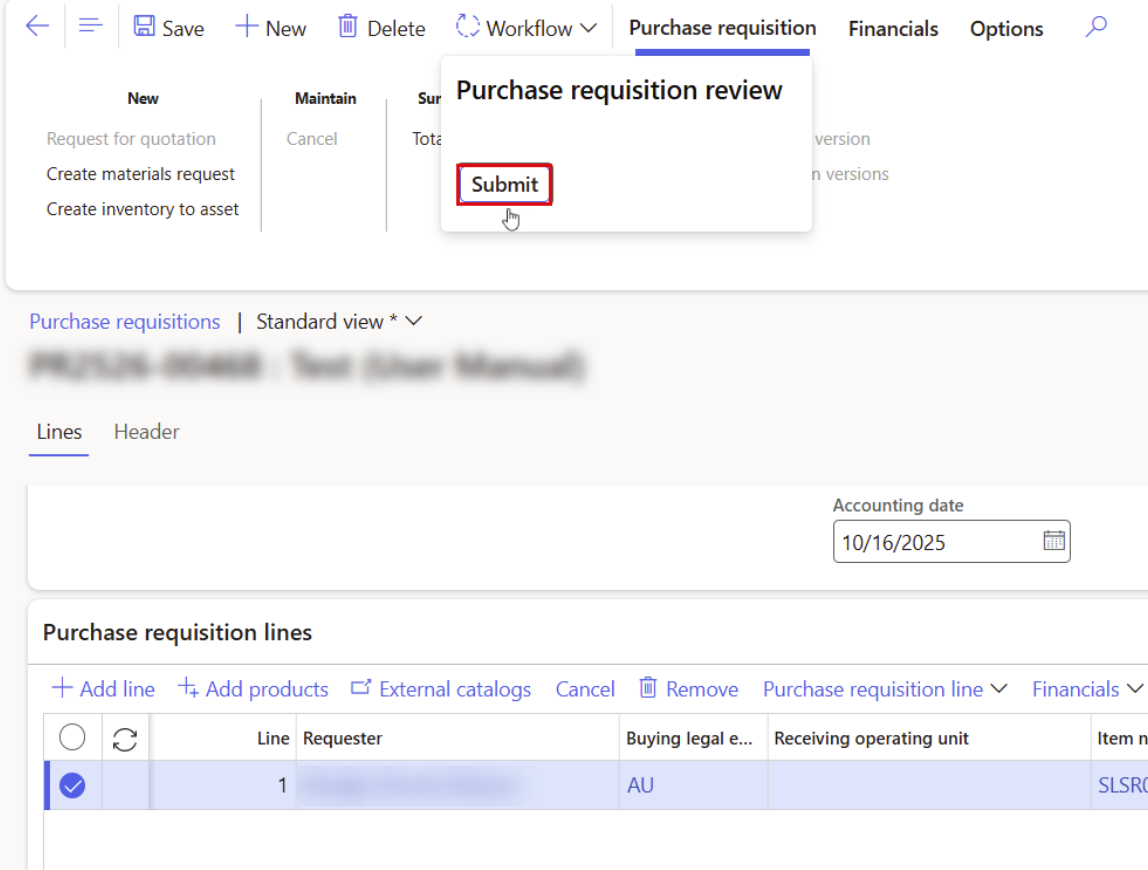
Once all mandatory attachments are uploaded, click on “Workflow”, then “Submit.”
-
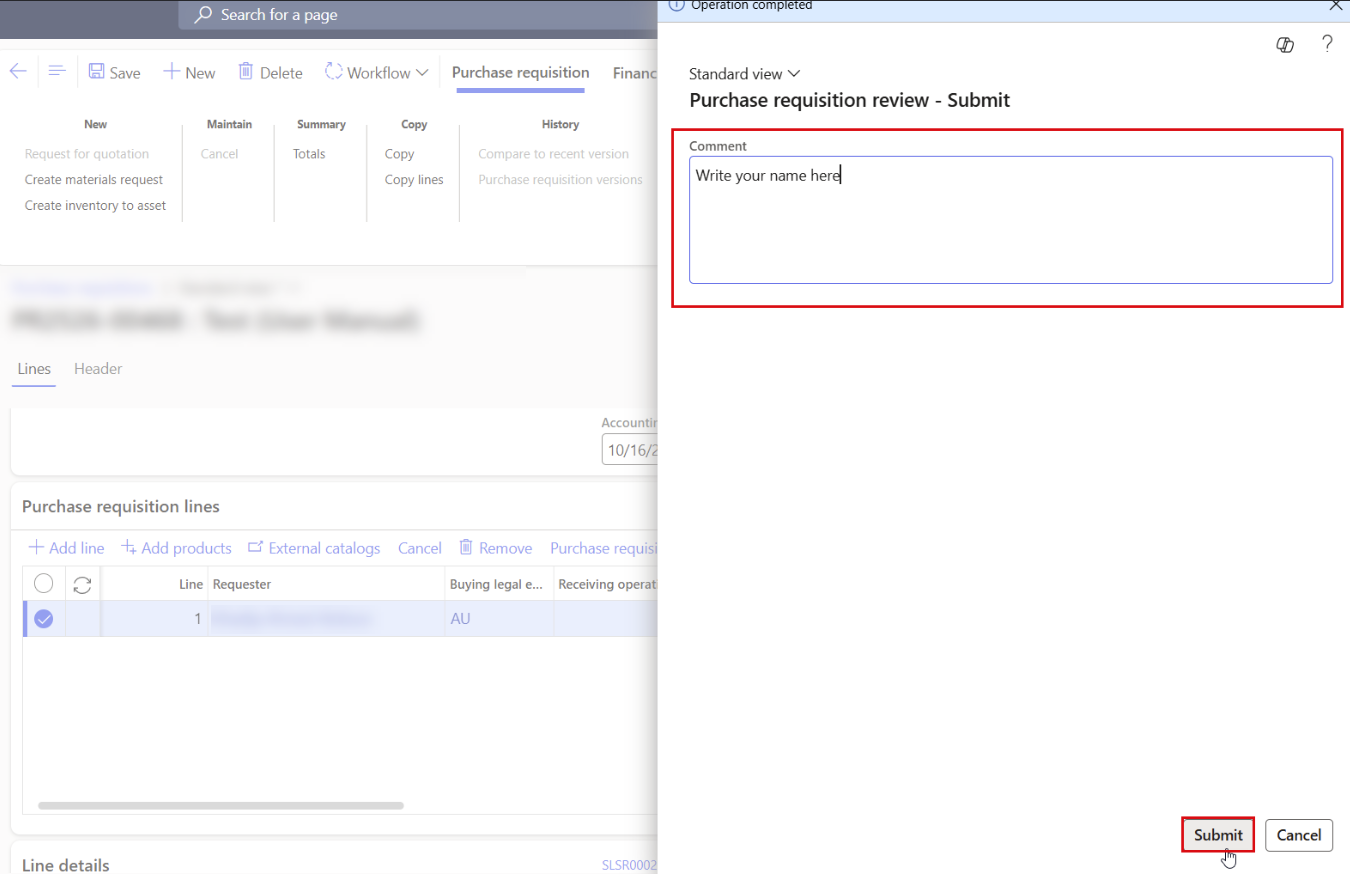
Type your name in the designated Comments box, then click "Submit" to finalize the requisition.
Approval Workflow Overview:
- Agreement Submission:
Submission of the agreement purchase requisition by the requester. - Dean or Office Manager Approval:
Review and approval by the respective Dean or Office Manager. - Budget Approval:
Verification of budget availability and approval by the Senior Manager, Budget and Planning, Office of Budget. - Procurement Approval: Review and approval by the Senior Procurement Manager, Office of Procurement.
- Finance Approval
Finance approval is based on the agreement amount threshold:
≤ 100,000 → Approval by the Senior Director of Finance
, > 100,000 → Approval by the Senior Manager, Finance - Legal Affairs Approval:
Review and approval by the Legal Advisor to the Chancellor - Final Assignment by Legal Affairs:
Upon approval, Legal Affairs assigns the agreement to one of the following members based on the nature of the agreement:
- Vice-Chancellor for Institutional Planning and Effectiveness – Office of the VC for Institutional Planning and Effectiveness
- Vice-Chancellor for Financial and Administrative Affairs – Office of the VC for Financial and Administrative Affairs
- Office Manager - Office of Vice-Chancellor for Communication & Community Affairs
- Senior Officer, Academic Affairs – Office of the Vice Chancellor for Academic Affairs
- Senior Administrative Officer – Office of the Chancellor