Introduction and Overview
CRM Advise is designed to support academic advisors and faculty members by providing a comprehensive and centralized system for managing all aspects of the advising process. It ensures that advisors have real-time access to accurate information, enabling them to guide, track, and support advisees effectively throughout their academic journey.
The CRM Advise module brings together several key components:
- Student (Advisee) Records: Full profiles including academic information, advising history, and risk indicators.
- Task and Case Management: Tools to assign actions, monitor follow-ups, and manage ongoing support activities.
- Alerts & Notifications: Automated alerts for urgent needs or missed deadlines.
- Communication & Activity Tracking: Ability to log interactions and maintain historical advising records.
- Appointment and Calendar Scheduling: Manage advising sessions and time commitments efficiently.
By consolidating these components, CRM Advise helps:
- Improve advising efficiency and effectiveness
- Strengthen communication between advisors and students
- Provide data-driven insights to support early intervention
- Enhance the overall advising experience and academic success of students
Accessing CRM Advise
To access CRM Advise:
-
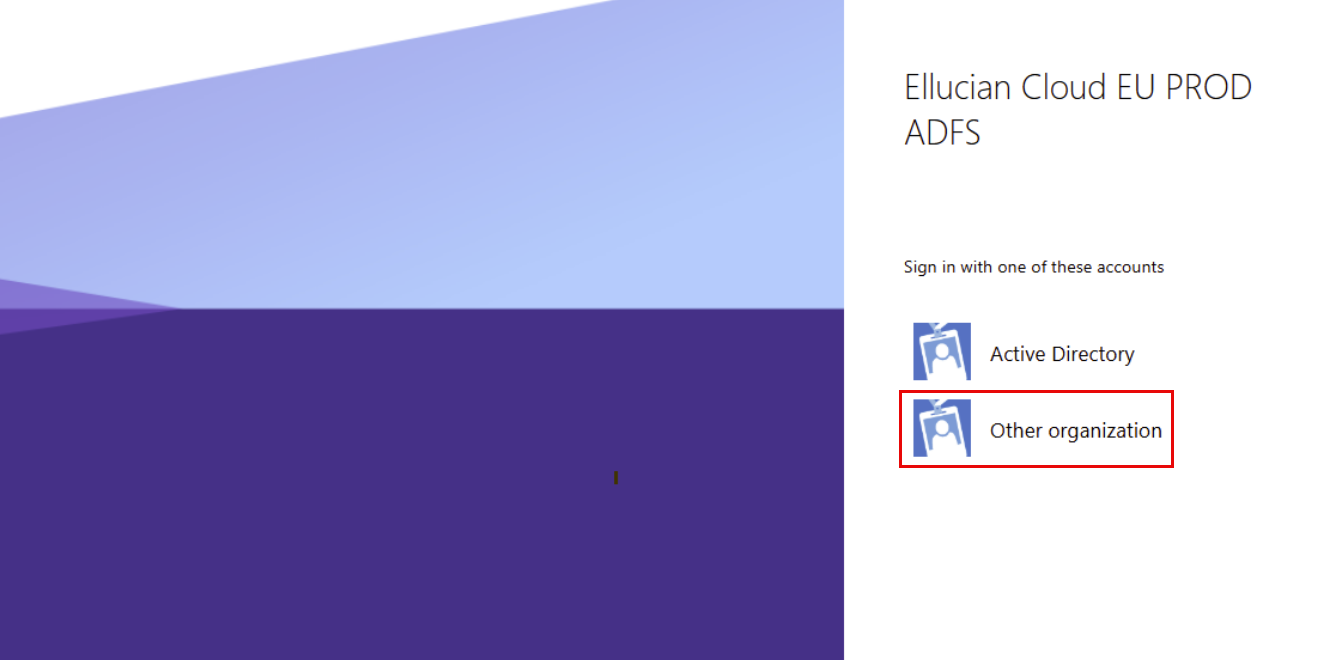
Log into the CRM Advise via the following link: https://ajmanacaecrm.elluciancrmadvise.com/
-
Click “Other Organization.”
-
Log in using your AU email (example: x.lastname@ajman.ac.ae) and password.
Dashboard Navigation
Upon logging into CRM Advise, the dashboard is your main landing page.
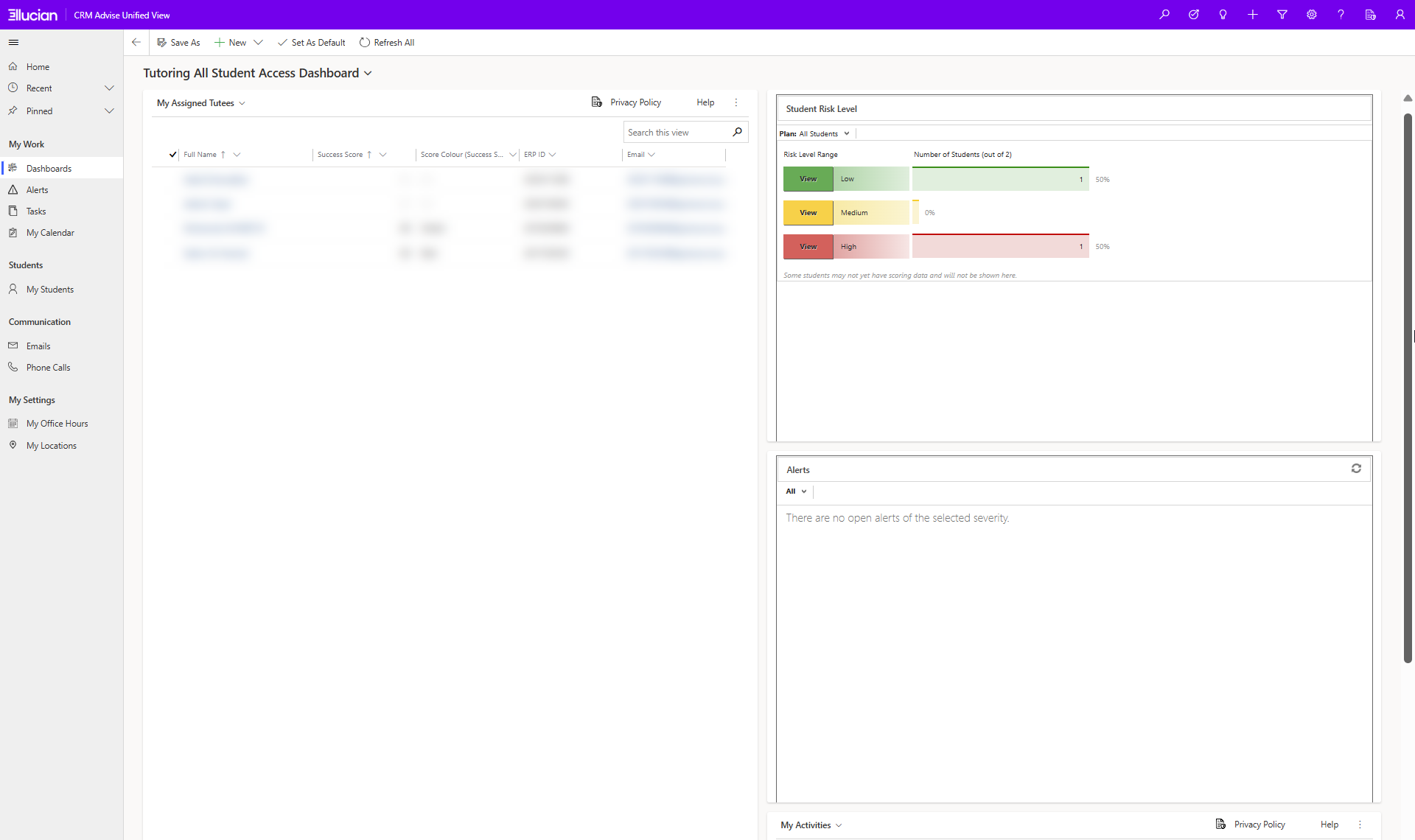
Dashboard elements:
- Top Navigation Bar: Located at the top of the page, this bar includes key system actions:
- Save As / New / Set As Default / Refresh All: Manage dashboard views and refresh data.
- Search Icon: Quickly find records across CRM Advise.
- Command Icons: Access tools such as Help, Settings, and Notifications.

- Left-Side Navigation Menu:
This menu gives you quick access to all key areas of CRM Advie:
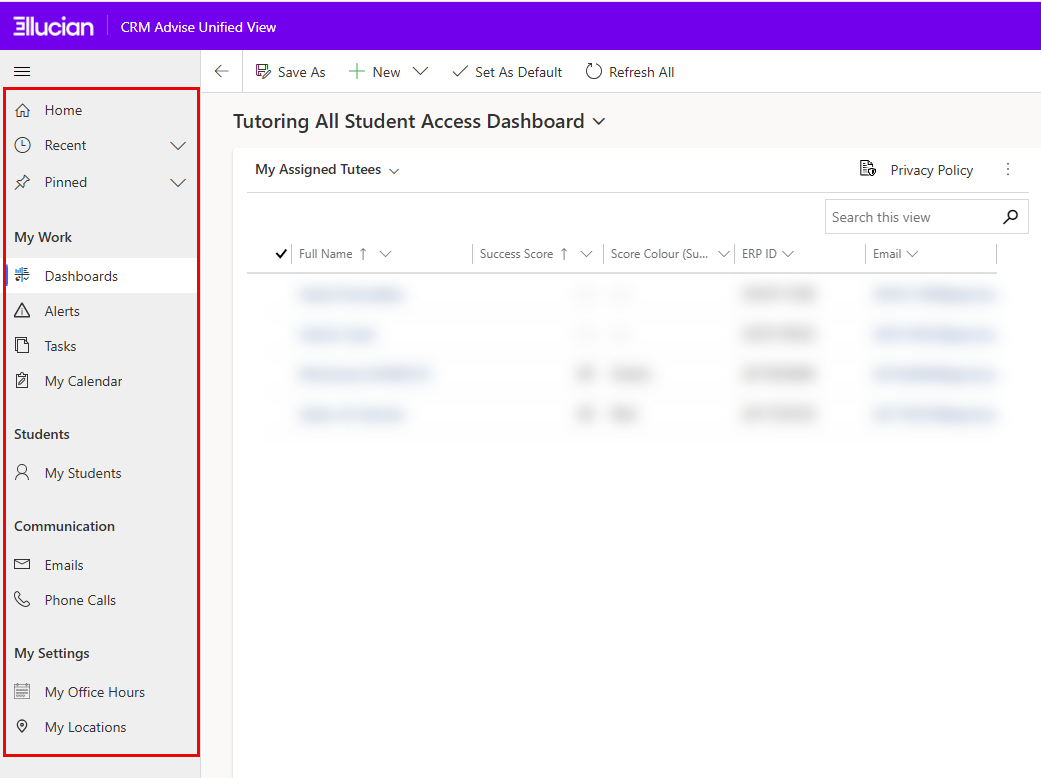
- Home: Return to your main starting page.
- Recent / Pinned: Access recently viewed or
pinned items. - My Work: will give a quick acess to dashboards, alerts, tasks and my calender.
- Students:
My Students: View your assigned advisee list. - Communication:
- Emails: Access and send advising-related emails.
- Phone Calls: Log or manage call activities.
- My Settings:
- My Office Hours: Set availability for student appointments.
- My Locations: Add or manage advising locations.
- Main Dashboard Area
A central workspace that displays your selected dashboard, for example, “Tutoring All Student Access Dashboard.”
This area also contain the following elements:
- Student Risk Level chart: Shows student risk categories to identify those needing attention.
- Alerts:
- My Acteveties Panel: Displays your current tasks and advising activities for quick access and updates.
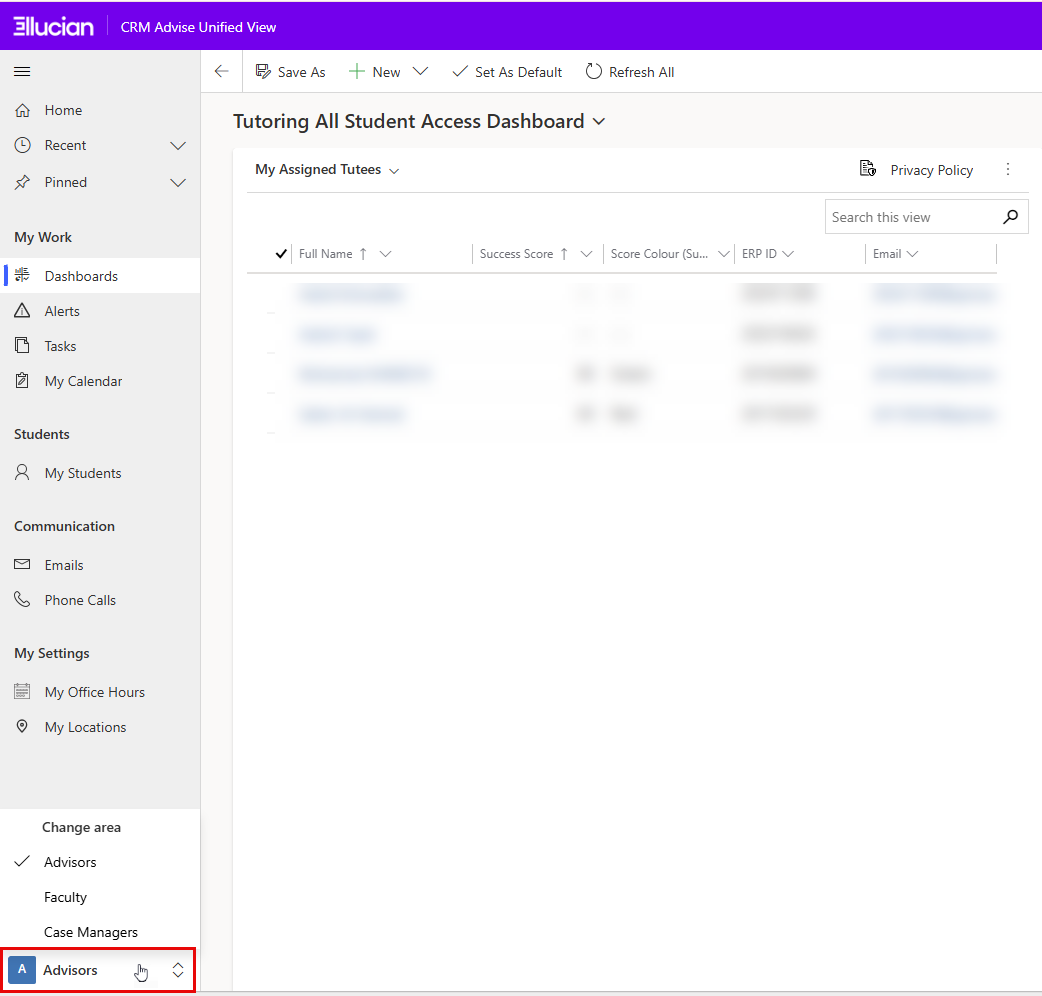
- Change Area Menu (Bottom Left)
At the bottom of the left navigation panel, you’ll find the Change Area menu. This dropdown allows you to switch between different functional areas or roles within the CRM system, for example, from Advisor to Faculty, depending on your assigned permissions.