

Approve / Reject Direct Reports’ New Goals or Changes
- 23 Jan 2026
- 1 Minute to read
- Contributors

- Print
- DarkLight
- PDF
Approve / Reject Direct Reports’ New Goals or Changes
- Updated on 23 Jan 2026
- 1 Minute to read
- Contributors
- Print
- DarkLight
- PDF
Article summary
Did you find this summary helpful?
Thank you for your feedback!
Please Note:
This user manual is currently under review. A revised version reflecting the new Redwood user interface will be available soon.
The process begins when the HR team initiates the Annual Goal Plan campaign. The system automatically notifies managers about the campaign, prompting them to guide their team members in setting their goals. This notification serves as a reminder for managers to support their employees in understanding the timeline and expectations for goal setting.
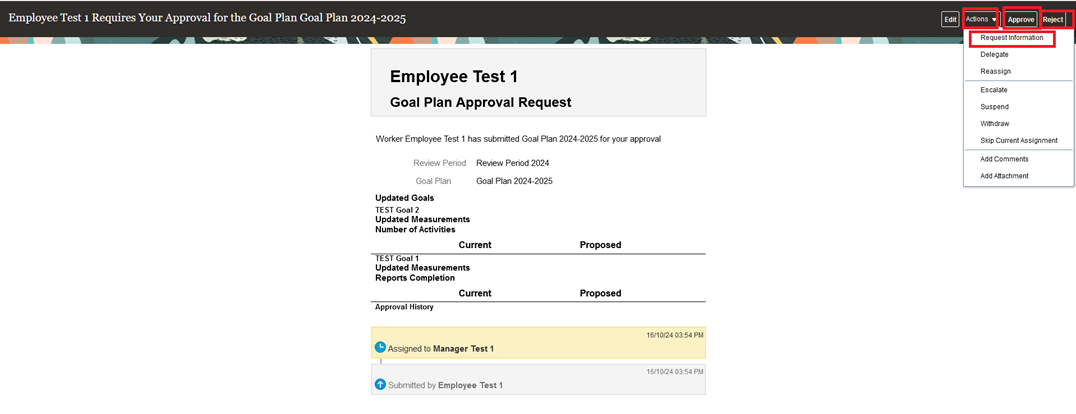
When your direct report adds new goals, you will receive a notification to approve, reject, request information of the submitted goal.
Important Note:
Actions that can be taken on submitted goals include:
- Approve: Confirm and accept the goal.
- Reject: Decline the goal. Please note that rejecting a goal will permanently delete the records and cannot be recovered.
- Request Information: Return the goal to the employee for modifications or additional details.
To start the process, follow the steps below:
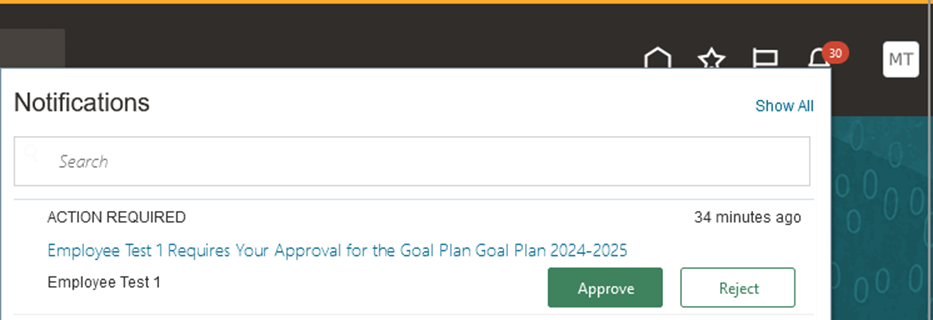
Open the notification you received.
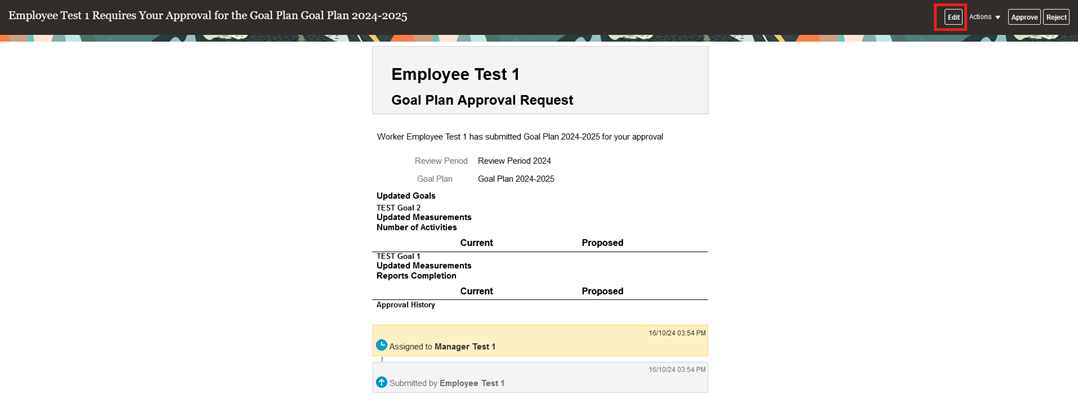
Click "Edit".
Open the "New" or "changed" goals.
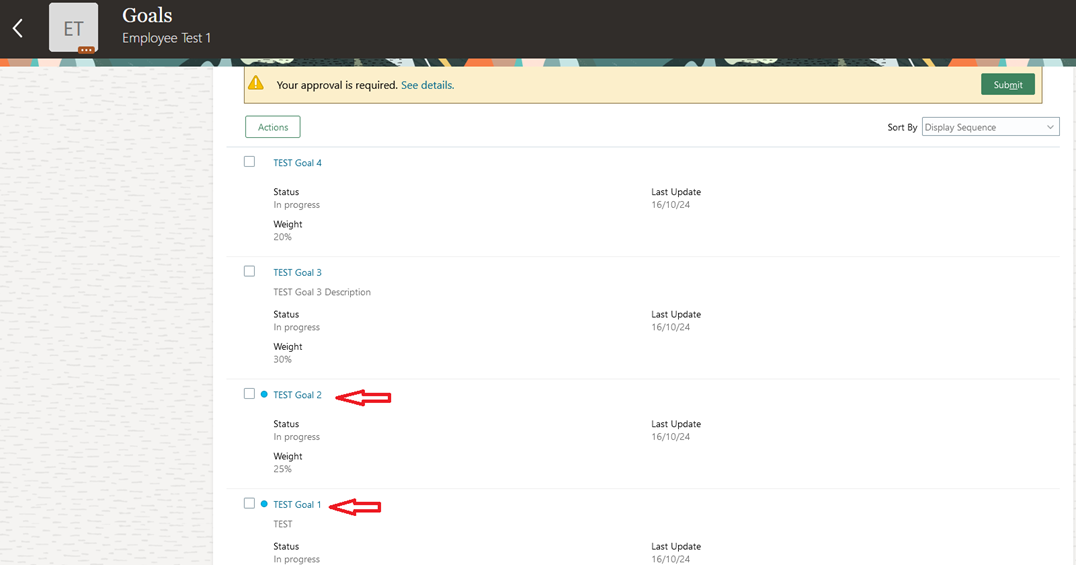
Review the added goal or the changed goal.
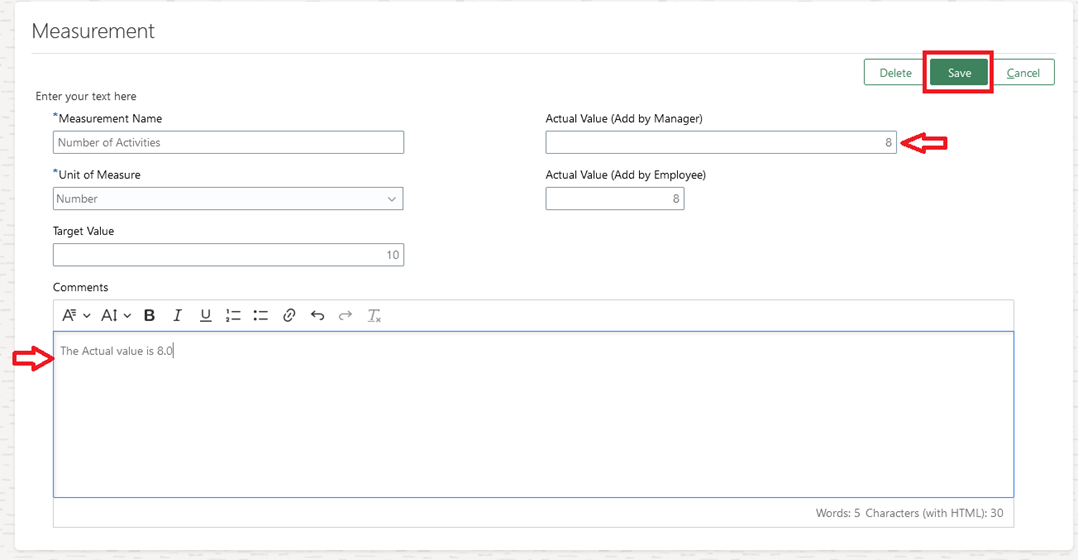
Click Edit to add Actual value in Measurement Section.
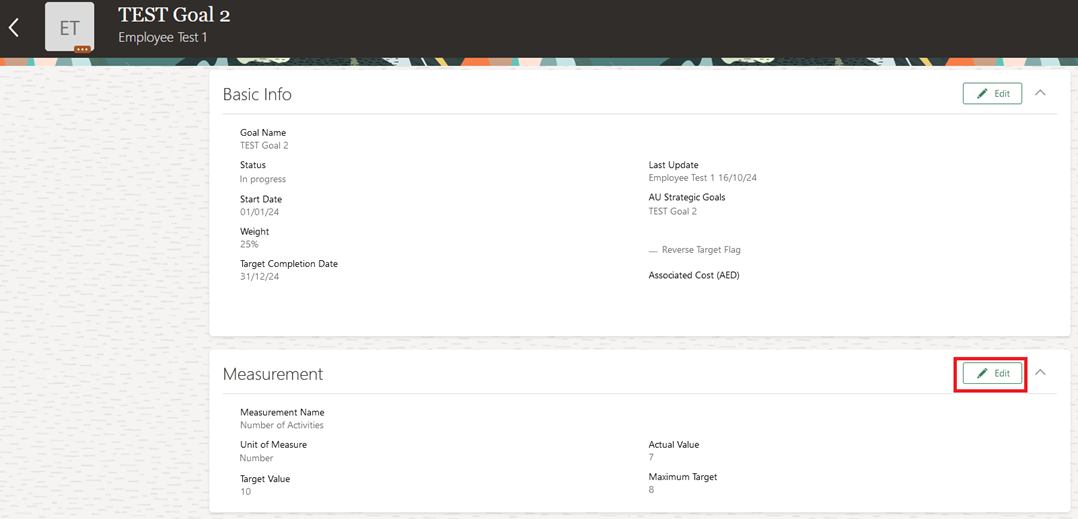
**Add the actual value **(added by manager), write your comments if needed, and then click "Save".
Then approve, reject, or request more information.
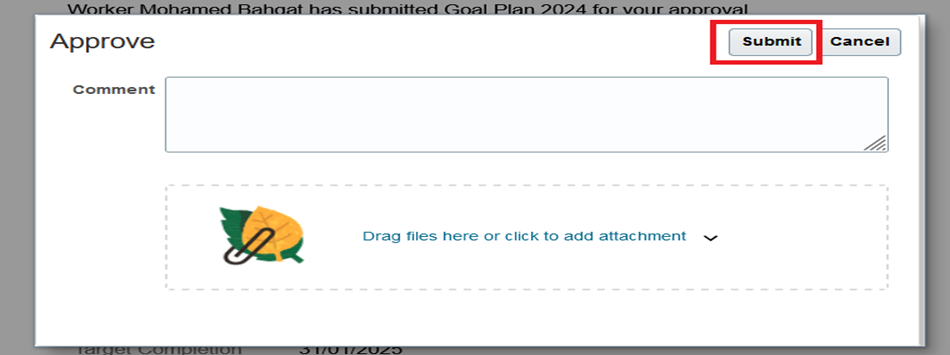
Write a comment if needed, then click "Submit".
Was this article helpful?
