

Backup & Restore
- 01 Sep 2025
- 2 Minutes to read
- Contributors

- Print
- DarkLight
- PDF
Backup & Restore
- Updated on 01 Sep 2025
- 2 Minutes to read
- Contributors
- Print
- DarkLight
- PDF
Article summary
Did you find this summary helpful?
Thank you for your feedback!
At the beginning of each semester, you might need to restore the course materials created in previous semesters. To do this, back up the course from the previous semester and restore it to the current semester by following the steps below.
Backup Courses
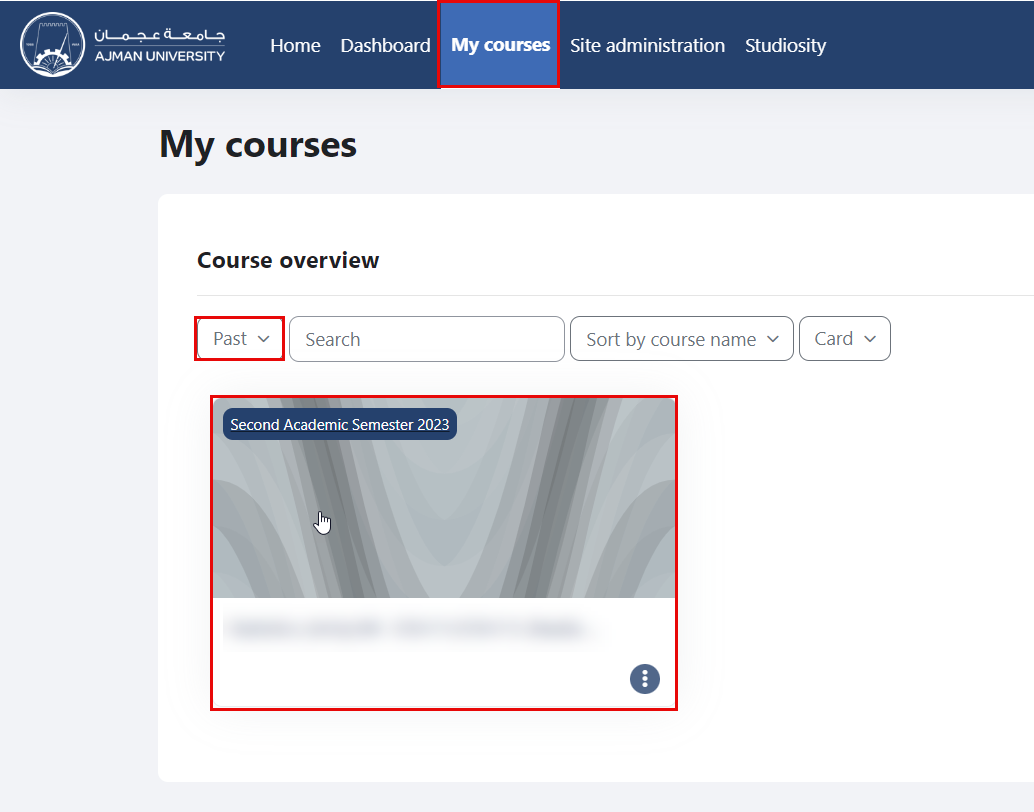
On the Navigation Panel, click on “My Courses”, select "Past" courses from the drop-down menu, and then select the course you would like to back up.
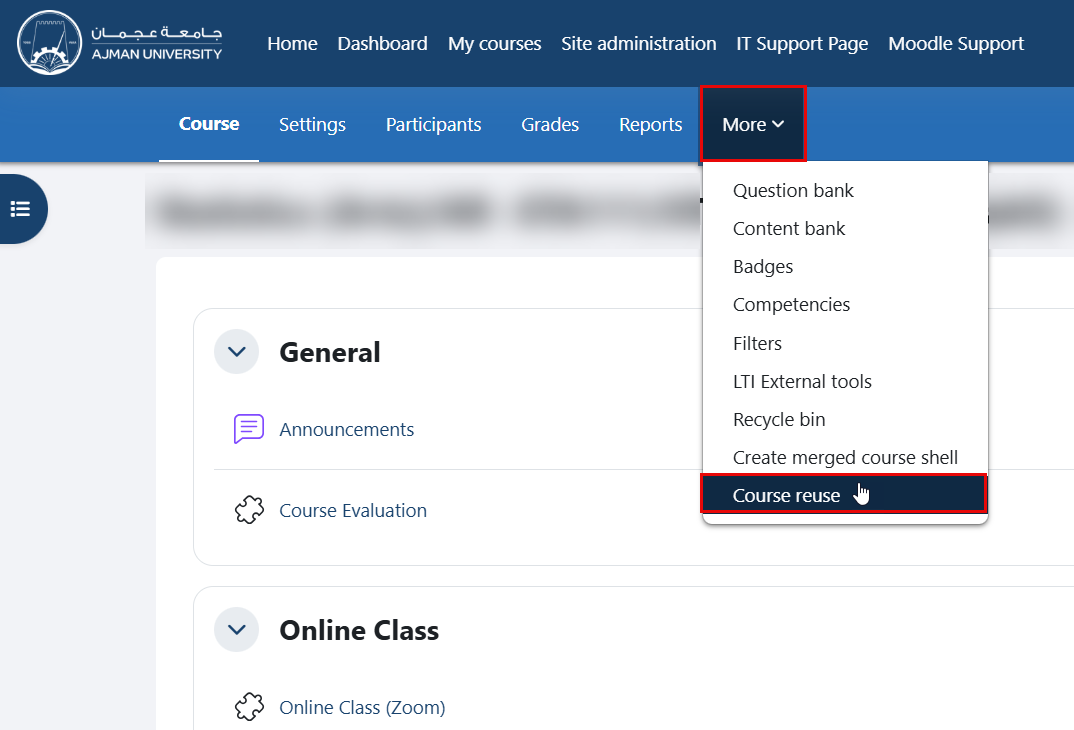
Inside the course, navigate to the secondary menu, then click on the "Course reuse" option.
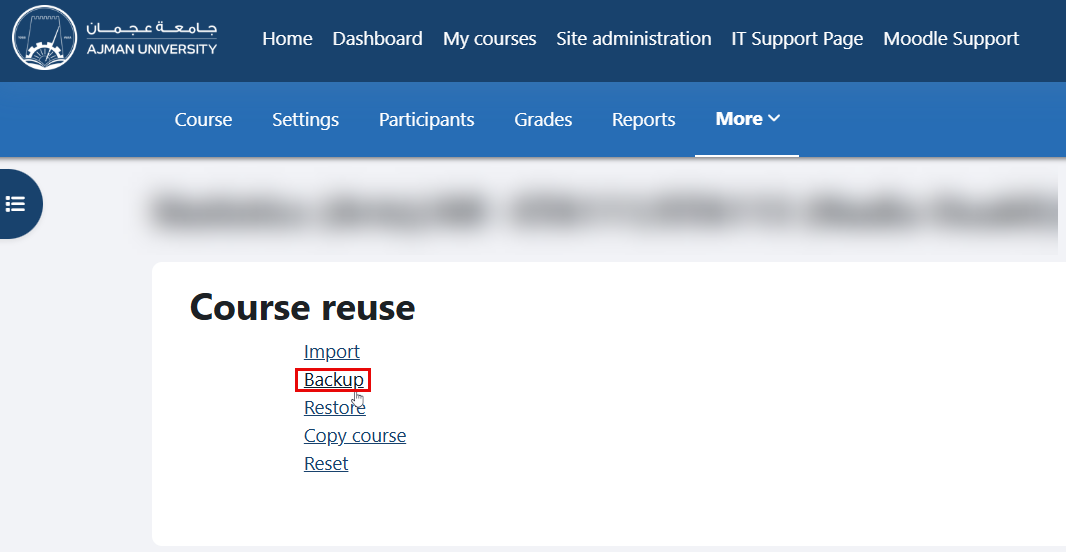
From the drop-down menu, select the “Backup” option.
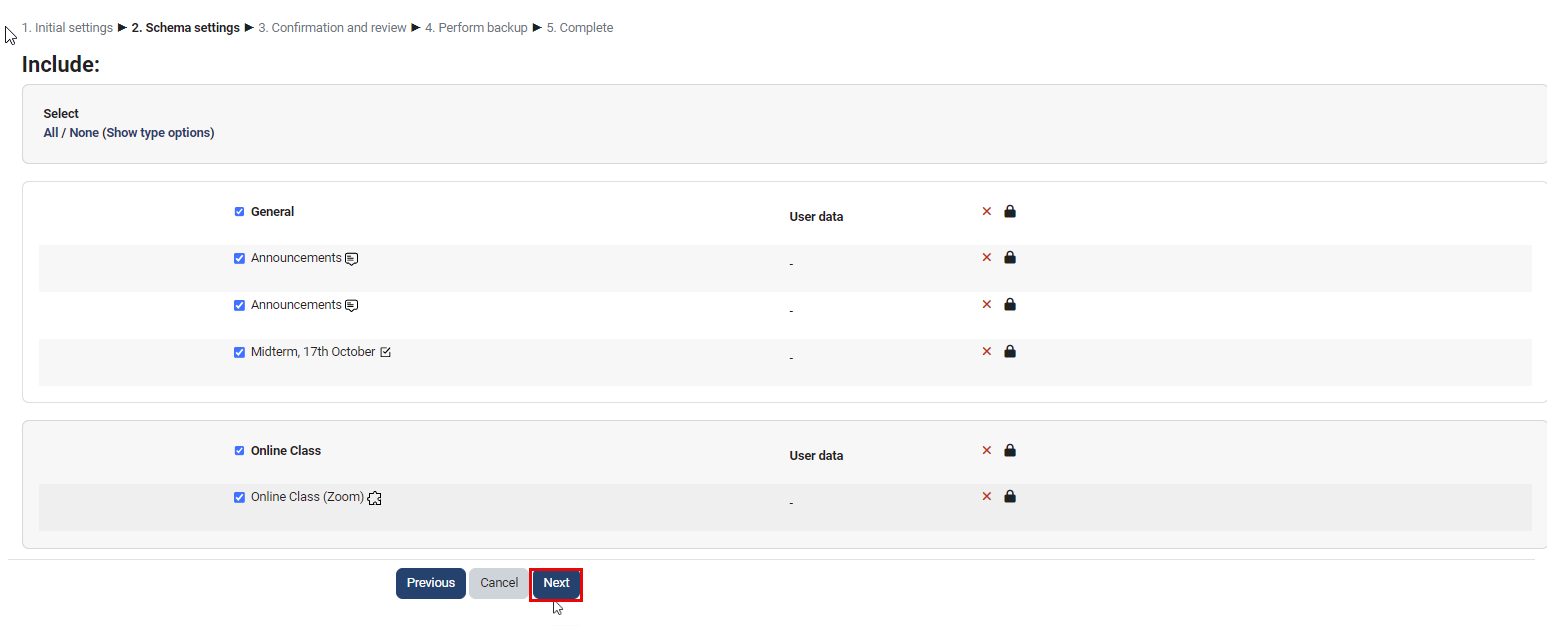
Click Jump to Final Step to perform the backup. Otherwise, if you wish to edit the different parts to be included or excluded (such as the Online Classes), click on the Next button.
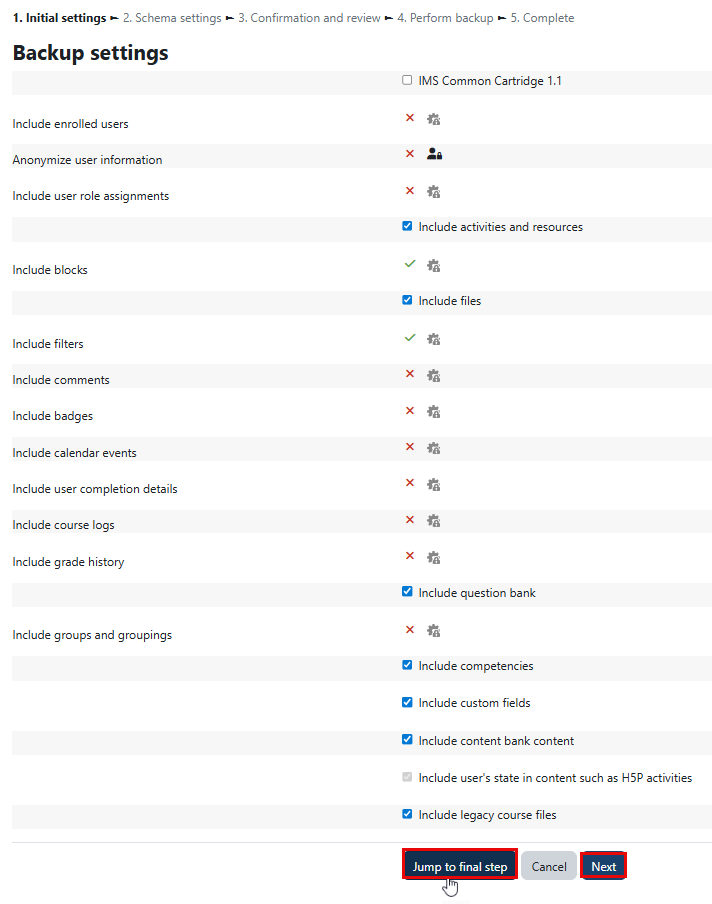
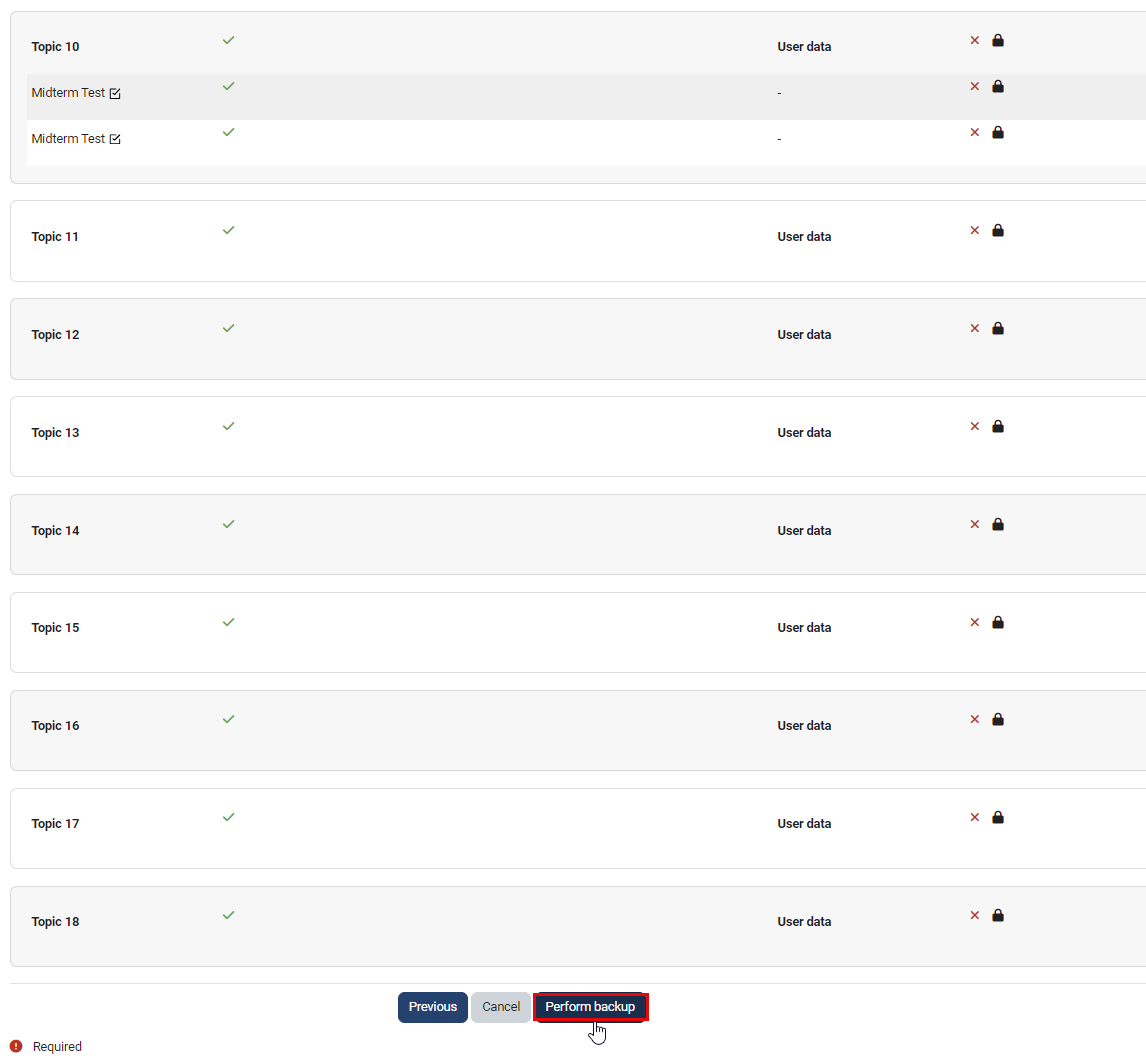
If you chose to edit the different parts of the course before backing it up by clicking on the Next button (as illustrated in the previous figure), then a page will appear. Select/deselect the activities as needed, click on the Next button again, then click Perform backup, as shown below.
Note:
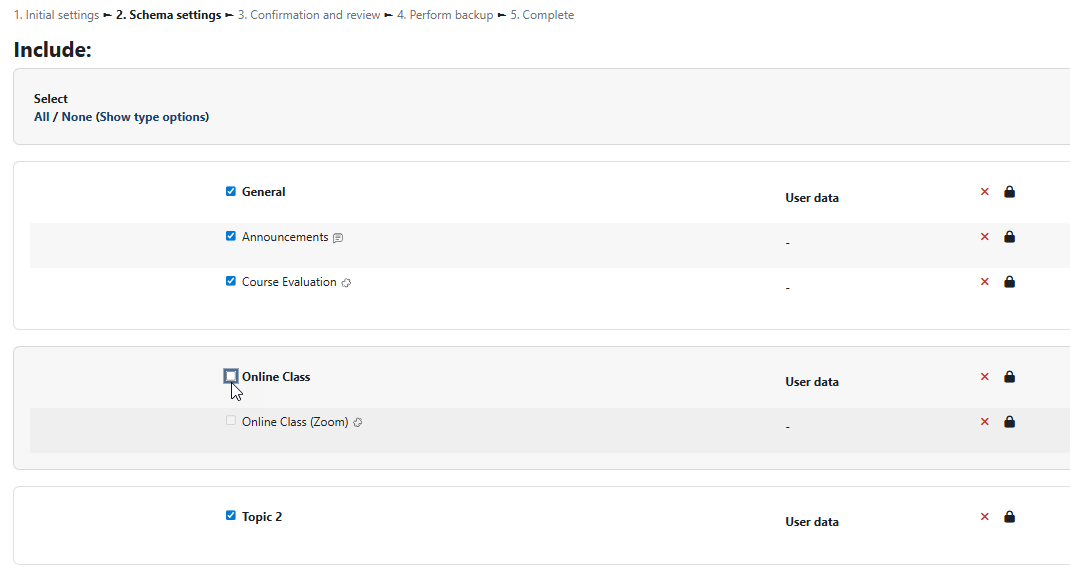
Please make sure to deselect the parts related to the Online Classes as illustrated below, then click on Next.
Moodle will start the Backup process. You can track the progress of the backup and see the estimated time for completion.

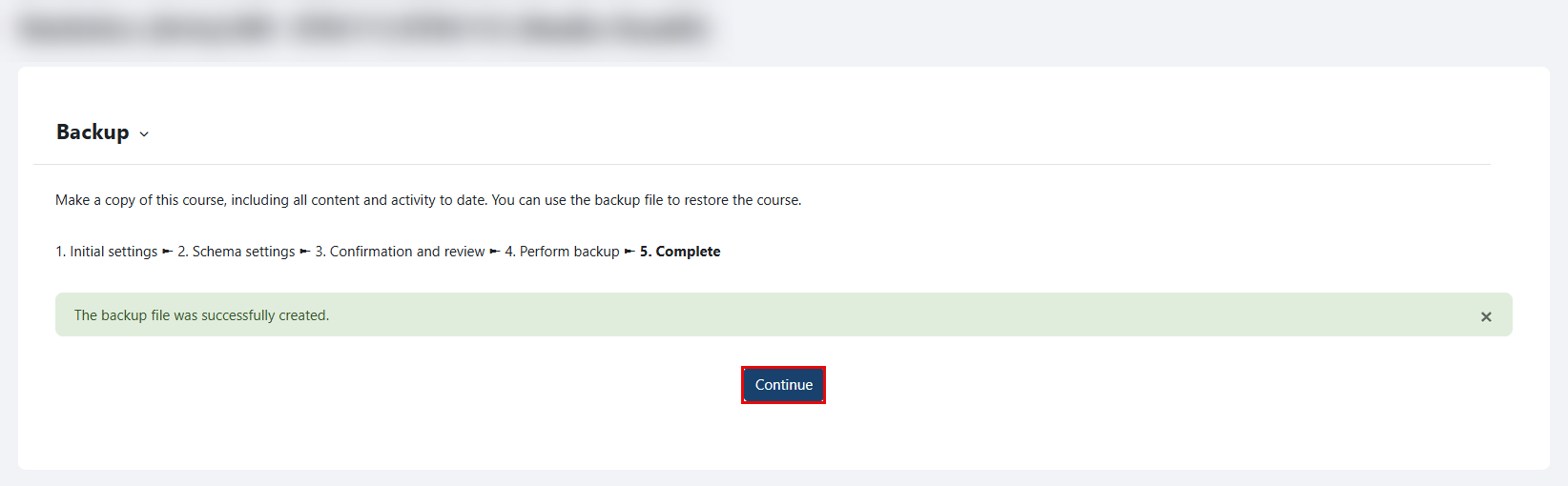
A confirmation message will appear when the backup file is created. Click on the "Continue" button.
Note:
Once you complete the above steps, the page illustrated below will appear for you. Please ignore it as there’s nothing else needed from you to complete the course backup.
Restore Courses
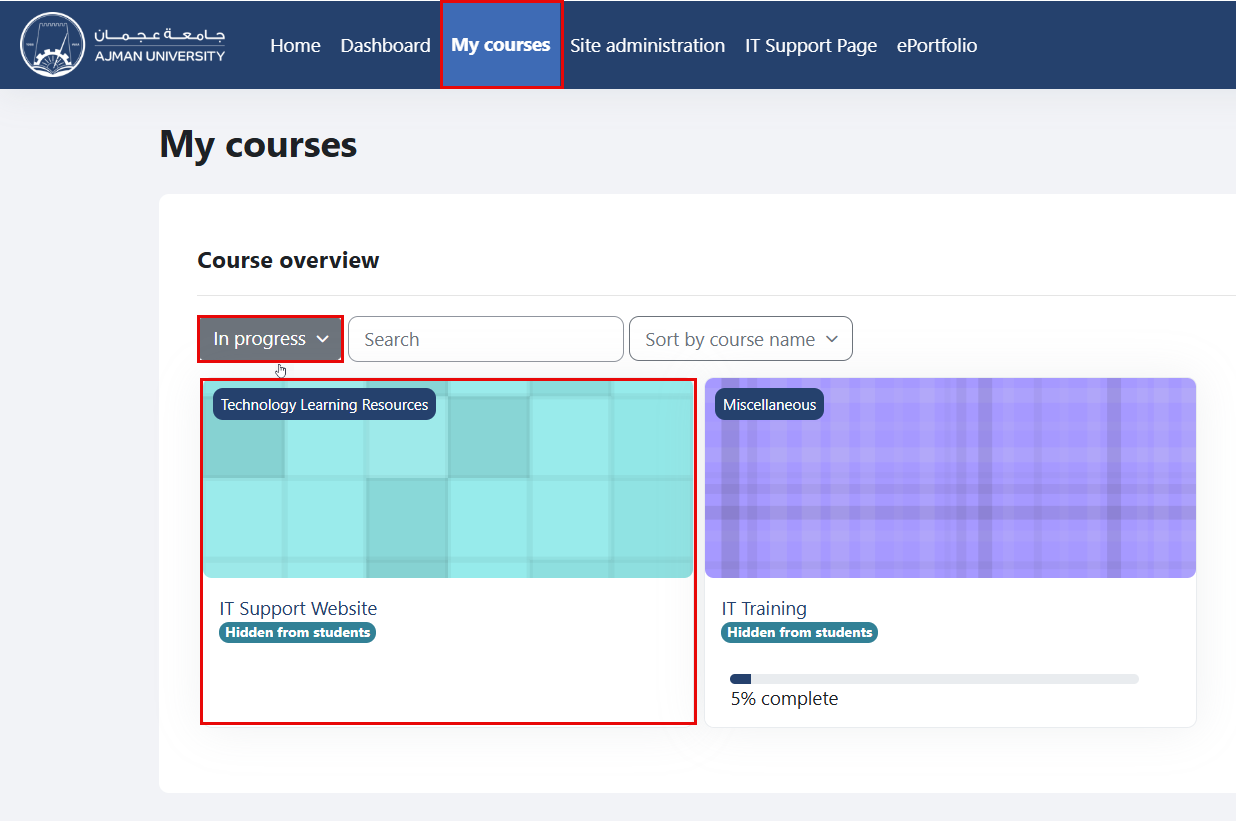
On the Navigation Panel, click on “My Courses”, then select "In Progress" courses from the drop-down menu, and choose the course into which you'd like to restore materials.
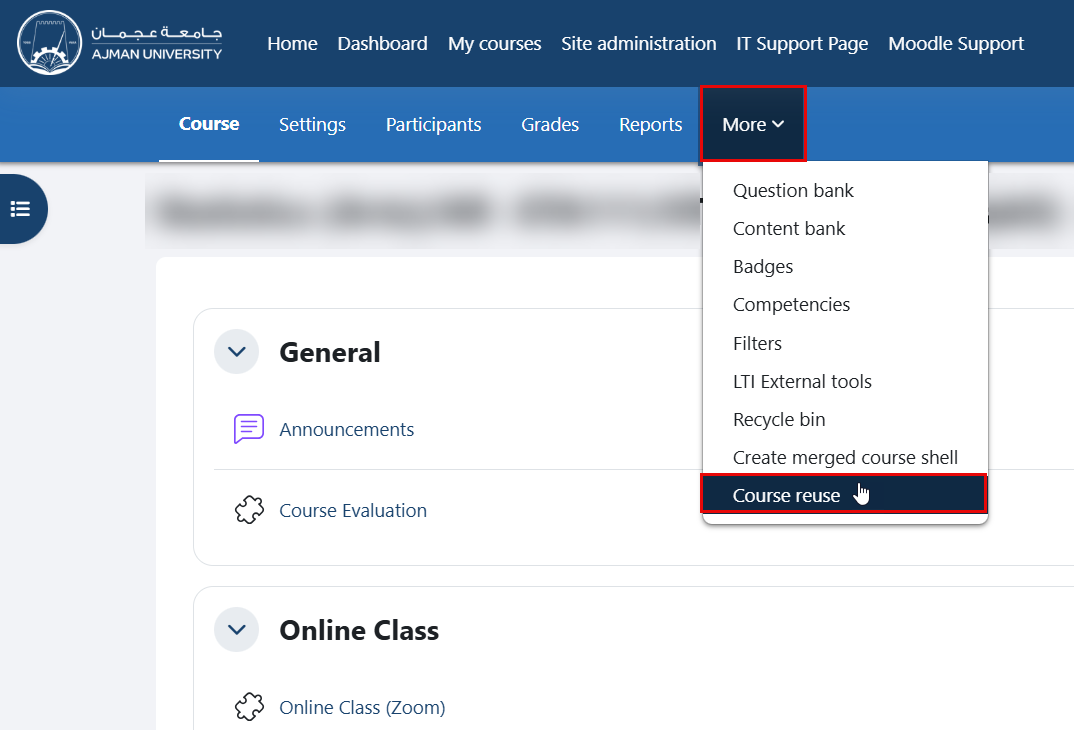
Inside the course, navigate to the secondary menu, then click on the "Course reuse" option.
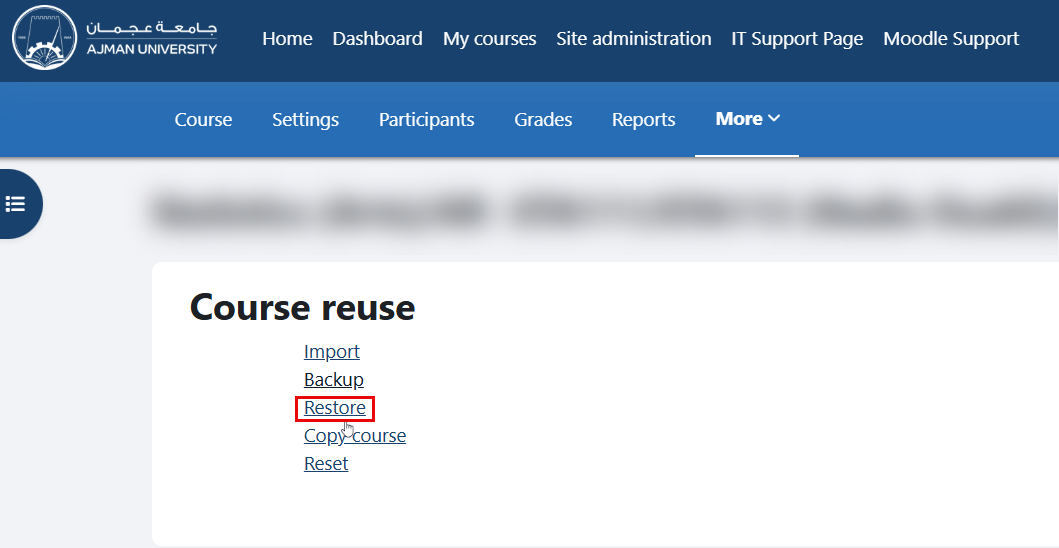
From the drop-down menu, select the “Restore” option.
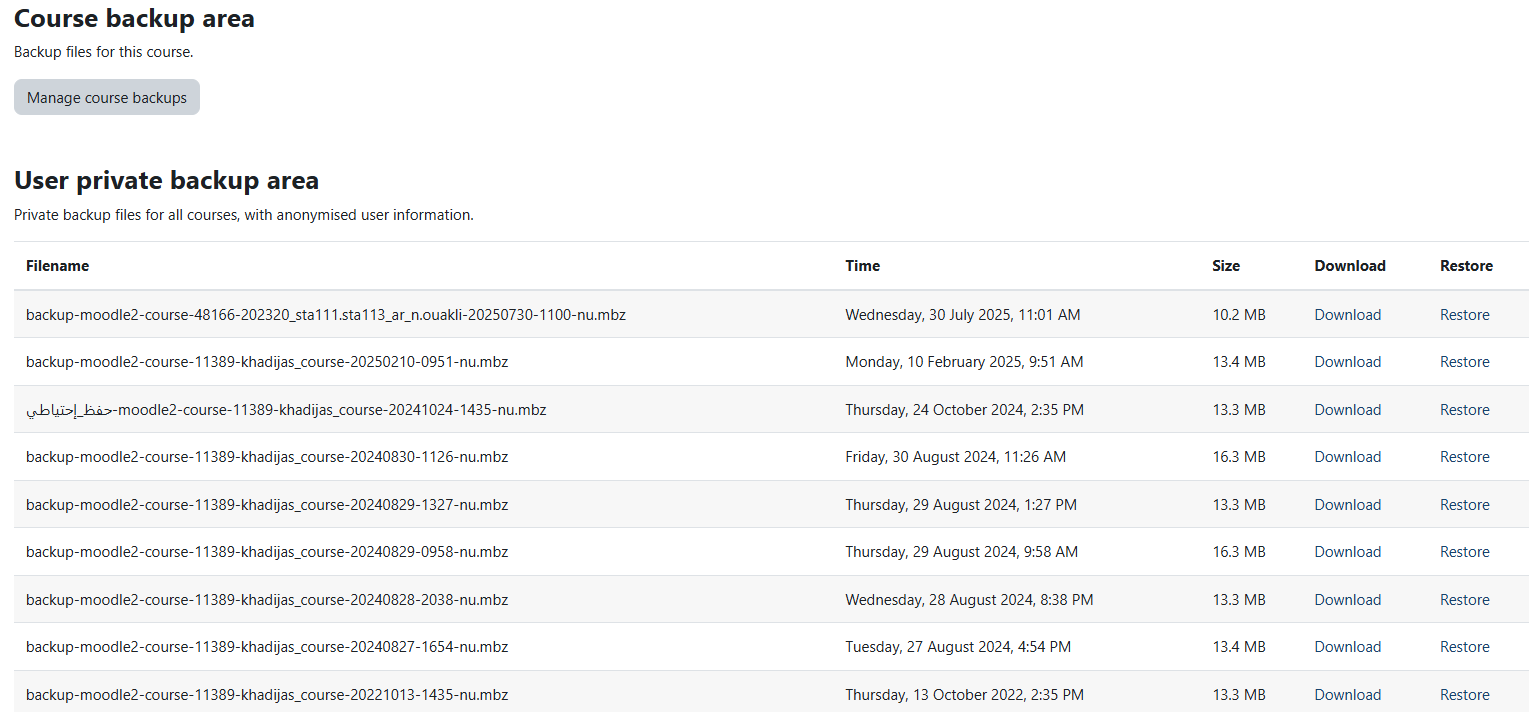
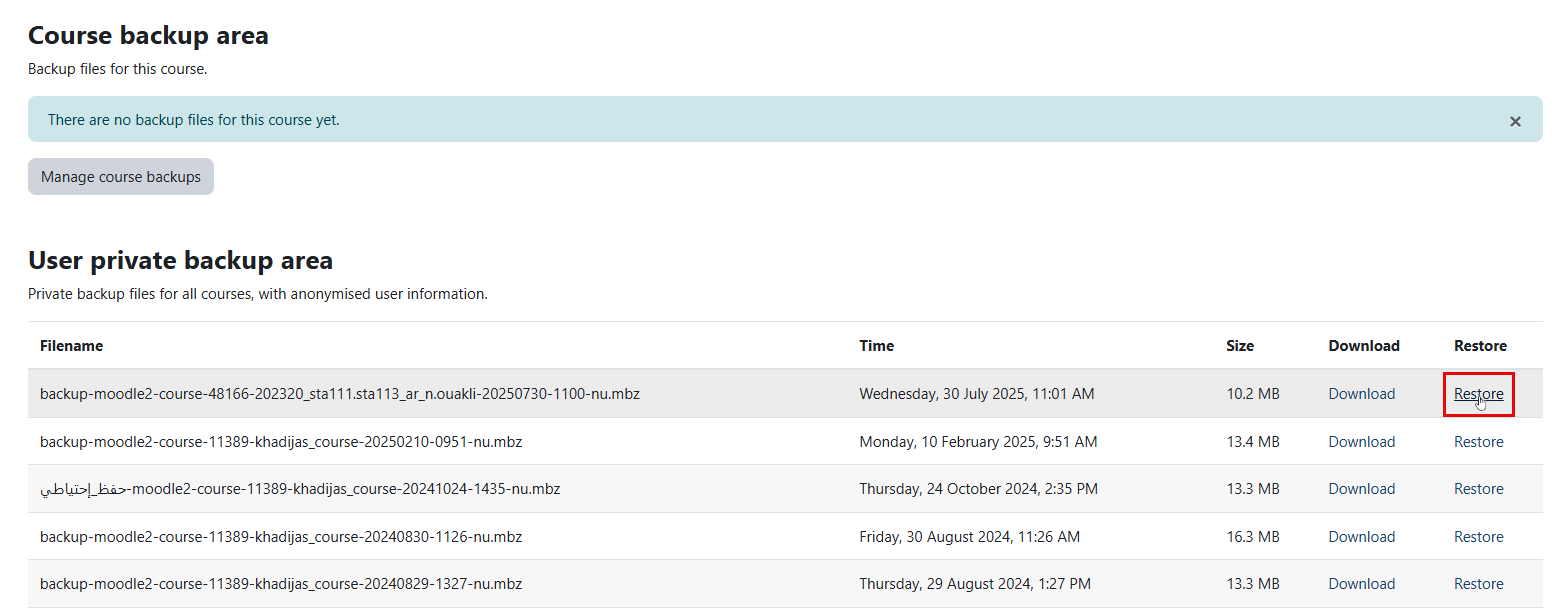
Under the “User private backup area” section, choose the course you’d like to restore by clicking on the Restore button. Note that the file name is based on the course name and semester.

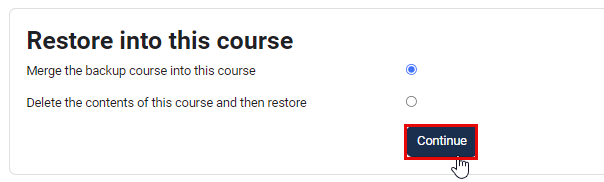
A page with all the details to be included will appear. Scroll down and click on the Continue button.
Under the “Restore into This Course” section, make sure that “Merge the backup course into this course” is selected, and click Continue again.
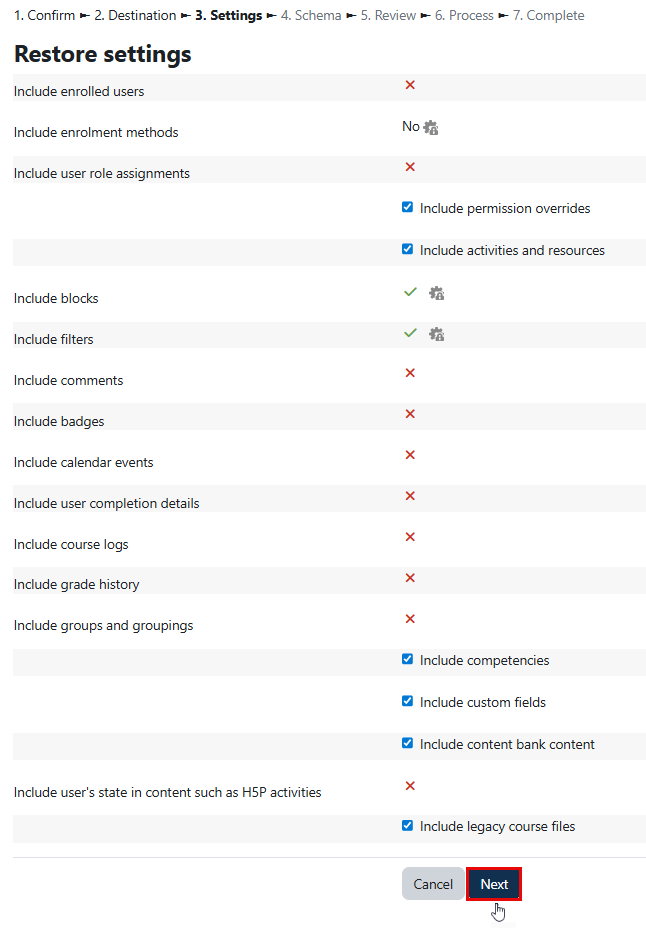
In the “Restore Settings” page, click the Next button.
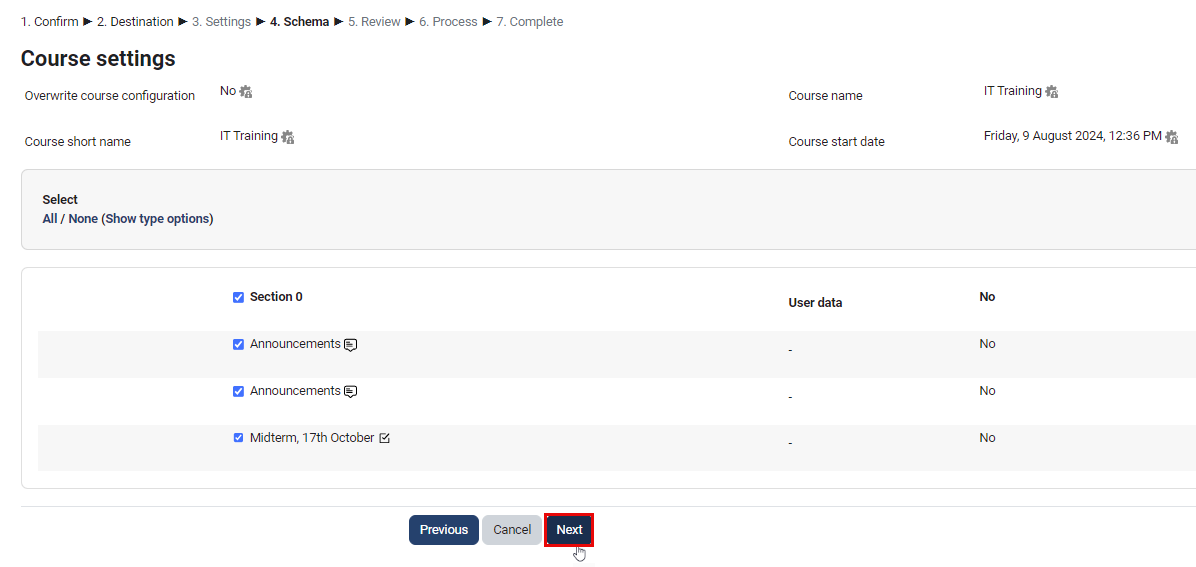
Click the Next button again.
Lastly, click the Perform Restore button.
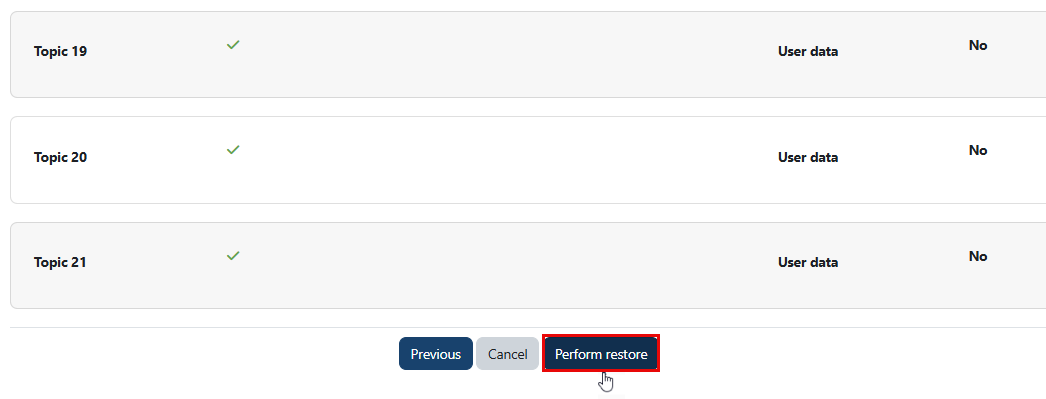
Moodle will start the Restore process. You can track the progress of the restore and see the estimated time for completion.

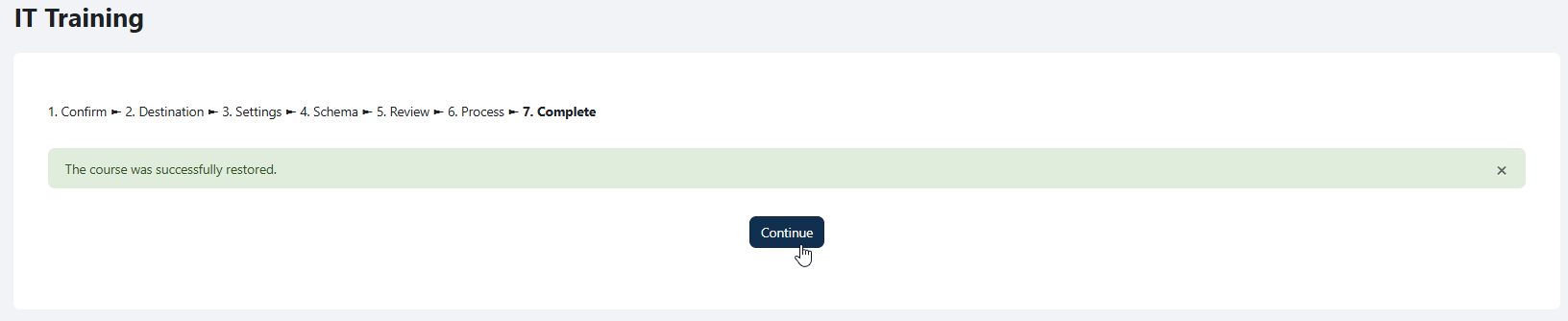
Once the course is restored, you will receive the notification shown below. Click the Continue button.
Note:
After restoring the content of a course, hide any unnecessary items and update the dates and times for assignments and quizzes as needed.
Was this article helpful?
