

Create Direct Billing Requests
- 28 Aug 2023
- 1 Minute to read
- Contributors

- Print
- DarkLight
- PDF
Create Direct Billing Requests
- Updated on 28 Aug 2023
- 1 Minute to read
- Contributors
- Print
- DarkLight
- PDF
Article summary
Did you find this summary helpful?
Thank you for your feedback!
To create Direct Billing requests in Dynamics 365 by following these steps:
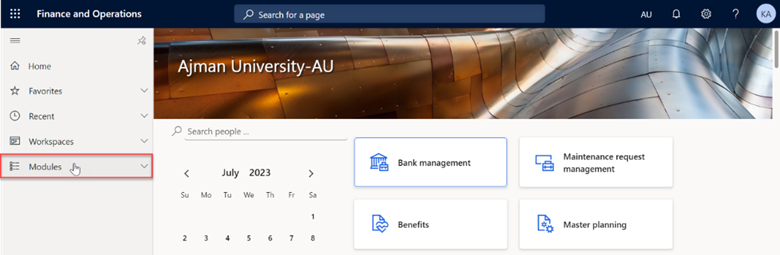
Once you have logged in, you will be on the Dynamics 365 home page. On the left-hand navigation pane, click on Modules.
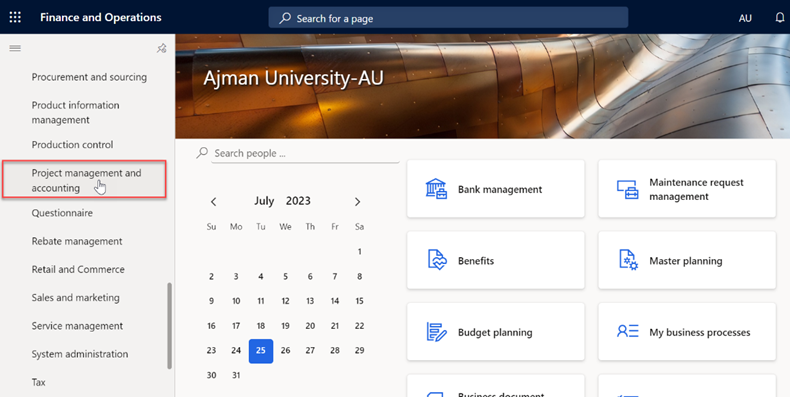
Click on Project management and accounting module.
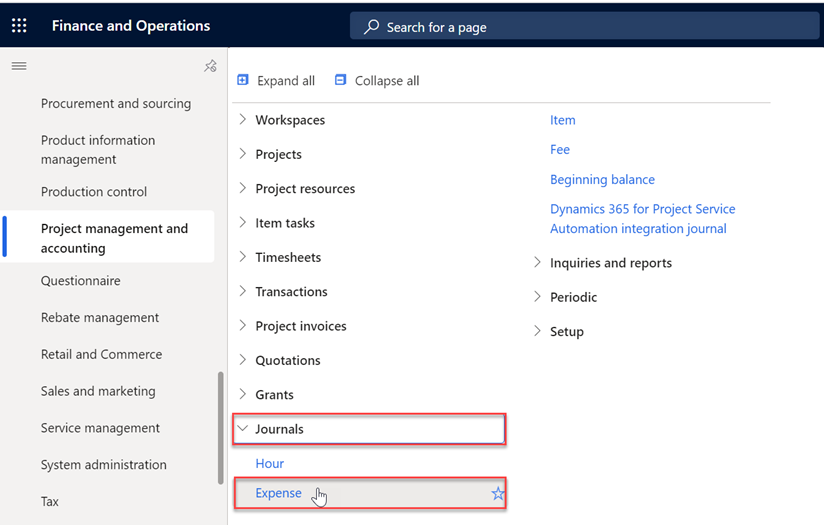
Under Journals, select Expense.
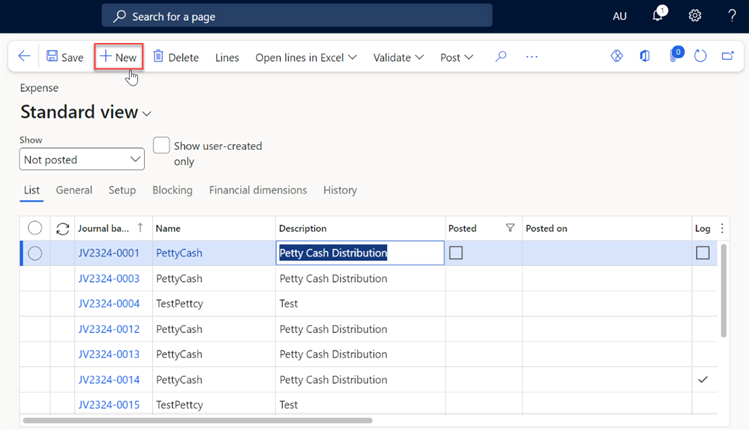
In this module, you will typically see a screen with a list of all existing petty cash and direct billing requests. To create a new request, click on "New", usually represented by a plus sign (+) .
Note:
Requesters can only view and manage their own requests.
- A new request will be created, prompting you to select Direct Billing under the Name tab, and to select your Department.
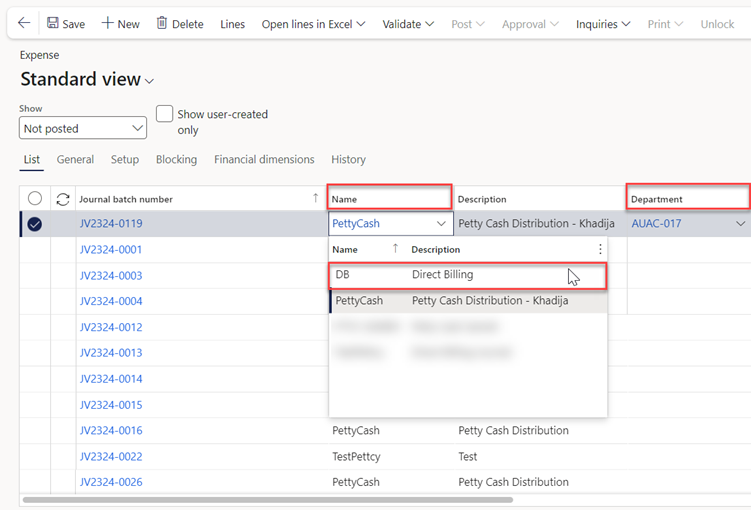
Note:
Represents the name of your Office/College.
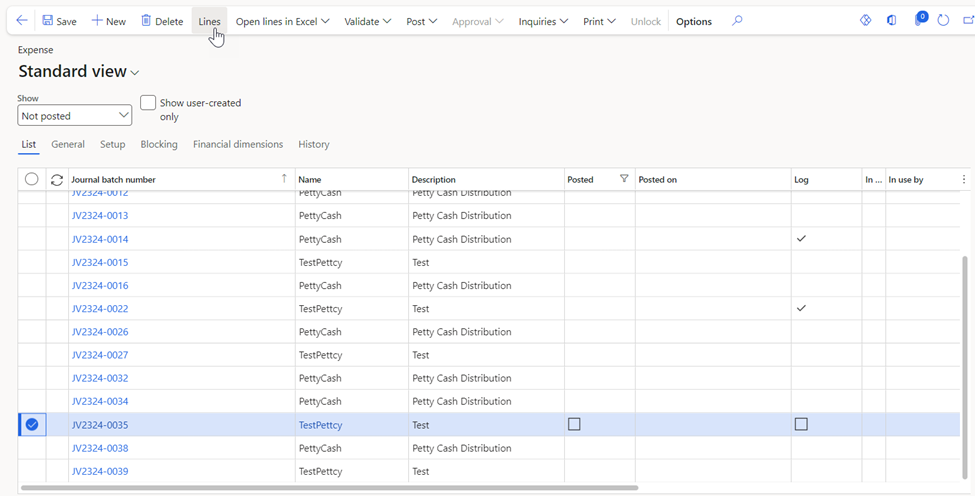
Once done, select the required Direct Billing (Journal batch number), then click on “Lines”.
Fill in the required Direct Billing Request details below.
- Category: represents the type of expenses.
- Cost price: specify the amount of invoice you are requesting. This should be the total amount you need to cover the expenses.
- Offset Account Type: By Default, the type will be set as Vendor.
- Offset Account: Refers to the account that will be used to fund or reimburse the Direct Billing expenses.
- Quantity: The number of items/services.
- Description: You can add a description about the petty cash request.
Note:
Do not change the offset account type.
- Once done, Fill the Invoice details which includes the invoice number and Sales Tax info.
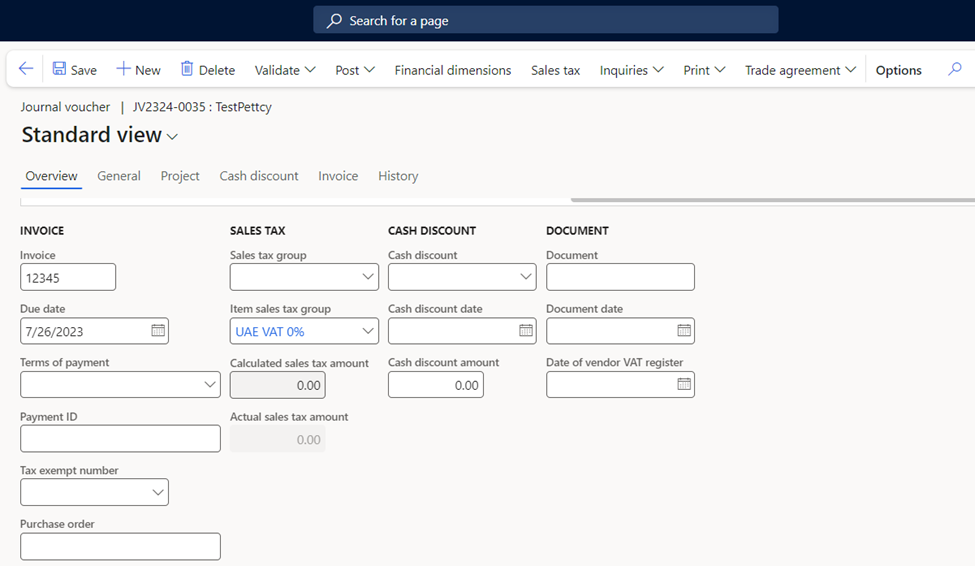
Note:
- Make sure to review the entered details in Direct billing and invoice details for accuracy.
After filling in all the necessary details, review the information for accuracy, then click on “Save”. Then click on “Simulate posting” under the Validate tab, and once validated, click on the “Arrow” icon to navigate to the previous page.
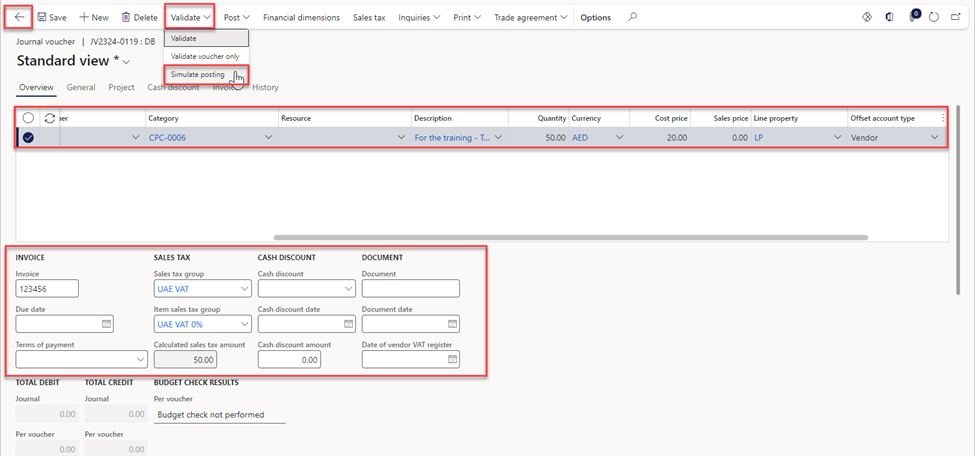
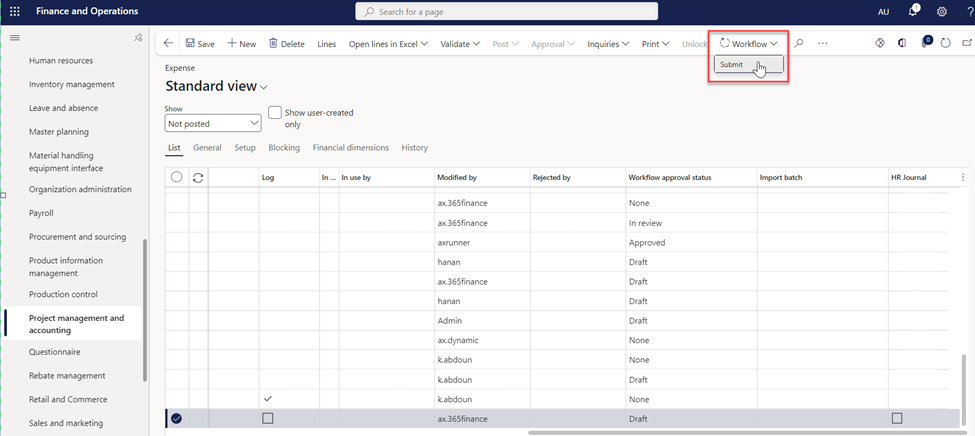
Click on “Workflow”, then “Submit”.
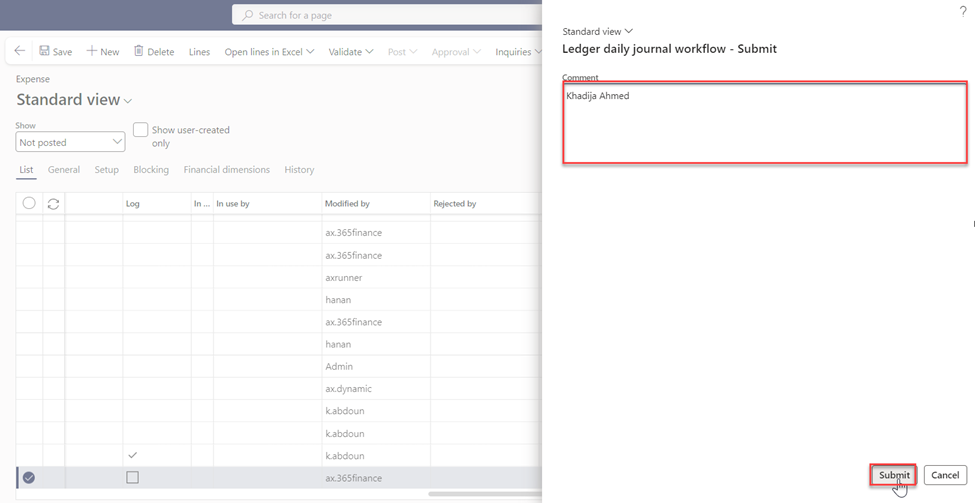
. Make sure to type your name in the designated comment box, then proceed to select the “Submit” button.
Was this article helpful?
