

Create Fixed Asset Purchase Requisitions
- 16 Oct 2025
- 1 Minute to read
- Contributors

- Print
- DarkLight
- PDF
Create Fixed Asset Purchase Requisitions
- Updated on 16 Oct 2025
- 1 Minute to read
- Contributors
- Print
- DarkLight
- PDF
Article summary
Did you find this summary helpful?
Thank you for your feedback!
You can create a purchase requisitions for Fixed Assets, by following the below steps:
- Initiate new purchase requisitions by following the steps in "Create Purchase Requisitions" article.
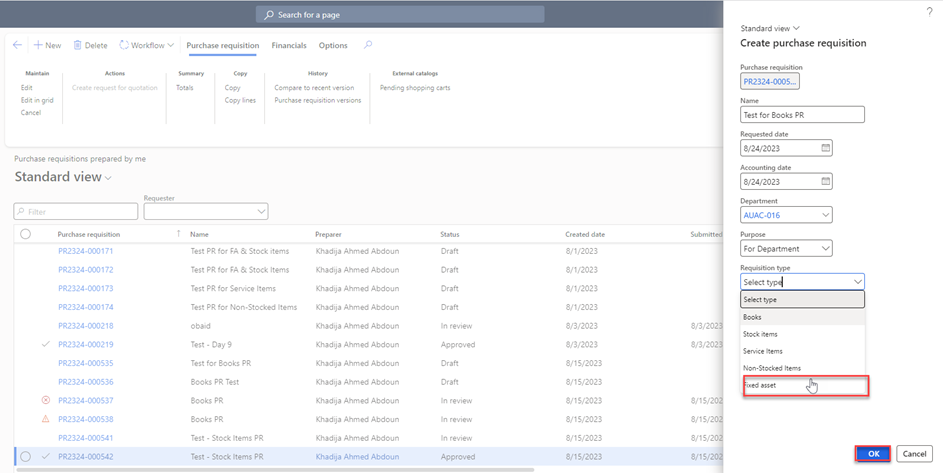
- Once you click on “New”, the below page will be displayed where you need to add the below details:
- Name: Type the name of the new PR.
- Department: Represents the name of your Office/College.
- Purpose: Select “for Department”.
- Requisitions Type: Select Fixed Assets
Once done, click on “OK".
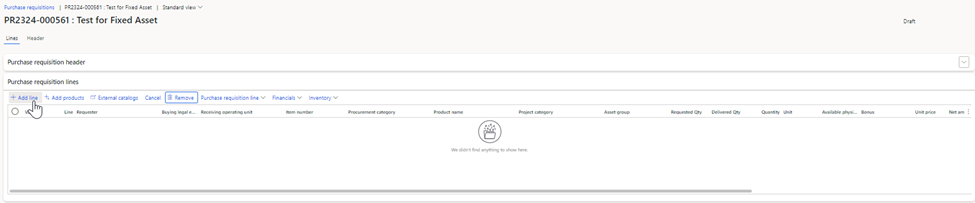
Click on “+ Add Line”. This will create a blank row in the grid where you can enter the details for the new requisition line.
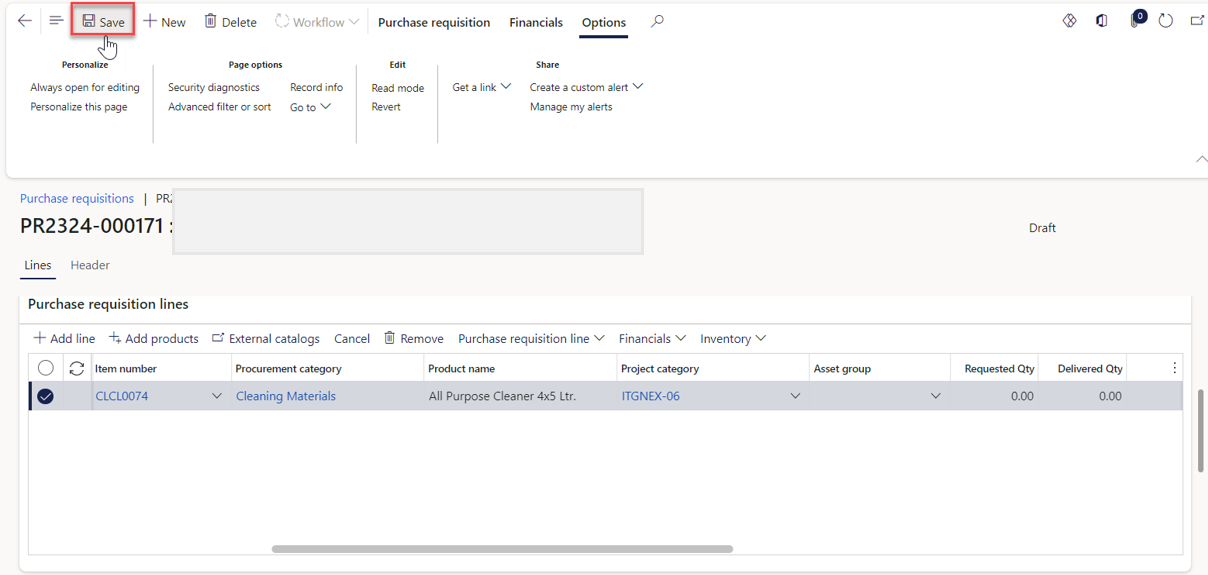
Fill in the necessary information for the requisition such as: item number, requested quantity, unit price, and the vendor account.
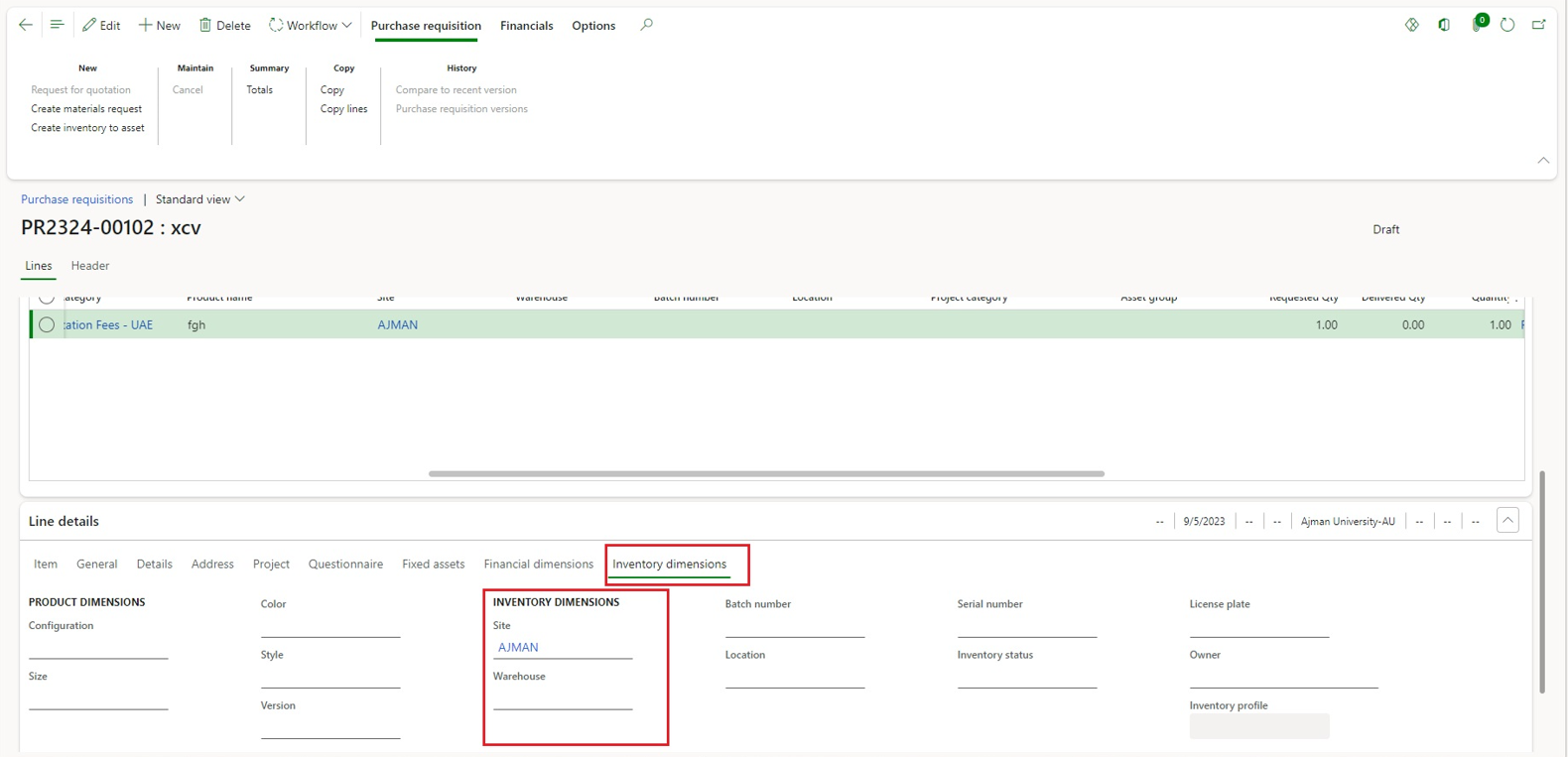
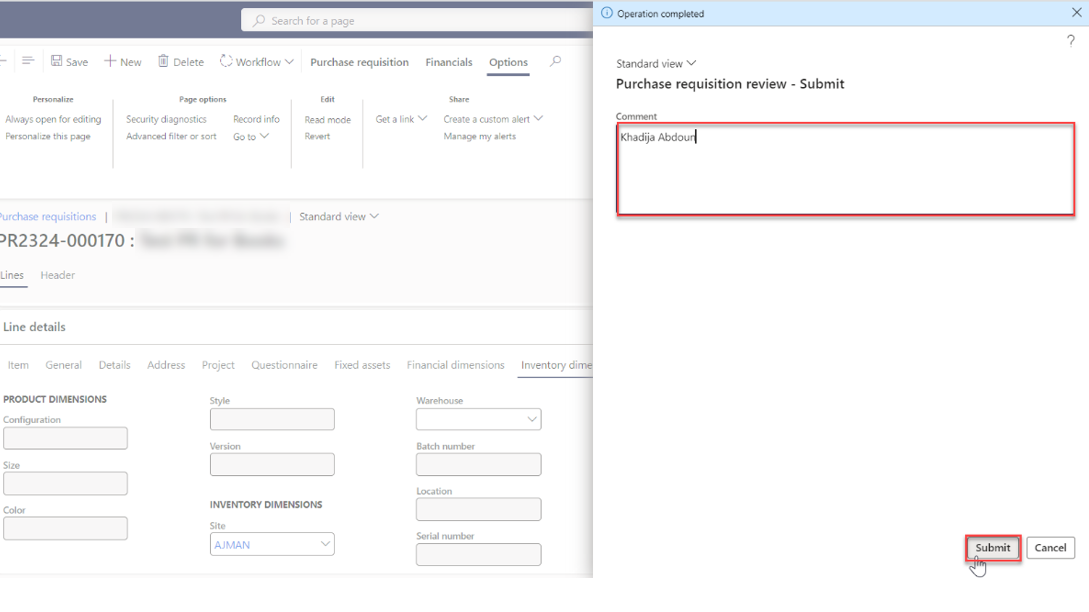
Navigate to "Inventory Dimensions" under Line details, then select "AJMAN" from the site drop-down menu, then click on “Save”.
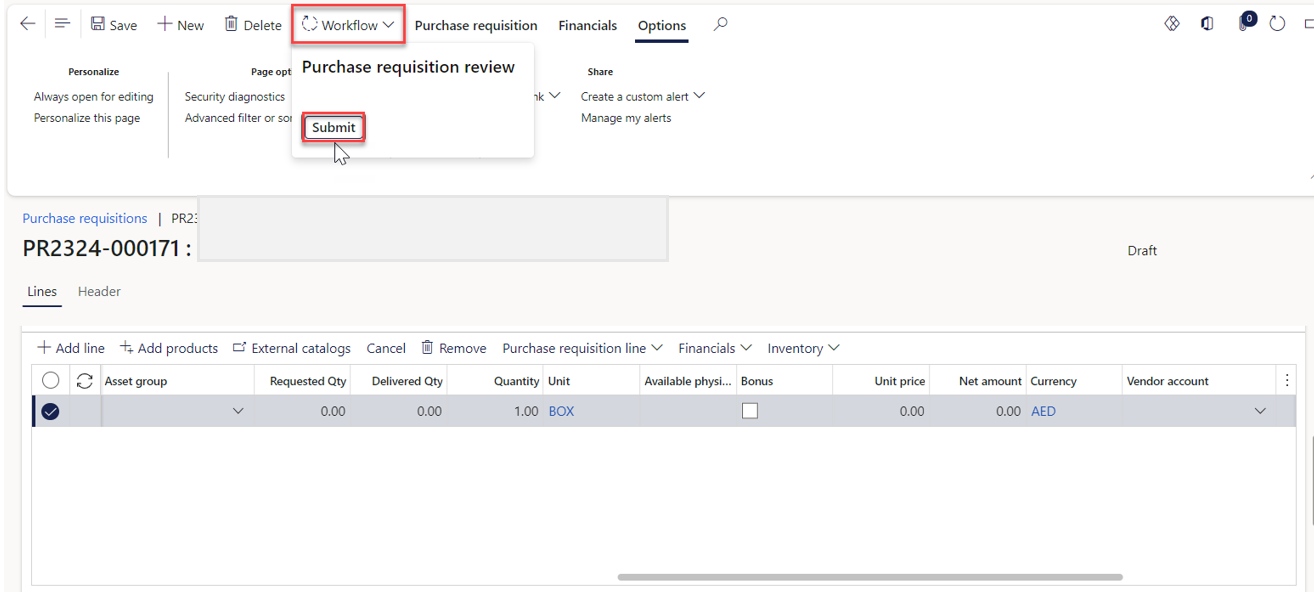
Click on “Workflow”, then “Submit”.
Make sure to type your name in the designated comment box, then proceed to select the “Submit” button.
Note:
- The requisition will need to go through an approval workflow. The requisition will be sent to the appropriate approvers based on predefined rules and permissions.
- The requestor has the option to modify the requisition post-submission by selecting the "Recall" button located in the Workflow tab. Please note, that recalls are permissible when the status is "In Review."
Was this article helpful?
