

Create an Online Exam
- 06 Feb 2026
- 3 Minutes to read
- Contributors

- Print
- DarkLight
- PDF
Create an Online Exam
- Updated on 06 Feb 2026
- 3 Minutes to read
- Contributors
- Print
- DarkLight
- PDF
Article summary
Did you find this summary helpful?
Thank you for your feedback!
To create an online exam, please follow the steps below:
- Log in to Moodle.
- Select your course from "My Courses"
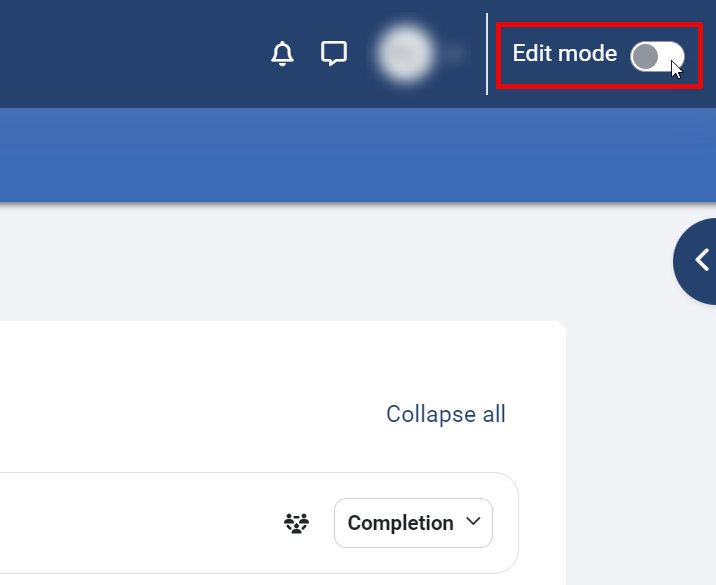
- Enable editing inside the course by clicking the "Edit mode" toggle switch, as shown below:
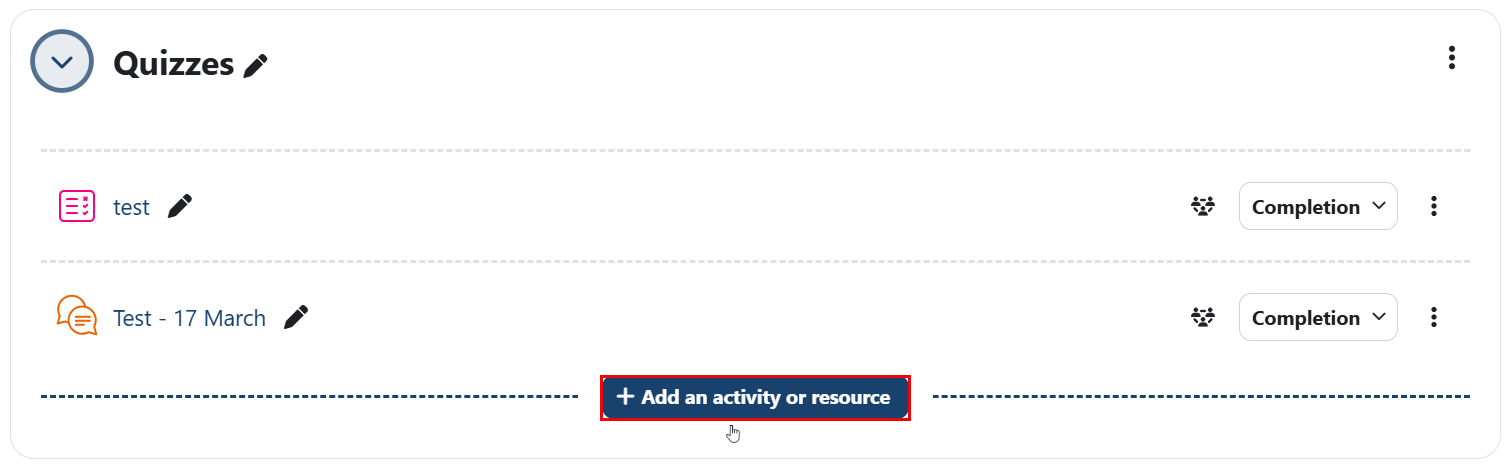
- Under a specific topic, click the Add an activity or resource button.
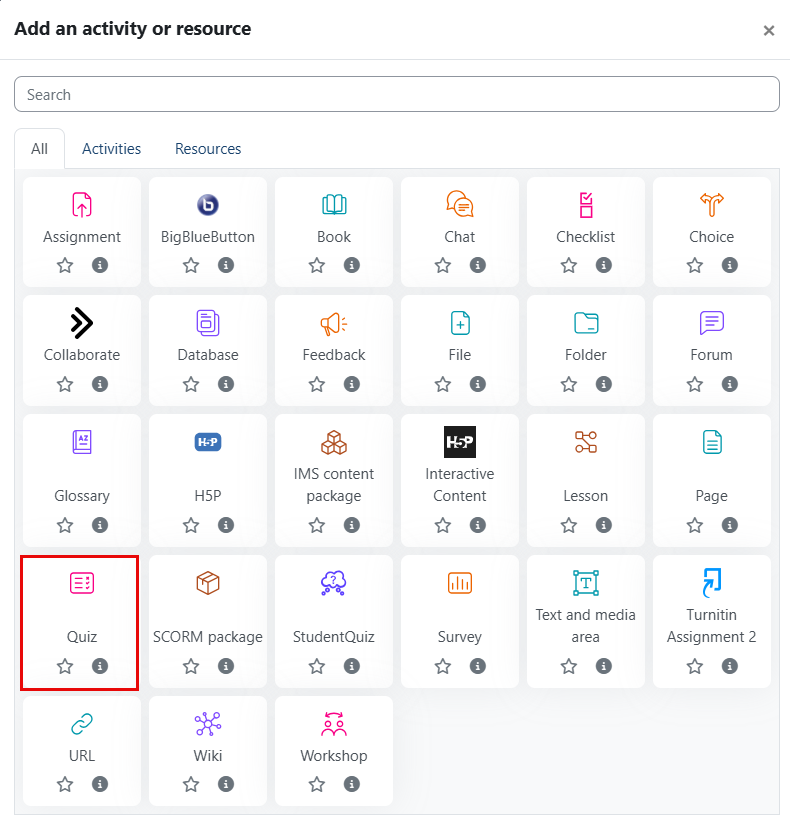
- Select Quiz as the activity type.
- Enter the quiz name and description as needed.
Set up the Timing Settings
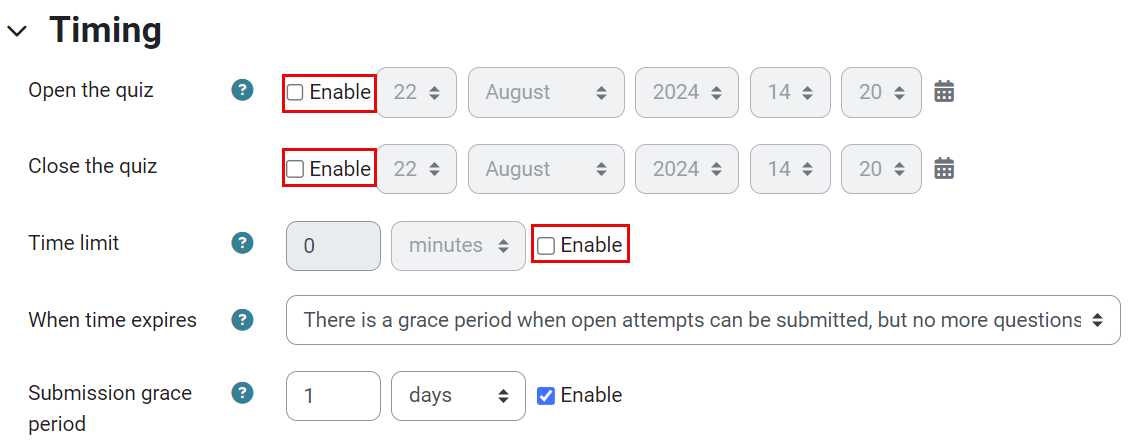
- Open the quiz: Click Enable and set the date and time when the quiz will open for students.
- Close the quiz: Click Enable and set the closing date and time, after which students can no longer take the quiz.
- Time limit: Click Enable and set the countdown timer for quiz attempts. You can specify the duration in seconds, minutes, hours, or days.
- When time expires:Choose what happens if a student doesn’t submit their quiz attempt before the time runs out. Options include:
- Open attempts are submitted automatically.
- Allow a grace period to submit without changing responses (period specified by you).
- If not submitted before time expires, the attempt is not counted (score of zero)
. Note:If the student is actively working on the quiz, then the attempt will be submitted once the time is up. However, if they are logged out without submitting the attempt then this setting controls what happens.
Set up the Grade settings
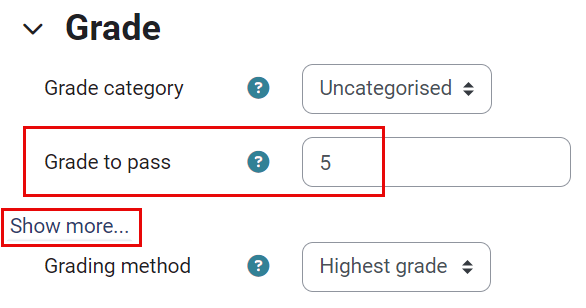
- Under the Grade section, enter the Grade to Pass and click on Show more.
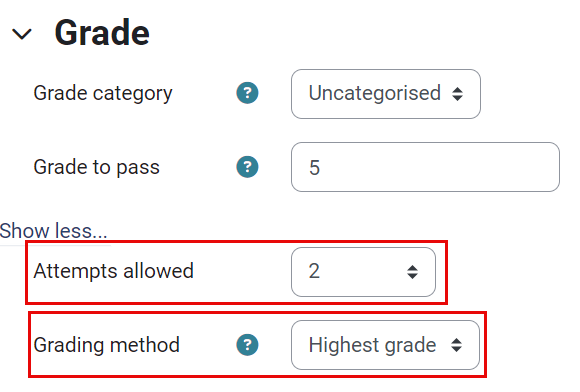
- Specify the number of allowed attempts and the grading method. If multiple attempts are allowed, choose to grade by highest grade, average, first, or last attempt.
Set up the Layout Settings
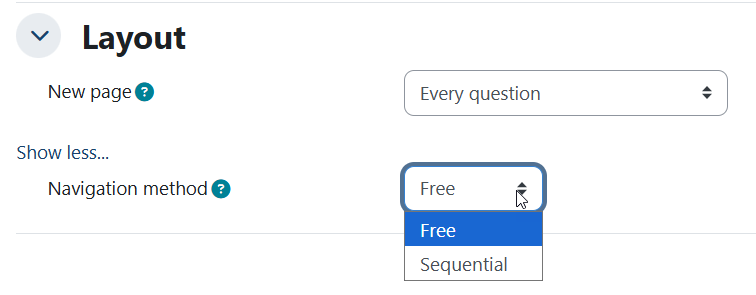
You can specify how many questions appear on each page of the quiz. By default, one question is displayed per page. Click “Show more” to reveal an additional setting: the Navigation method:
- Free navigation allows students to move freely between quiz pages and questions in any order.
Sequential navigation requires students to answer questions in the order presented, without the ability to return to previous questions.
Set up the Question Behaviour Settings
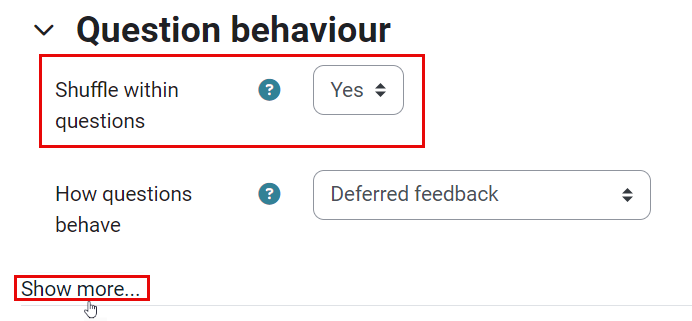
- To shuffle options in multiple choice and matching questions, set Shuffle within questions to Yes and click Show more.
- To enable Certainty Level (Certainty-Based Marking), from How questions behave select Deferred feedback with CBM, Once enabled, the Certainty Level (Low / Medium / High) will automatically appear for students for each supported question during the quiz attempt.
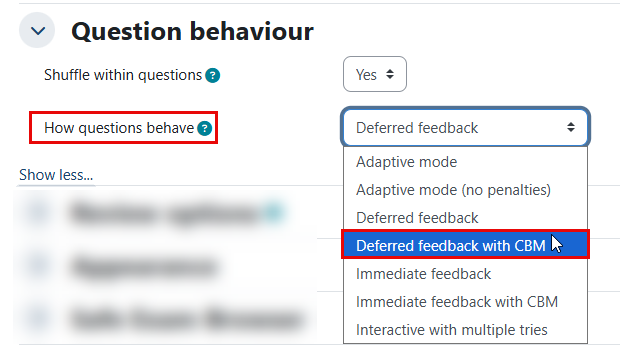 Notes:
- This option must be set before students attempt the quiz.
- Certainty Level works with auto-graded questions (for example, Multiple Choice and True/False).
- Essay questions do not support Certainty Level.
- If this setting is enabled and multiple attempts are allowed, students will see their answers from the previous attempt when starting a new one.
This helps them continue where they left off, making it easier to complete the quiz over several attempts instead of starting over each time.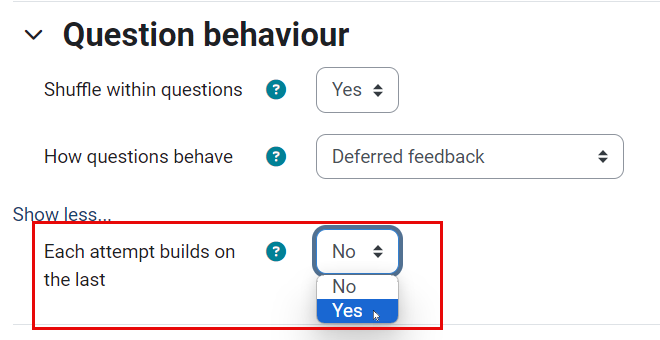
Set up the Review Options settings
In this section, you can control when the students will be able to view the quiz report, reviews, and feedback. In order to allow the students to view this kind of information only after the quiz closing date and time has passed, uncheck all options under Immediately after attempt and Later while the quiz is still open sections.
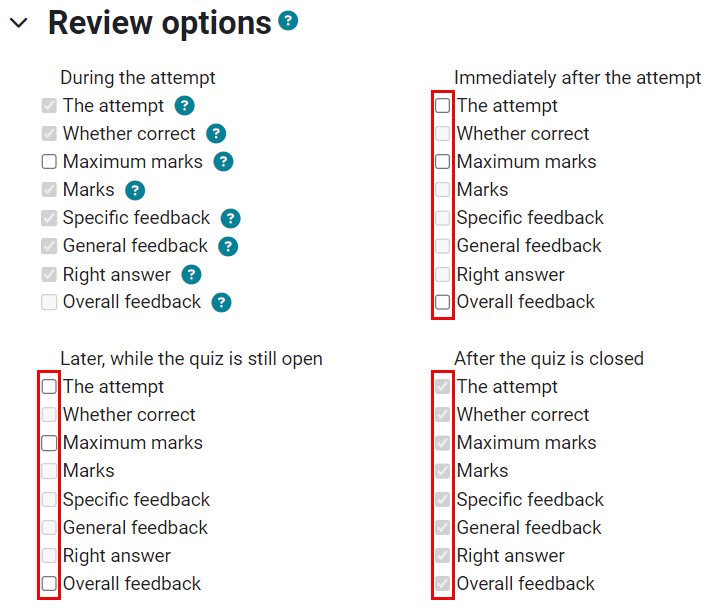
Set up the Extra Restrictions on Attempts settings
In this section, you can specify a password here to restrict quiz access to participants who enter the correct password. This is useful to give only a selected group of students access to the quiz.

You can control Browser Security by clicking Show more:
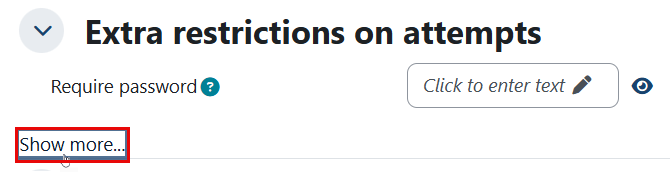
The Brower Security has two options:
1. Browser security should be set through the LockDown Browser Dashboard:
LockDown Browser is a customized web browser that must be downloaded and installed on the computer that the student uses to attempt the quiz. It restricts student use more effectively than a pop-up window option.
Features include full screen, without web navigation options, shortcut keys including copy and paste are disabled, and of course surfing the web and using any other application during an exam.
You can find additional information about this feature in the user guide linked here.
2. Full screen pop-up with some JavaScript security
If this option is selected, then:
- The quiz will only start if the student has a JavaScript-enabled web browser.
- The quiz appears in a full-screen popup window that covers all the other windows and has no navigation controls.
- The students are prevented, as far as possible, from using facilities like copy and paste.

Set up the Restrict Acces settings
Restrict Access setting is used to allow students from a certain section (or CRN) to view an activity/quiz. You can learn about the restrict access settings through the Restrict Access articles.
Online Exam Guidelines:
All students are asked to meet the minimum technology requirements, as the IT team may be unable to provide support if the requirements are not met.
Was this article helpful?
