

Create Service Items purchase Requisitions
- 06 Sep 2023
- 1 Minute to read
- Contributors

- Print
- DarkLight
- PDF
Create Service Items purchase Requisitions
- Updated on 06 Sep 2023
- 1 Minute to read
- Contributors
- Print
- DarkLight
- PDF
Article summary
Did you find this summary helpful?
Thank you for your feedback!
You can create a purchase requisitions for Service items, by following the below steps:
- Initiate new purchase requisitions by following the steps in "Create Purchase Requisitions" article.
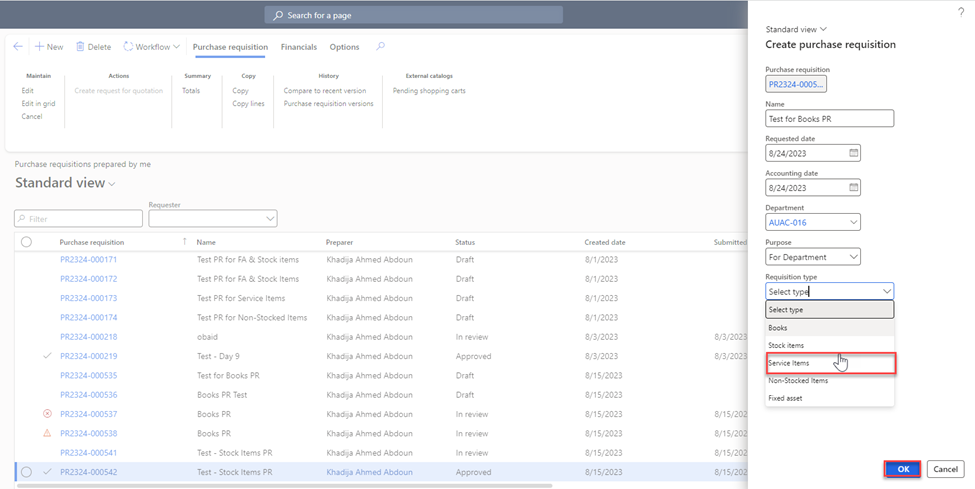
- Once you click on “New”, the below page will be displayed where you need to add the below details:
- Name: Type the name of the new PR.
- Department: Represents the name of your Office/College.
- Purpose: Select “for Department”.
- Requisitions Type: Select Service items.
Once done, click on “OK”.
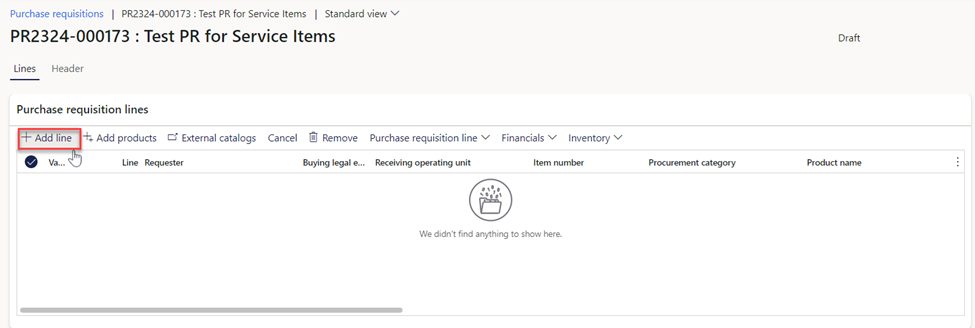
Click on “New Line”. This will create a blank row in the grid where you can enter the details for the new requisition line.
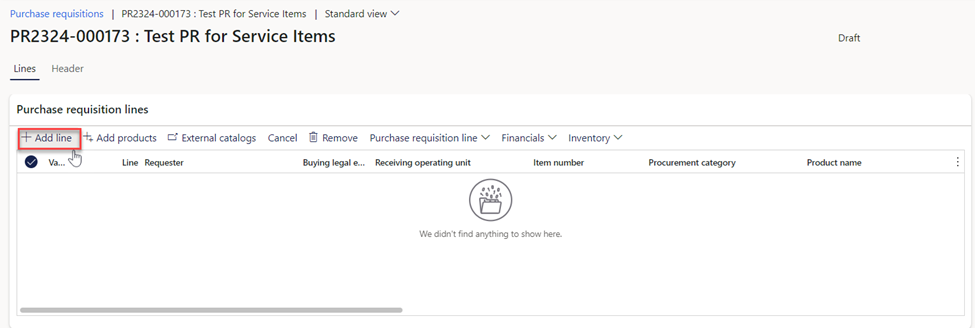
 {height="" width=""}
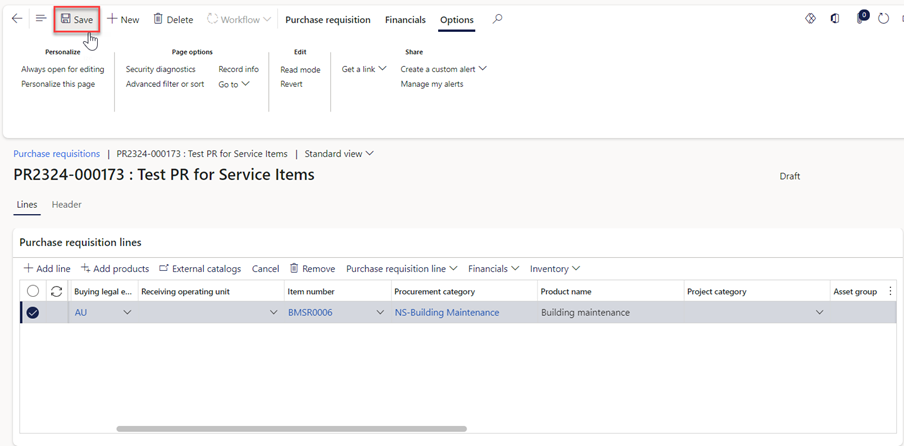
Fill in the necessary information for the requisition such as: item number, requested quantity, unit price, and the vendor account.
Note:
- In the event that the requestor leaves the vendor account unfilled, the procurement office will take the responsibility of completing this information.
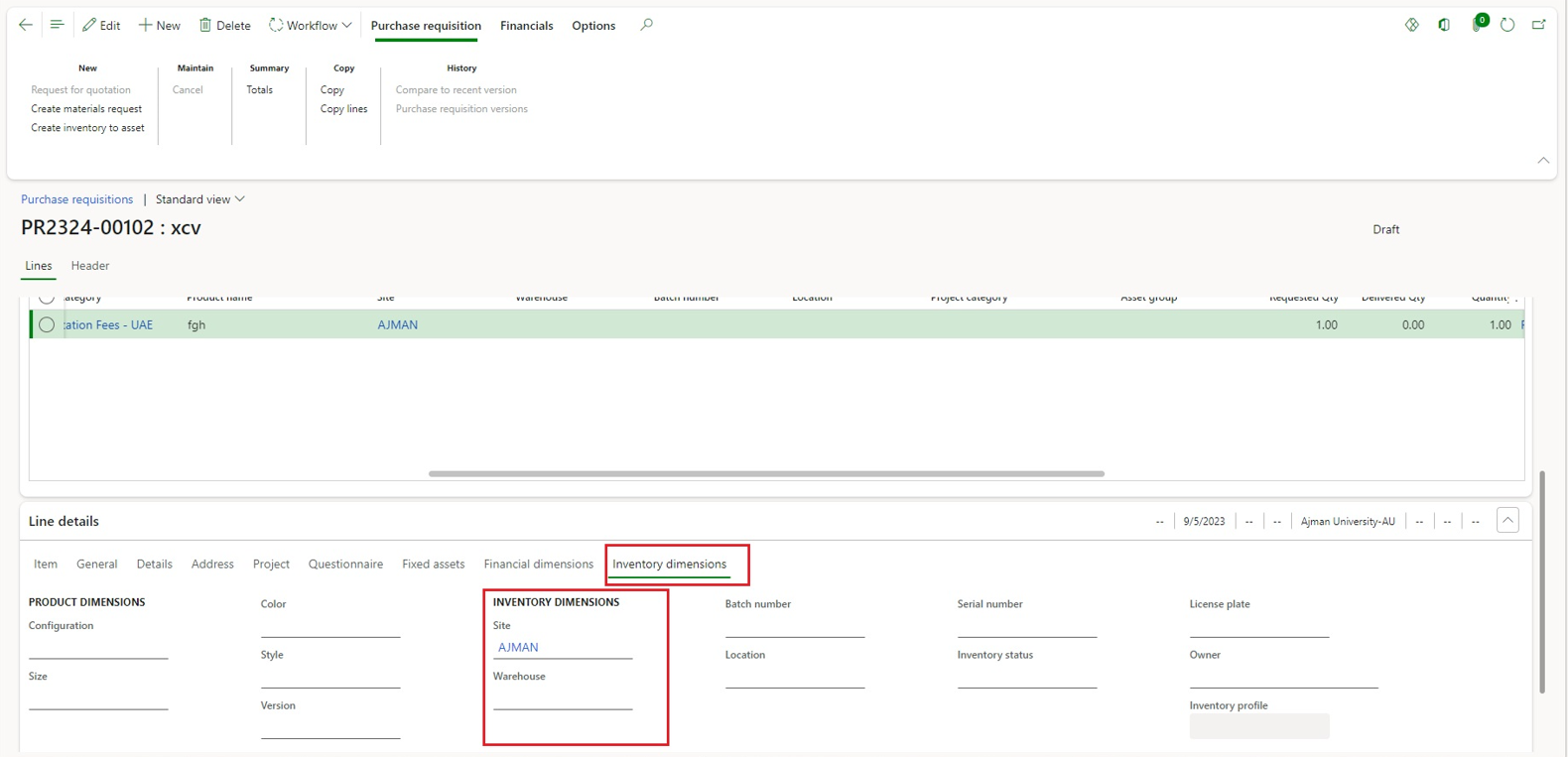
Navigate to "Inventory Dimensions" under Line details, then select "AJMAN" from the site drop-down menu, then click on “Save”.
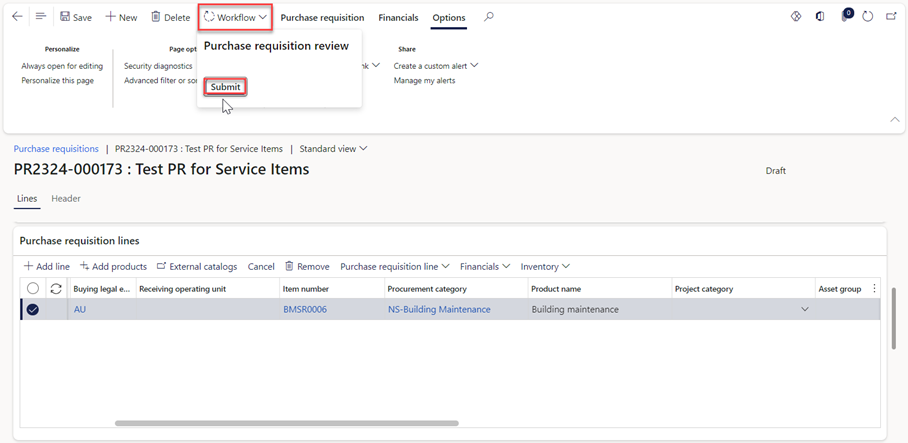
Click on “Workflow”, then “Submit”.
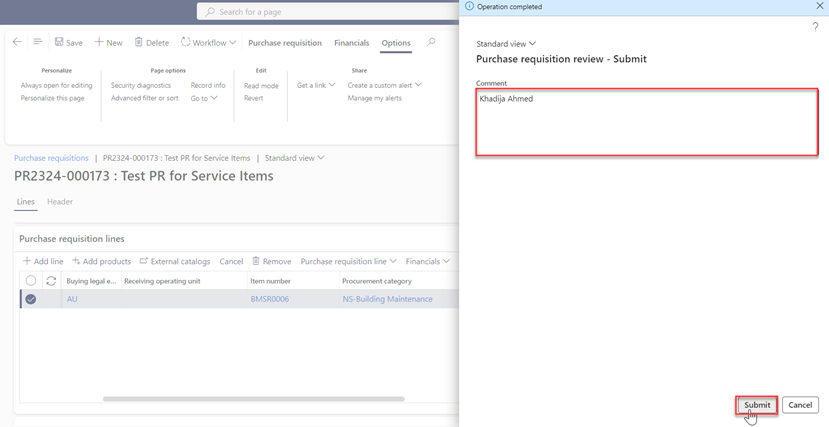
Make sure to type your name in the designated comment box, then proceed to select the “Submit” button.
Note:
- The requisition will need to go through an approval workflow. The requisition will be sent to the appropriate approvers based on predefined rules and permissions.
- The requestor has the option to modify the requisition post-submission by selecting the "Recall" button located in the Workflow tab. Please note, that recalls are permissible when the status is "In Review."
Was this article helpful?
