

Create, Edit and Delete Views
- 12 Sep 2025
- 1 Minute to read
- Contributors

- Print
- DarkLight
- PDF
Create, Edit and Delete Views
- Updated on 12 Sep 2025
- 1 Minute to read
- Contributors
- Print
- DarkLight
- PDF
Article summary
Did you find this summary helpful?
Thank you for your feedback!
Views facilitate the display of various artifacts on a single page, making it suitable for sharing with any selected group of users. Upon creating a new view, it can be promptly shared with all course instructors. Utilizing Drag & Drop functionality enables effortless addition of entries to the view from the previously created artifacts.
Create Views
To create view, please follow the steps below:
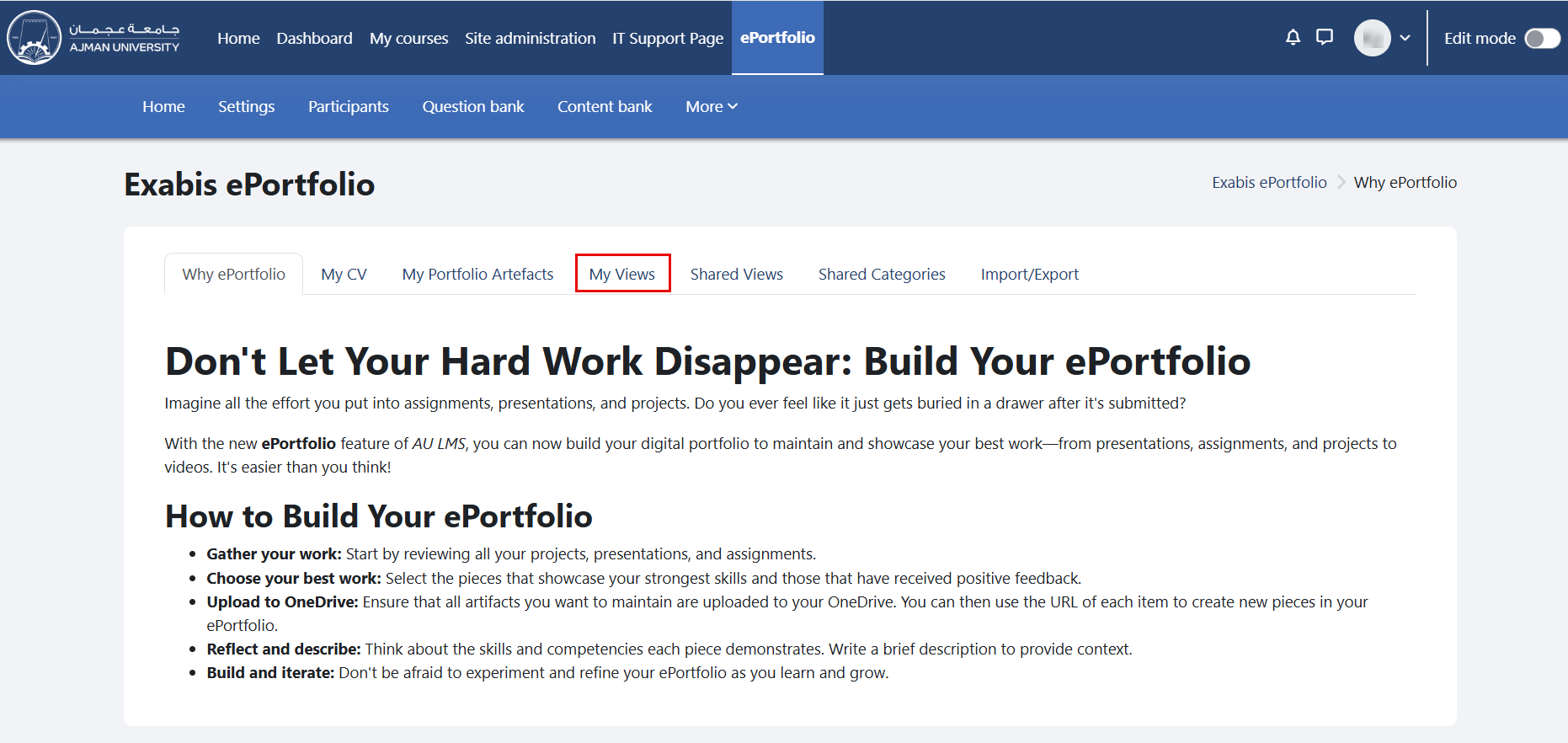
In the ePortfolio page, click on the tab "My Views".
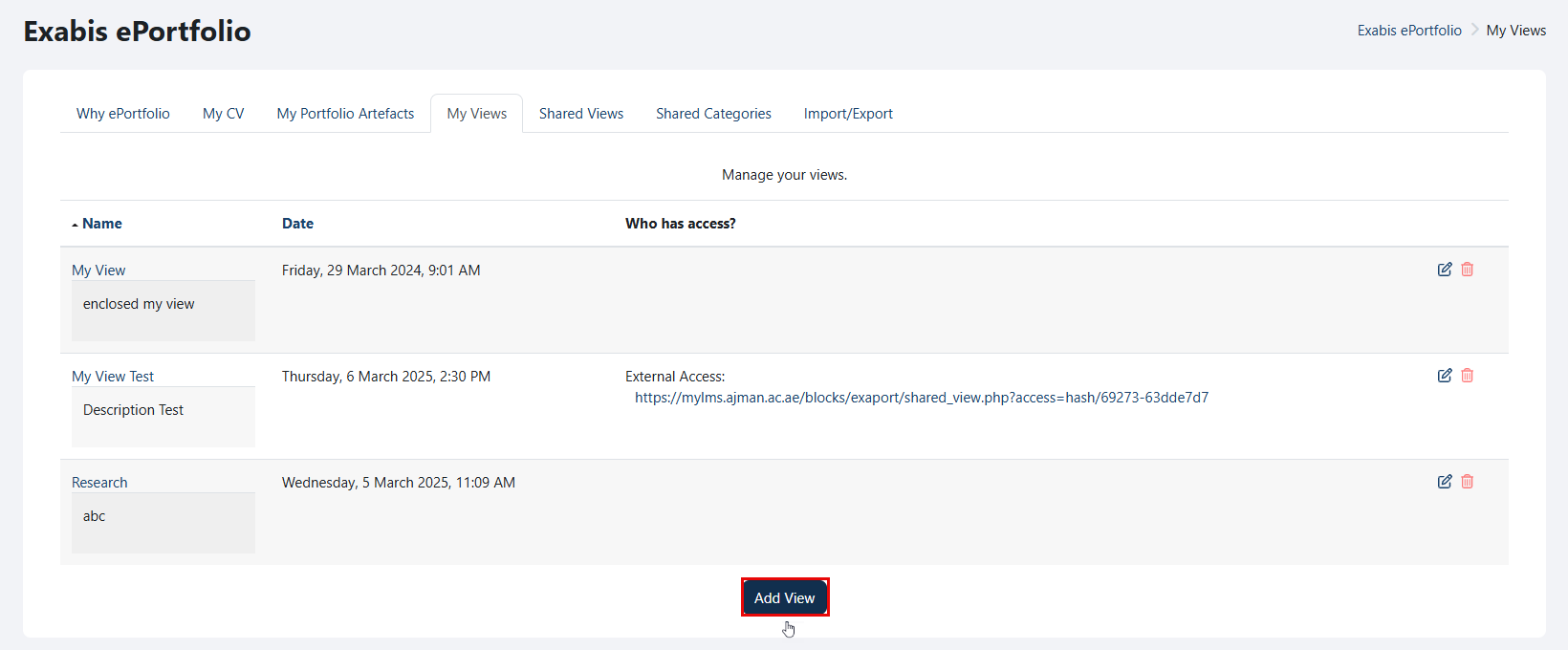
Click on "Add View".
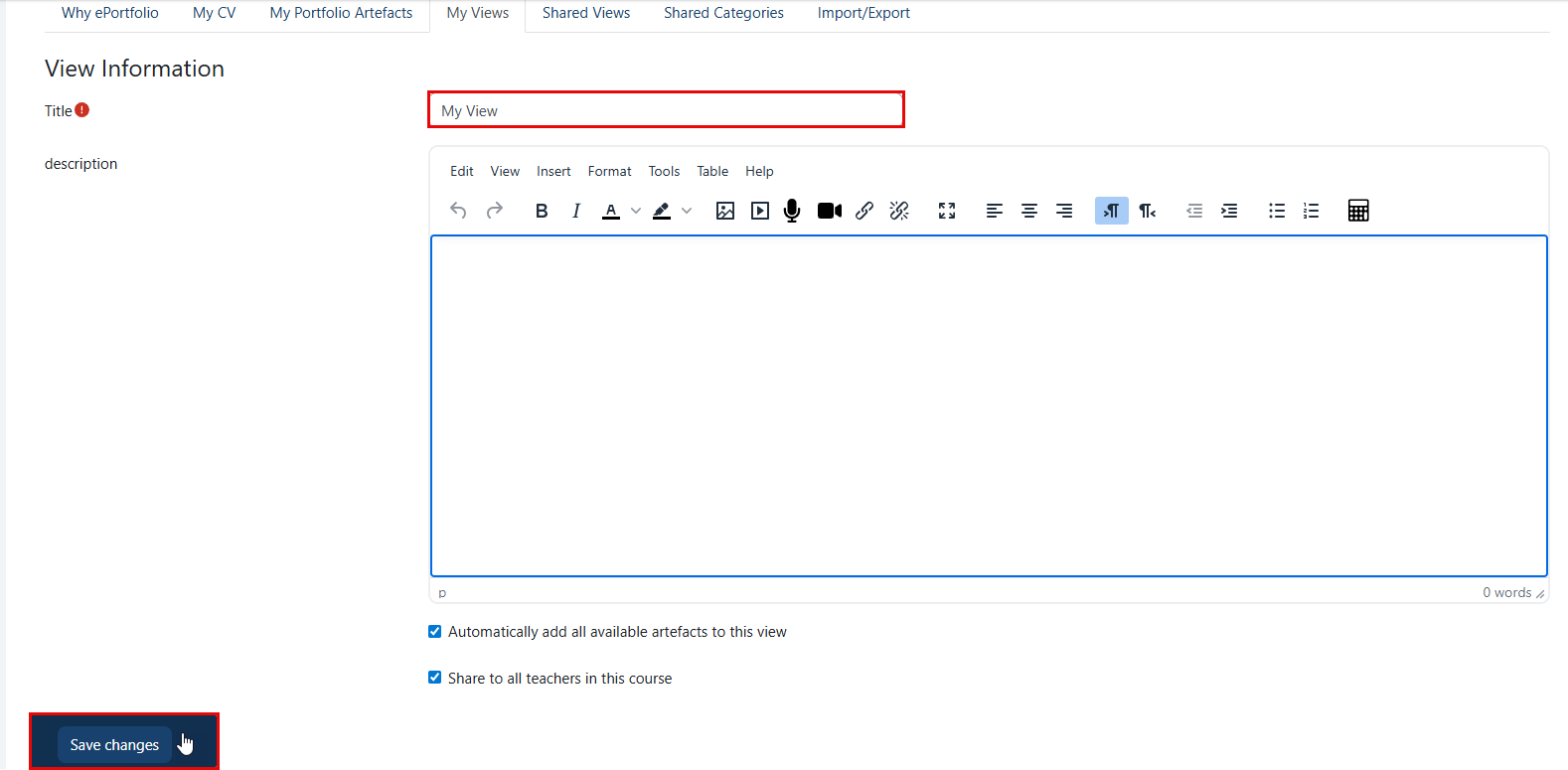
Write a title and description for your view, and once done, click on the "Save changes" button.
Note:
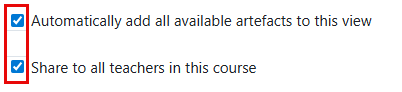
Enabling the "Automatically add all available artifacts to this view" option will include all of your artifacts in the view. Additionally, you can share the view with your instructors by simply checking the box labeled "Share to all teachers in this course".
Edit the View
You can edit the view by following these steps:
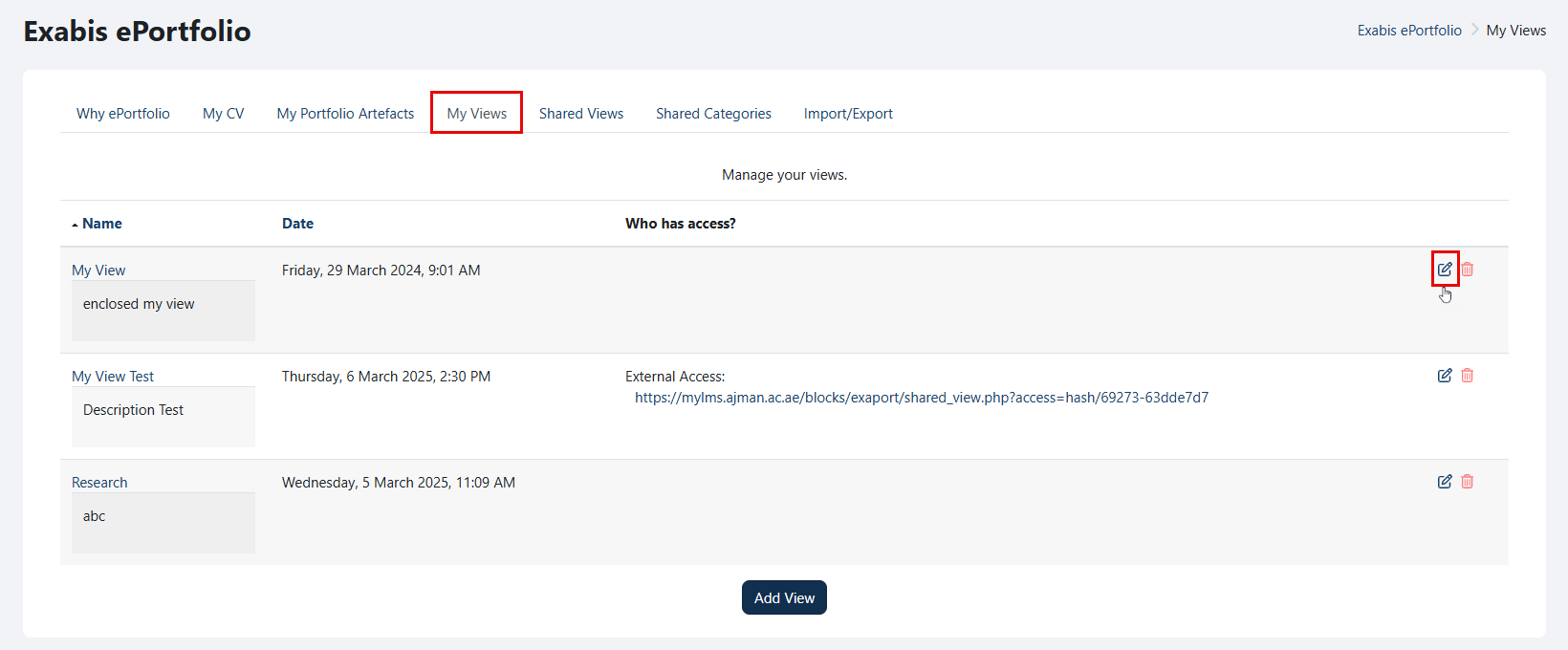
Go to "My Views", and click on the "Edit" icon.
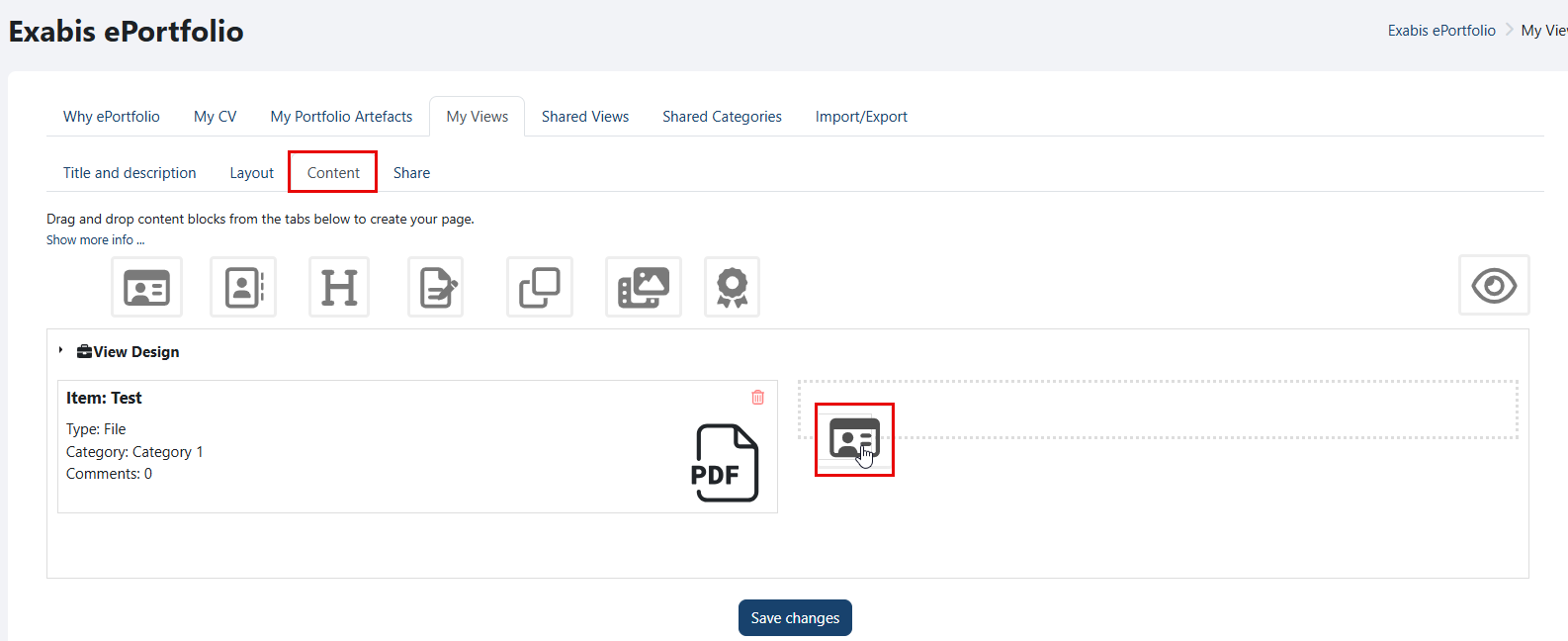
By default, the "Content" tab will be opened. Drag and drop the content block you want to add to the view.
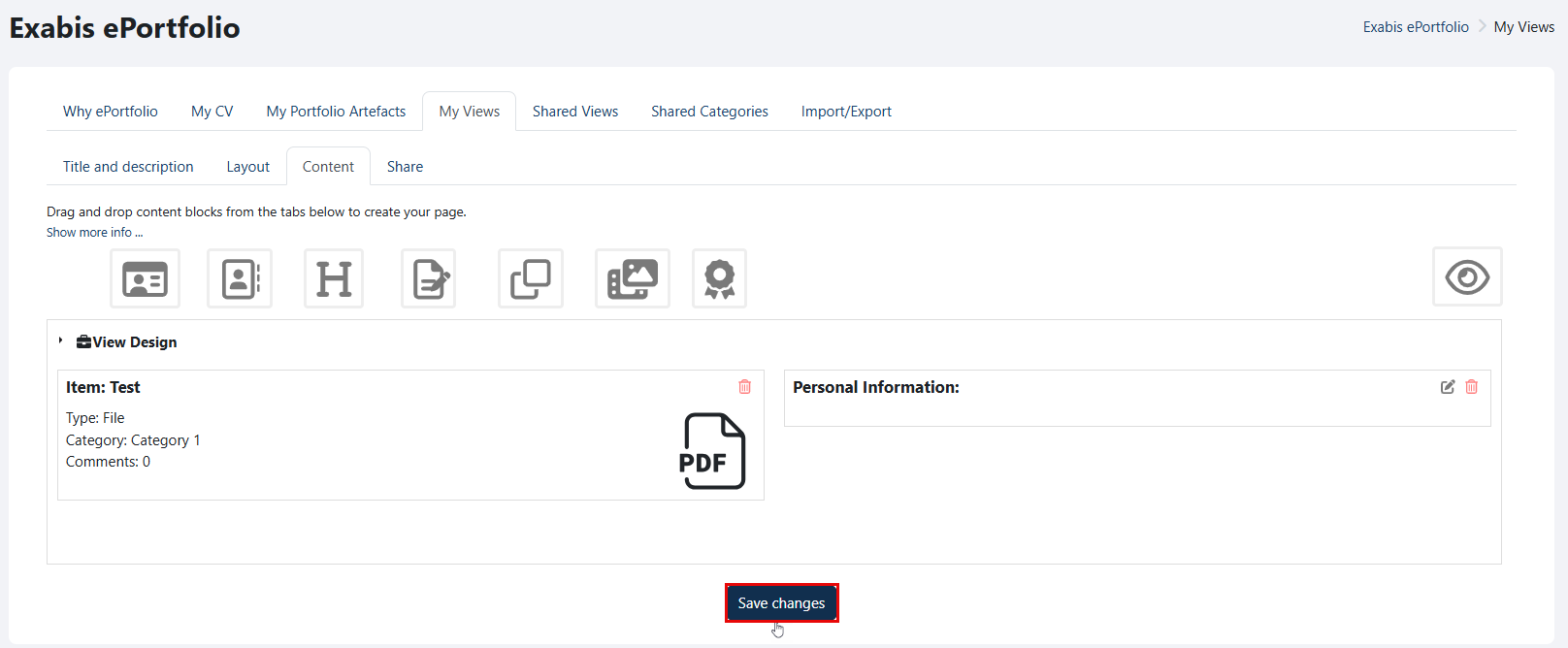
Click the "Save changes" button once you've finished making all the edits.
Delete Views
To delete a view, follow the below steps:
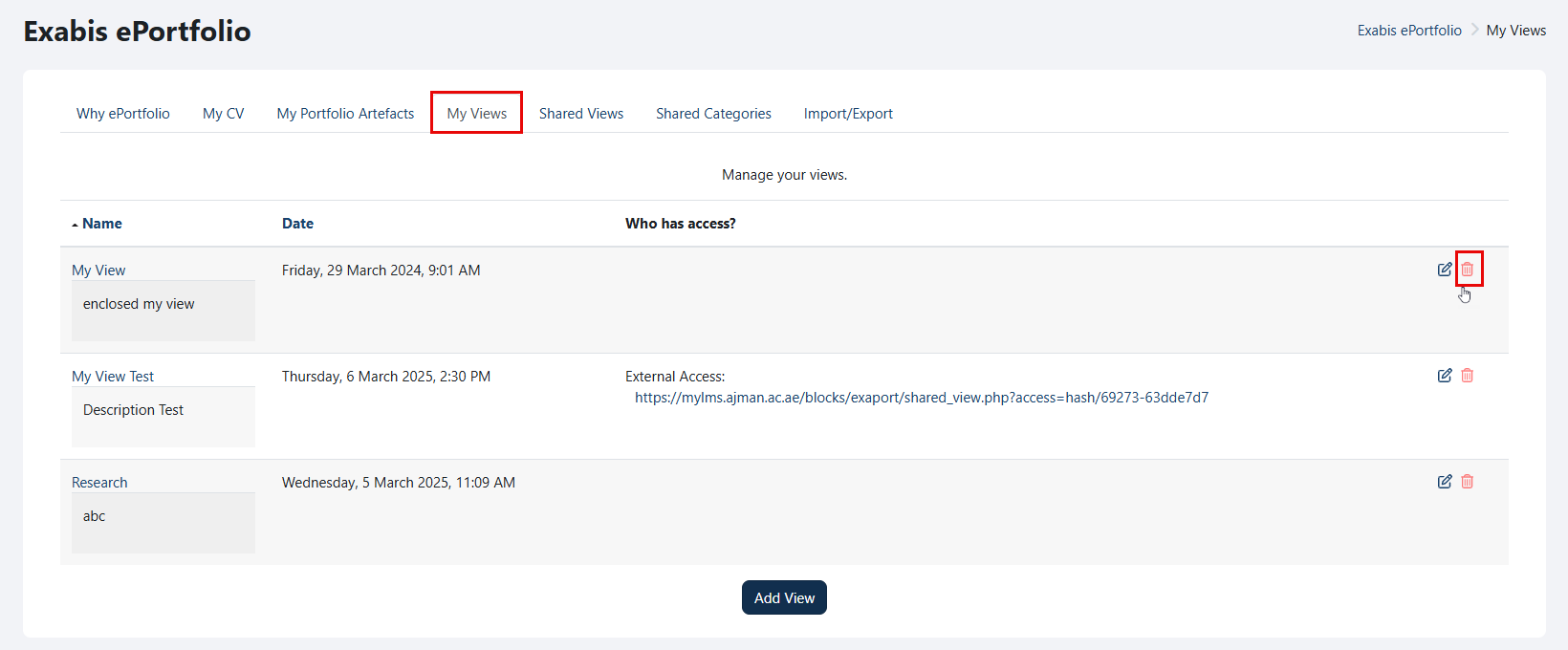
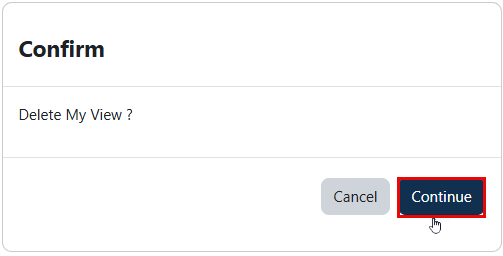
Go to "My Views", and then click on the "Delete" icon.
Click the "Continue" button to confirm.
Was this article helpful?
