

Current Learning Page
- 23 Jan 2026
- 2 Minutes to read
- Contributors

- Print
- DarkLight
- PDF
Current Learning Page
- Updated on 23 Jan 2026
- 2 Minutes to read
- Contributors
- Print
- DarkLight
- PDF
Article summary
Did you find this summary helpful?
Thank you for your feedback!
Please Note:
This user manual is currently under review. A revised version reflecting the new Redwood user interface will be available soon.
The "Current Learning" tile displays the number of overdue and requested assignments. You can review both Required and Voluntary Learning assignments, including those that are recently completed, in progress, not started, requested, and upcoming.
Each learning item includes the title, an icon representing the item type, the name of the person who assigned the task (for required assignments), the number of days remaining until it must be completed or is overdue (for required assignments), and the remaining duration to finish (if available). You can start or resume learning directly from this view.
Required learning assignments are listed in the following order:
- Overdue
- In Progress
- Upcoming
- Pending Enrollments
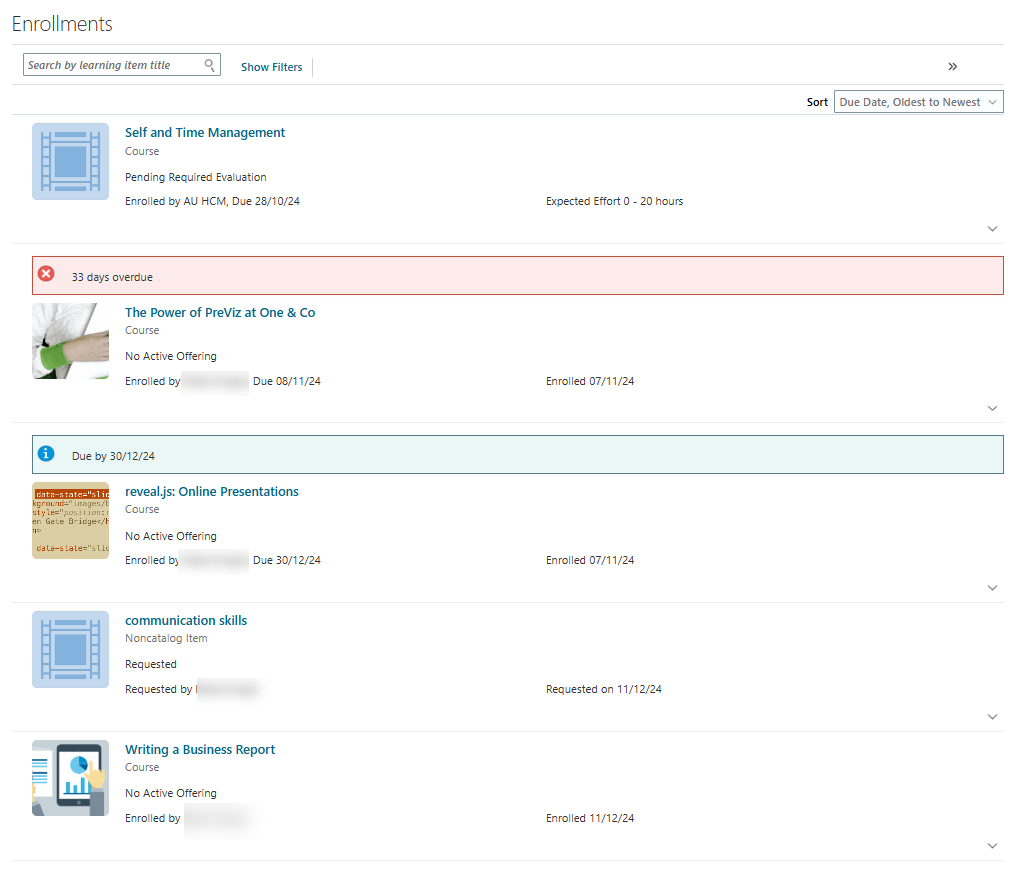
View the Learning assignment Details
Simply click on the course title to view its details, including "Required Activities Completed," "Total Required Activities," Completion Status, and the course evaluation.
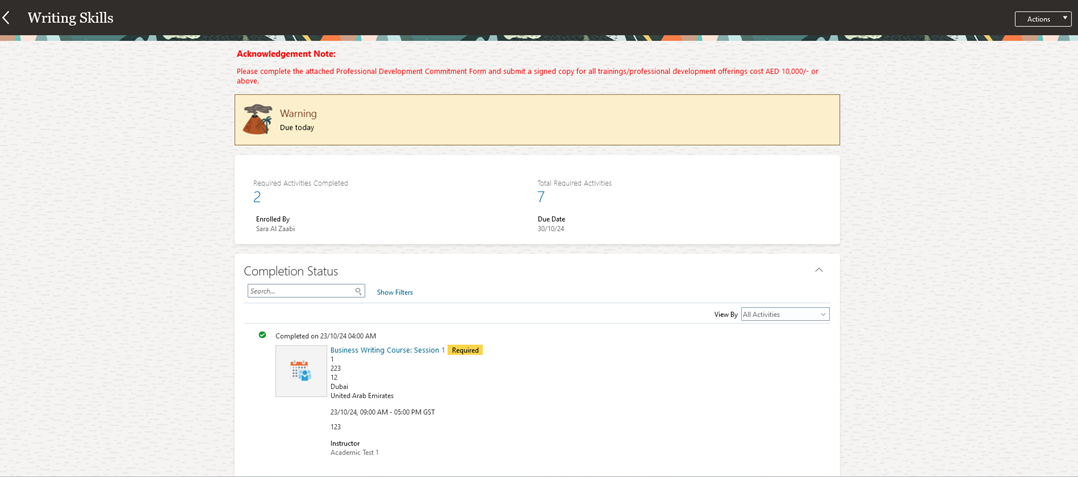

Complete Activities
Activities represent the individual sessions within the training course. To mark an activity as complete, click on "Mark Complete," if the option is available.
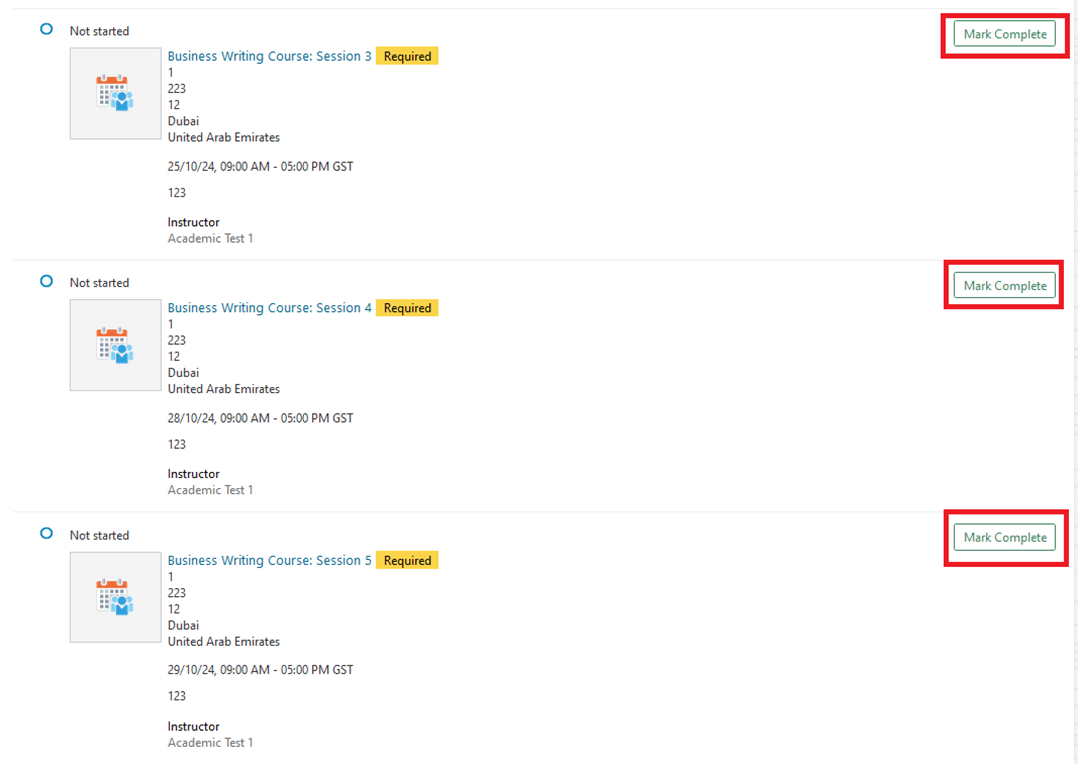
Note:
This is managed by the Learning Admin from the HR office. If you are authorized to complete the activity on your own, you will see the " Mark Complete" button. Otherwise, it will be marked as completed by the office of HR.
Add to Calendar
You can add the upcoming activities to your calendar for a reminder.
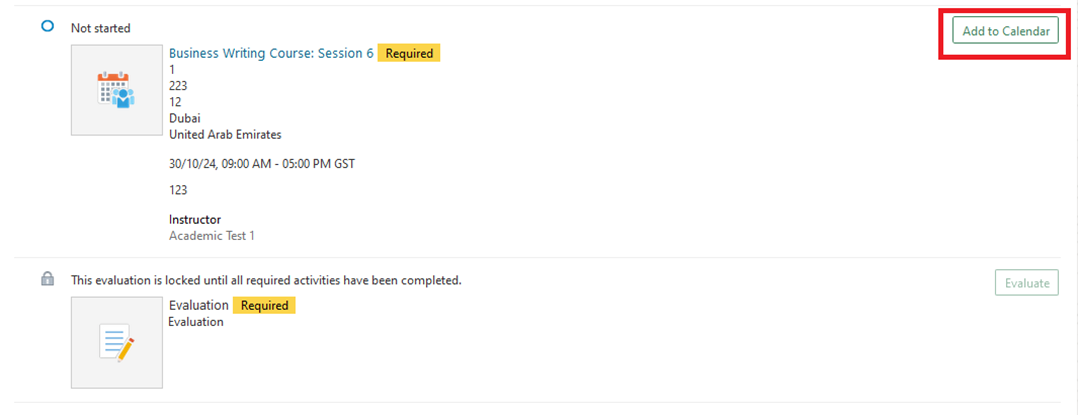
Complete an Evaluation
The evaluation will appear automatically after you complete the required activities. For instructor-led offerings, the evaluation will available once the Admin marks the offering as complete, and you will then have the option to complete the evaluation.
To complete and submit the evaluation:
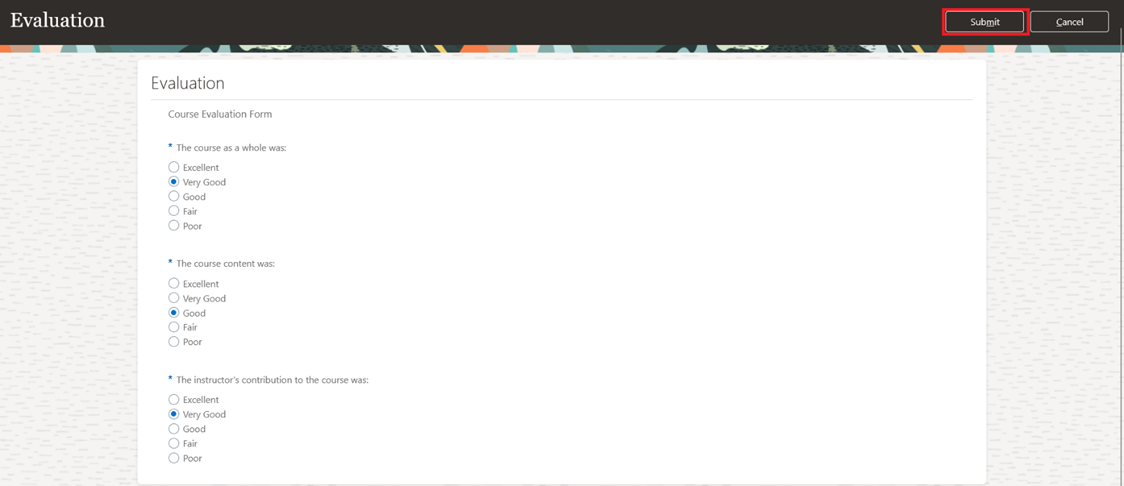
Click on "Evaluate"

Complete the evaluation form and click "Submit" when you are finished.
Note:
- A notification will appear confirming that the evaluation has been completed.
- You can submit the evaluation only once; therefore, please check your responses carefully before submitting.
Download Course Material
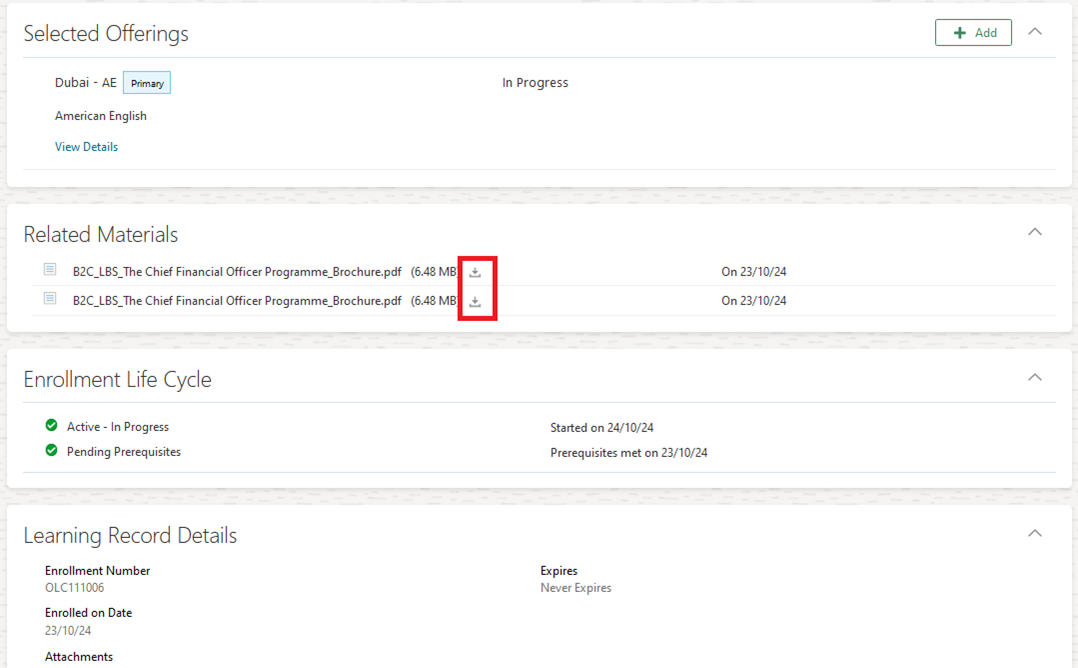
You can download the course material by navigating to the Related Material section. There, you will find the attached material. Click on the download icon to save it to your device.
Professional Development Commitment Form
For all trainings/professional development offerings costing 10,000 AED or more, you will need to complete and sign a commitment form available in the "Related Material Section".

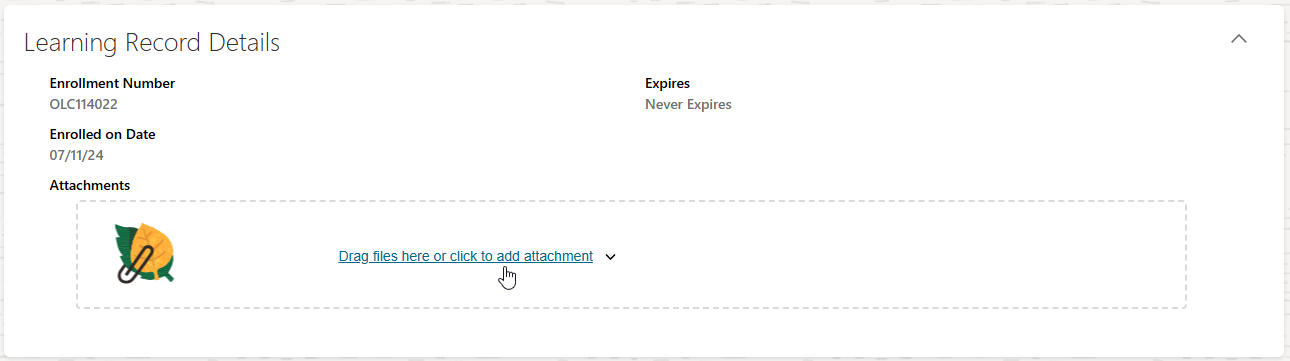
Once you have filled out and signed the document, make sure to upload it to Learning Record Details section.
Actions
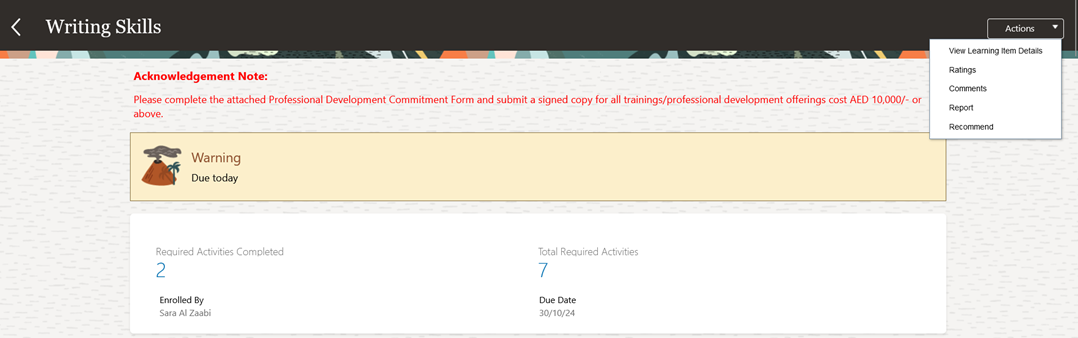
The Drilldown Actions list within the course page allows you to perform the following actions:
- View Learning Details
- Rating the course
- Add comments
- Report the course to Admin
- Recommend the course to your colleagues.
Was this article helpful?
