

Download Grades from the Gradebook
- 30 Jul 2025
- 1 Minute to read
- Contributors

- Print
- DarkLight
- PDF
Download Grades from the Gradebook
- Updated on 30 Jul 2025
- 1 Minute to read
- Contributors
- Print
- DarkLight
- PDF
Article summary
Did you find this summary helpful?
Thank you for your feedback!
Exporting grades from Moodle is a simple process that allows you to review, analyze, or archive them for future reference. With just a few clicks, you can download the grade report in a format that best suits your needs.
Follow the steps below:
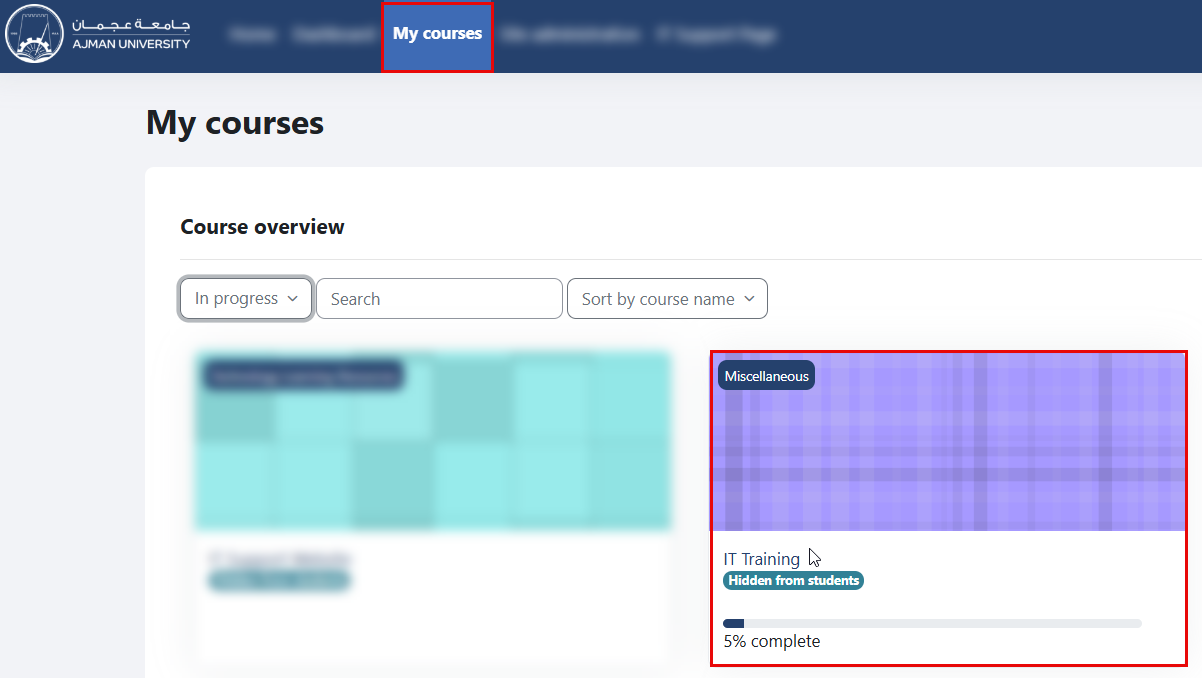
Log in to Moodle and navigate to your courses. Select the course from which you want to download grades.
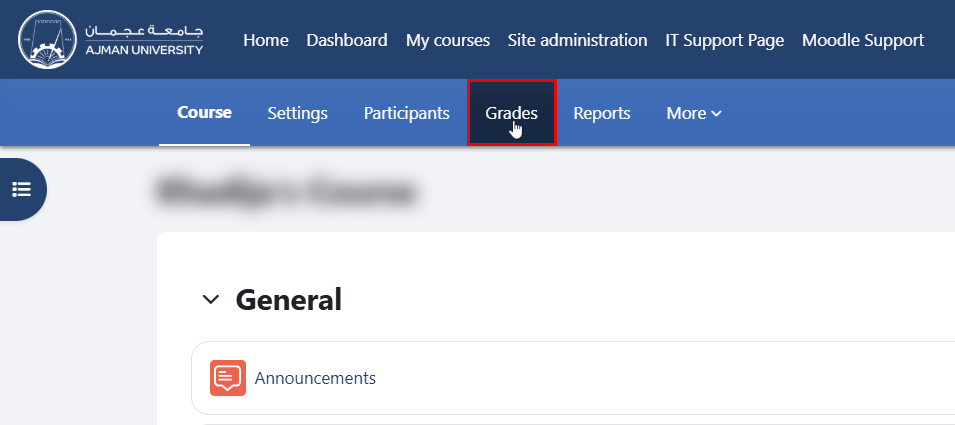
Navigate to "Grades" located in the secondary menu.
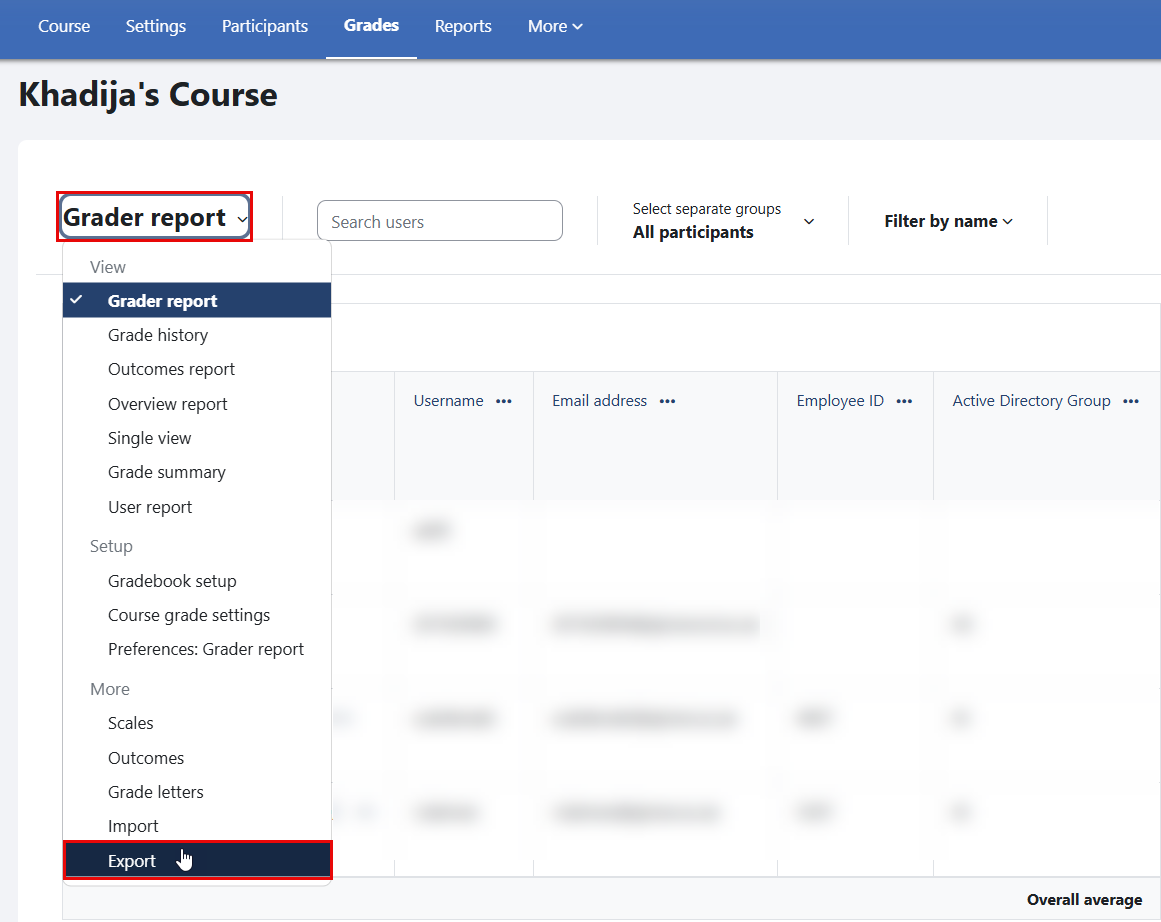
Within the Grader Report, open the dropdown menu and choose Export to begin the download process.
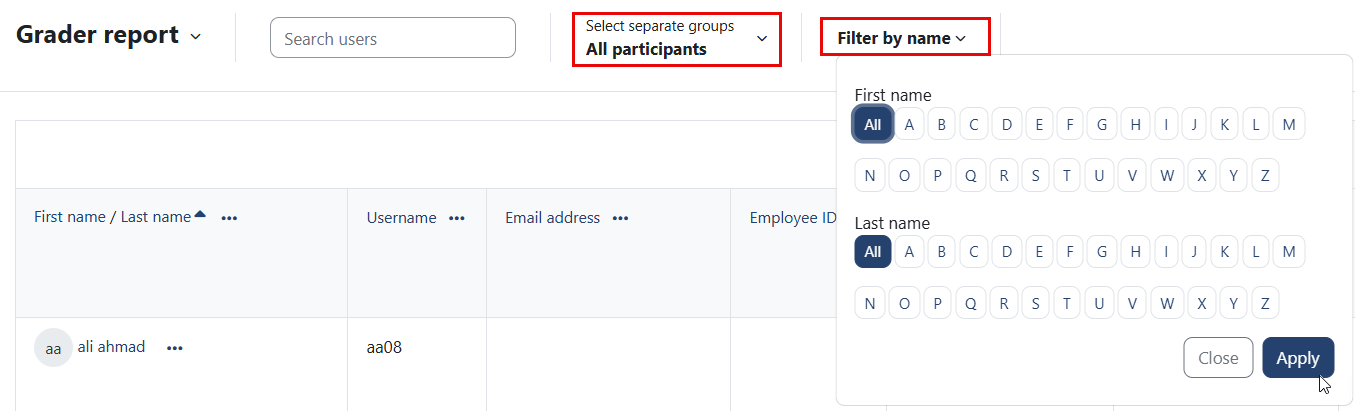
Notes:
- You can apply filters by student names.
- If your course uses groups, you can export grades specifically for Separate groups.
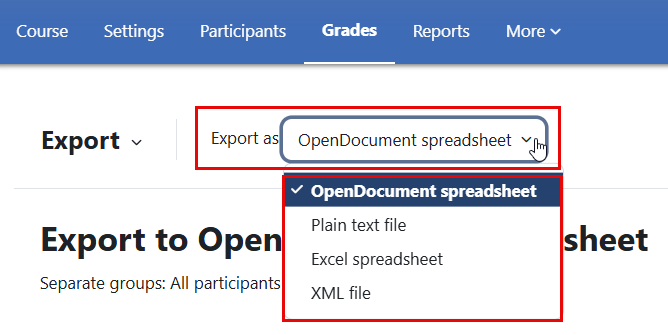
From the Export as options, choose your preferred file format (e.g., OpenDocument Spreadsheet, Excel, XML).
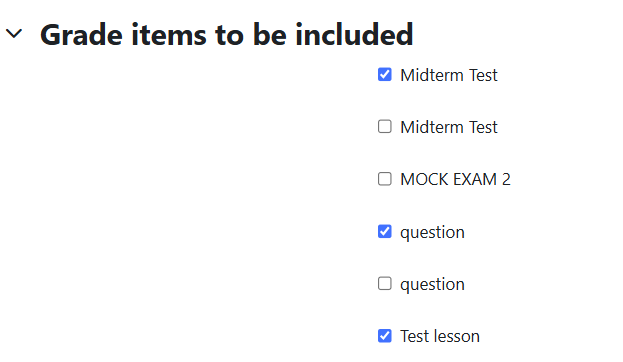
Select the grade items you wish to include in the export, such as assignments, quizzes, or final grades.
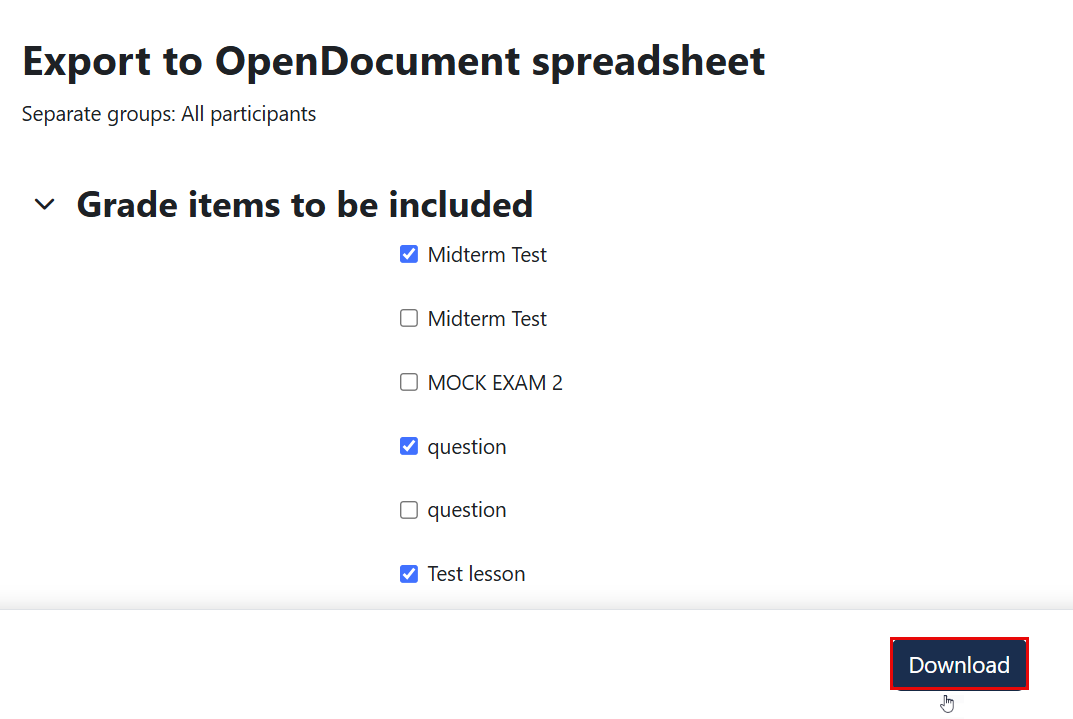
After adjusting your export settings, click Download to save the file to your device.
Was this article helpful?
