

End-of-Year Performance Review
- 23 Jan 2026
- 2 Minutes to read
- Contributors

- Print
- DarkLight
- PDF
End-of-Year Performance Review
- Updated on 23 Jan 2026
- 2 Minutes to read
- Contributors
- Print
- DarkLight
- PDF
Article summary
Did you find this summary helpful?
Thank you for your feedback!
Please Note:
This user manual is currently under review. A revised version reflecting the new Redwood user interface will be available soon.
The system will notify you once an employee completes their self- evaluation. You will receive another notification afterward. You can either click the URL provided in these notifications to access the performance review page directly or follow the steps outlined in this guide to navigate to it manually.
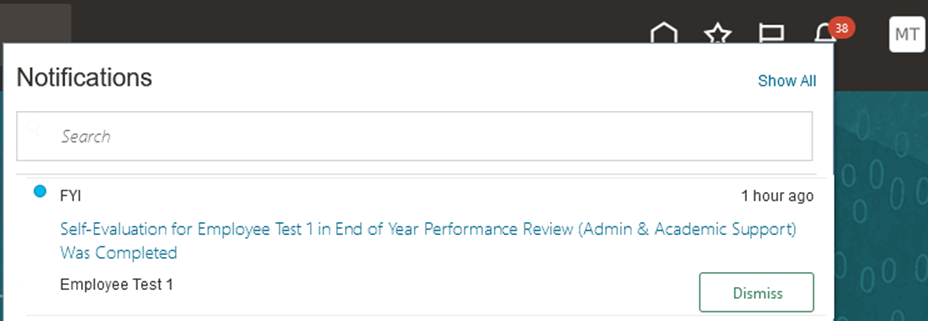
Before starting the process, please review the important information below:
Important:
At this stage, employees should not change approved goals, including the goal name, description, or weight. They should also avoid modifying any details in the measurement section, such as the unit of measure, measurement name, or target value.
The only changes employees should make are adding their actual values to goals, uploading evidence, and updating the goal status. These updates must be done through the Performance page, not the Goals page.
Employees must enter their actual values before evaluating their goals.
The correct process is through Career and Performance > Performance. Employees should avoid accessing goals via Career and Performance > Goals.
As Line managers make sure to enter the actual values before starting the evaluation of their employees.
To start the process, follow the steps below:
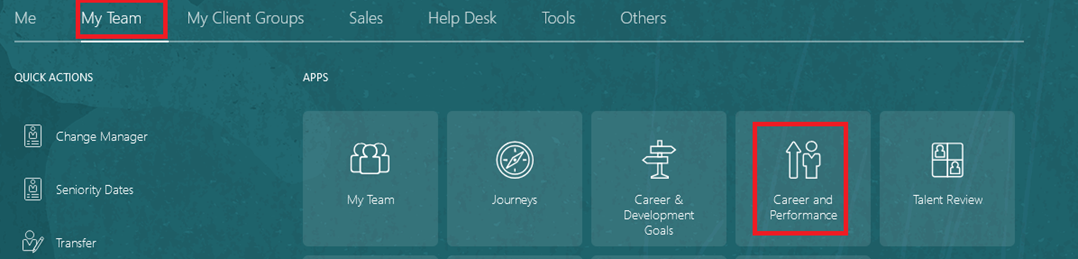
On the Home page, click on "My Team", then select "Goals and Performance".
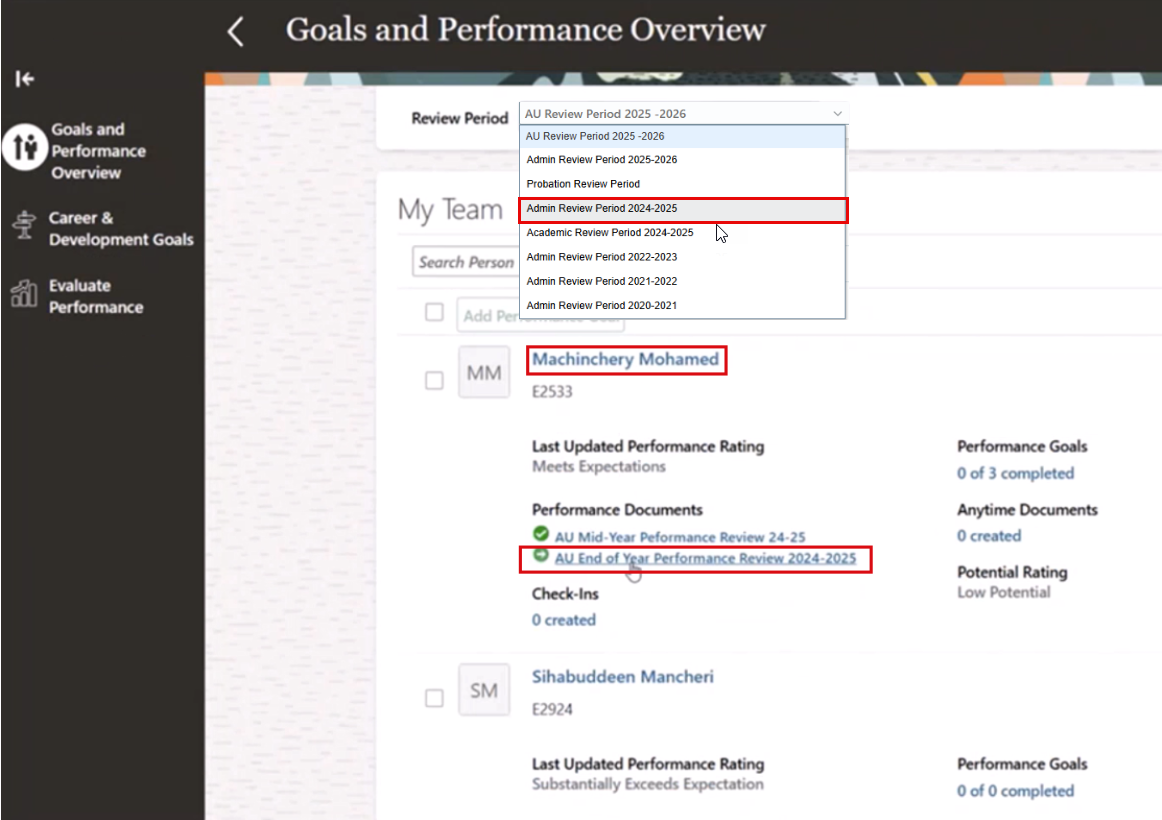
Change the "Review Period" to the xorresponding year, and then under the employee’s name, click "End-of-Year Performance Review”.
Note:
- Make sure to enter the actual values. Open the employee’s goal throgh My Team > Career and Performance > End of Year Performance Review, then go to the Measurement section, click Edit, and add the values in the Actual Value (Add by Manager) field. Repeat these steps for each of the employee’s goals.
Evaluate Goals
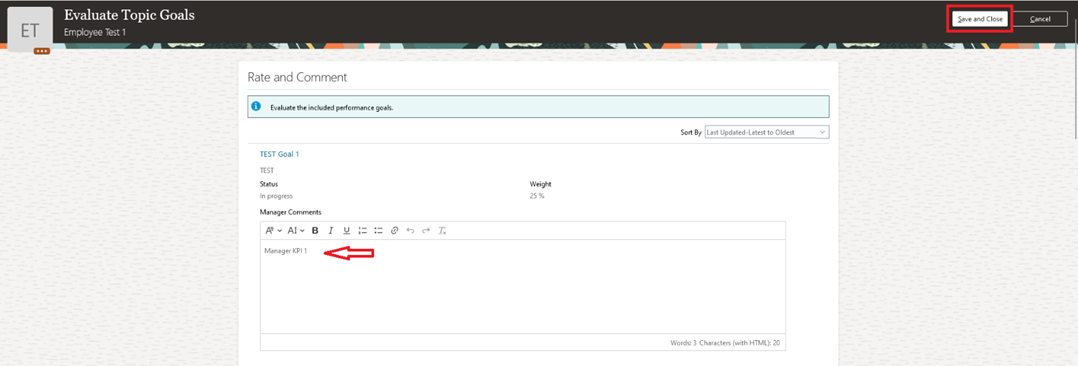
Click “Evaluate” to open goals section and evaluate the goals items.
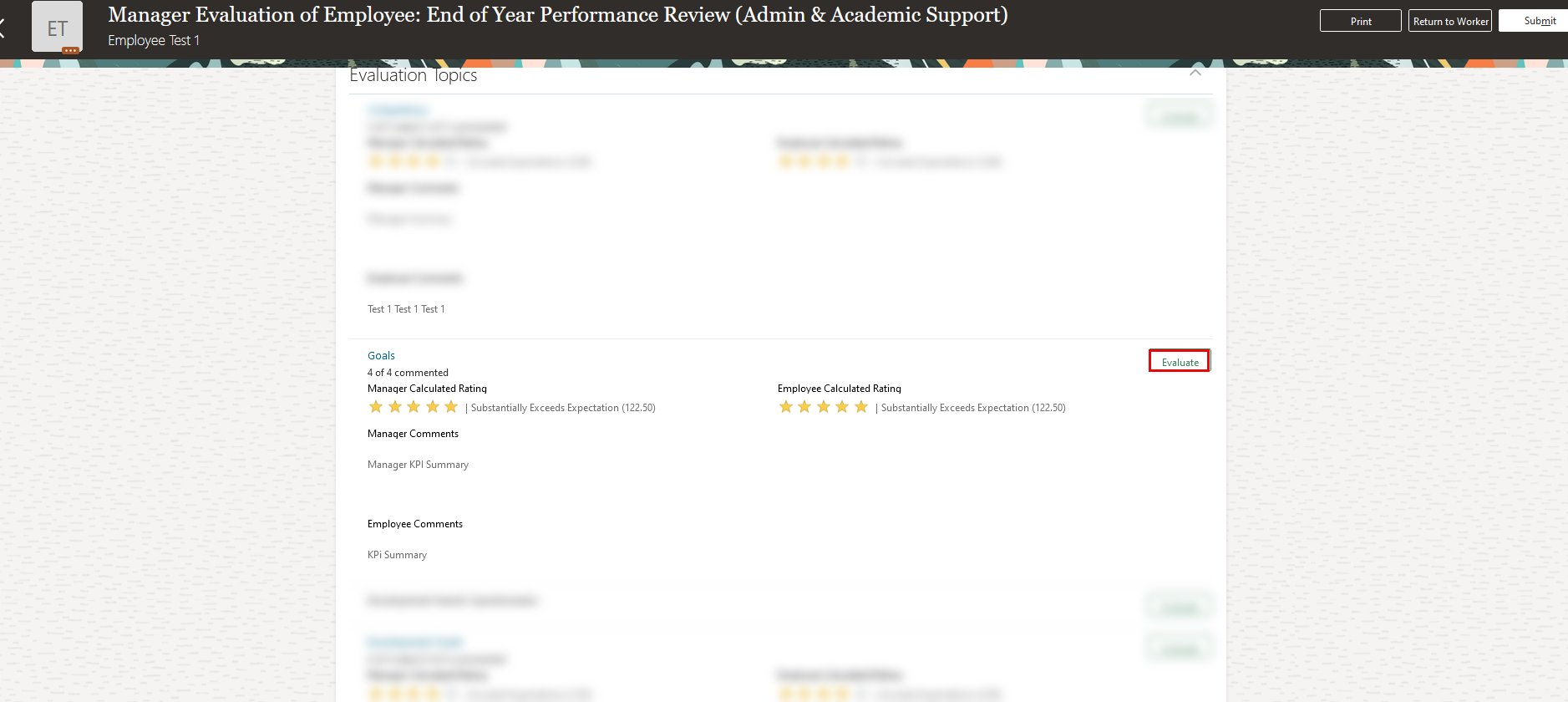
Add comments to KPIs items, then click "Save and Close" when you are finished.
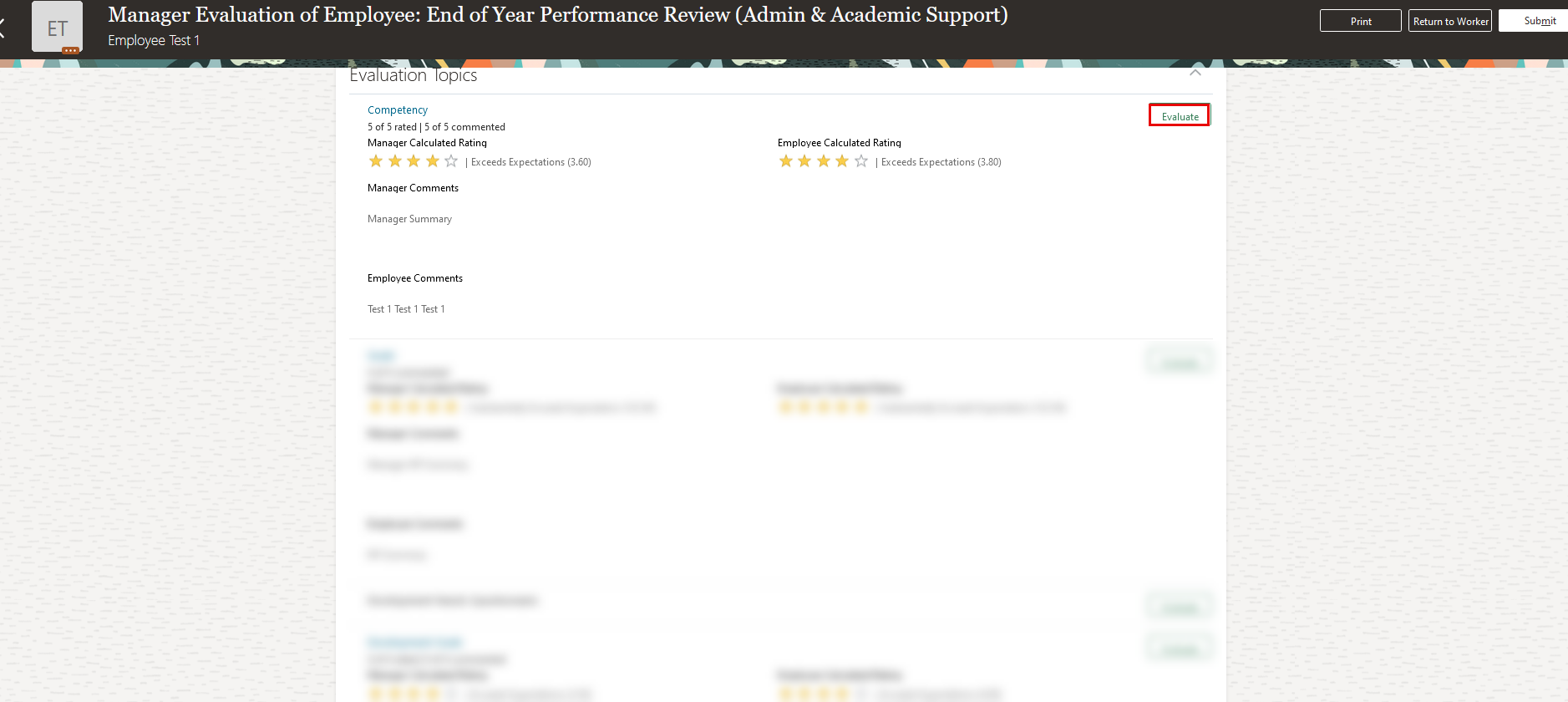
Evaluate your Competencies
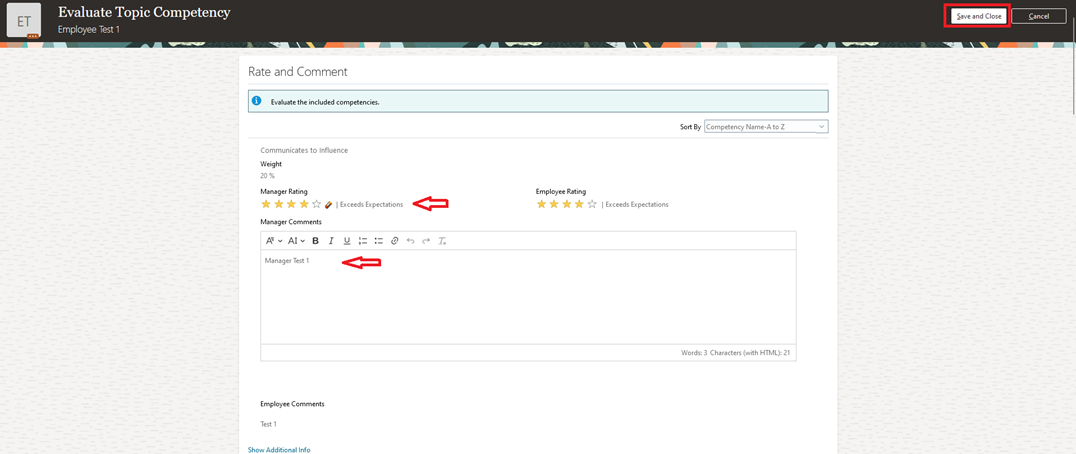
Click “Evaluate” to open the Competency section and evaluate competency items.
Add your ratings and comments, then click “Save and Close” when you are finished.
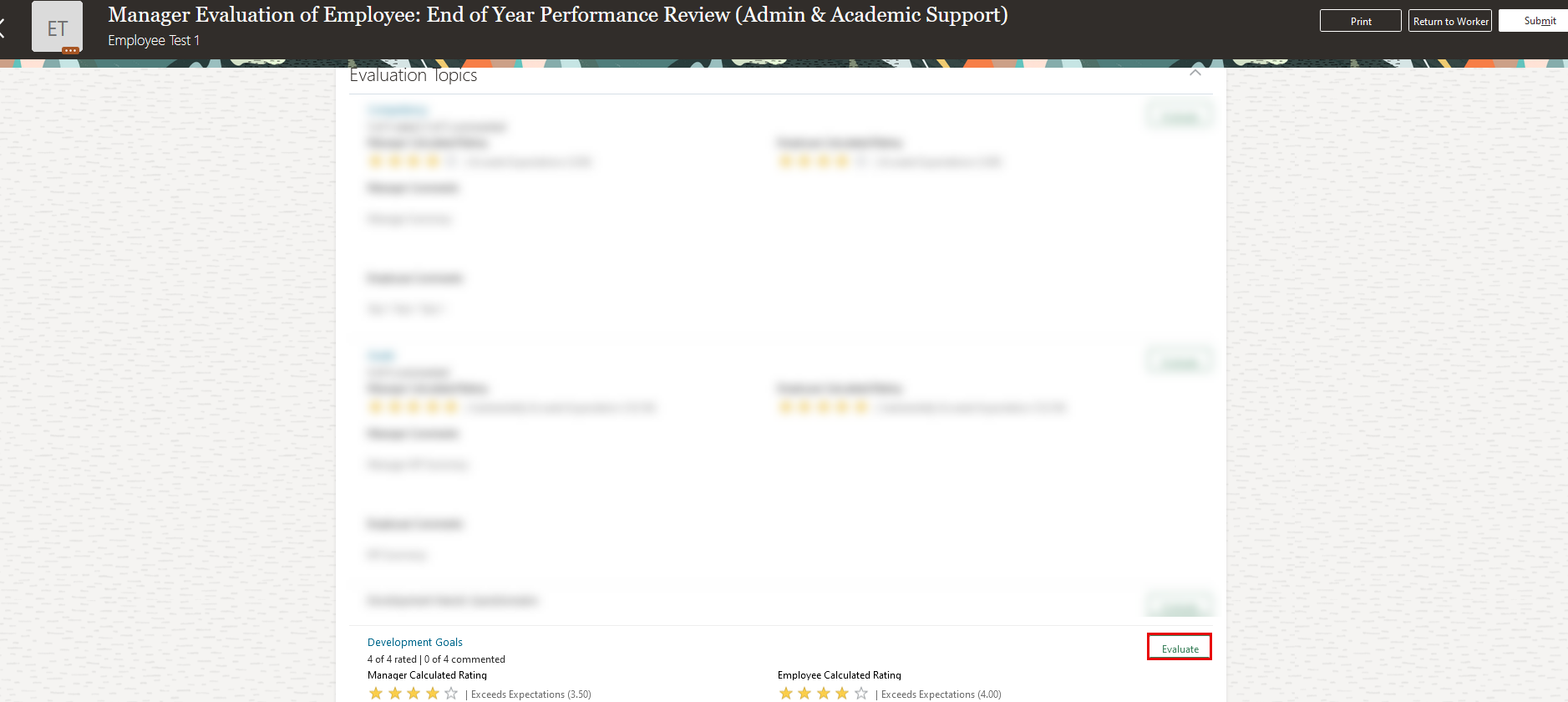
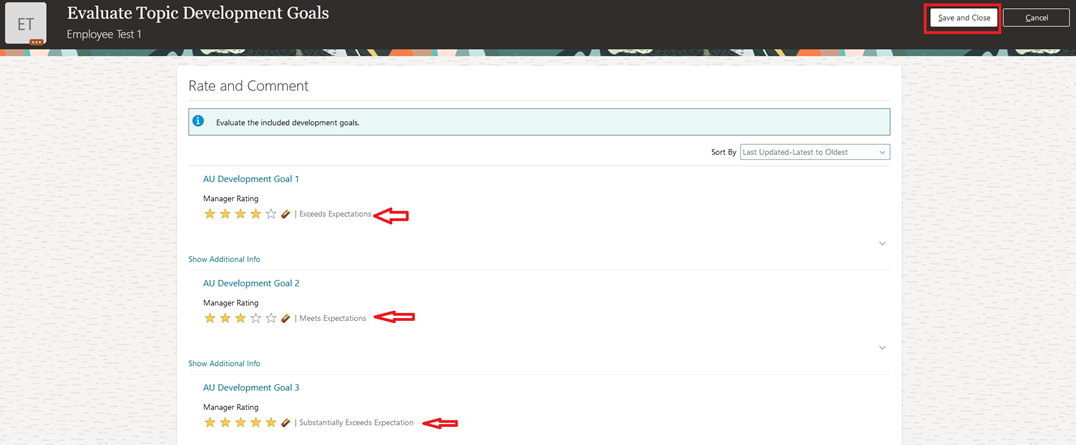
Evaluate your Development Goals
Click "Evaluate" to open Development Goals section and evaluate its items.
Add your ratings and comments, then click "Save and Close" when you are finished.
Submit your End-of-Year Performance Review
Once you have completed evaluating your employee's goals, competencies, and development goals, click "Submit for Approval".

Held Review Meeting with Employee
Open the "End-of-Year Performance Review" document.
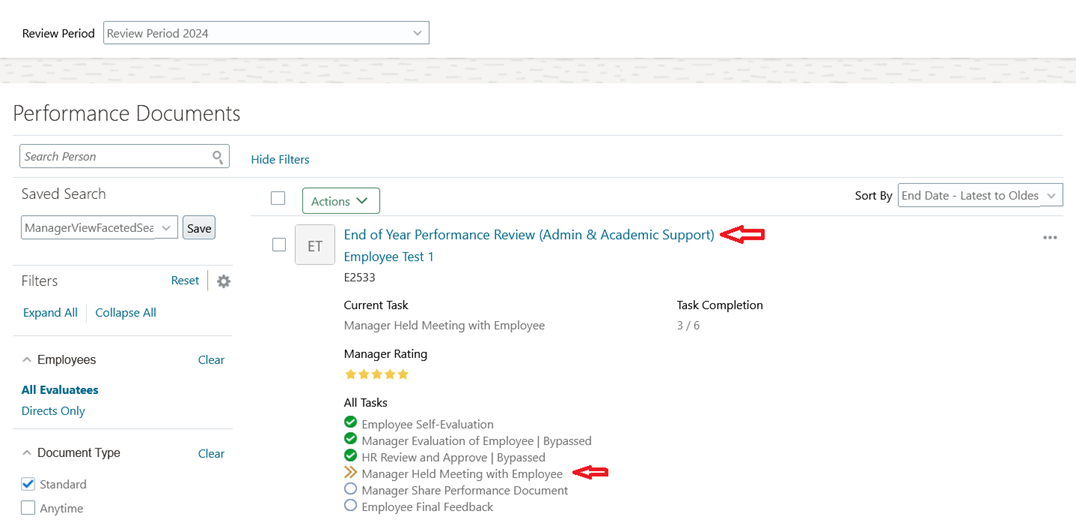
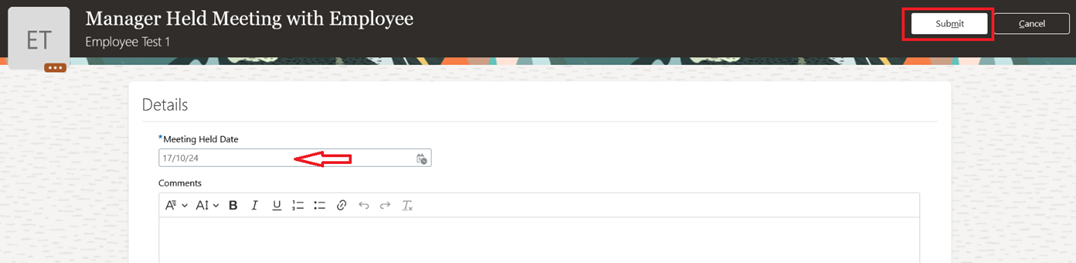
Click "Indicate Held Meeting".

Enter Meeting date and click "Submit".
Share Performance Review Document with Employee
Open the End-of-Year Performance Review document to proceed to the next task: Manager Share Performance Document.
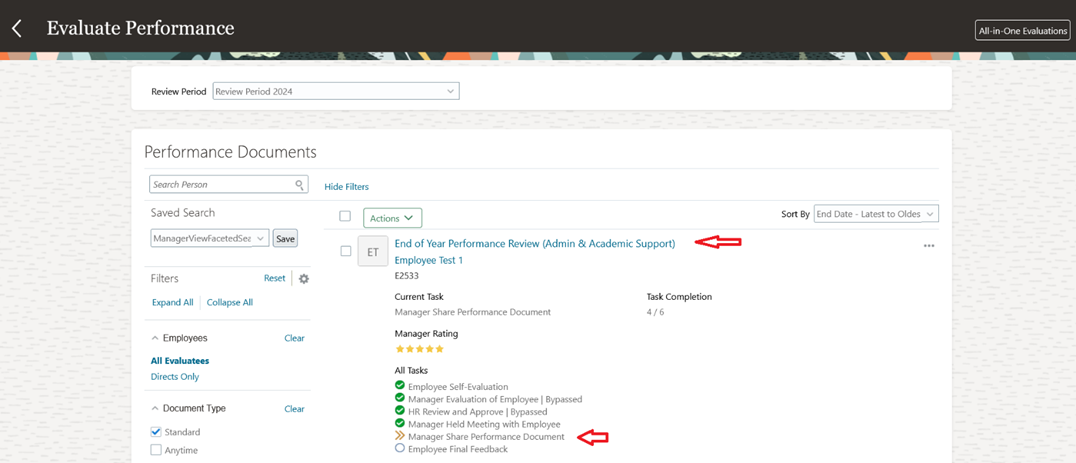
Click Share and Release

Click Submit

Note:
Once the final evaluation is shared and released, the employee will receive a notification and will be able to view the final feedback and evaluation.
Was this article helpful?
