

Import/Export ePortfolio as SCORM-file
- 12 Sep 2025
- 1 Minute to read
- Contributors

- Print
- DarkLight
- PDF
Import/Export ePortfolio as SCORM-file
- Updated on 12 Sep 2025
- 1 Minute to read
- Contributors
- Print
- DarkLight
- PDF
Article summary
Did you find this summary helpful?
Thank you for your feedback!
To transfer ePortfolio data, you can Import/export as a SCORM-zip-file. Ensure that you select the specific view you wish to export/import before proceeding.
For more details follow the steps below:
Export your ePortfolios
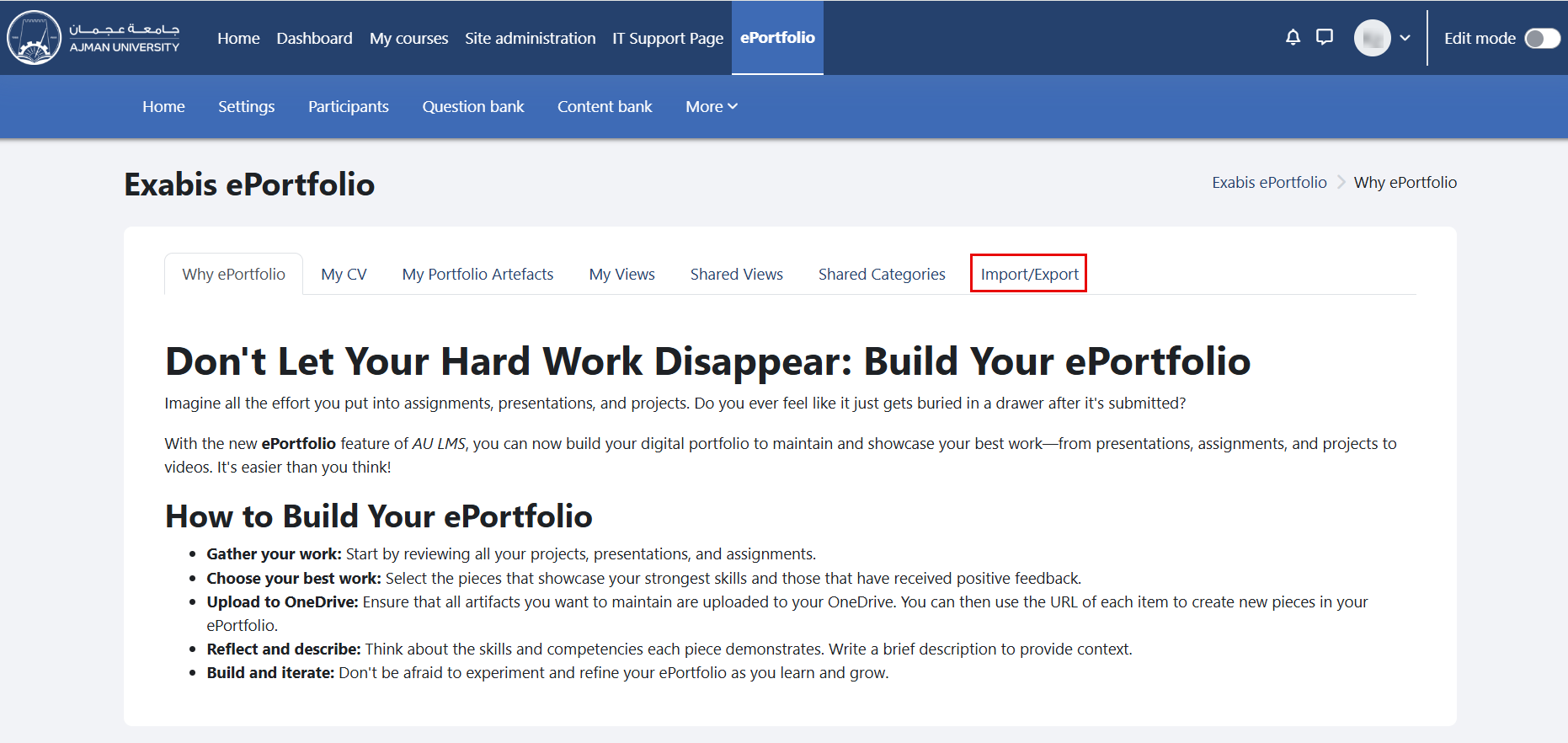
In the ePortfolio page, click on the tab "Import/Export".
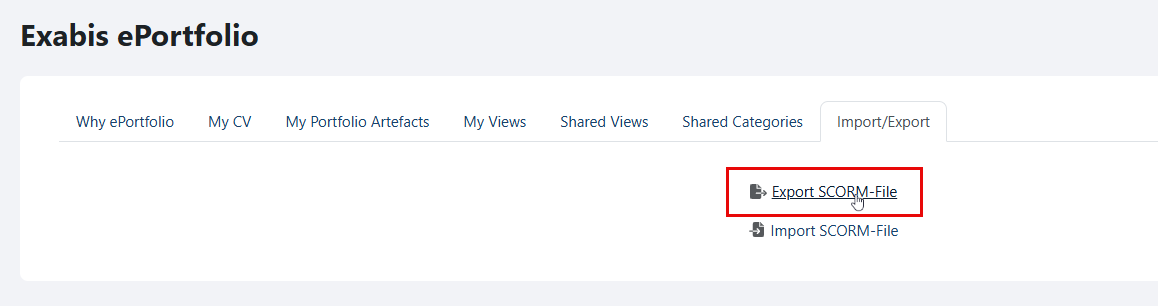
Click on "Export SCORM-File".
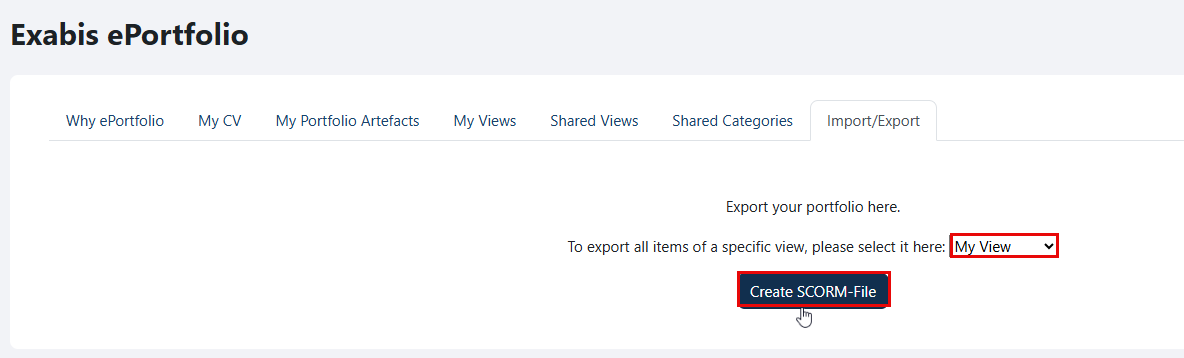
Select the view you wish to export from the drop-down menu, and then click on the "Create SCORM-File" button.
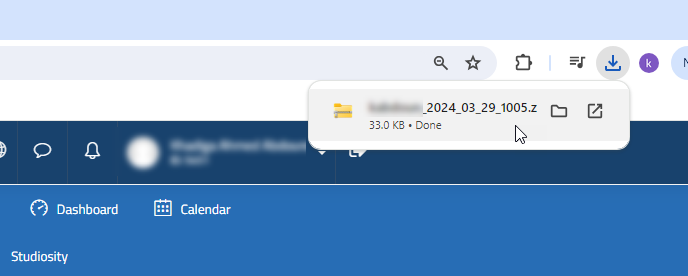
The exported file will be saved to your device.
Import your ePortfolios
Click on the arrow located inside the course, and then click on the tab "Import/Export".
Click on "Import SCORM-File".
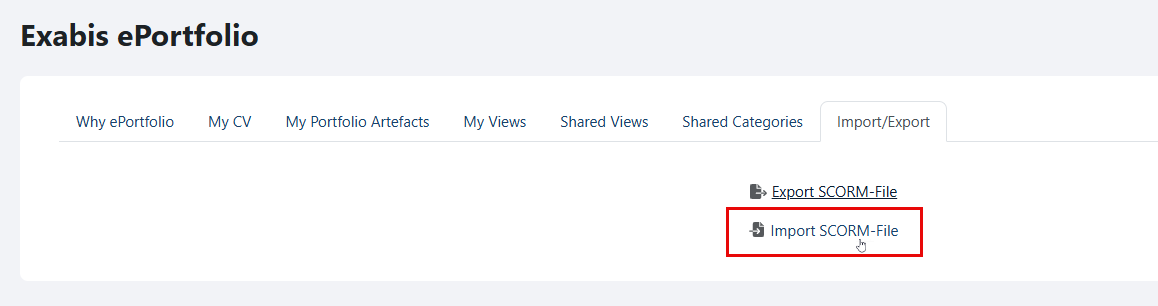
Upload the file either by selecting the "Choose a file" option or by drag and drop.
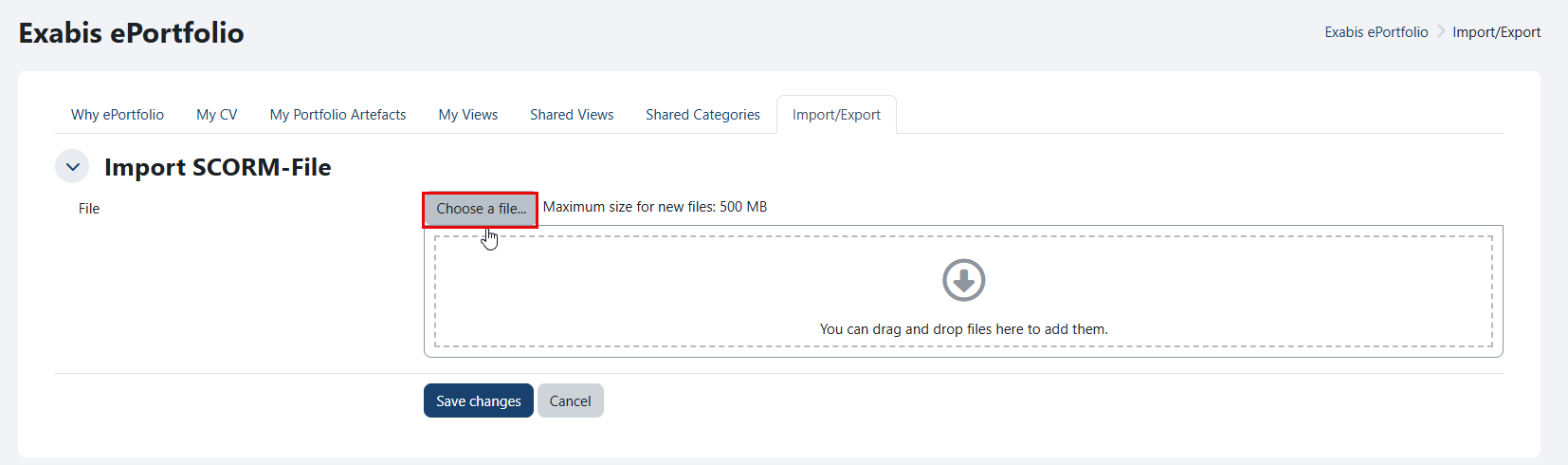
Maximum size for new files: 500MB.
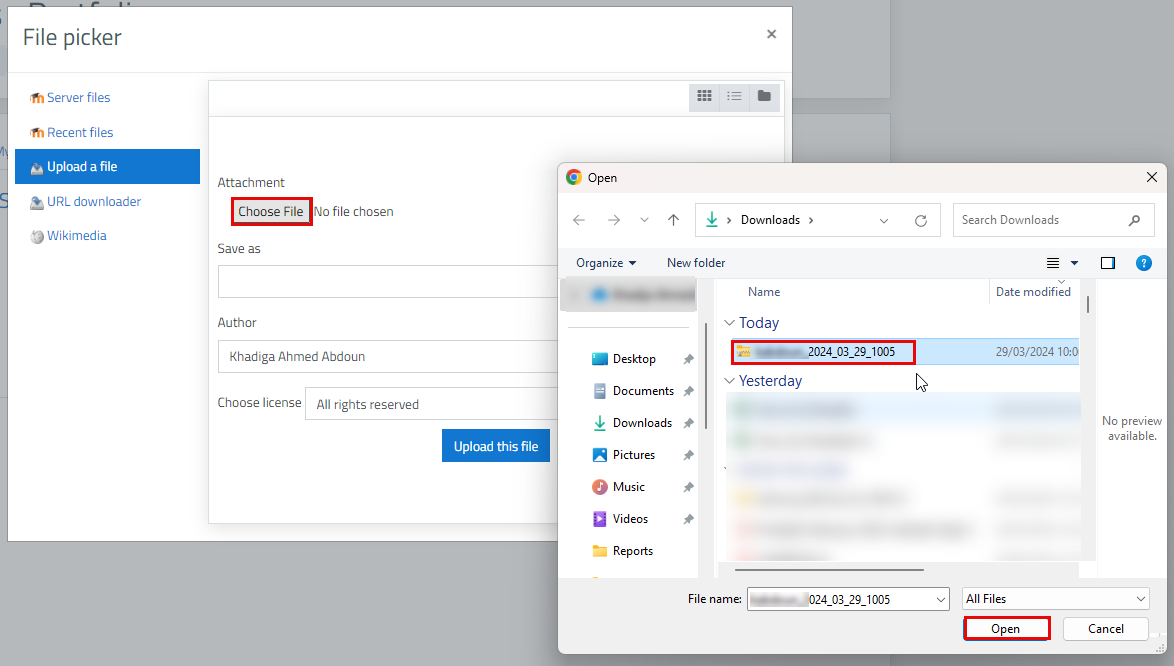
Click the "Choose File" button, browse your device to select the file, and then click "Open".
Click on the "Upload this file" button.
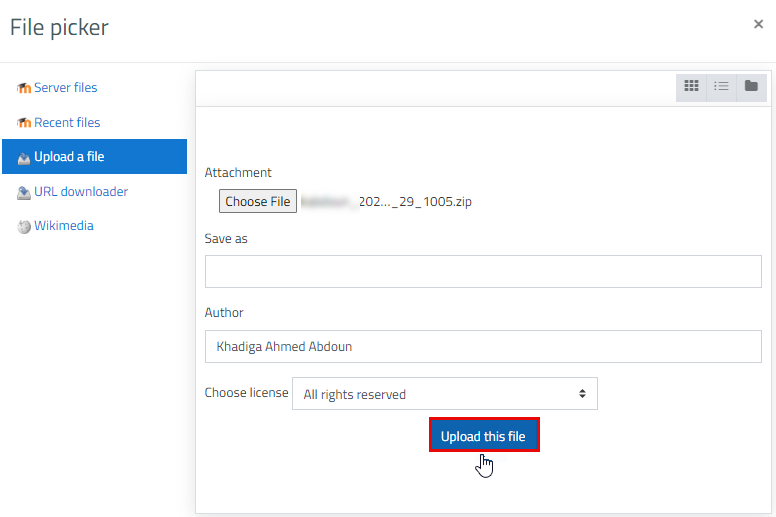
Click on "Save changes".
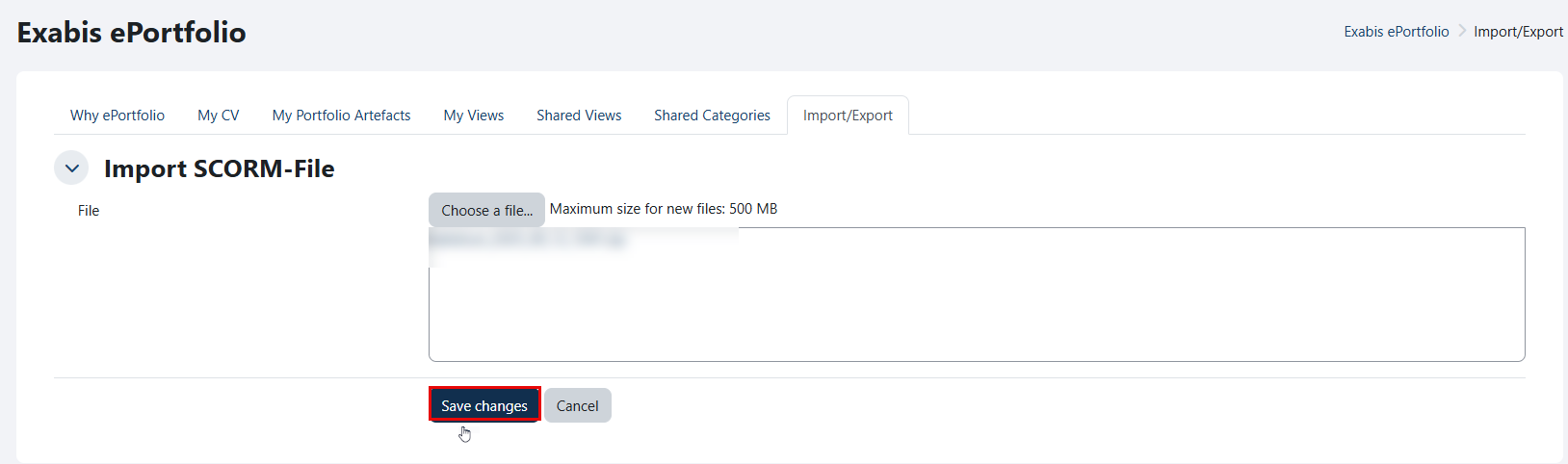
The file is imported successfully.

Was this article helpful?
