

Manager Self Service
- 23 Jan 2026
- 1 Minute to read
- Contributors

- Print
- DarkLight
- PDF
Manager Self Service
- Updated on 23 Jan 2026
- 1 Minute to read
- Contributors
- Print
- DarkLight
- PDF
Article summary
Did you find this summary helpful?
Thank you for your feedback!
Please Note:
This user manual is currently under review. A revised version reflecting the new Redwood user interface will be available soon.
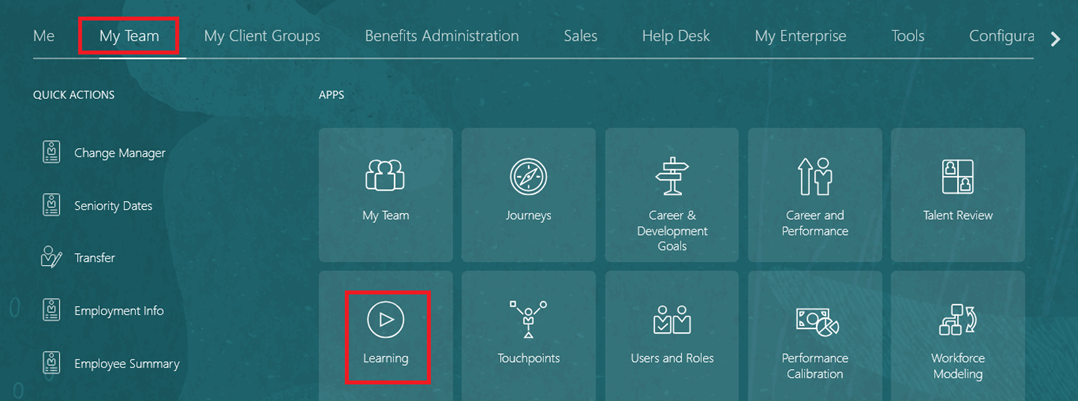
On the Home page, click on "My Team", then click on "Learning."
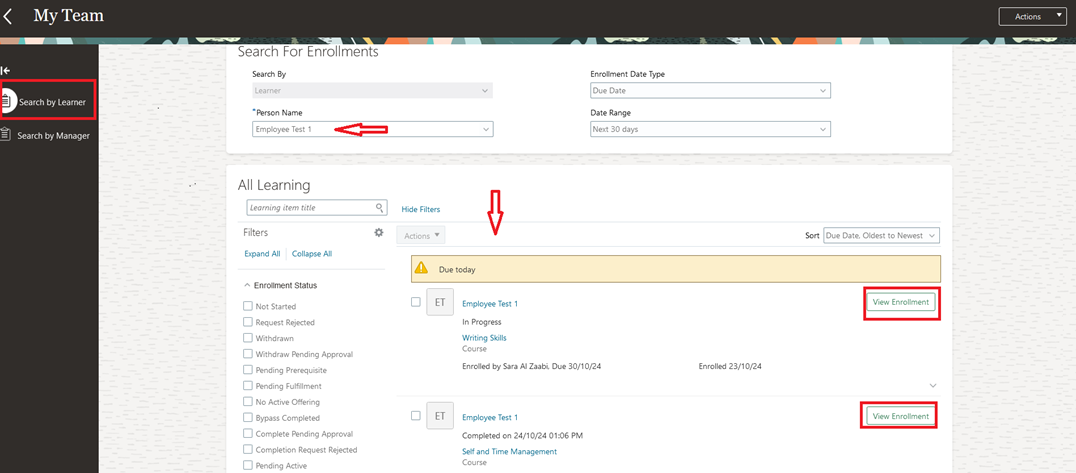
In Manager Self-Service, you can perform a broad search for learner details by selecting either "Search by Learner" or "Search by Manager".
- You need to select the "Person name".
- You can find learning enrollment by "Date Type" and "Date Range".
- You can "View Enrollment".
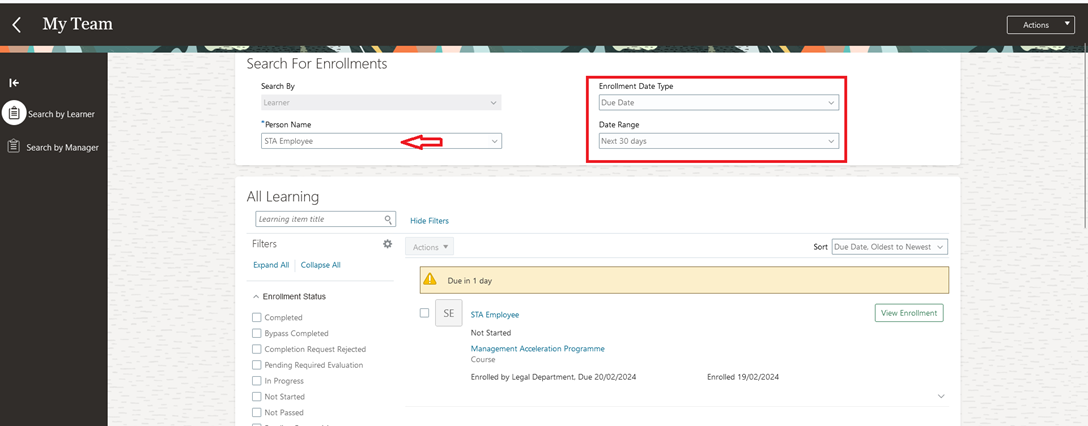
Search by Learner
This page provides a listing of your direct and Indirect reports’ enrolments by directly selecting the name of the learner under “Person Name”. The enrolments can be sorted by Enrolment Data Type (e.g., Due Date, Completed date etc.) and Date Range. You can further filter the details based on Learning Item Title and the Enrolment status.
Upon searching, you can drill down into the specific enrolment for a learner.
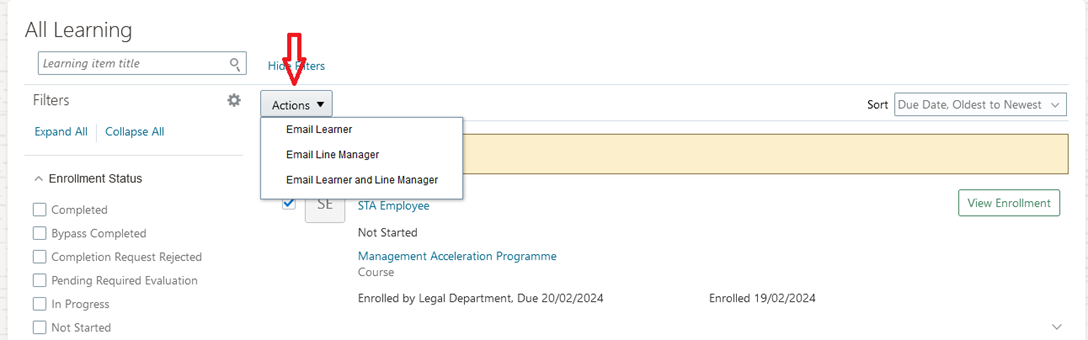
You can take several enrollment-level actions directly from the enrolment row, including Withdraw, Email Learner, Email Manager, Email Manager and Learner, View Approval Task etc. based on the current course status. To do this, click the checkbox next to employee’s name and then “Actions”.
Search by Manager
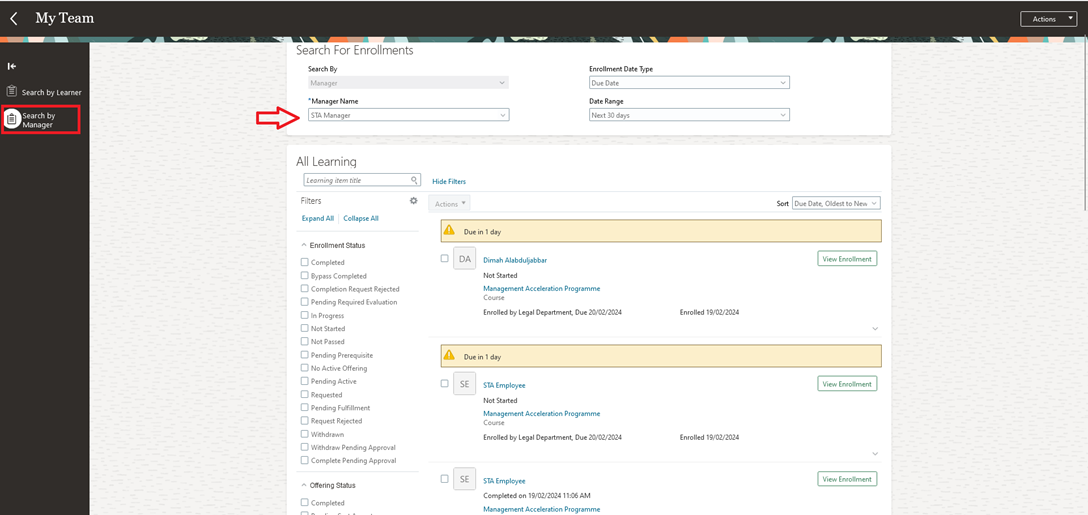
This page provides a listing of your direct and Indirect reports’ enrolments by selecting the name of the Manager under “Manager Name”. The search results will show the details of the enrolled learner reporting to the selected Manager. The enrolments can be sorted by Enrolment Data Type (e.g., Due Date, Completed date etc.) and Date Range. You can further filter the details based on Learning Item Title and the Enrolment status.
Was this article helpful?
