

My Activities
- 06 Nov 2025
- 1 Minute to read
- Contributors

- Print
- DarkLight
- PDF
My Activities
- Updated on 06 Nov 2025
- 1 Minute to read
- Contributors
- Print
- DarkLight
- PDF
Article summary
Did you find this summary helpful?
Thank you for your feedback!
The My Activities panel in CRM Advise helps you record and manage all advising-related interactions and communications in one place. It provides a clear timeline of your work, including tasks, emails, meetings, and other logged activities, making it easier to track progress and maintain complete advising records.
Accessing My Activities
You can access My Activities directly from the main dashboard.
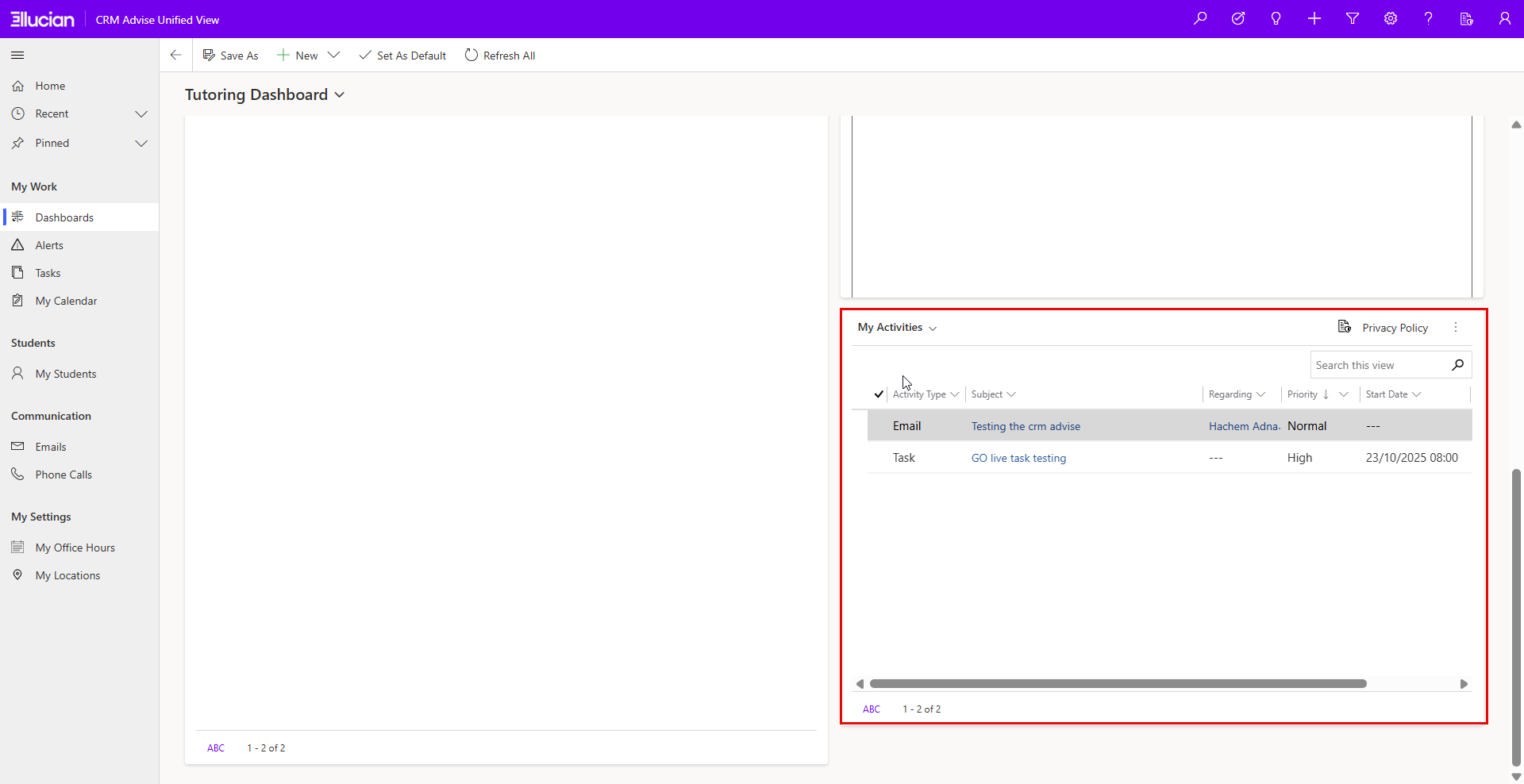
- The panel displays a list of all your logged activities and system updates.
- Each entry shows key details such as Activity Type, Subject, Regarding, Priority, Start Date, and Due Date.
- You can sort or search within the list to quickly locate a specific entry.
Creating a New Activity
From the My Activities panel, you can log new interactions or communications.
To create a new activity:
- Click the “+” (Add New) icon on the top-right of the panel. Then select the desired activity type from the dropdown list.
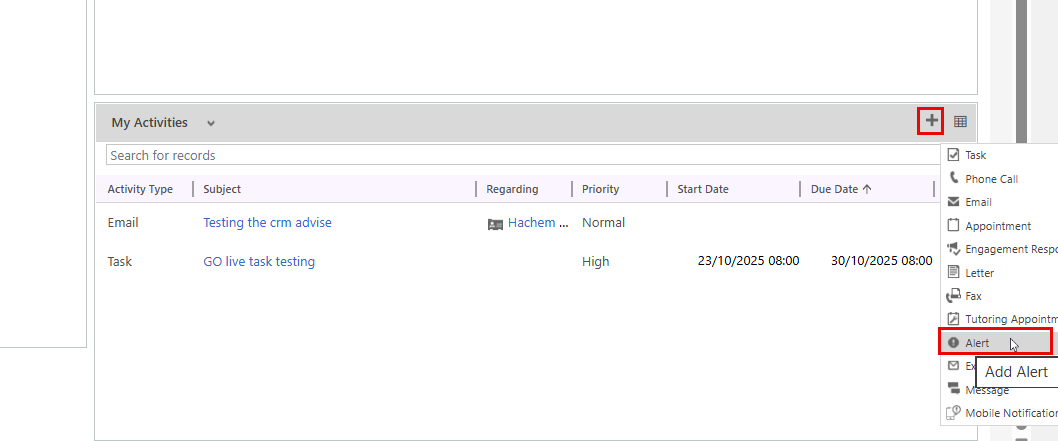
Available activity types include:
- Task: Create or assign tasks.
- Phone Call: Log a completed or scheduled call.
- Email: Send an advising-related email.
- Appointment: Schedule a meeting or advising session.
- Engagement Response: Capture student engagement activity (if enabled).
- Letter: Add or generate a formal communication note.
- Fax: Record document exchanges via fax (if applicable).
- Tutoring Appointment: Log academic support sessions.
- Alert: Create an alert related to an advisee or case.
- External Email: Record emails exchanged outside the CRM system.
- Message: Document chat or text-based communication.
- Mobile Notification: Record a mobile alert or reminder.
- After selecting the activity type, fill in the required details in the form that appears.
Note:
Please note that each activity type may have slightly different fields and options depending on its purpose
- Click Save to record the new activity. It will appear immediately in the My Activities list.
Was this article helpful?
