

My Learning Communities
- 23 Jan 2026
- 1 Minute to read
- Contributors

- Print
- DarkLight
- PDF
My Learning Communities
- Updated on 23 Jan 2026
- 1 Minute to read
- Contributors
- Print
- DarkLight
- PDF
Article summary
Did you find this summary helpful?
Thank you for your feedback!
Please Note:
This user manual is currently under review. A revised version reflecting the new Redwood user interface will be available soon.
You can explore your communities and view the learning courses that have been assigned to each community. This allows you to see the specific courses tailored to your community's needs, helping you stay engaged and up-to-date with relevant learning opportunities.
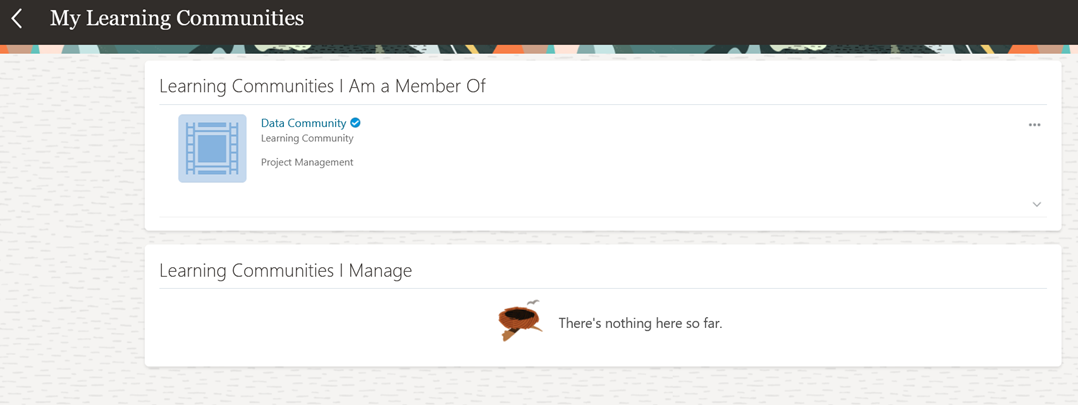
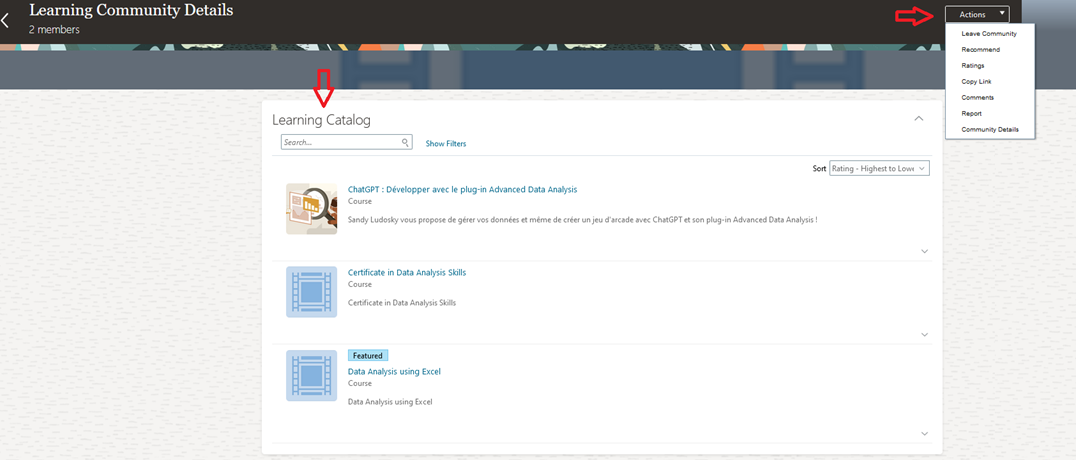
Open a community, and you will be able to see a list of all the courses that have been added to it, along with a list of actions available in the Drilldown Actions menu. This menu allows you to perform actions such as viewing community details, rating, adding comments, and more.
Was this article helpful?
