

Restrict Access Based on Student ID
- 13 Aug 2025
- 1 Minute to read
- Contributors

- Print
- DarkLight
- PDF
Restrict Access Based on Student ID
- Updated on 13 Aug 2025
- 1 Minute to read
- Contributors
- Print
- DarkLight
- PDF
Article summary
Did you find this summary helpful?
Thank you for your feedback!
Restrict Access is a feature that allows specific enrolled students to view and access an activity or resource (such as an online exam) in a Moodle course.
Restricting access to an activity or resource while uploading or creating it
While uploading the activity or resource, go to the Restrict access section in the options and follow these steps:
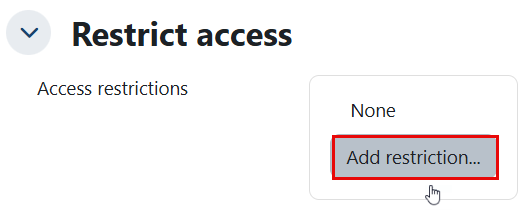
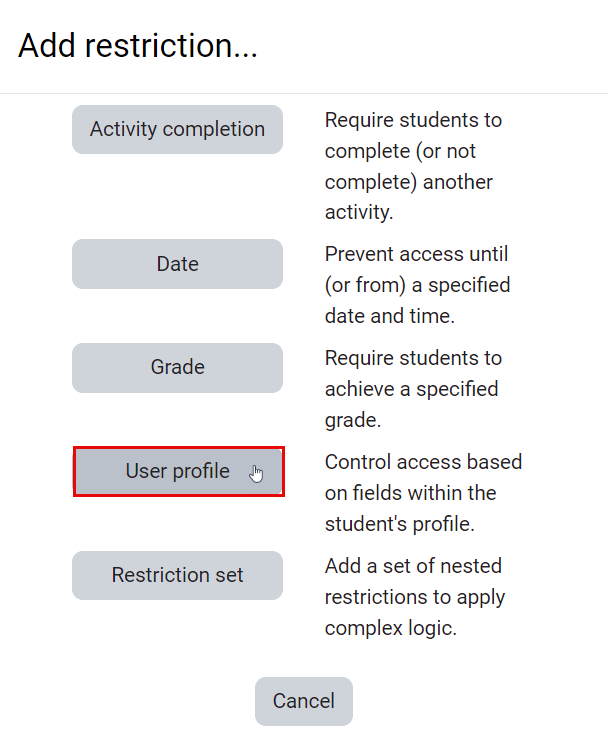
- Click the Add restriction... button.
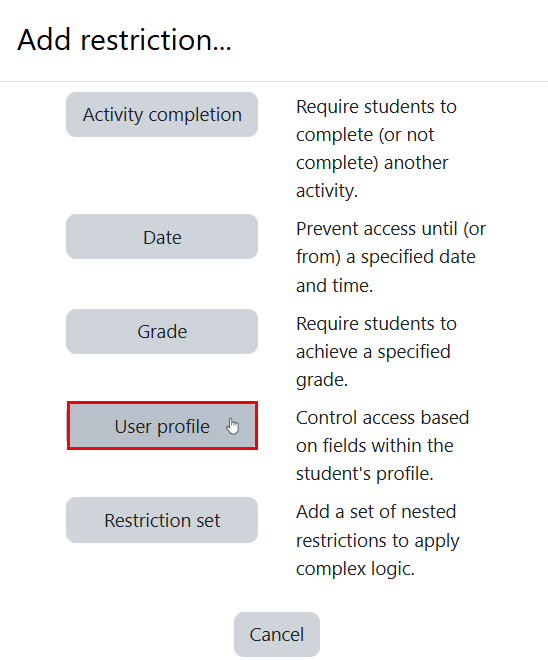
- Select User profile from the list to give access based on student ID.
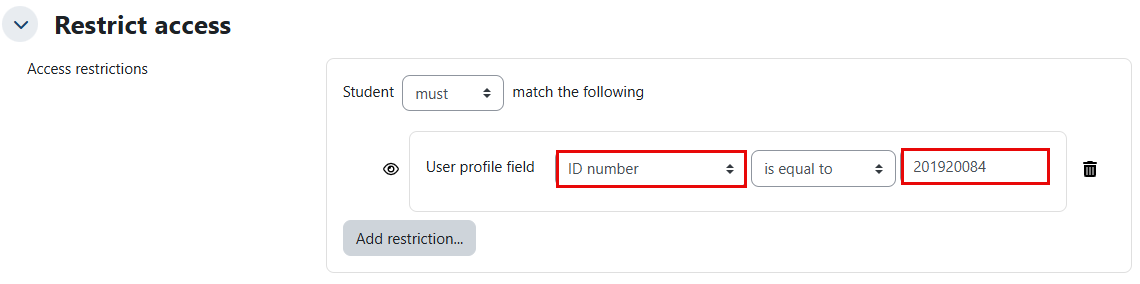
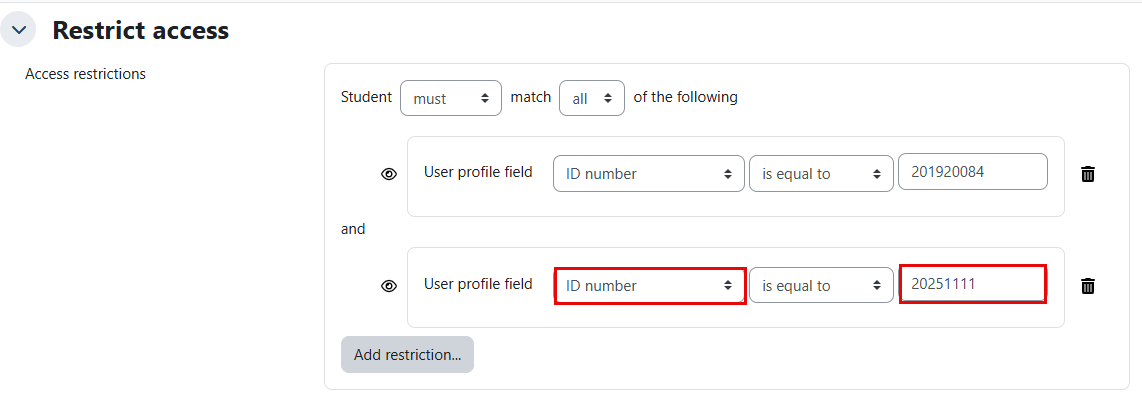
- Select ID number and enter the student’s ID.
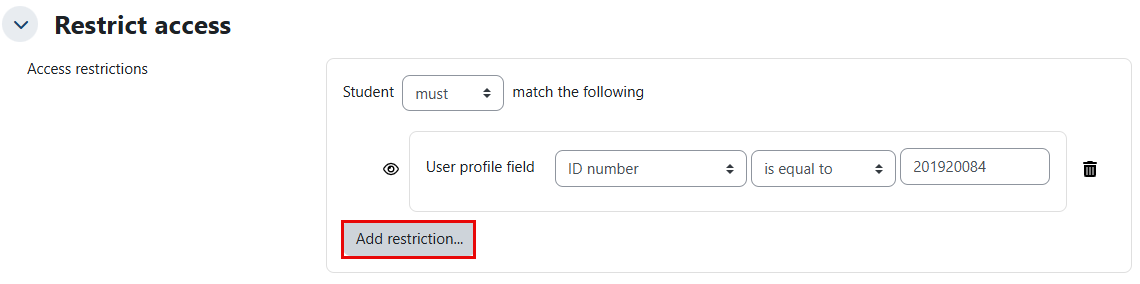
- To add multiple students, click Add restriction... button again (as shown below). Otherwise, skip to step 9 in this section.
- Select User profile from the list to giveaccess based on student ID.
- Select ID number and enter the student’s ID.
- Change the matching setting to Any.
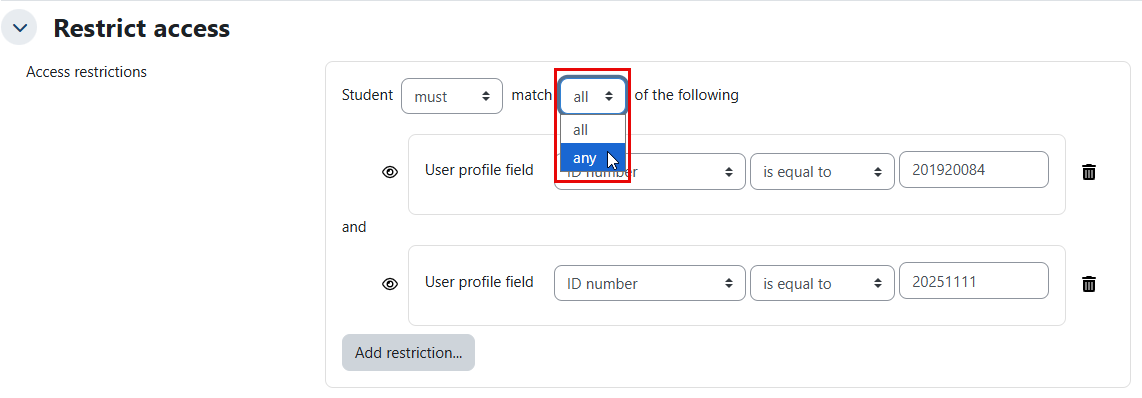 What is the difference between “All” and “Any” in the matching option?
- All: The student must have all the listed IDs to view this part. Choosing this option will effectively restrict access for all students, since no student has more than one ID.
- Any: The student must have at least one of the listed IDs to view this part.
- Repeat these steps until all students are added.
- Once all IDs have been added, click the Save and return to course button.
Restricting access to existing activity/resource
To restrict access to an activity or resource after it has been added to the Moodle course, follow these steps:
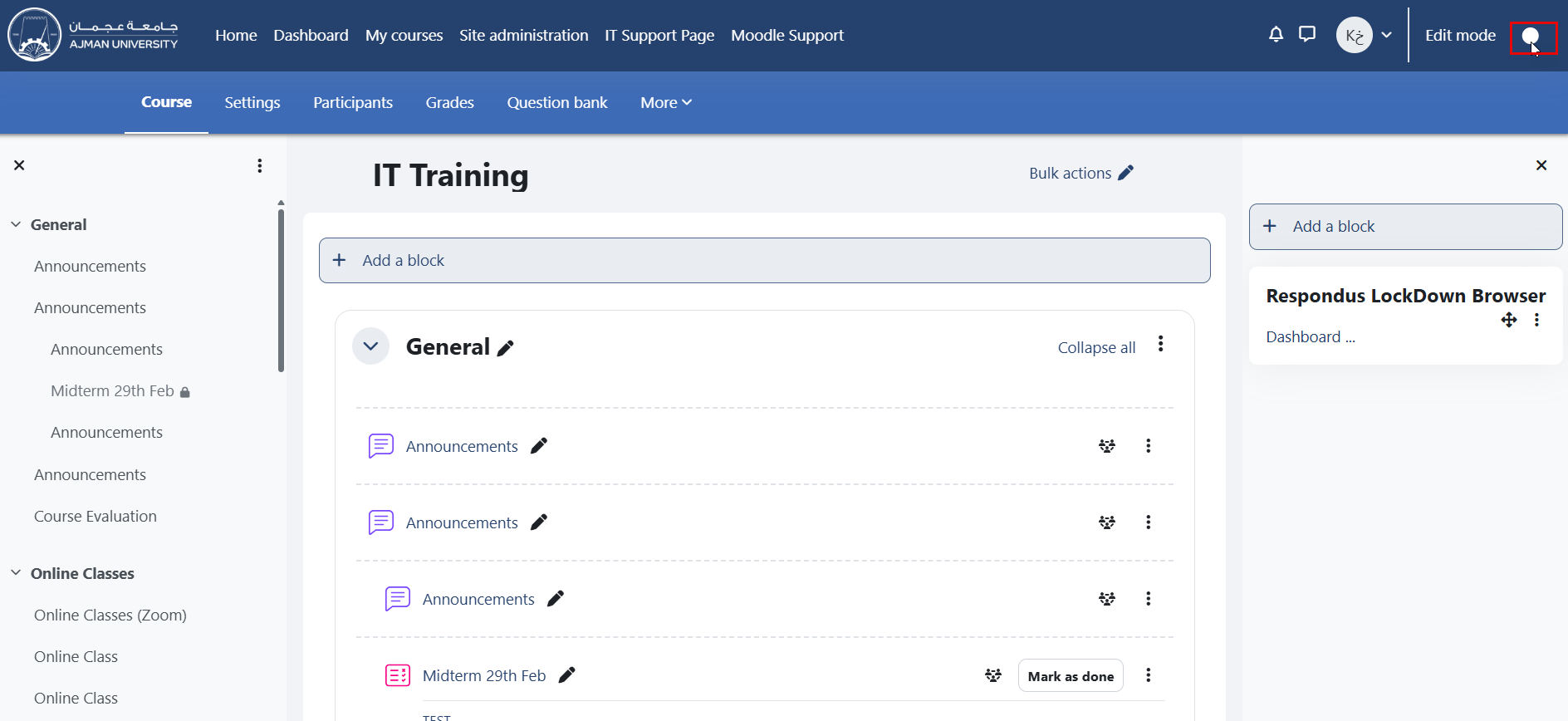
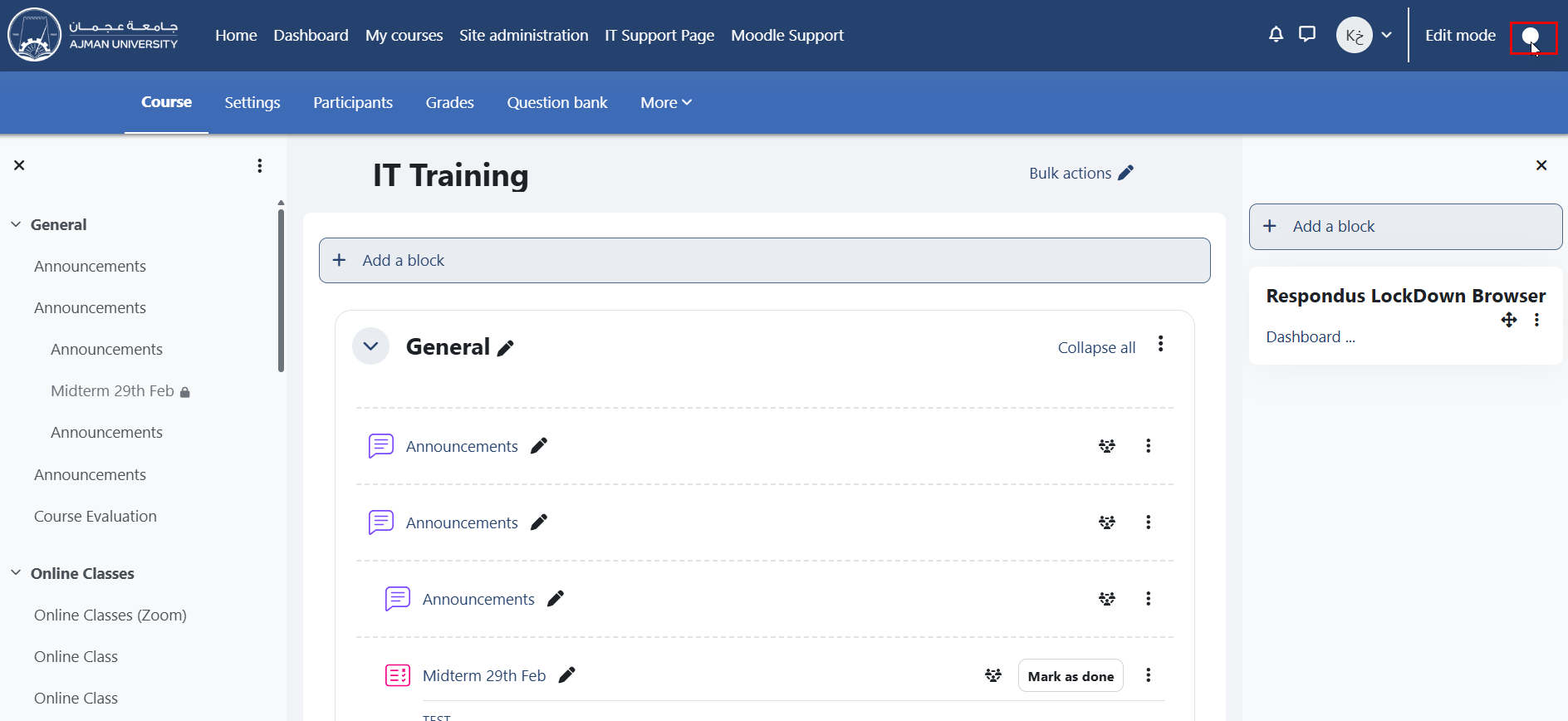
- Inside the course, enable editing by clicking the "Edit mode" toggle switch, as illustrated below:
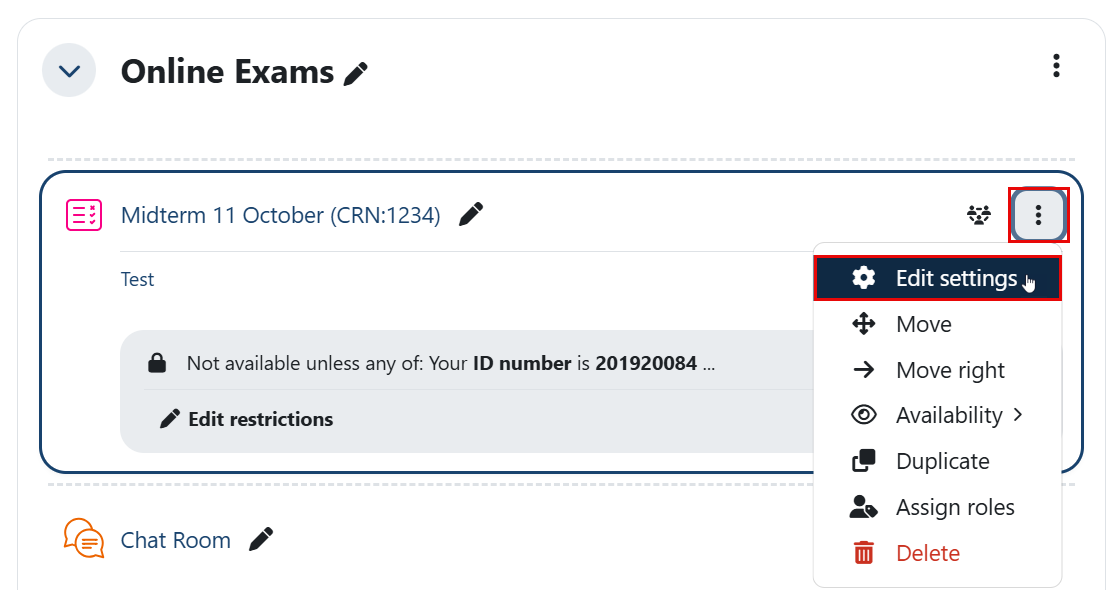
- Navigate to the activity or resource you want to restrict, click the ellipsis (⋮) icon, and then click Edit settings.
- Follow the steps outlined in the previous section.
Restricting access to a section/topic
To restrict access to a section or topic for a specific students in a Moodle course, follow these steps:
- Inside the course, enable editing by clicking the "Edit mode" toggle switch, as illustrated below:
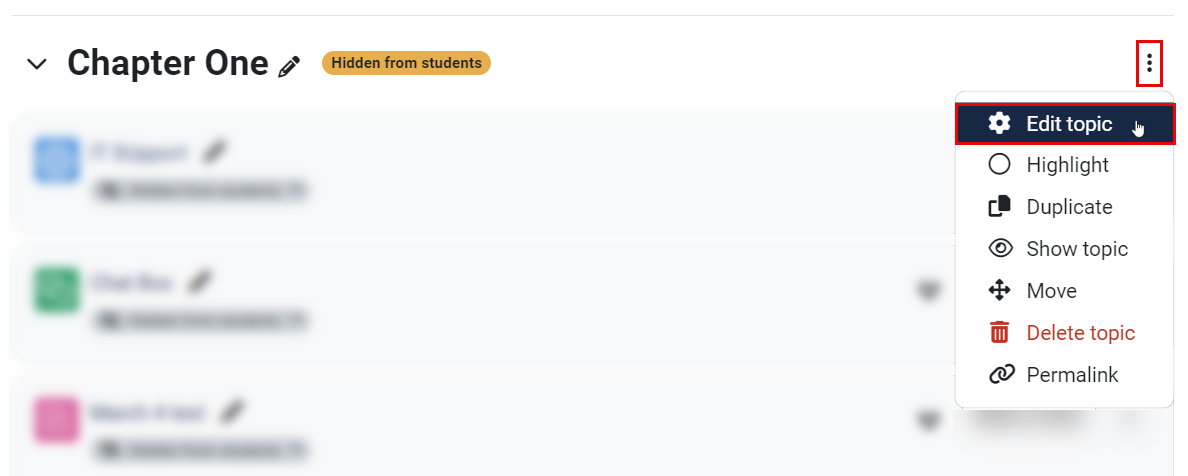
- Navigate to the topic or section you want to restrict, click the ellipsis (⋮) icon, and then click Edit settings.
- Follow the steps outlined in the first section.
Was this article helpful?
