

Sending Messages to Students
- 08 Aug 2025
- 2 Minutes to read
- Contributors

- Print
- DarkLight
- PDF
Sending Messages to Students
- Updated on 08 Aug 2025
- 2 Minutes to read
- Contributors
- Print
- DarkLight
- PDF
Article summary
Did you find this summary helpful?
Thank you for your feedback!
Moodle offers a built-in messaging feature that allows instructors to communicate directly with individual students or groups of students enrolled in the same course. This feature helps streamline communication for announcements, reminders, and quick follow-ups.
You can send messages to individual students or to multiple students at once. Students will receive an email notification at their AU email address and can also access messages directly within Moodle.
Send a Message to an Individual Student
This feature allows you to send a private message to a specific student. To send a new message:
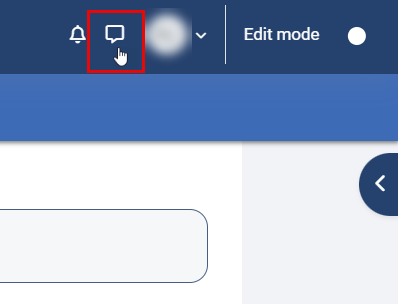
- Locate and click the Messages icon, usually found in the top-right corner of the Moodle.
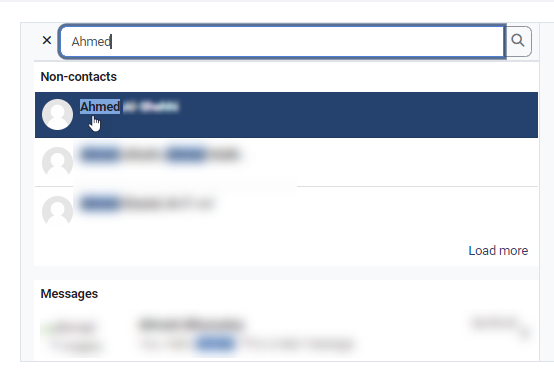
- Type the student’s name in the search bar. A list of matching names will appear, click on the correct student to open the messaging panel on the side of the page.
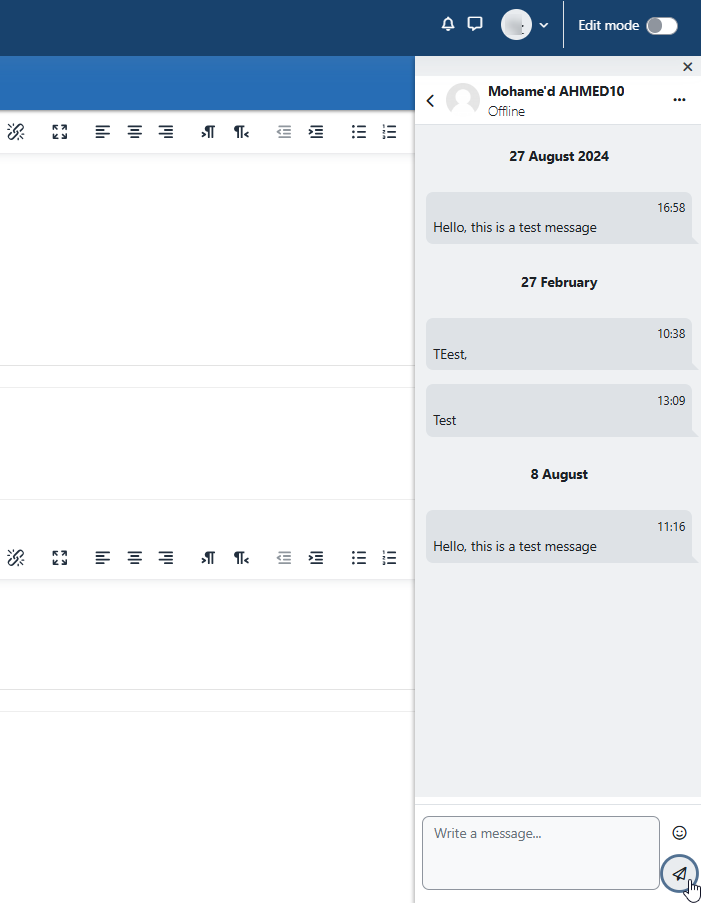
- Enter your message in the text box and click the Send icon (paper plane symbol). The student will receive the message in Moodle, along with an email notification to their AU email address.
Send a Message to Multiple Students Within the Same Course
You can send the same message to several students enrolled in your course. This is helpful for class announcements, reminders about deadlines, or instructions relevant to selected participants.
- Navigate to the Moodle course where the students are enrolled.
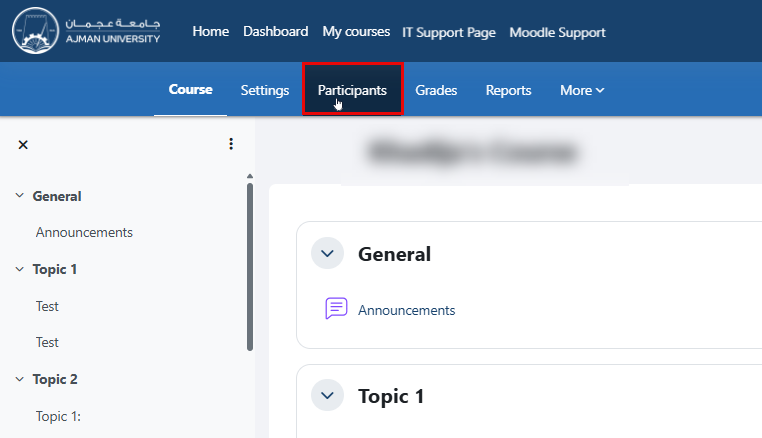
- In the secondary menu (just below the course title), click on Participants to view the list of enrolled students.
- Check the box next to each student you want to message.
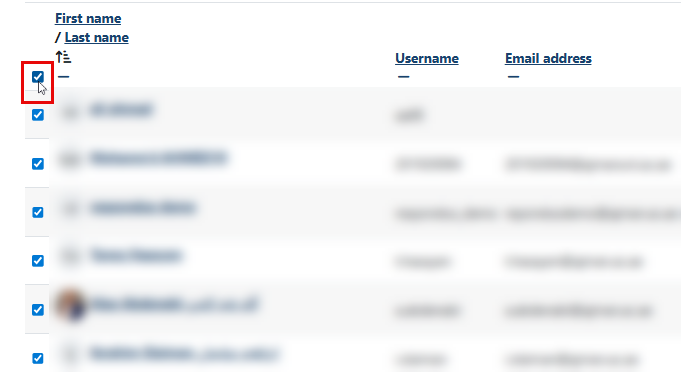
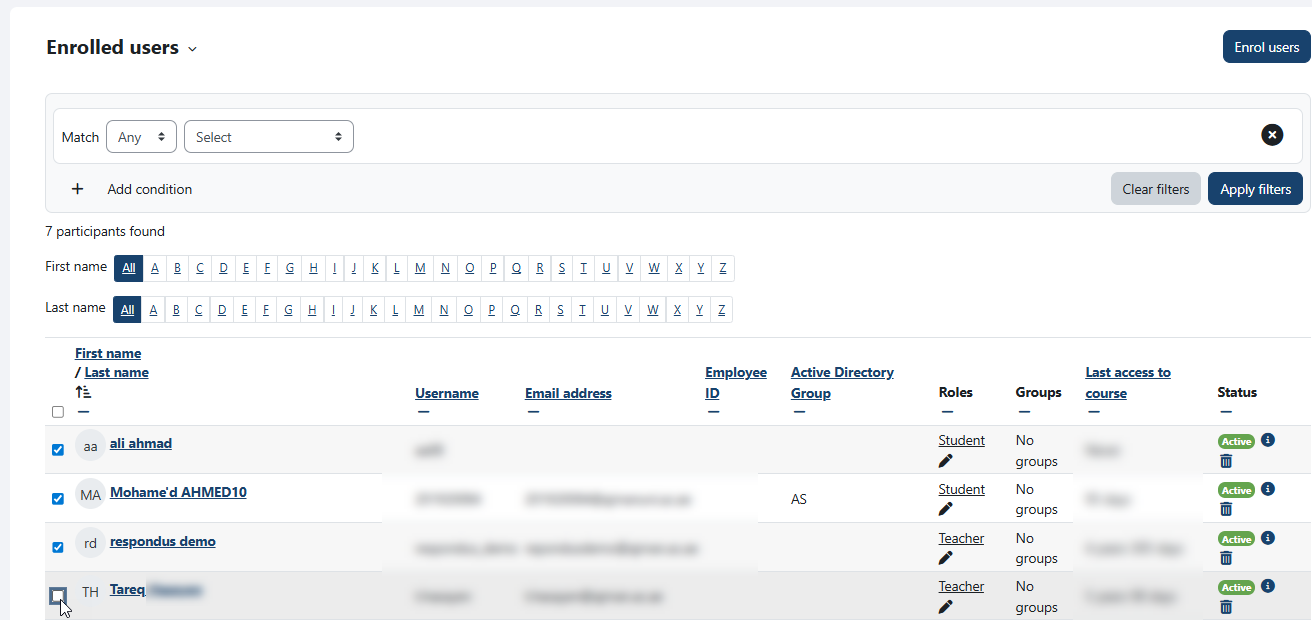 Note:
Note:To select all students, click the checkbox at the top of the list.
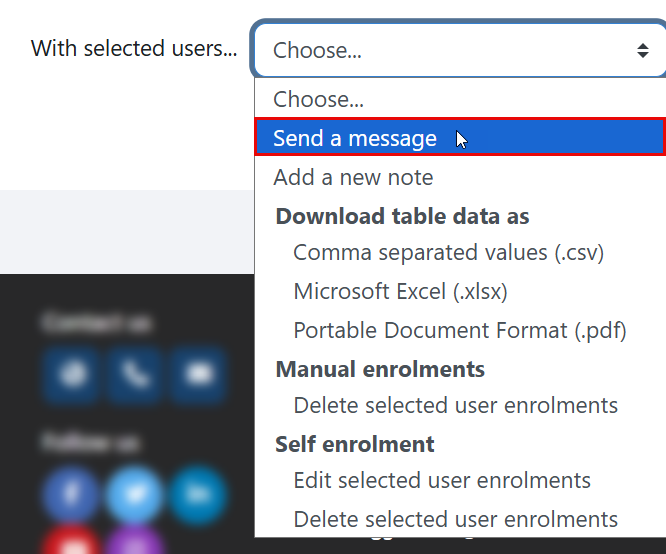
- After selecting the students, scroll to the bottom of the page. From the dropdown menu labeled “With selected users...,” choose Send a message.
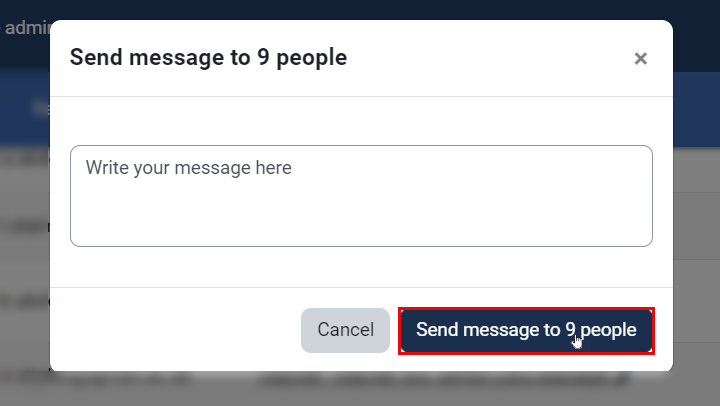
- A message window will appear. Type your message, then click Send message to deliver it to all selected students.
Note:
- Each student will receive an email notification regarding this message on their AU email address.
- Instructors do not receive a copy of the message they send to all participants in a course.
Check the unread messages
You can check the unread messages by clicking on the Messages icon, as illustrated below. Note that all messages in your inbox will appear, and any unread message will be marked.
To view incoming messages, including unread ones:
Click the Messages icon at the top of the page. This opens your message inbox.
Check Unread Messages
All your conversations will be listed in the message panel. Unread messages are clearly marked (usually bolded or with a notification dot).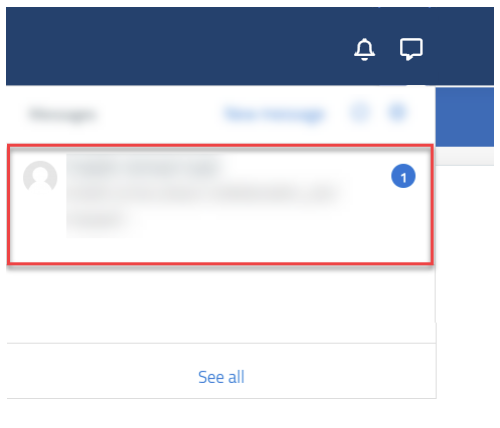
Best Practice:
Regularly check your Moodle messages to avoid missing student questions, especially close to assignment deadlines or examination periods.
Was this article helpful?
