

Set up LockDown Browser for Online Exams
- 18 Nov 2025
- 1 Minute to read
- Contributors

- Print
- DarkLight
- PDF
Set up LockDown Browser for Online Exams
- Updated on 18 Nov 2025
- 1 Minute to read
- Contributors
- Print
- DarkLight
- PDF
Article summary
Did you find this summary helpful?
Thank you for your feedback!
To enable LockDown Browser for an online quiz, follow these steps:
- Create an online quiz. For more details, refer to this this user manual.
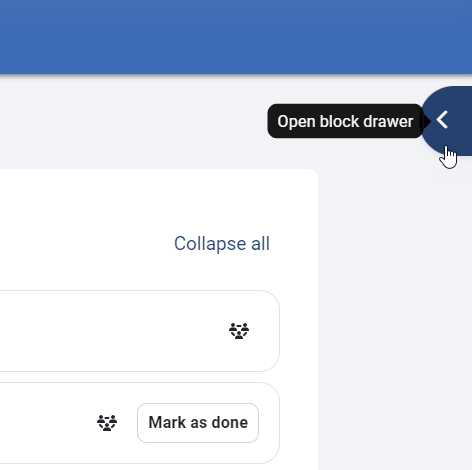
- In your Moodle course, open the block drawer on the right side of the screen.
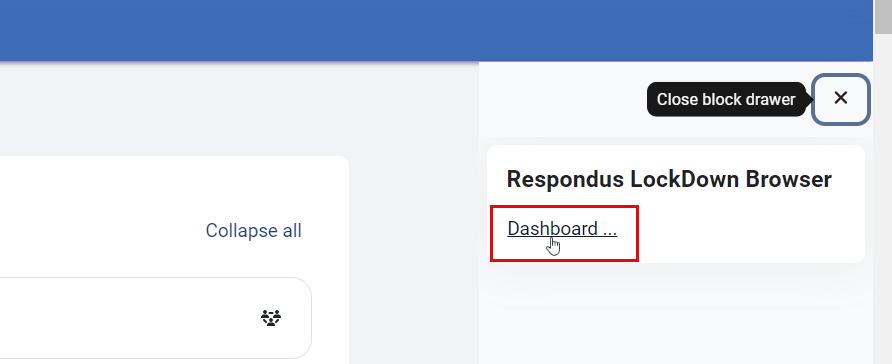
- A side menu will appear, including the Respondus LockDown Browser. Click the Dashboard button.
5. You will be able to view the list of quizzes that were created in your course. Find your quiz and click on its drop-down and then on Settings where you can enable the LockDown Browser for the quiz.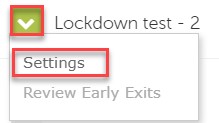
6. In the LockDown Browser settings, click the Require Respondus LockDown Browser for this exam option to enable it for the quiz. Then click Save & Close. 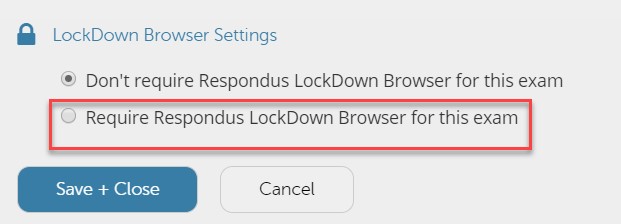
LockDown Browser settings
Learn how to configure LockDown Browser settings in this article.
Was this article helpful?
