

Create a new request
- 11 Jul 2021
- 1 Minute to read
- Contributors

- Print
- DarkLight
- PDF
Create a new request
- Updated on 11 Jul 2021
- 1 Minute to read
- Contributors
- Print
- DarkLight
- PDF
Article summary
Did you find this summary helpful?
Thank you for your feedback!
To create a new request on the ORS, please follow the below steps:
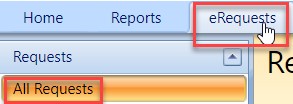
- On the homepage, click on the eRequests button and then on the All Requests button.
- Click on the New Request button.
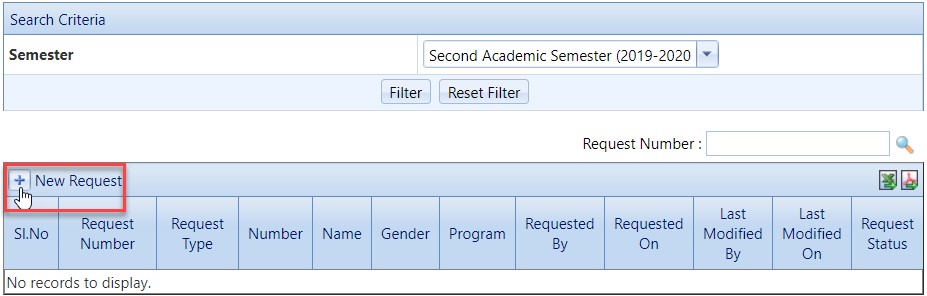
- Enter the Employee ID/Student ID, depends on whom you are requesting for.

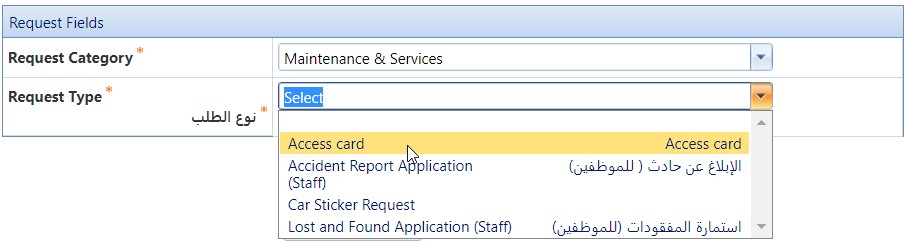
- Chose the request category, which is the office you are requesting from. For example, if you would like to get an access card, you would choose the “Maintenance & Services” as a request category and “Access Card” as a request type.
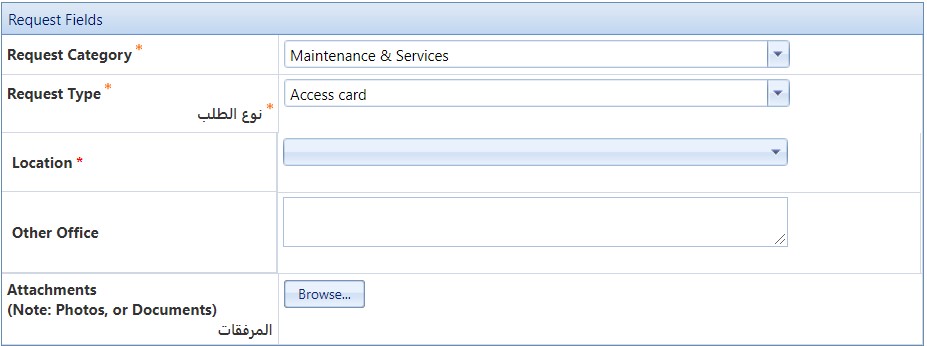
- Once you choose the request category and type, you will be presented with a related form to be filled, as illustrated below. Noting that you cannot submit any request without filling the required fields, which have the red astrik (*).
- You can scroll down to check the conditions which should be met in order to start this request.

- Once you have completed all the steps above and you are confident of all the details entered, click on the Submit button.
Was this article helpful?
