

Submit a standard assignment in OneDrive
- 26 Aug 2024
- 1 Minute to read
- Contributors

- Print
- DarkLight
- PDF
Submit a standard assignment in OneDrive
- Updated on 26 Aug 2024
- 1 Minute to read
- Contributors
- Print
- DarkLight
- PDF
Article summary
Did you find this summary helpful?
Thank you for your feedback!
In case your assignment requires uploading a file with large sizes, such as multimedia, you may use OneDrive to upload the assignment on it, then share the link with your instructor accordingly, by following the below steps:
Log in to your OneDrive account.
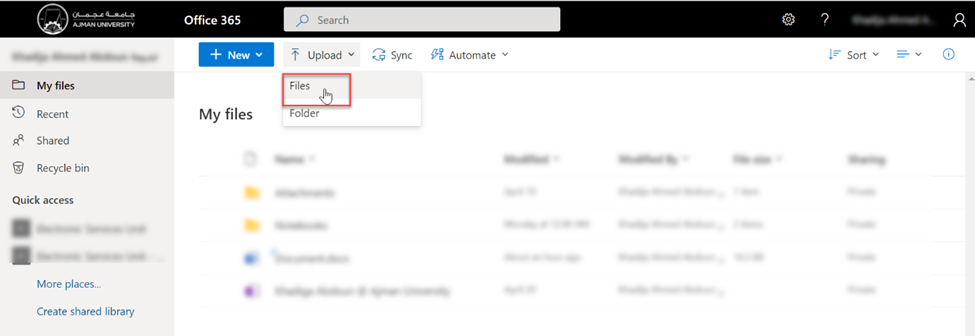
(please refer to this article to learn how to access your OneDrive Account).Once you are logged in, click on “Upload”, then click on “Files” to upload your assignment., as illustrated below:
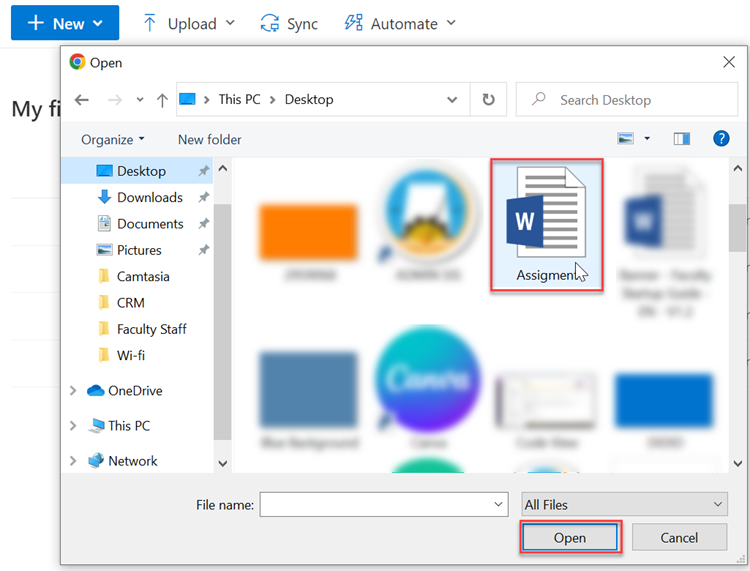
Select the file you wish to upload, then click on “Open”, as illustrated below:
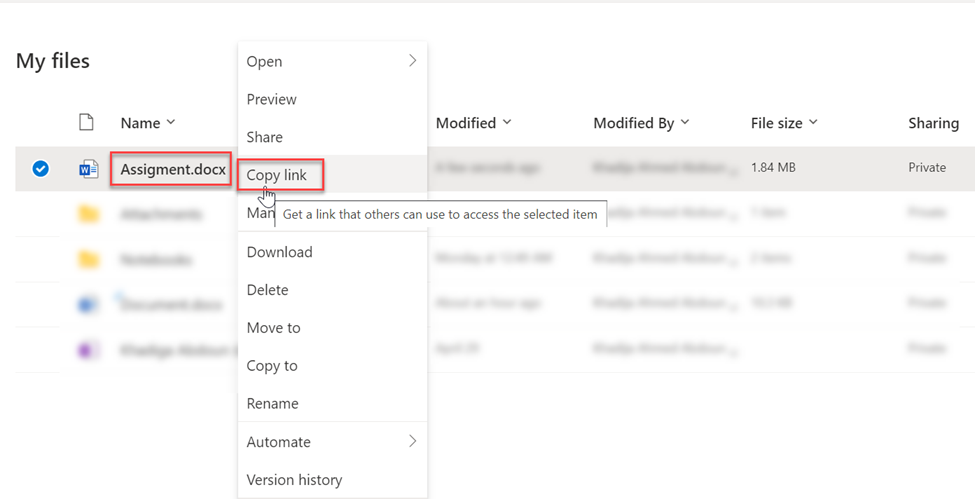
File is uploaded, Right click on the uploaded file then click on “Copy link”., as illustrated below:
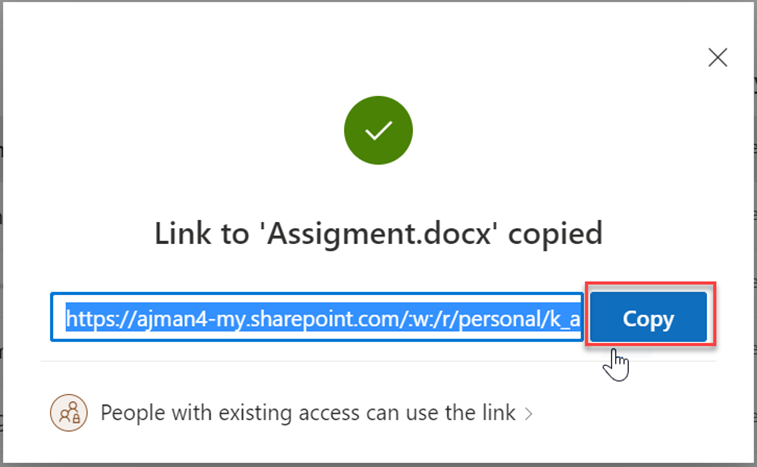
- Click on “Copy”., as illustrated below:
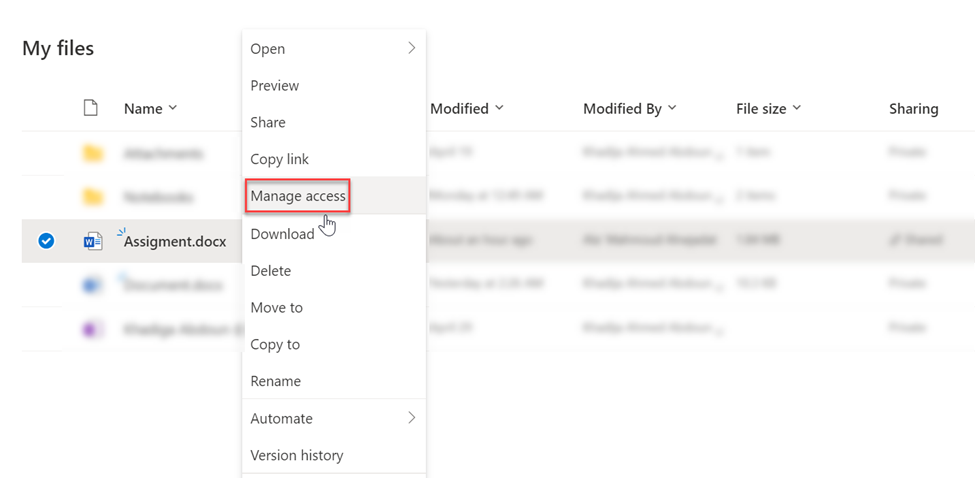
- Right click on the uploaded file then click on "Manage Access”., as illustrated below:
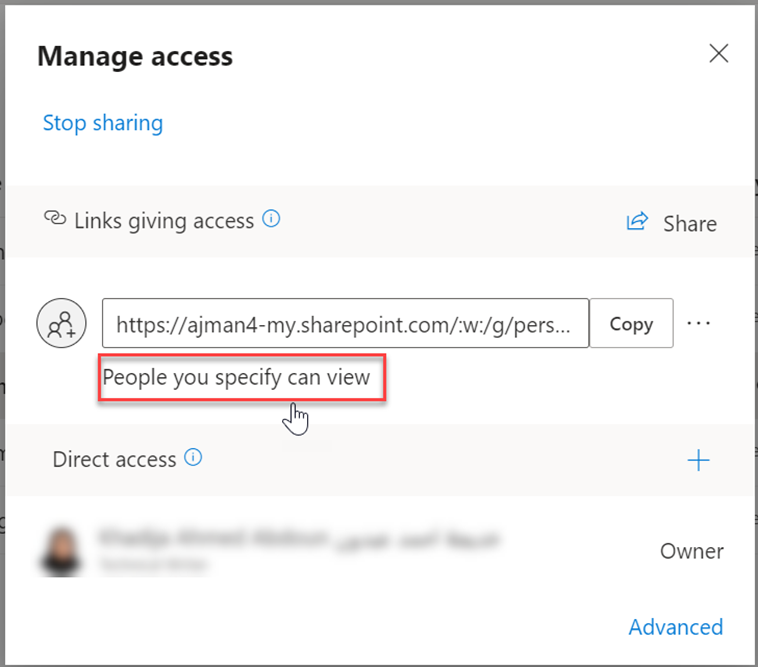
Click on “People you specify can view”., as illustrated below:
Write the E-mail address of your instructor, then click on” Apply”., as illustrated below:
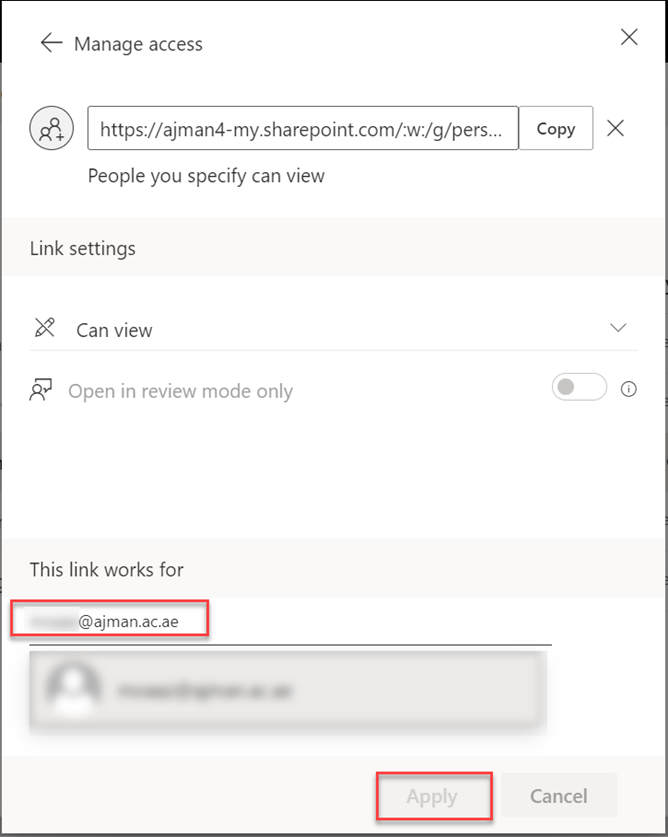
Note: Now your instructor will have access to view your assignment after you upload the link in Moodle.
Move to Moodle to insert the copied link.
Click on the assignment

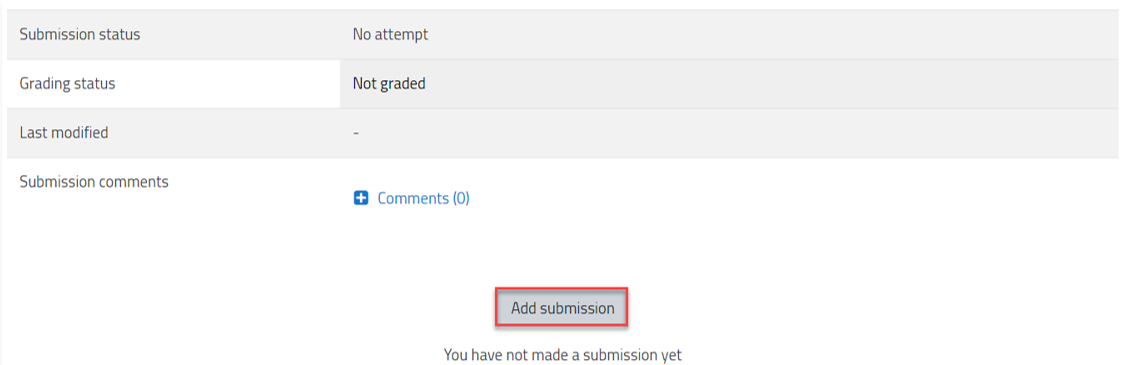
Click on Add submission.
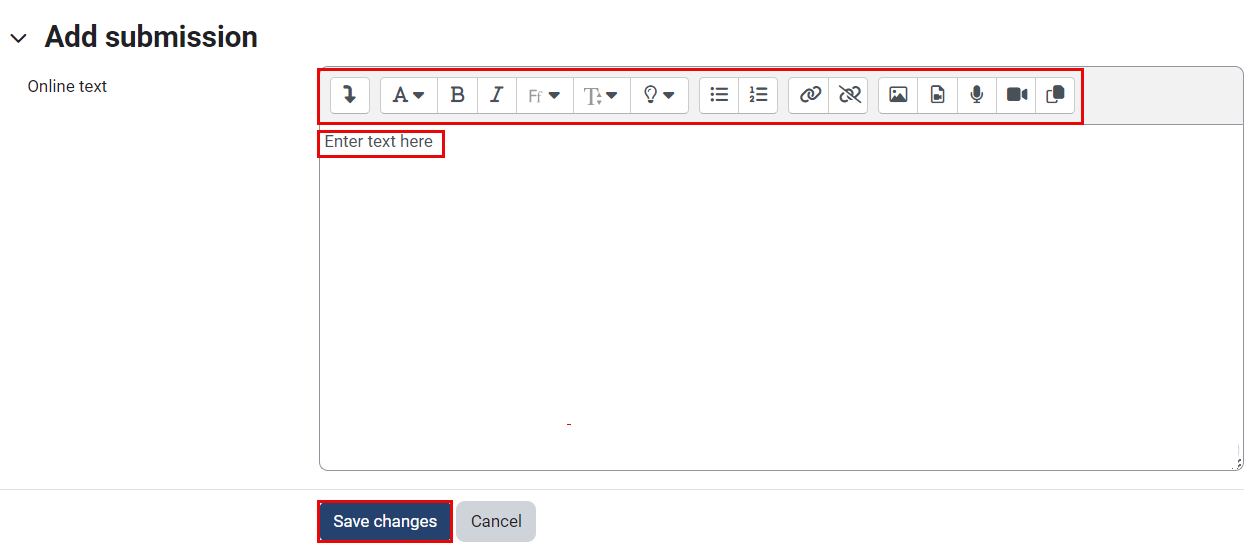
Paste your copied link in the text box and then click on “Save changes” button., as illustrated below:
At a later stage and once the lecturer grades your assignment, you will be able to view the grade, as mentioned previously.
Was this article helpful?
