

Submitting a Request in CRM Advise
- 11 Nov 2025
- 1 Minute to read
- Contributors

- Print
- DarkLight
- PDF
Submitting a Request in CRM Advise
- Updated on 11 Nov 2025
- 1 Minute to read
- Contributors
- Print
- DarkLight
- PDF
Article summary
Did you find this summary helpful?
Thank you for your feedback!
The Request Assistence Submission feature in Ellucian CRM Advise allows students to communicate directly with their assigned advisor or the relevant university department.
Through this feature, students can request academic support, report personal concerns, or ask for guidance and assistance.
Each request is automatically routed to the assigned advisor or the concerned office, depending on the type of request selected. This ensures that all student needs are handled efficiently and by the appropriate personnel.
Accessing the Student Portal
- You can access the CRM Advise Student Portal using the following link:
https://ajmanacae.elluciancrmadvise.com/StudentSelfService/ - Once logged in, click “Request” in the main dashboard.
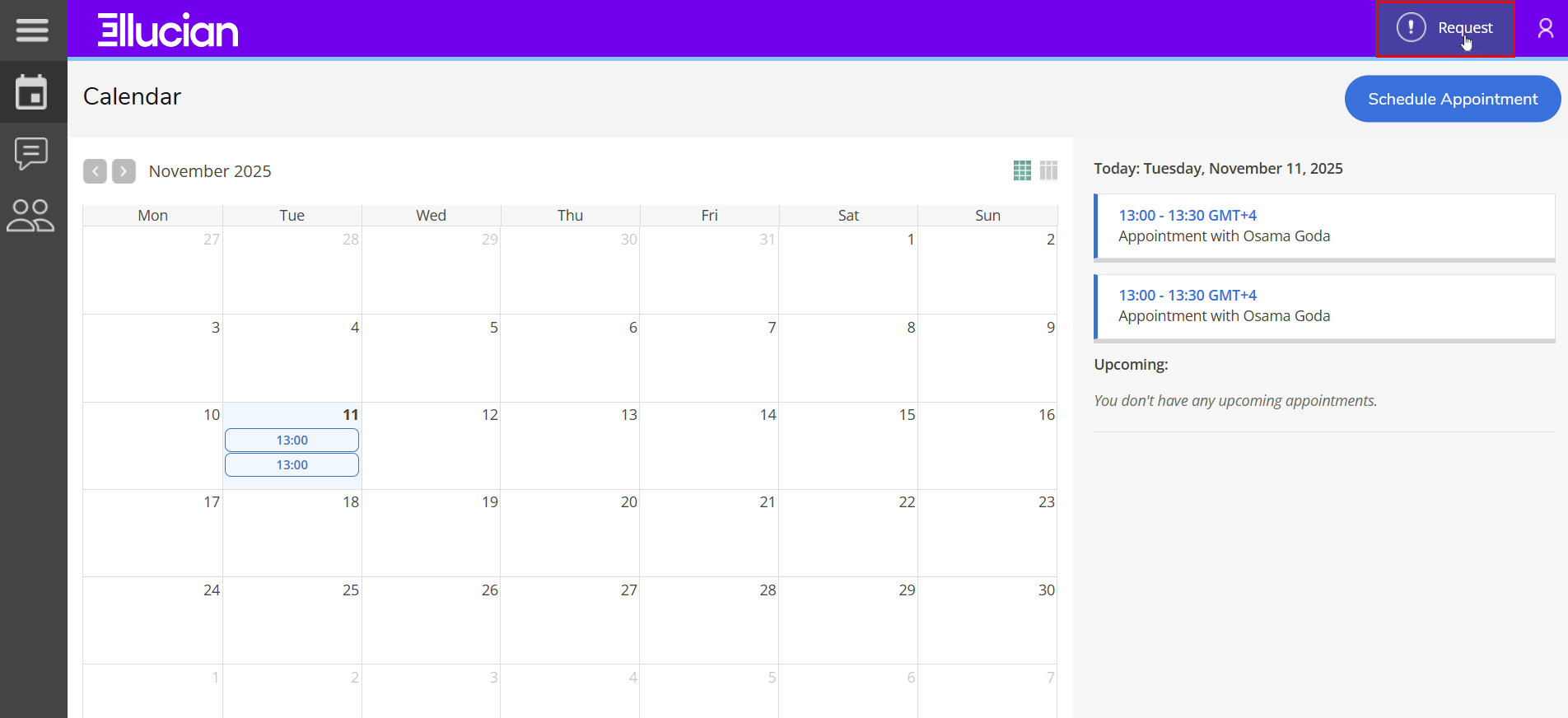
Submitting a New Request
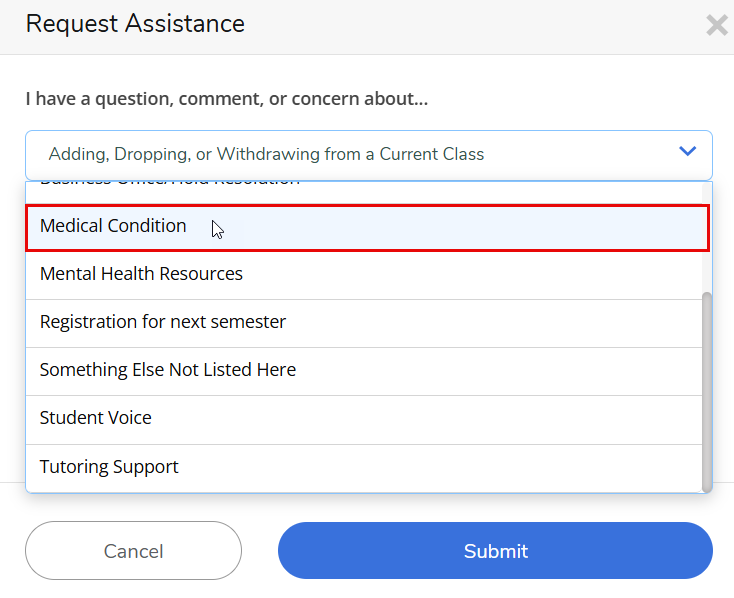
After clicking Request, a new Request Assistance window will appear.
Follow these steps to complete your booking:
Select the Request Type from the drop-down menu.
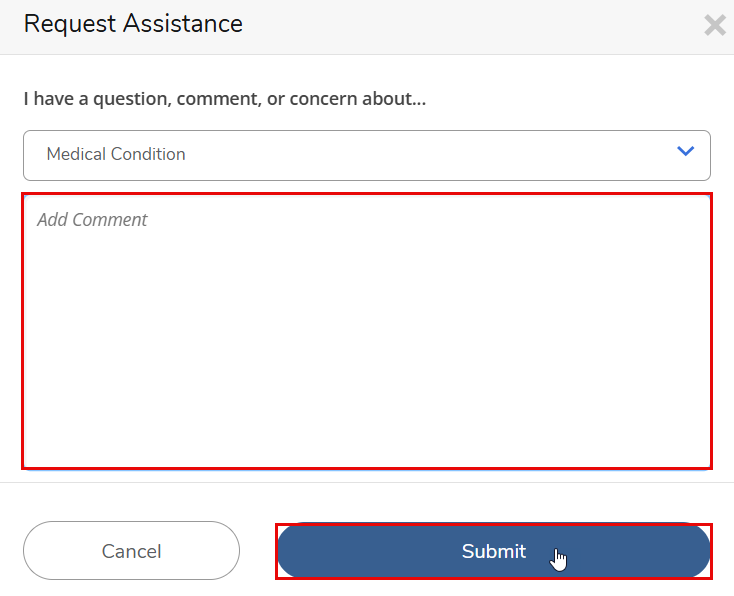
Add Comments (Optional):
You may include a brief comment or note explaining the reason for raising the request.
This helps your advisor or the respective office better understand the concern and take appropriate action.Click Submit to raise the request.
Was this article helpful?
