In this article, the process of grading a Standard Assignment will be explained in detail. You can download all student submissions for offline review and use the built-in grading interface to assess each submission individually.
This section is divided into two sub-sections: downloading student submissions, which simplifies the review process, and two methods of Grading Standard Assignment.
Download Student Submissions
This feature allows you to download all files submitted by students for a specific assignment at once. To do so, follow the steps below:
- Inside the course, Click on the assignment activity.
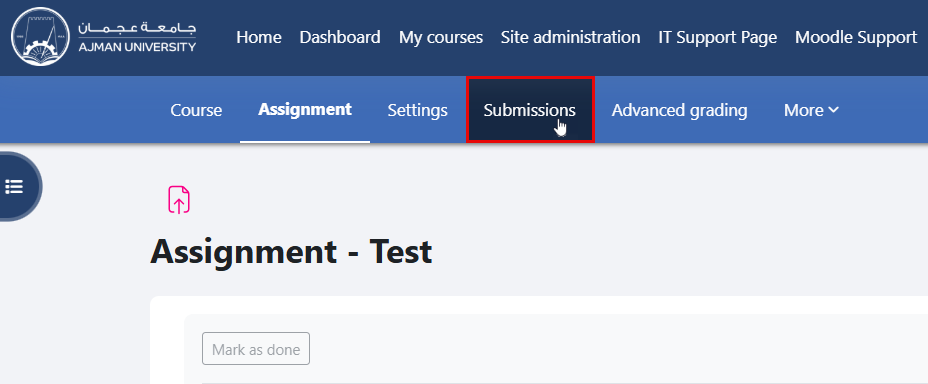
- From the Secondary menu, select "Submissions".
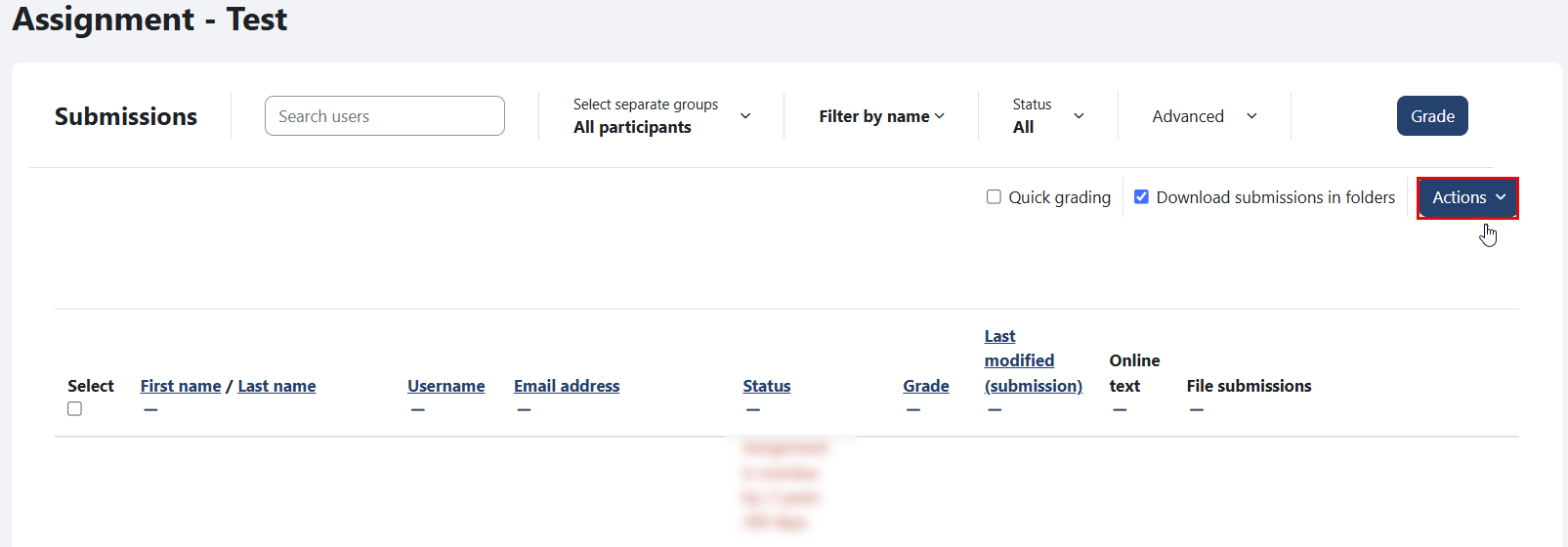
- On the Submissions page, locate the "Actions" drop-down menu in the top-right corner.
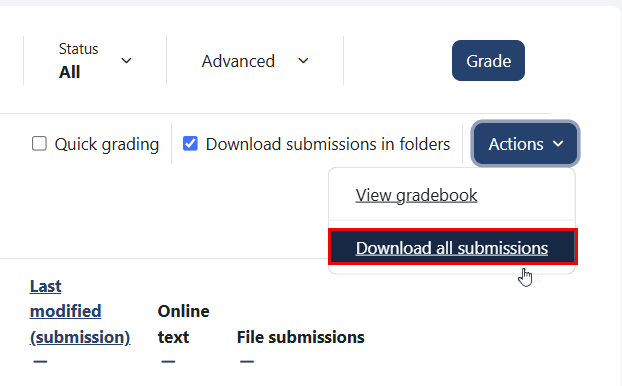
- From the Actions drop-down menu, choose Download all submissions.
If you prefer to organize student submissions into individual folders (one per student), check the “Download submissions in folders” option before downloading. If this option is left unchecked, all submissions will be downloaded into a single folder.

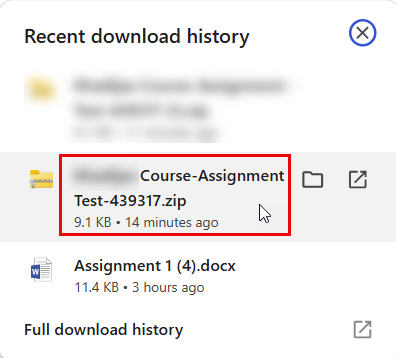
- A ZIP file containing all submitted student files will be downloaded for your review.
Grade Standard Assignment
Quick Grading
This method enables instructors to enter grades and feedback directly within the submissions table, eliminating the need to open each student’s submission individually. It can be used by following the steps outlined below.
- Click on the assignment activity you want to grade.
- From the Secondary menu, select "Submissions".
- On the Submissions page, enable the “Quick grading” checkbox, located next to the “Actions” button. Once enabled, a Grade column will appear in the submissions table.
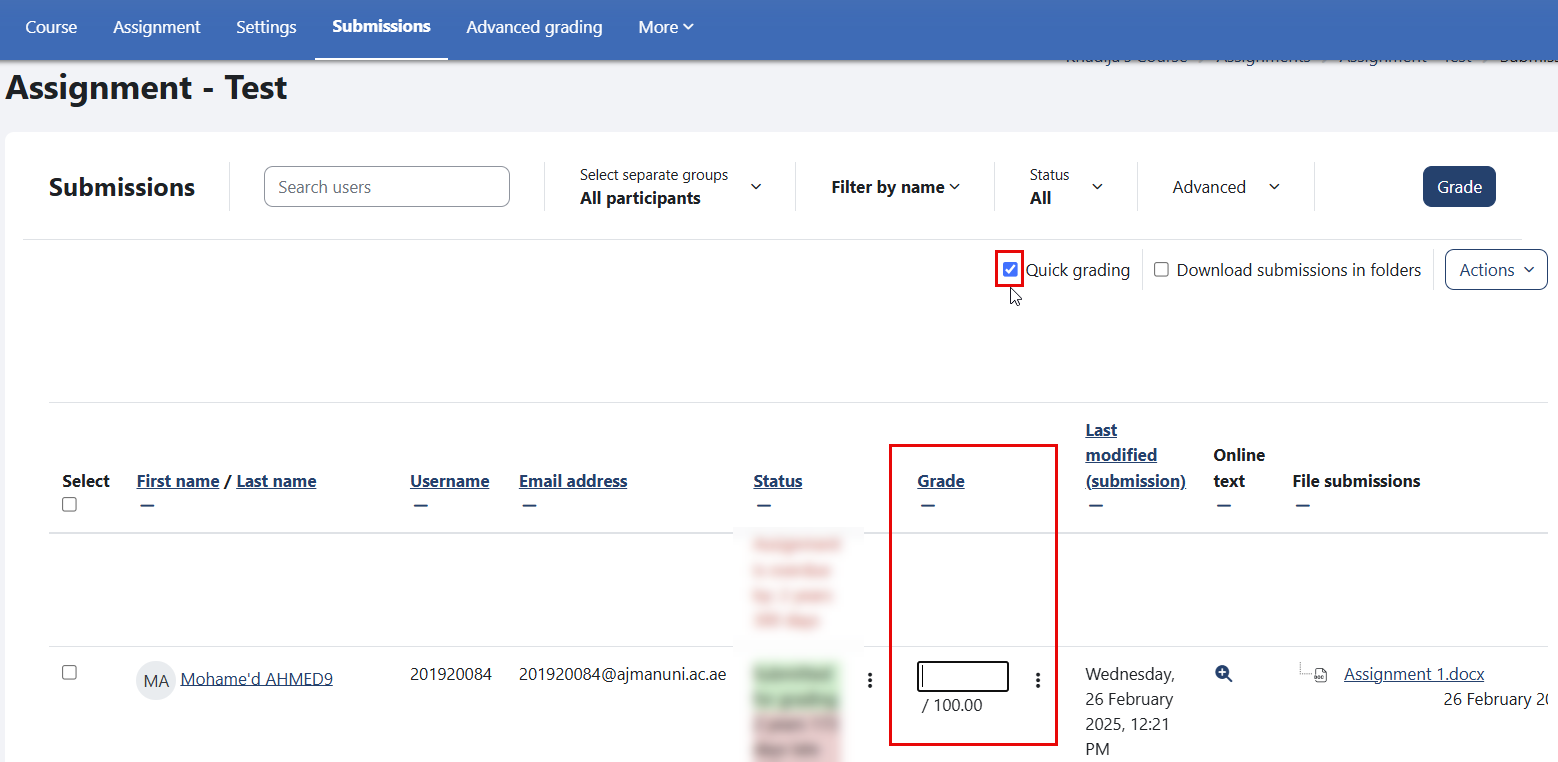
The “Feedback comments” field in the same table allows you to provide written feedback for each submission.
Individual grading
Through this feature, you will be able to grade student submissions individually, by following the steps below:
-
Click on the assignment activity you want to grade.
-
In the top-left corner of the assignment page, click the "Grade" button.
-
In the top of the submission page, click the "Grade" button.
-
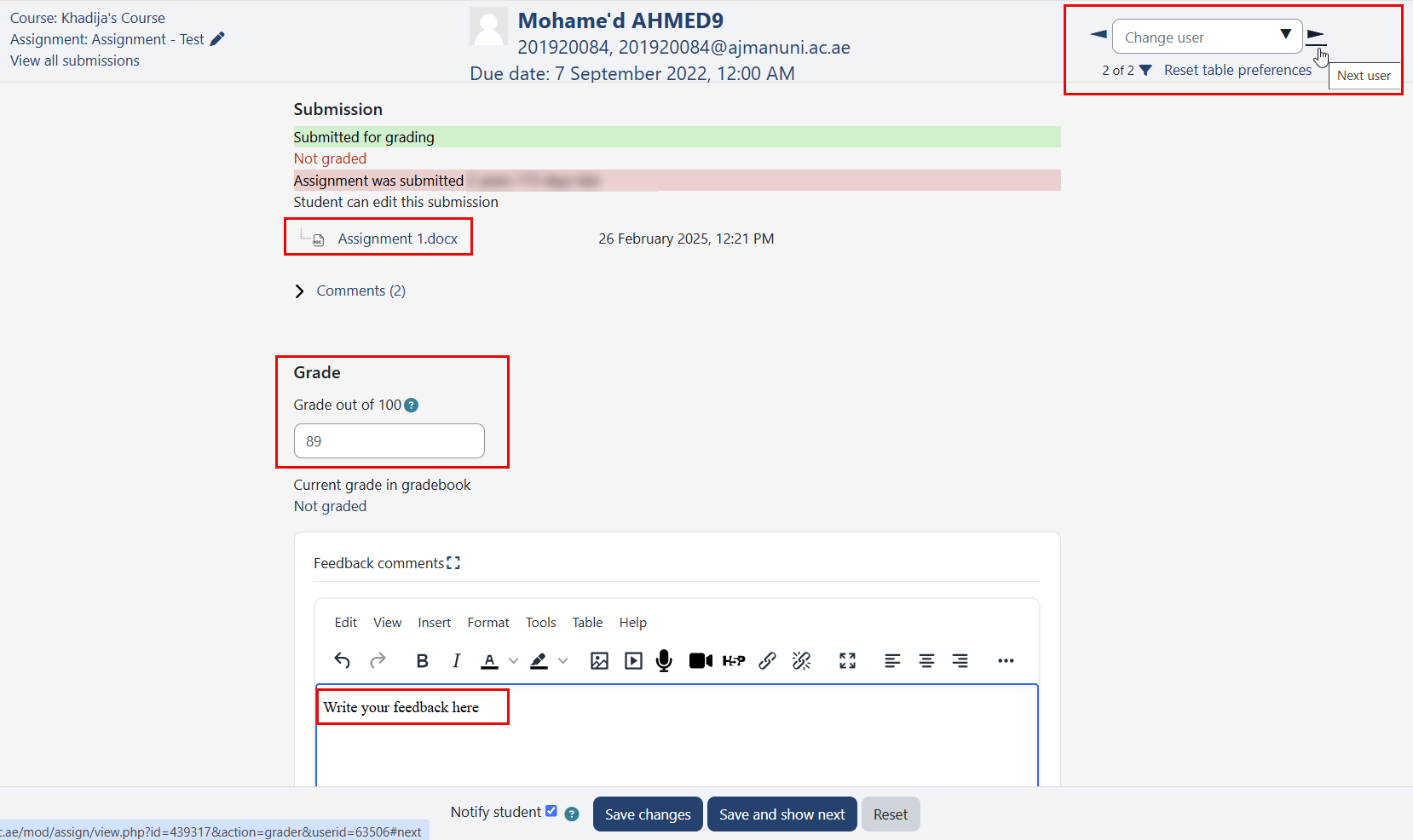
You you be directed to the individual grading interface, where you can navigate between students, view submissions, and enter detailed feedback and grades.
-
After entering grades, click “Save changes” to save and stay on the current page, or “Save and show next” to save and move to the next submission.