This user manual is currently under review. A revised version reflecting the new Redwood user interface will be available soon.
Access Learning Management Module
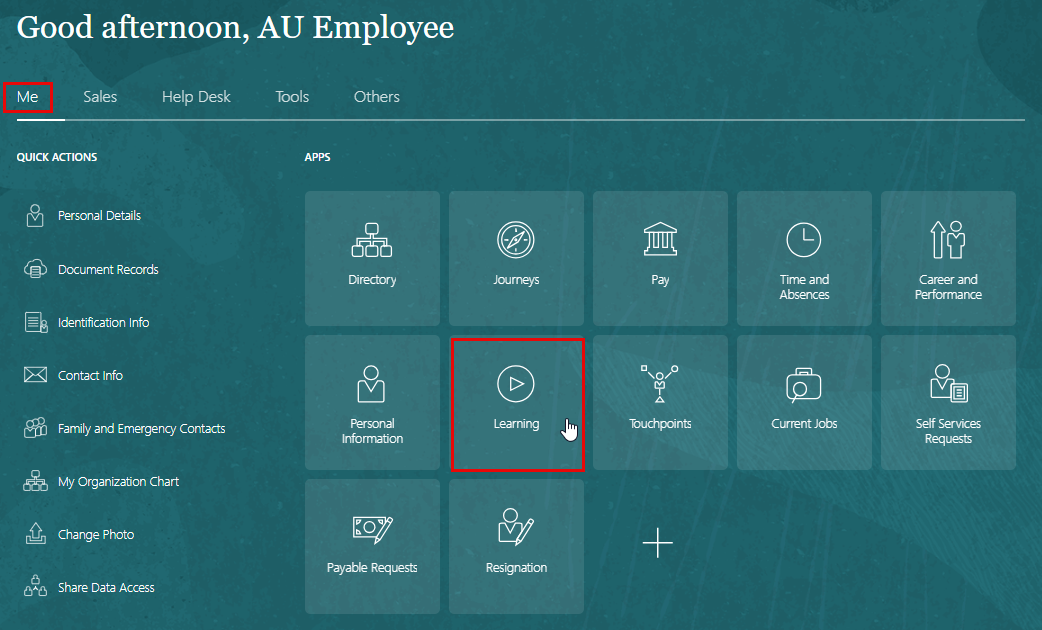
On the Home page, click on "Me", then click on "Learning."
Search the Learning Catalog
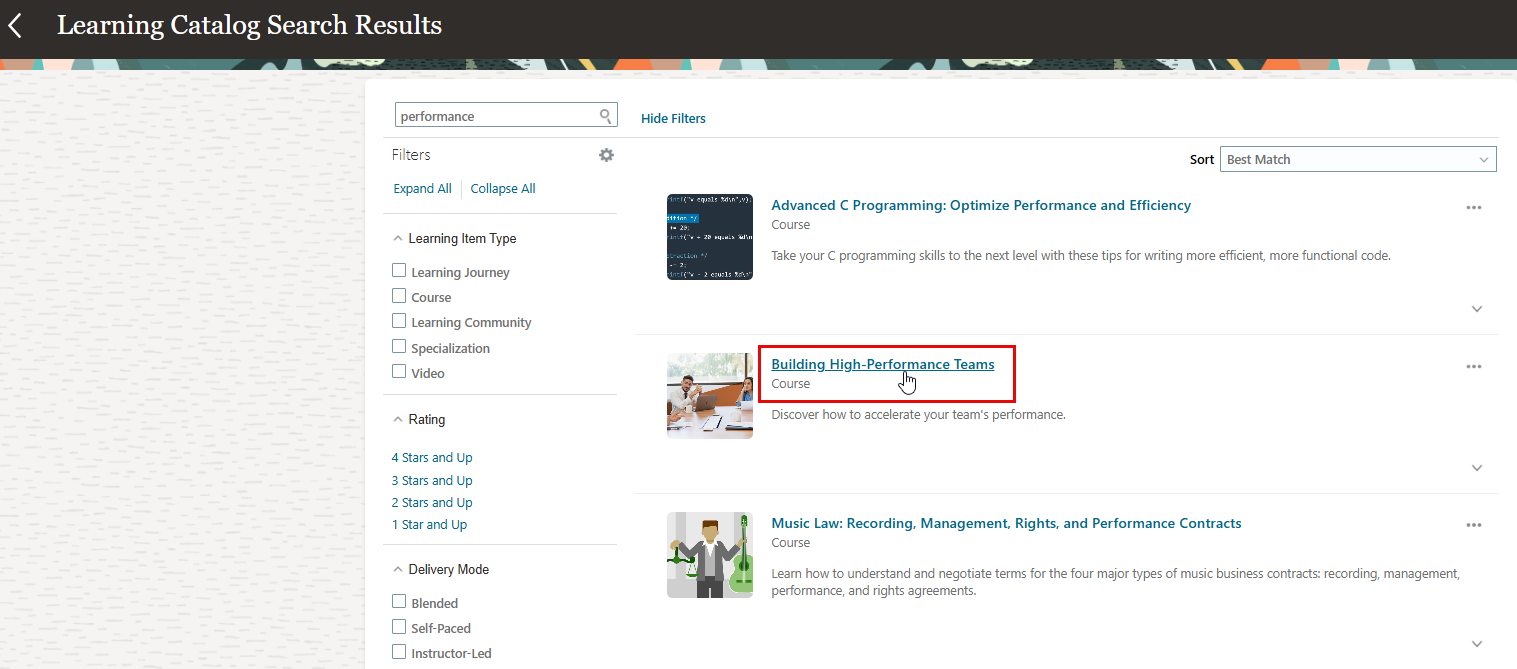
You can search the learning catalog by entering the title, keywords from the learning item's description, or its item number.
Enroll in a course
After searching for a specific course, the search results will display all available courses you can take.
-
To enroll in a course, simply click on its title.
-
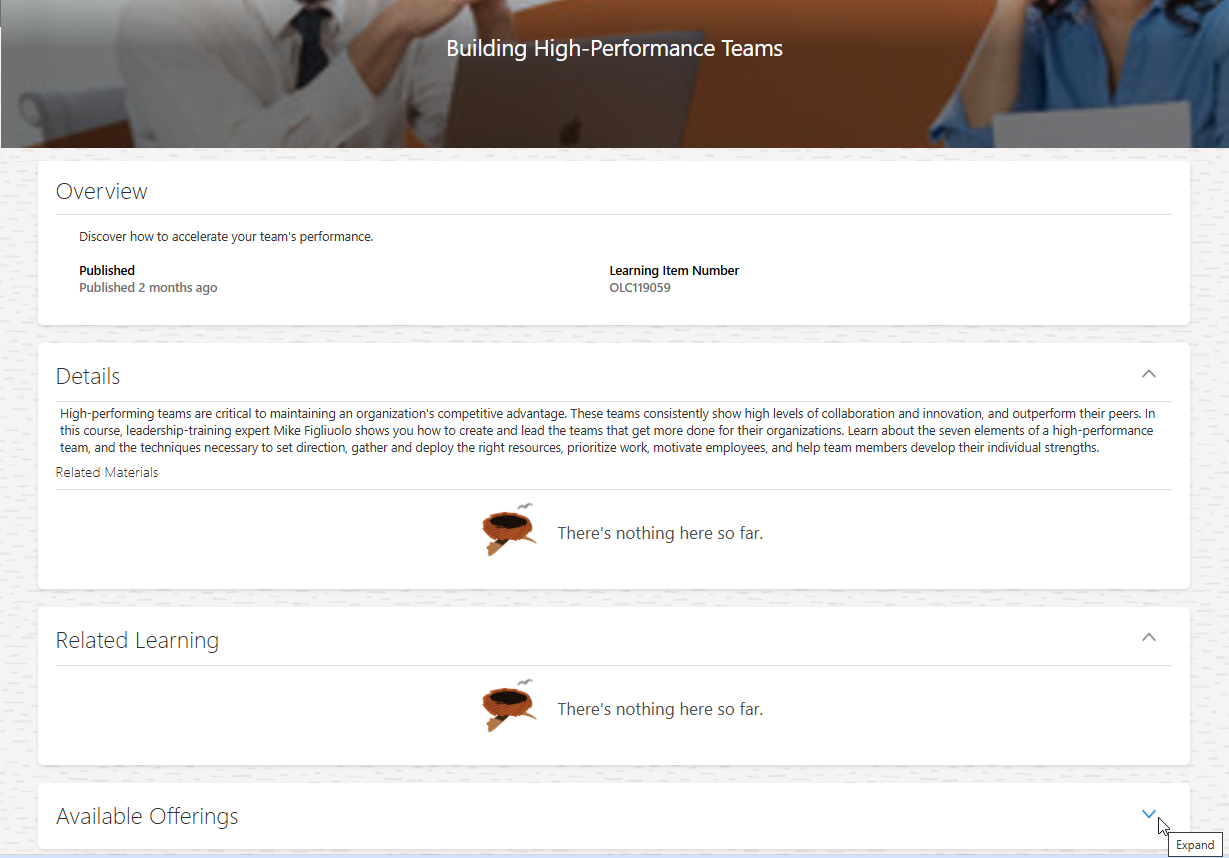
The page will provide the following details about the course:
- Overview: Includes information such as Published By, Expected Efforts, Course Category, etc.
- Details: Contains the syllabus and a description of the course.
- Available Offerings: Shows the different sessions available for this course.
-
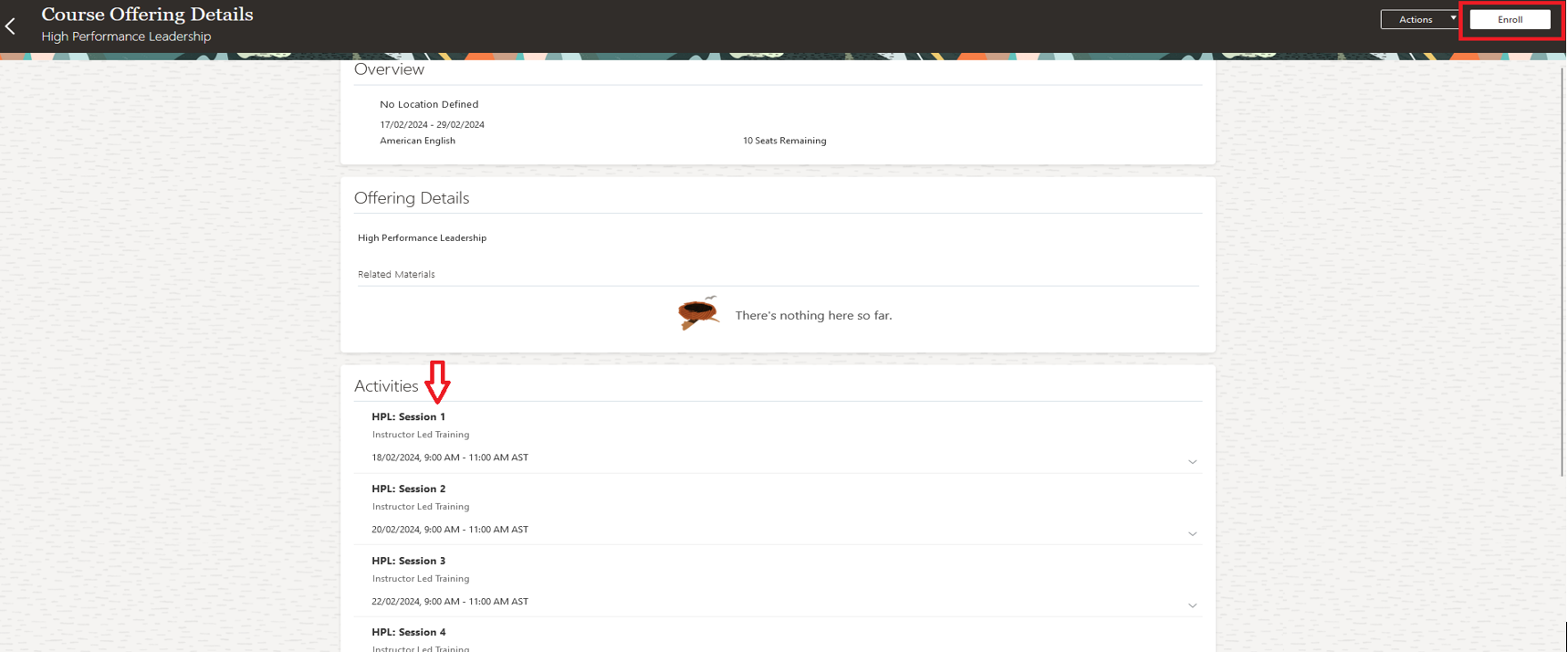
Click on "View Details" to see more information about the session.

-
To enroll in the session, click on Enroll. Your request will be submitted for approval, and once approved, you will be enrolled in the course.
-
After enrollment, you can download all the materials attached to each activity. For self-paced items, click on "Launch” to watch the video.

Scoreboard Metrics

- Overdue Learning: Displays the count of required enrollments that are overdue. Clicking on it navigates to the Current Learning page, filtered to show only overdue enrollments.
- Required Learning: Displays the count of required enrollments that are incomplete, whether overdue or not. Clicking on it navigates to the Current Learning page, filtered to show all required enrollments.
- Hours of Learning This Year: Shows the total hours of learning the learner has completed this year. This metric is based on the actual hours of enrollments with a completed status. Clicking on it navigates to the View Transcript page, filtered to show enrollments completed this year.
On the Learning page, you can access the following information:
| Element | What You Use It For? |
|---|---|
 |
The Current Learning tile shows the number of overdue assignments and requested assignments |
 |
This section displays a list of all learning assignments, with filters defaulted to show all completed enrollments. |
 |
Displays all upcoming learning opportunities, allowing you to explore and discover interesting topics. |
 |
You can explore your communities, which group multiple courses related to specific topics. It also displays the learning courses assigned to each community. |
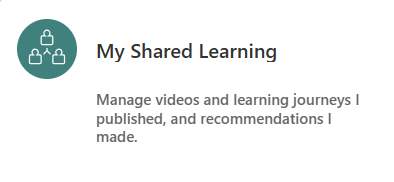 |
In this section, you can publish and add learning videos, author Learning Journeys, and share the courses you recommend. |