To sign in to your AU email address, please follow the below steps:
- Go to Outlook webpage and sign in to your AU email address.
 The below webpage will appear for you:
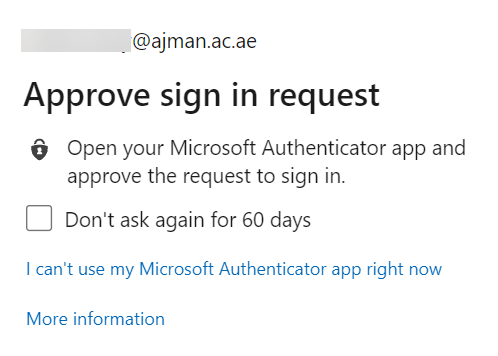 Note:If you are signing in from your device, check the Don't ask again for 60 days box.
 - Launch the Authentication app.
- Check the email address available on screen, and if you already requested the sign-in, click on Approve.
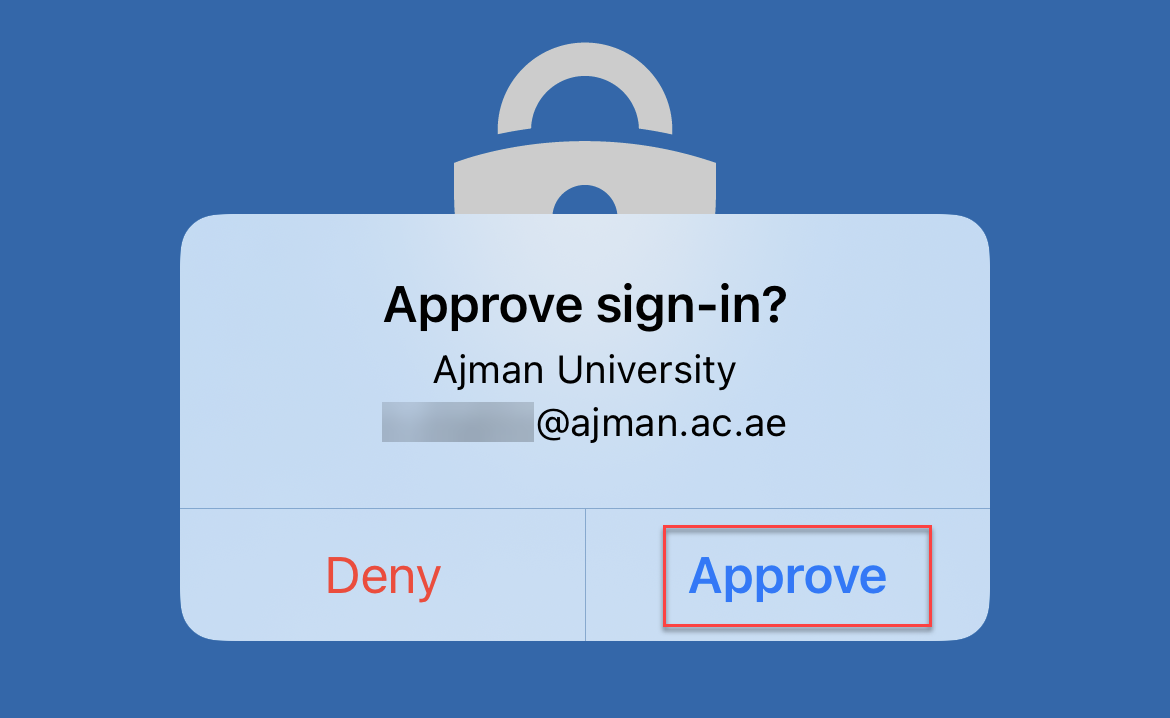 Note:You must only approve the sign-in request which was made by you, personally. If you are not the one who sent the sign-in request, please click on Deny.
If you suspect that your account is compromised, please contact the Helpdesk immediately. - Wait till the webpage refreshes and directs you to your AU email inbox.