In case your assignment requires uploading a file with large sizes, such as multimedia, you may use OneDrive to upload the assignment on it, then share the link with your instructor accordingly, by following the below steps:
-
Log in to your OneDrive account.
(please refer to this article to learn how to access your OneDrive Account). -
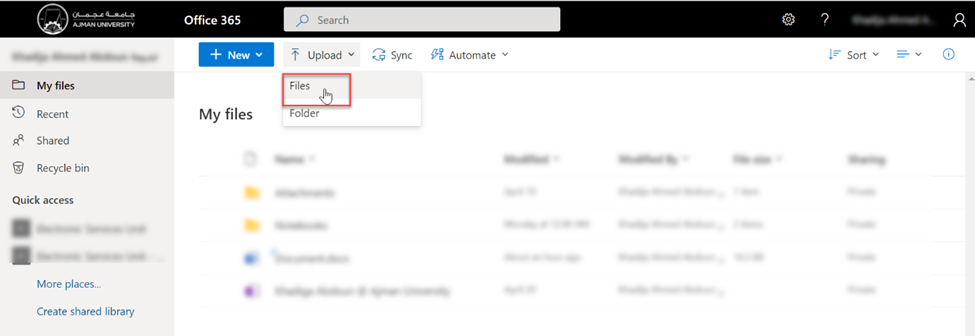
Once you are logged in, click on “Upload”, then click on “Files” to upload your assignment., as illustrated below:
-
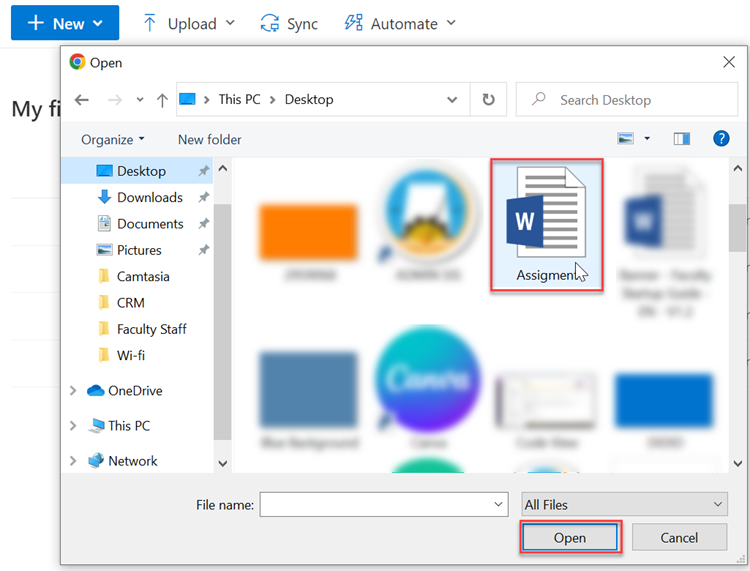
Select the file you wish to upload, then click on “Open”, as illustrated below:
-
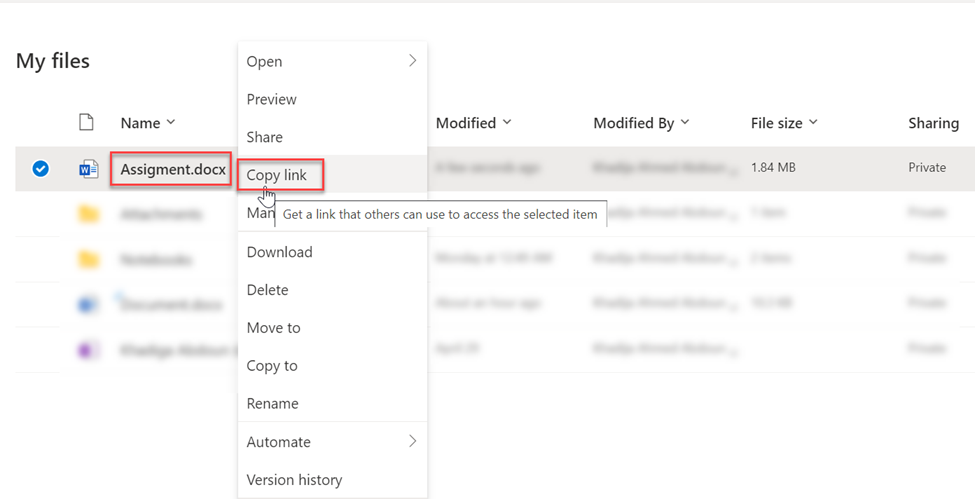
File is uploaded, Right click on the uploaded file then click on “Copy link”., as illustrated below:
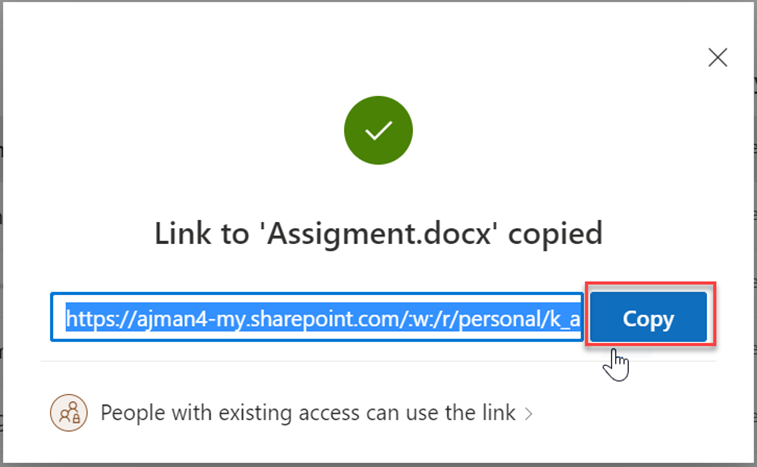
- Click on “Copy”., as illustrated below:
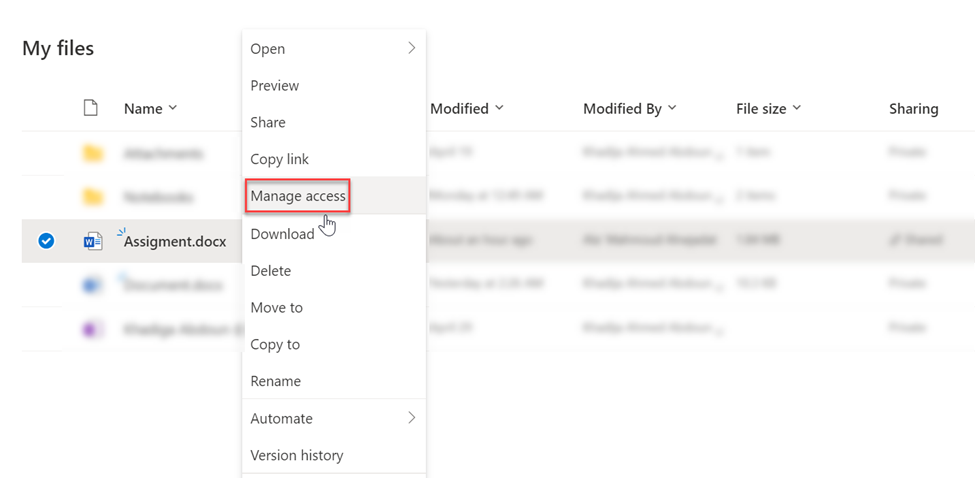
- Right click on the uploaded file then click on "Manage Access”., as illustrated below:
-
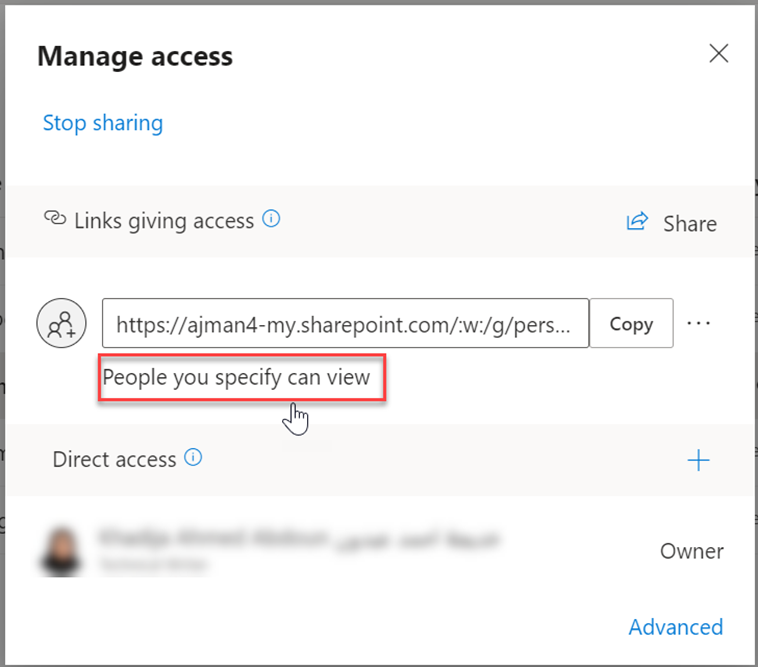
Click on “People you specify can view”., as illustrated below:
-
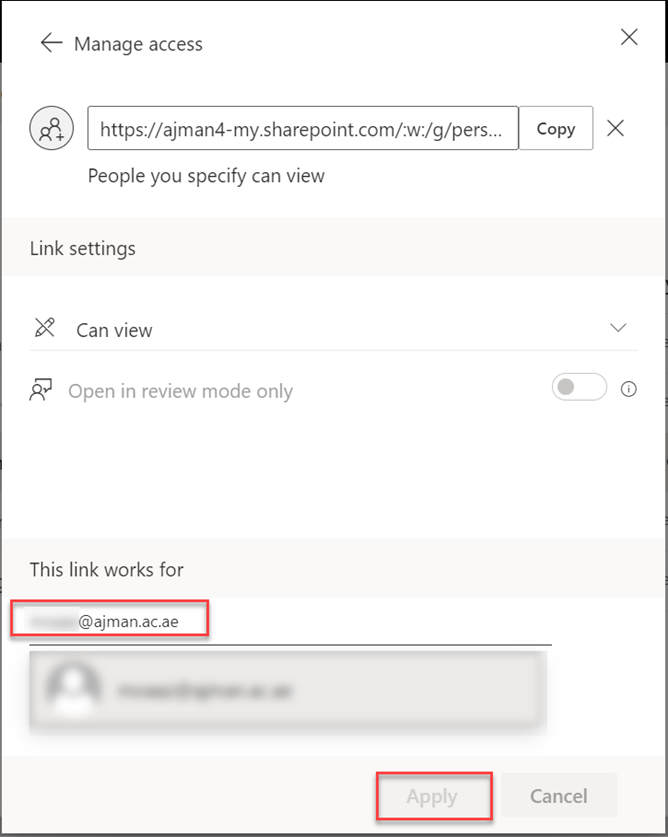
Write the E-mail address of your instructor, then click on” Apply”., as illustrated below:
-
Move to Moodle to insert the copied link.
-
Click on the assignment

-
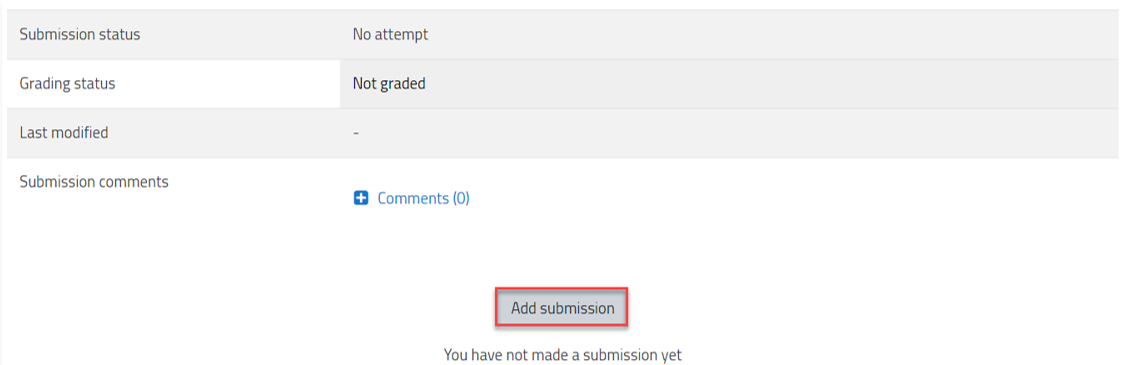
Click on Add submission.
-
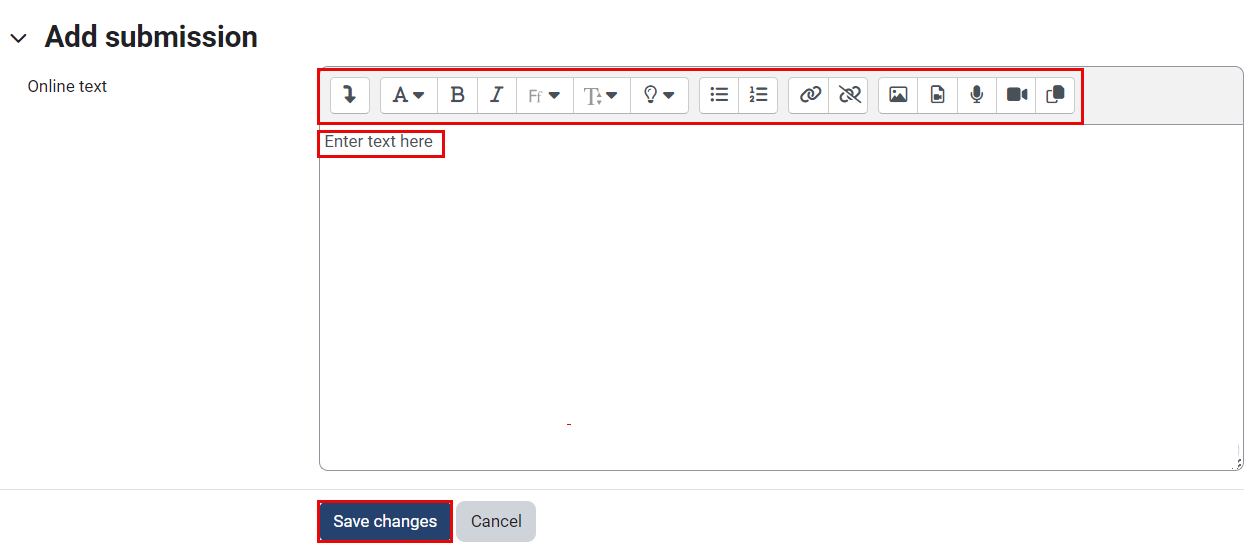
Paste your copied link in the text box and then click on “Save changes” button., as illustrated below:
-
At a later stage and once the lecturer grades your assignment, you will be able to view the grade, as mentioned previously.