-
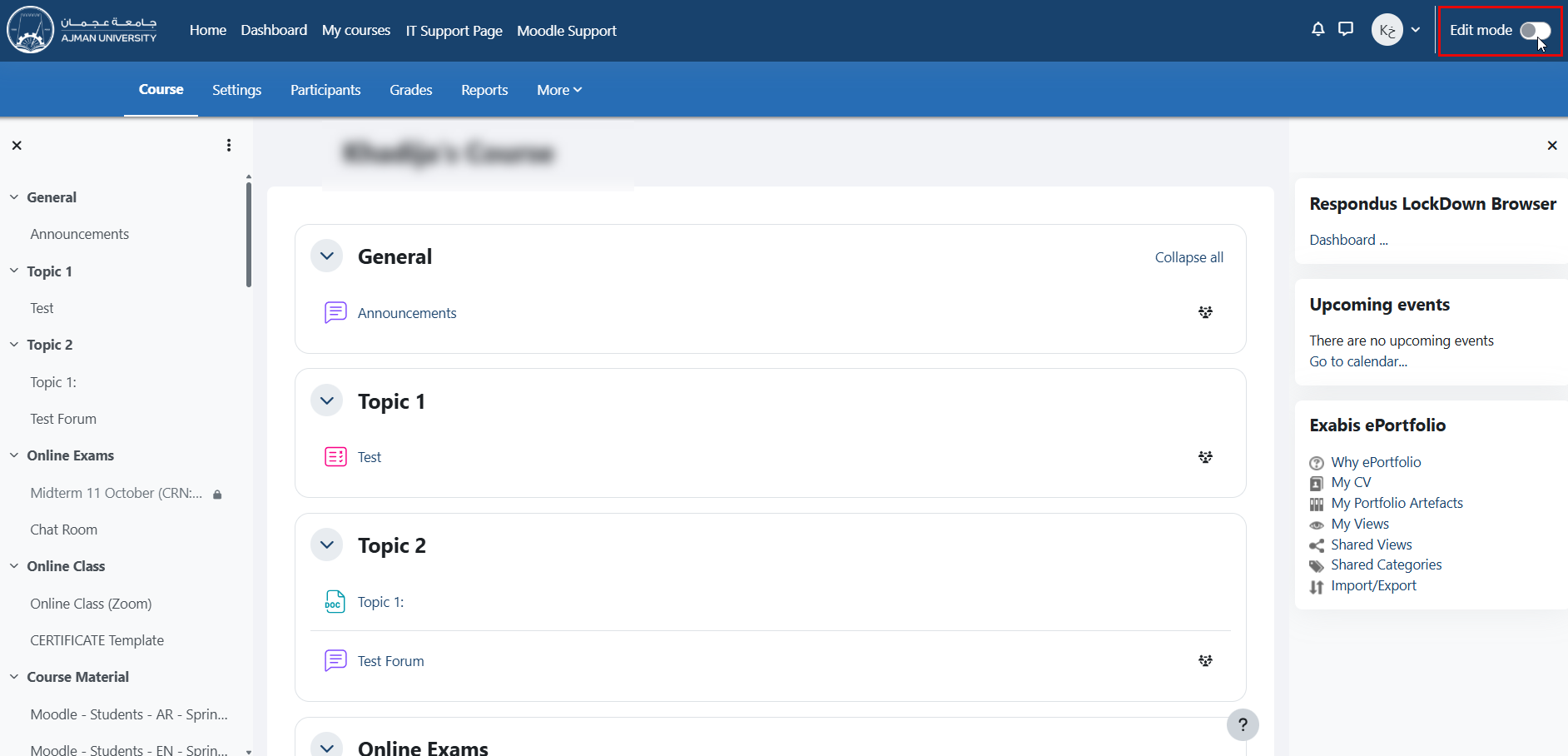
Inside the course, enable editing by clicking the "Edit mode" toggle switch, as illustrated below:
-
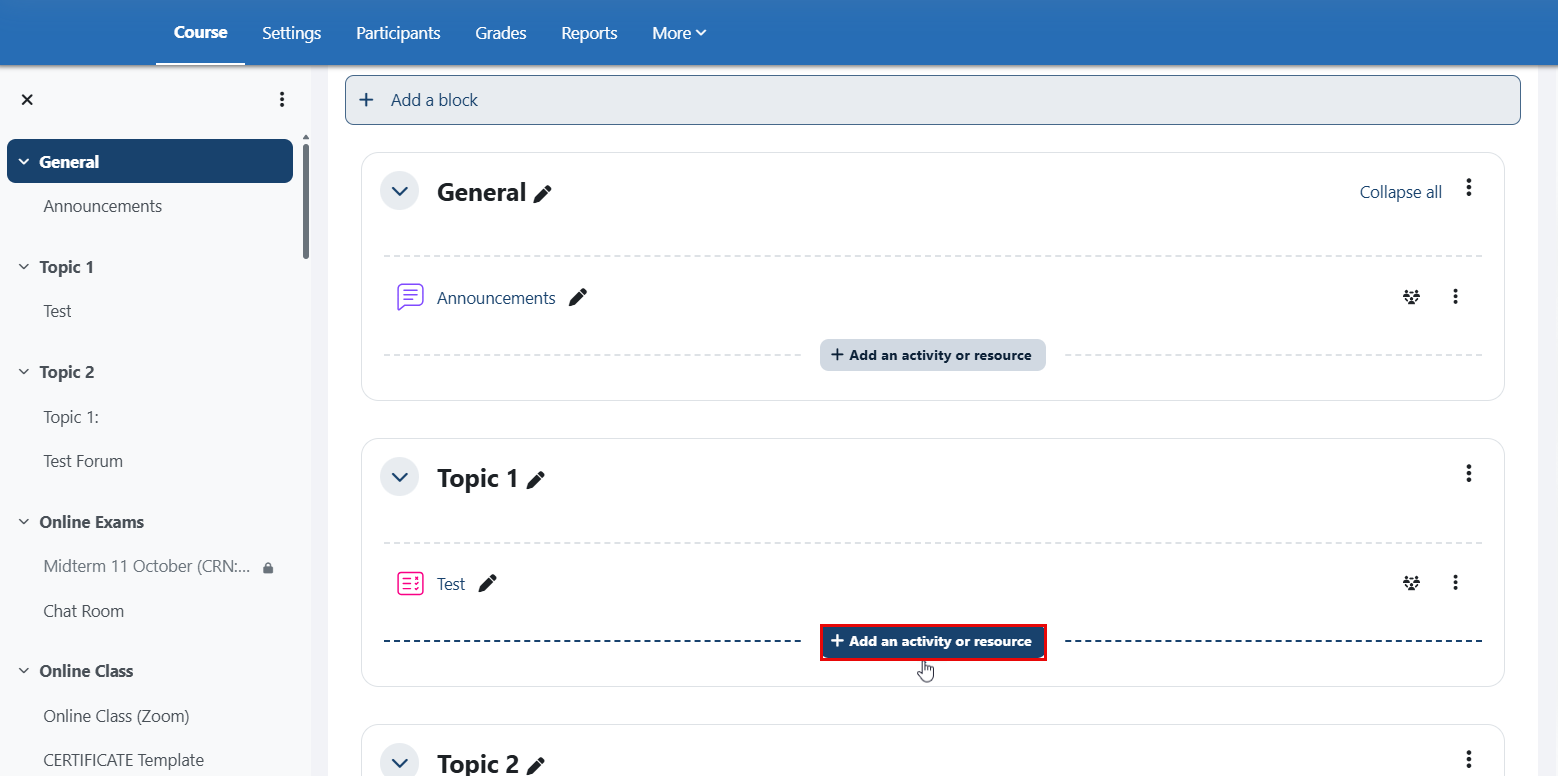
Navigate to the section where you would like to add the file, then click "Add an activity or resource."
-
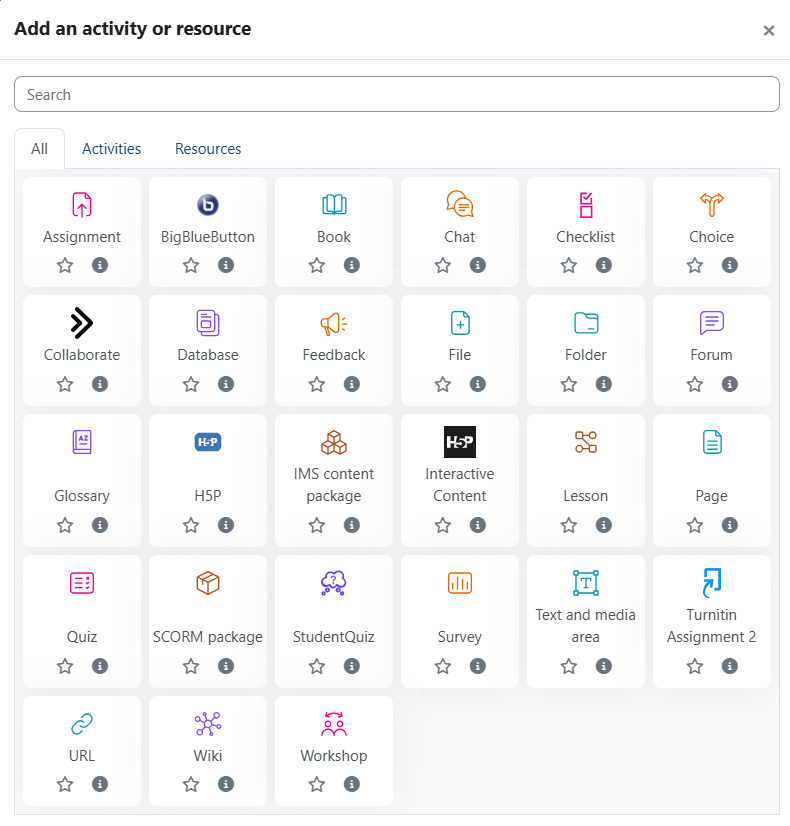
Click the type of activity or resource you would like to add.
-
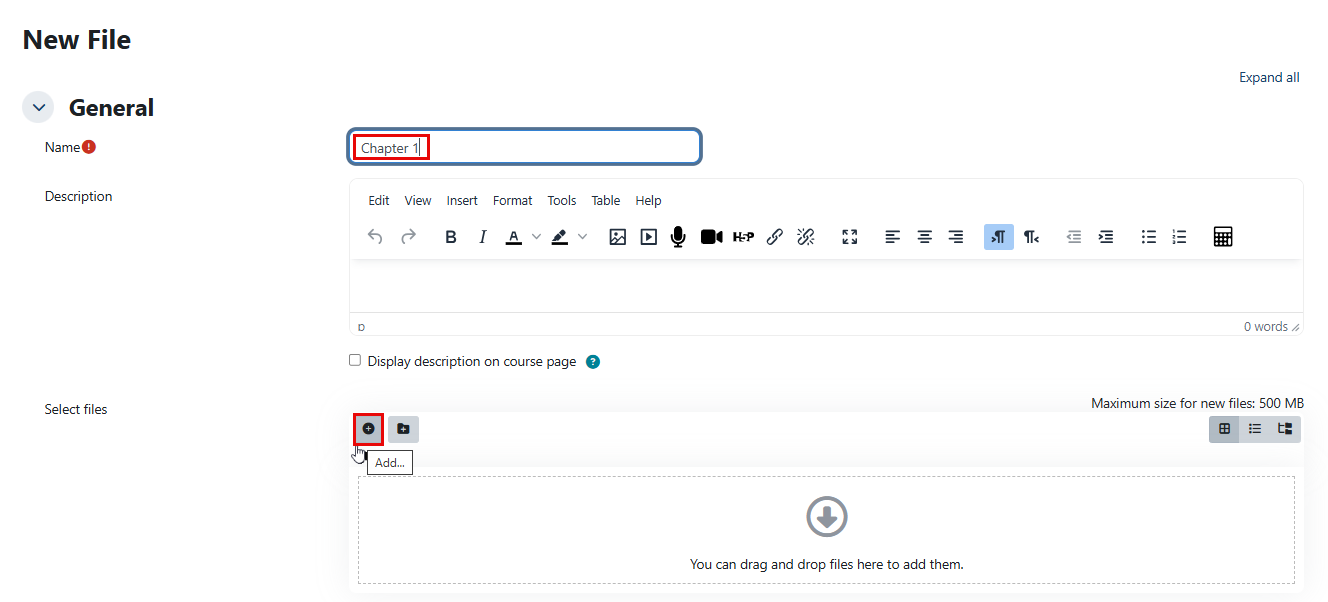
Name the file, then click the (+) icon to open the file picker.
-
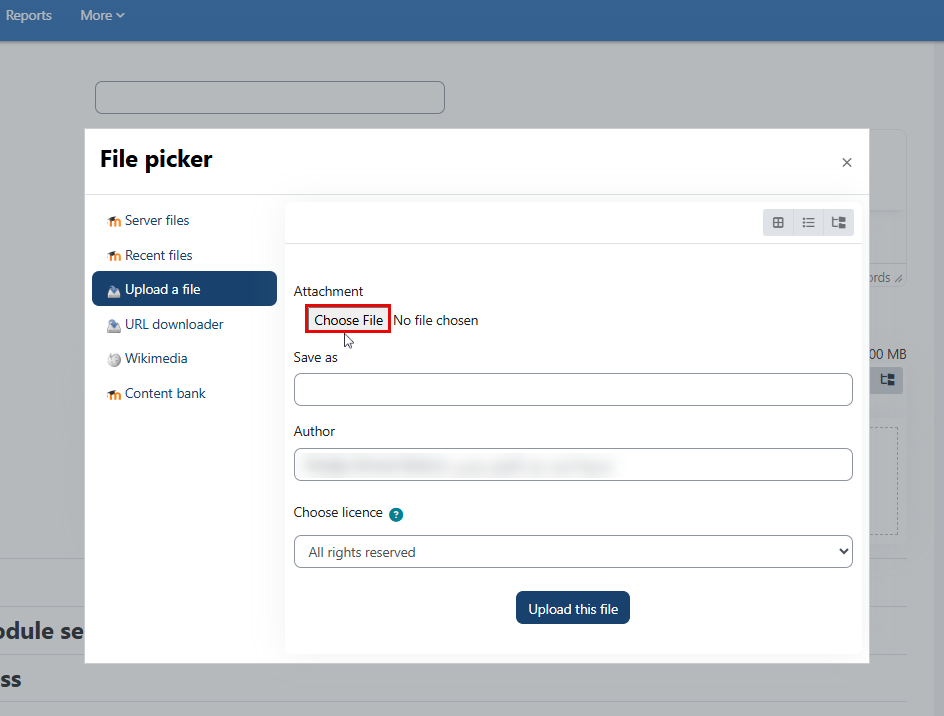
Click the "Choose File" button.
-
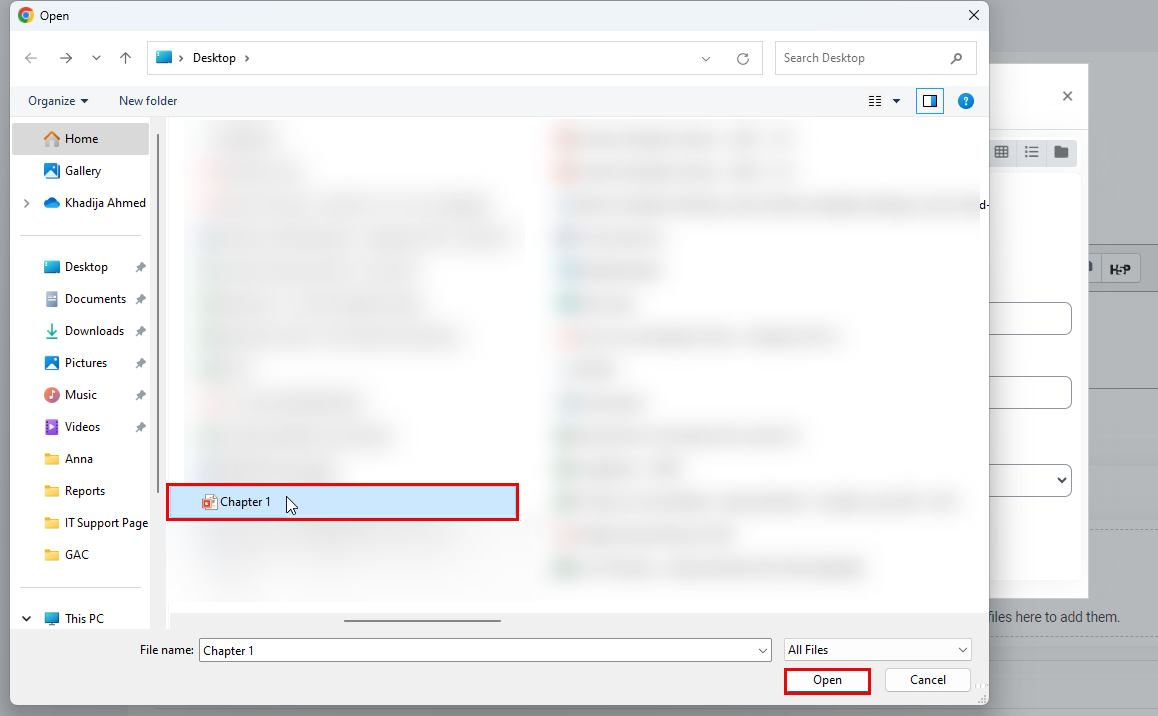
Select the file you want to upload, then click "Open."
-
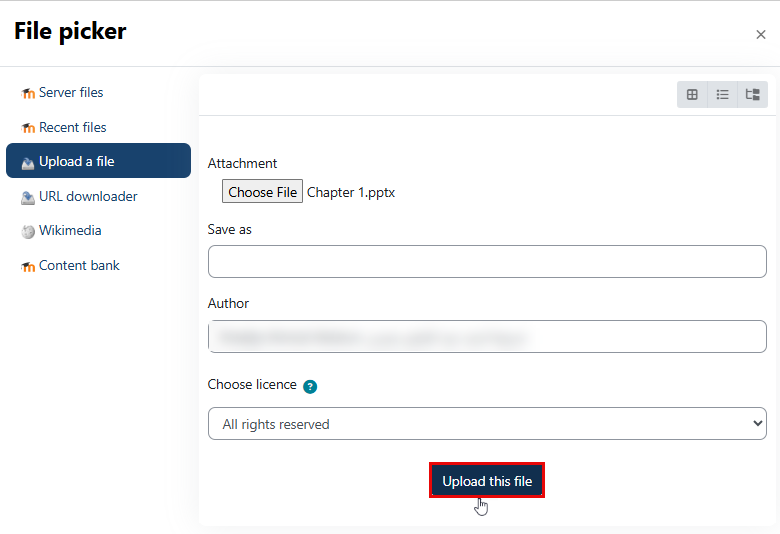
Click "Upload this file" to successfully upload the file to the desired section.
-
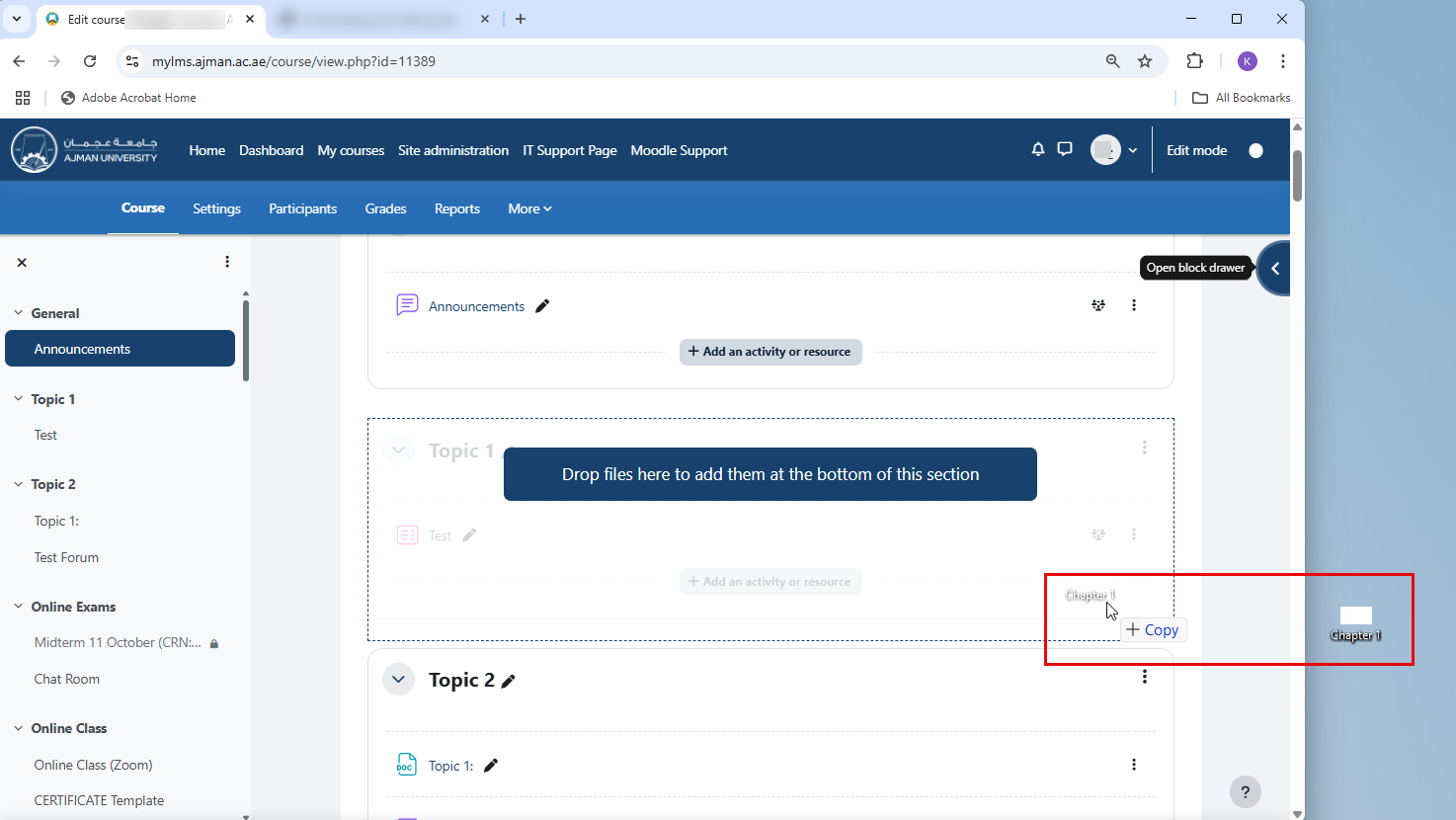
You can also upload files using the drag-and-drop method. Simply select any file and drag it to the section where you want it placed. Below is an example of dragging the file “Chapter 1” from the desktop to Topic 1.
Upload Files or Lectures
- Updated on Jul 24, 2025
- Published on Aug 25, 2024
- 1 minute(s) read
- KA
Was this article helpful?