The Week at a Glance page in Banner allows academic advisors to view a student's weekly class schedule in a calendar format. This feature helps advisors review course timings, identify scheduling conflicts, and support academic planning discussions with students.
Follow the outlined steps below to view the student's weekly schedule using the Week at a Glance page.
-
Log in to Banner.
-
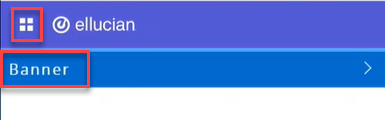
Click on the menu located on the left, then click Banner.
-
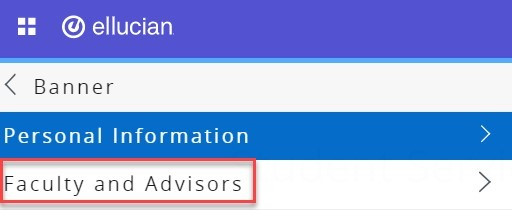
Click on Faculty and Advisors.
-
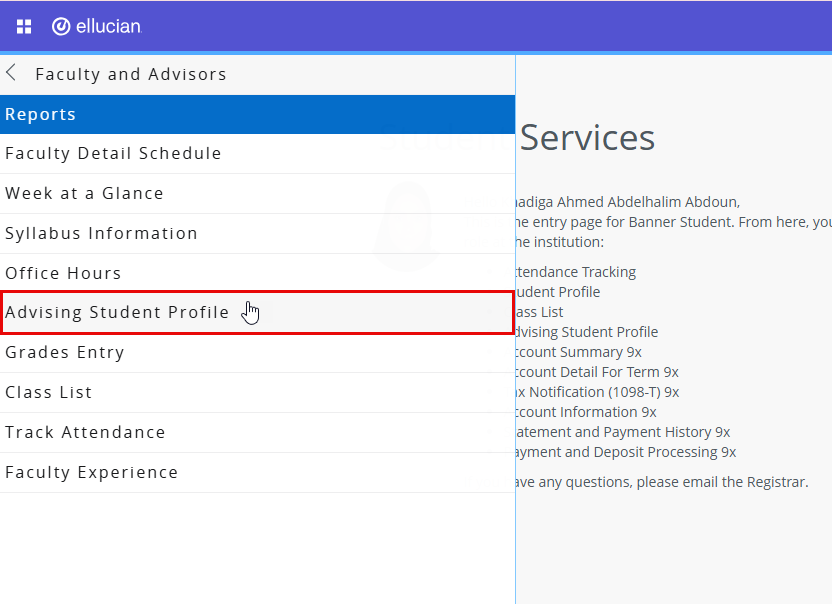
Click on Advising Student Profile.
-
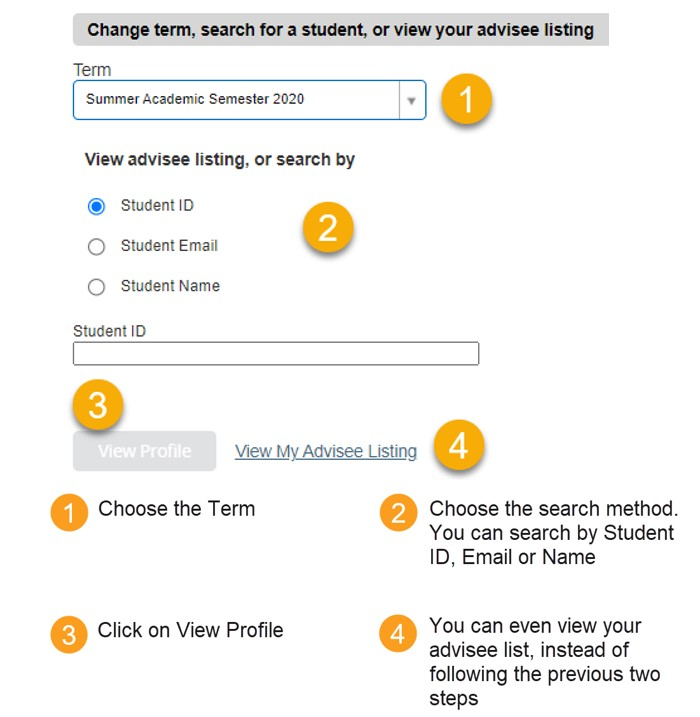
Search for the student whose weekly schedule you want to view by following the steps below.
-
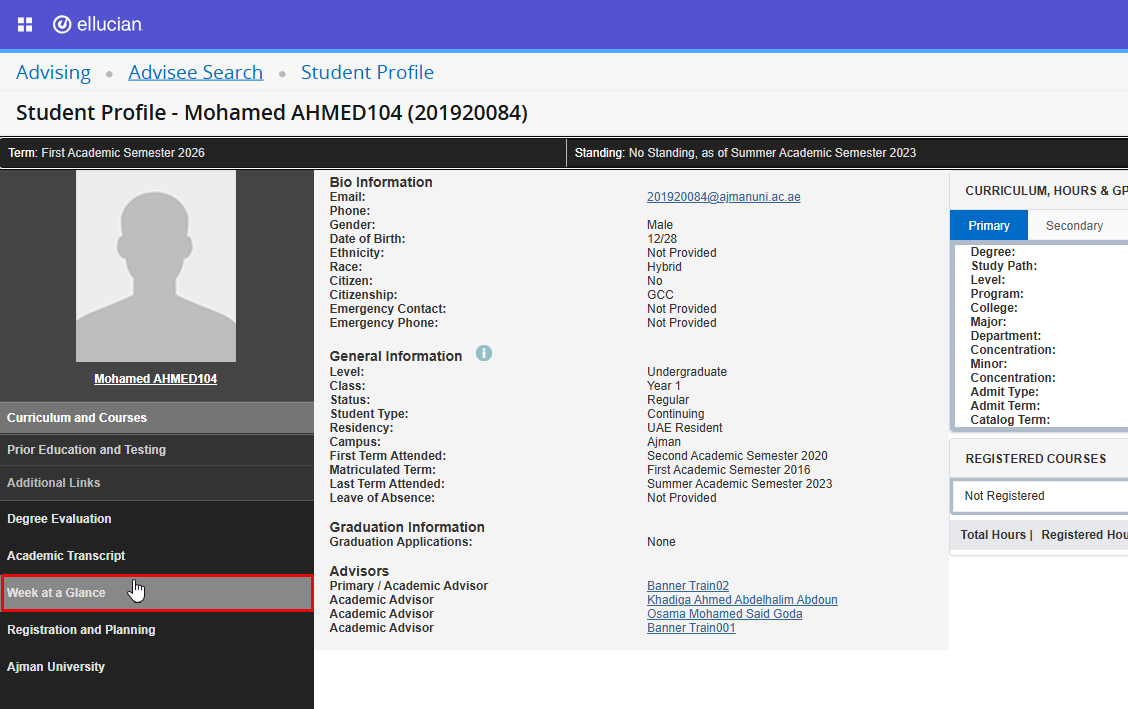
On the student profile, click on Week at a Glance, which is located on the left side of the screen, as illustrated below. Once you click the button, a new page will open.
-
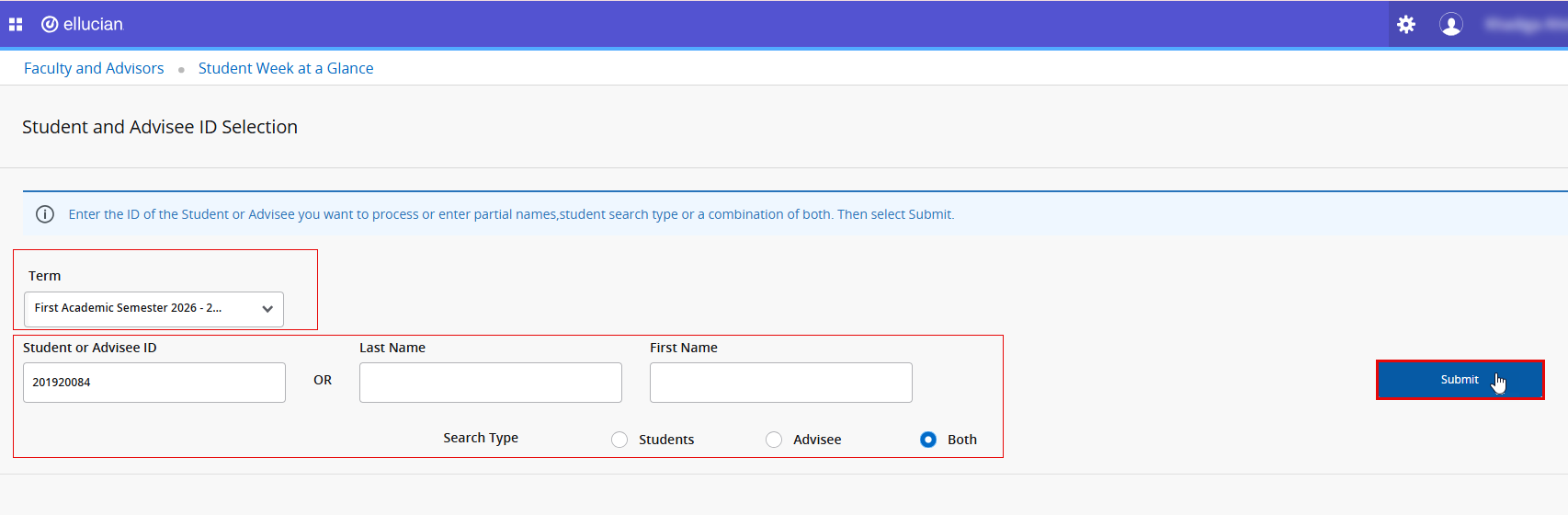
Choose the appropriate Term from the available list, then search for the student by entering either the Student ID or the student's Last Name and First Name. Click Submit.
-
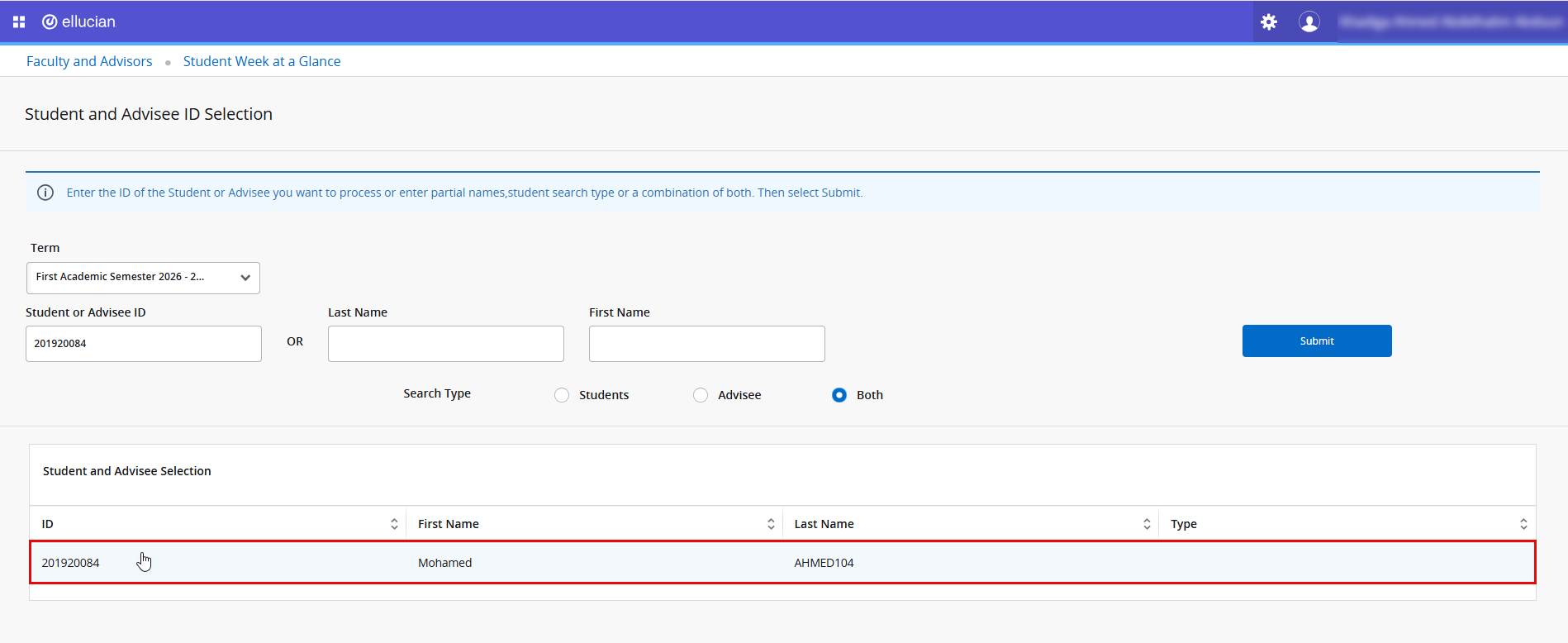
The student's name will be displayed. Click on the student's name to open the Week at a Glance page.
-
The student's weekly schedule will be displayed in a calendar format, showing:
- The CRN and course code for each registered course.
- Lecture times.
- The hall number where each lecture is held.
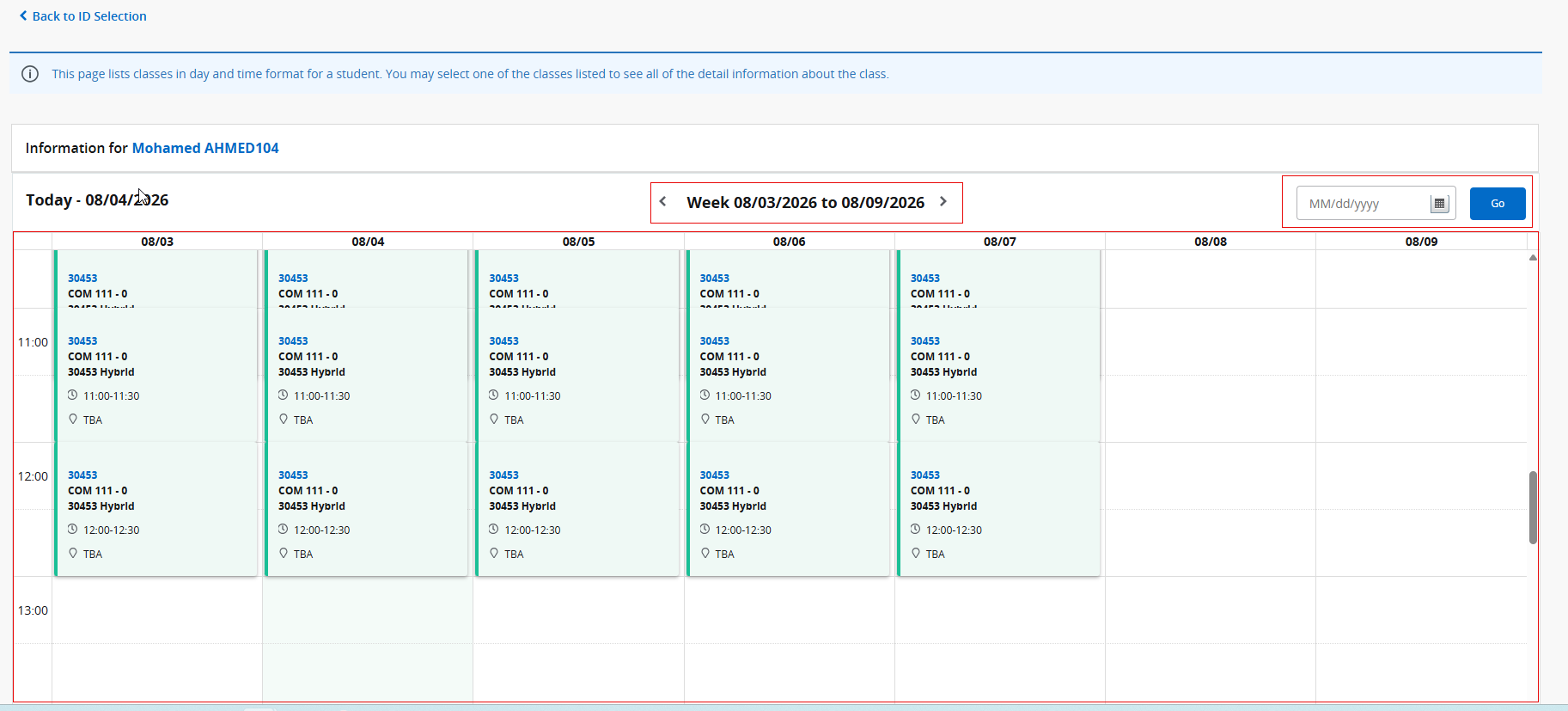
Use the calendar navigation controls to move between previous and upcoming weeks. You can also select a specific date to jump directly to the corresponding week and view the student's schedule for that period.