

Working With Text Within the Document
- 28 Dec 2021
- 1 Minute to read
- Contributors

- Print
- DarkLight
- PDF
Working With Text Within the Document
- Updated on 28 Dec 2021
- 1 Minute to read
- Contributors
- Print
- DarkLight
- PDF
Article summary
Did you find this summary helpful?
Thank you for your feedback!
The text pane contains text associated with the document. Most of the time, this will be text that has been OCRed from the image pages or extracted from an electronic document. Annotations can be added directly to text, just as they can to the image.

Generating Text
There are two different ways to generate text:
- If the document has image pages, you can perform Optical Character Recognition (OCR) to read the text from the image.

- If the document has an electronic document portion, you can extract text from the electronic document directly.
There are several ways to start generating text from a document; however, they all use the same dialog, so you can use any of them with the same results. You can select a document or documents in the Folder Browser and select OCR/Extract Text/Index from the Tools menu or by right-clicking the document or documents. You can click the OCR button in the Folder Browser. You can open the document and then select OCR/Extract Text/Index from the Toolsmenu in the document viewer. You can use any of these methods to either OCR or extract text, and all methods will ultimately open the same dialog.
In order to OCR or extract text from the document, the first box must be selected. You can determine whether you want to OCR all the pages in the document or only selected pages.
The Make Text Searchable box controls whether the documents will be full-text indexed. When you index a document, its text is added to the full-text search. If a document with text is not indexed, its text can be viewed in the Document Viewer, but you cannot use full- text search to find keywords in the document.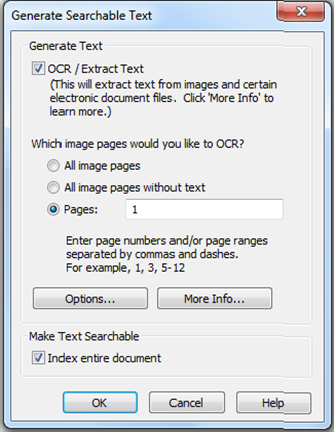
Editing Text
By default, the text pane is greyed out so that the text cannot be accidentally changed. However, you can turn on text editing, which will allow you to change the text directly. This can be useful for repairing errors in the OCR; for instance, if a client's name was misread by the OCR, but you nonetheless wanted it to be searchable, you could modify the text so that the name was correctly spelled.
To turn text editing on or off, you click on the Edit Text button.
Was this article helpful?
