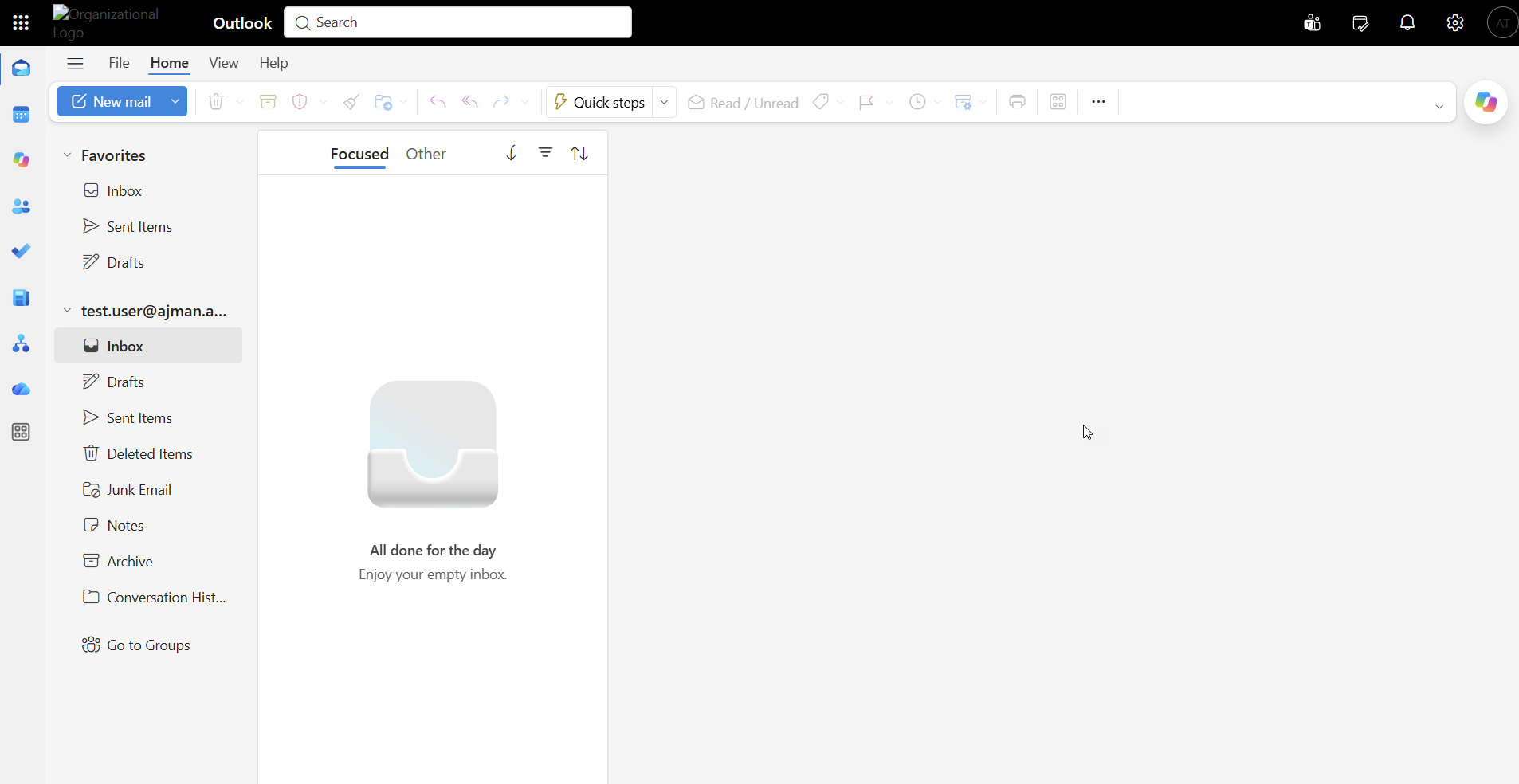
To sign in to your AU email account or any AU service that requires Single Sign-On (SSO), such as Moodle, Banner, the AU Connect App, or Oracle HCM Fusion, follow the steps below:
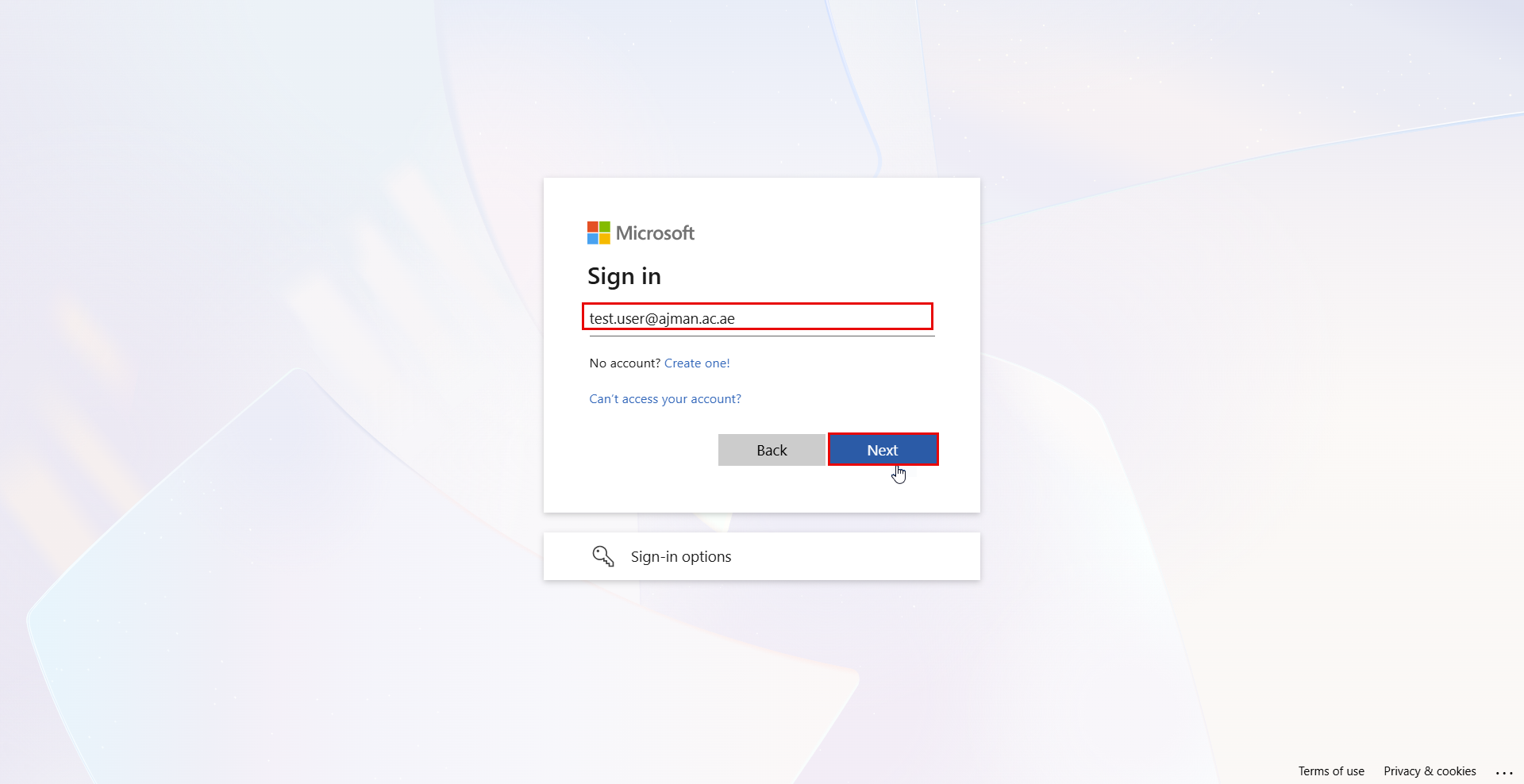
- Go to the Outlook webpage and enter your AU email address, then click Next.
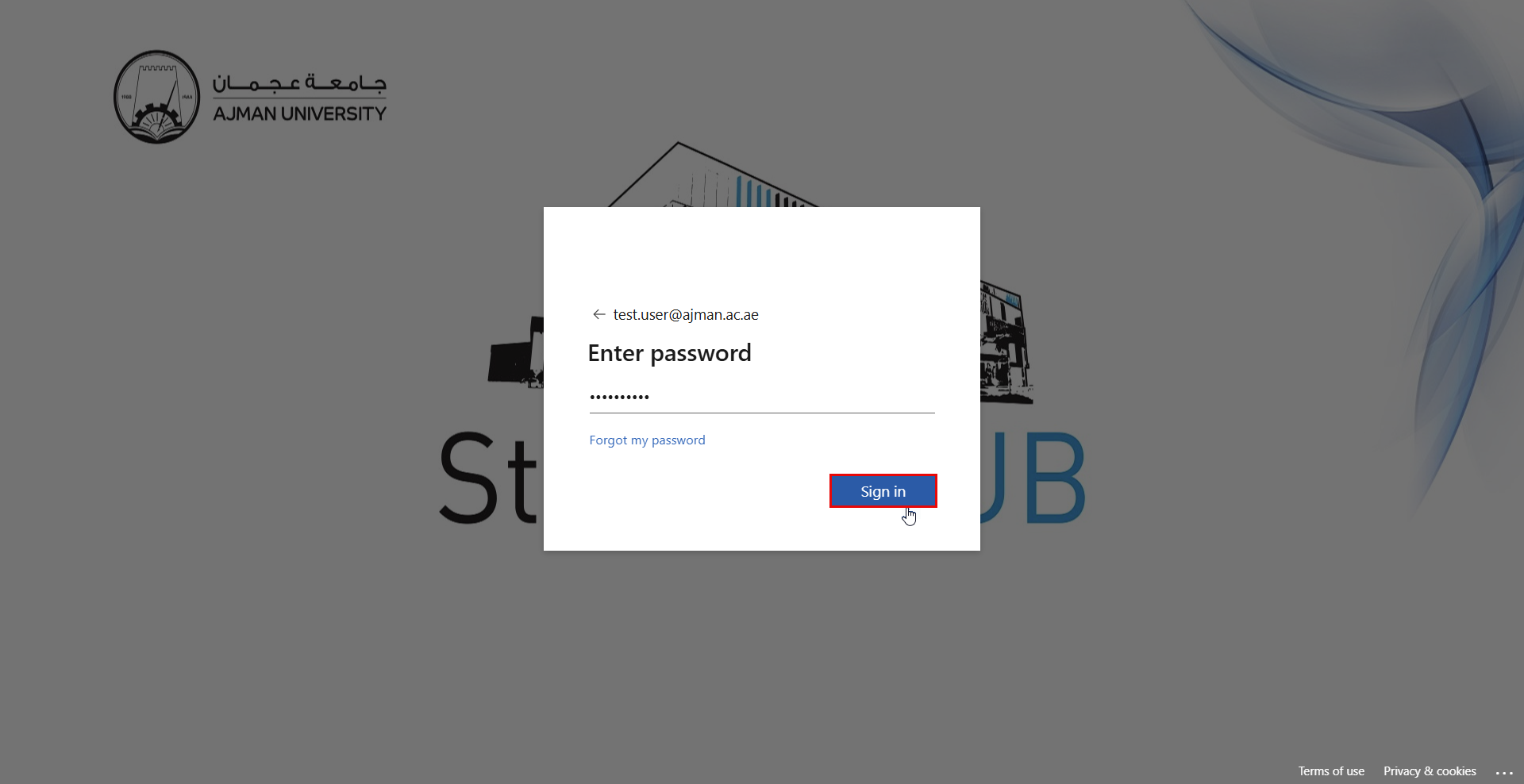
- Enter your password, then click Sign in.
- The Approve sign-in request page will appear, displaying a verification number. Keep this number visible, as you will need to enter it in the Microsoft Authenticator app to verify your identity and complete the sign-in process.
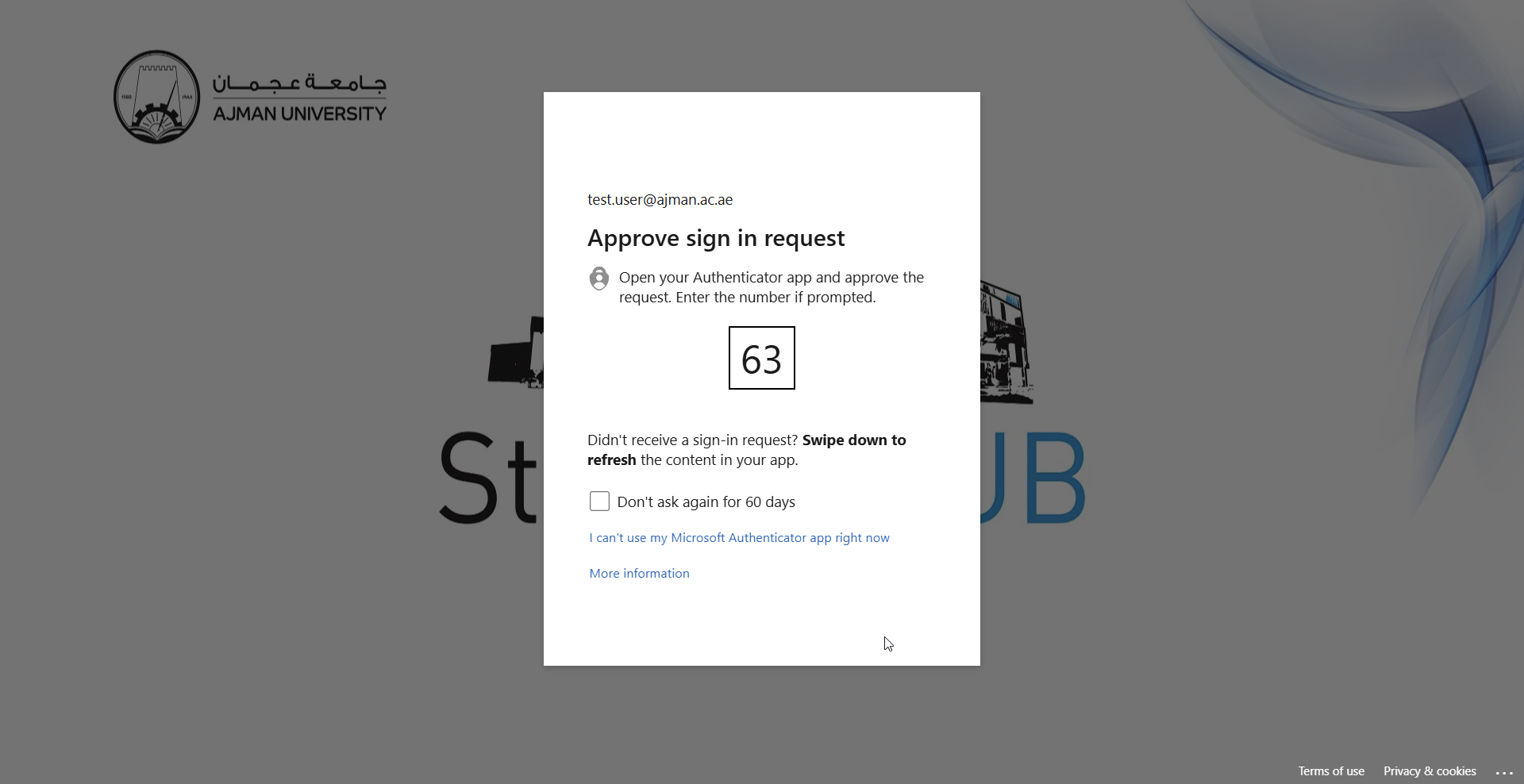 Note:If you are signing in from your own device, you may select the Don't ask again for 60 days checkbox to reduce the number of sign-in approval requests from Microsoft Authenticator.
 - Open the Microsoft Authenticator app.Note:Ensure that notifications are enabled for the Microsoft Authenticator app on your device. You will receive push notifications to approve sign-in requests when accessing AU services.
- When the Microsoft Authenticator prompt appears, enter the verification number displayed on the sign-in screen, then tap Yes to approve the sign-in request.
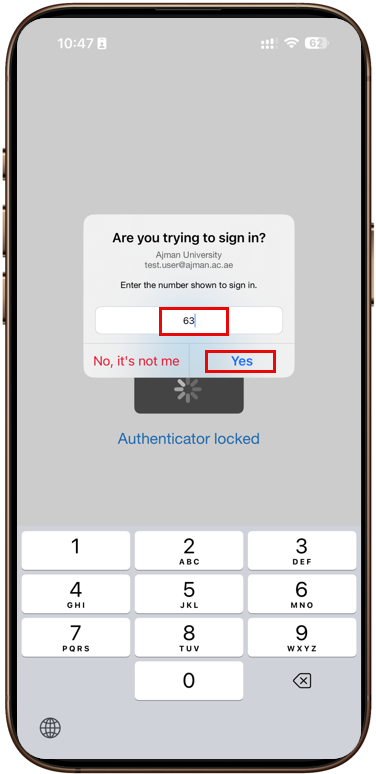 Notes:
- Only approve sign-in requests that you have initiated.
- If you receive a sign-in request that you did not initiate, click No, it's not me.
- If you suspect that your account has been compromised, please contact the IT Helpdesk immediately.
- If the device with the Microsoft Authenticator app is unavailable to you, please arrange for an alternative device and contact the Office of IT.
- If you encounter any technical issues related to the Microsoft Authenticator App, please contact the IT Helpdesk.
- Wait until the webpage refreshes and redirects you to your AU email inbox.