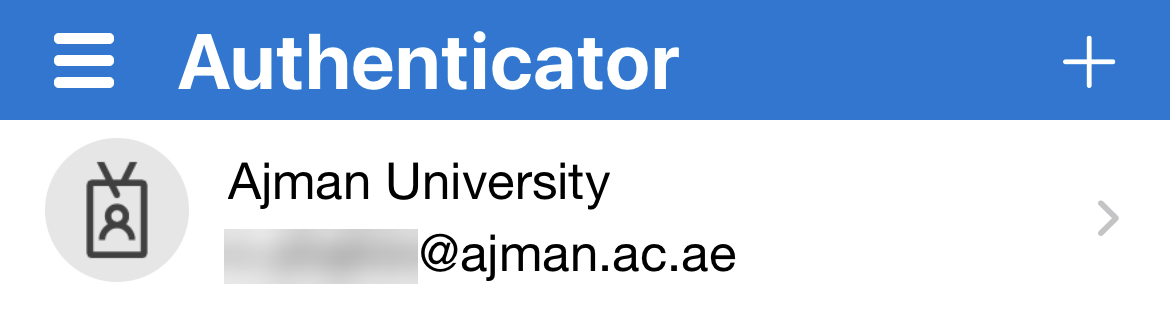
After installing the Authenticator App, you may set it up by following the below steps:
- Launch the application and click on Add account.
- Click on Work or school account.
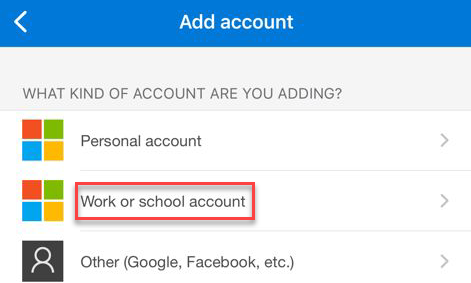
You now have two options to add your email address:
Option 1: Add your AU email address through scanning the QR code
- Click on Scan QR code.
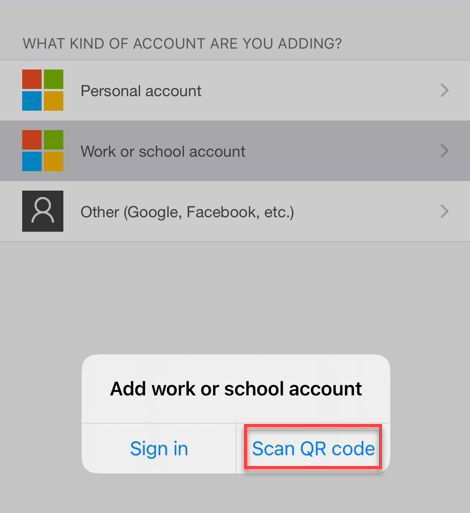
- On the computer, follow the below steps to complete setting up the app:
.jpg)
Option 2: Add your AU email address through signing in
- Click on Sign in.
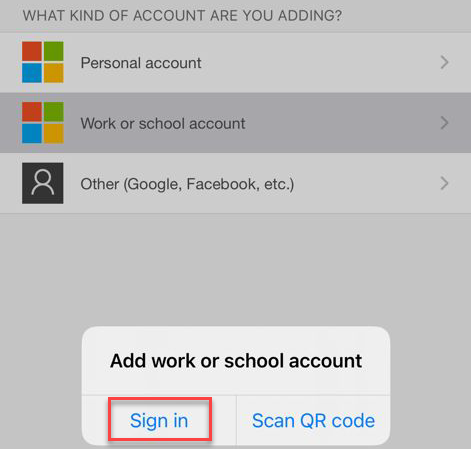
- Enter your email address and click on Next.
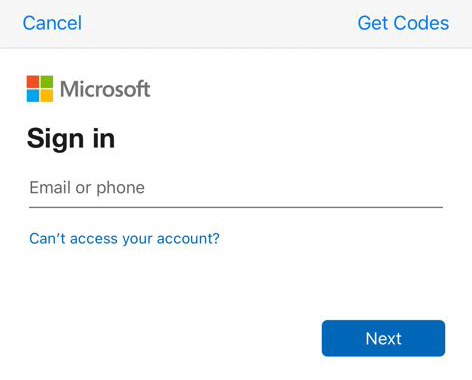
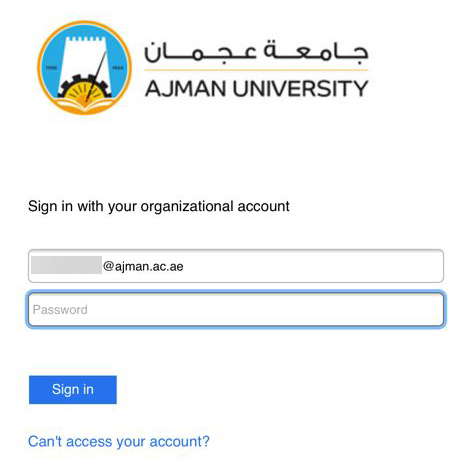
- You will be redirected to the AU login page, enter your password and click on Sign in.
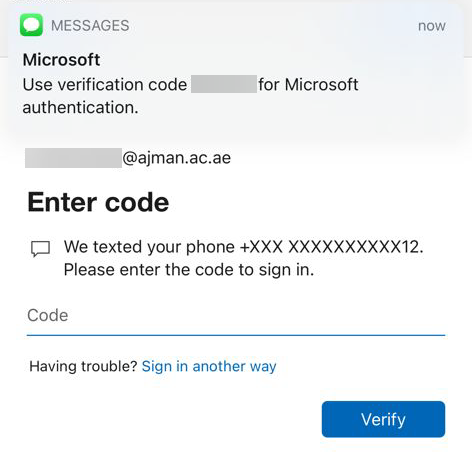
- You will receive an SMS with a verification code. Enter the code and click on Verify.
- You will be able to see your AU email address available on the main page of the app.