Course Assistance Placement is a new feature in Moodle that provides AI-powered assistance directly within course pages. It allows users to quickly summarize or explain the main text content on a course page, helping them better understand course materials and navigate content more efficiently.
Where You Can Use It
The AI features button appears at the top of the content when you open a supported activity or resource.
- Full Support
- Activities and Resources: Page, Book, Lesson, Wiki, Glossary, Forum, Database.
- What the AI reads: All text on the page.
- Partial Support
- Activities and Resources: Assignment, Turnitin Assignment, Workshop, Quiz, StudentQuiz, Choice, Feedback, Checklist, Folder, File, URL, BigBlueButton.
- What the AI reads: Only the teacher’s instructions or description.
- Not Supported
- Activities and Resources: H5P, Interactive Content, SCORM, IMS content package, Nearpod, uploaded files, images, videos, and audio.
- What the AI reads: Nothing, as the content is not available as text on the page.
The feature includes the following options:
- Summarise Text: Generates a concise summary of the page’s main content.
- Explain Text: Provides a simplified explanation of the page’s main content to enhance understanding.
Summarise Text Feature
-
Open any course page containing text content.
-
Click AI features, then Summarise Text.
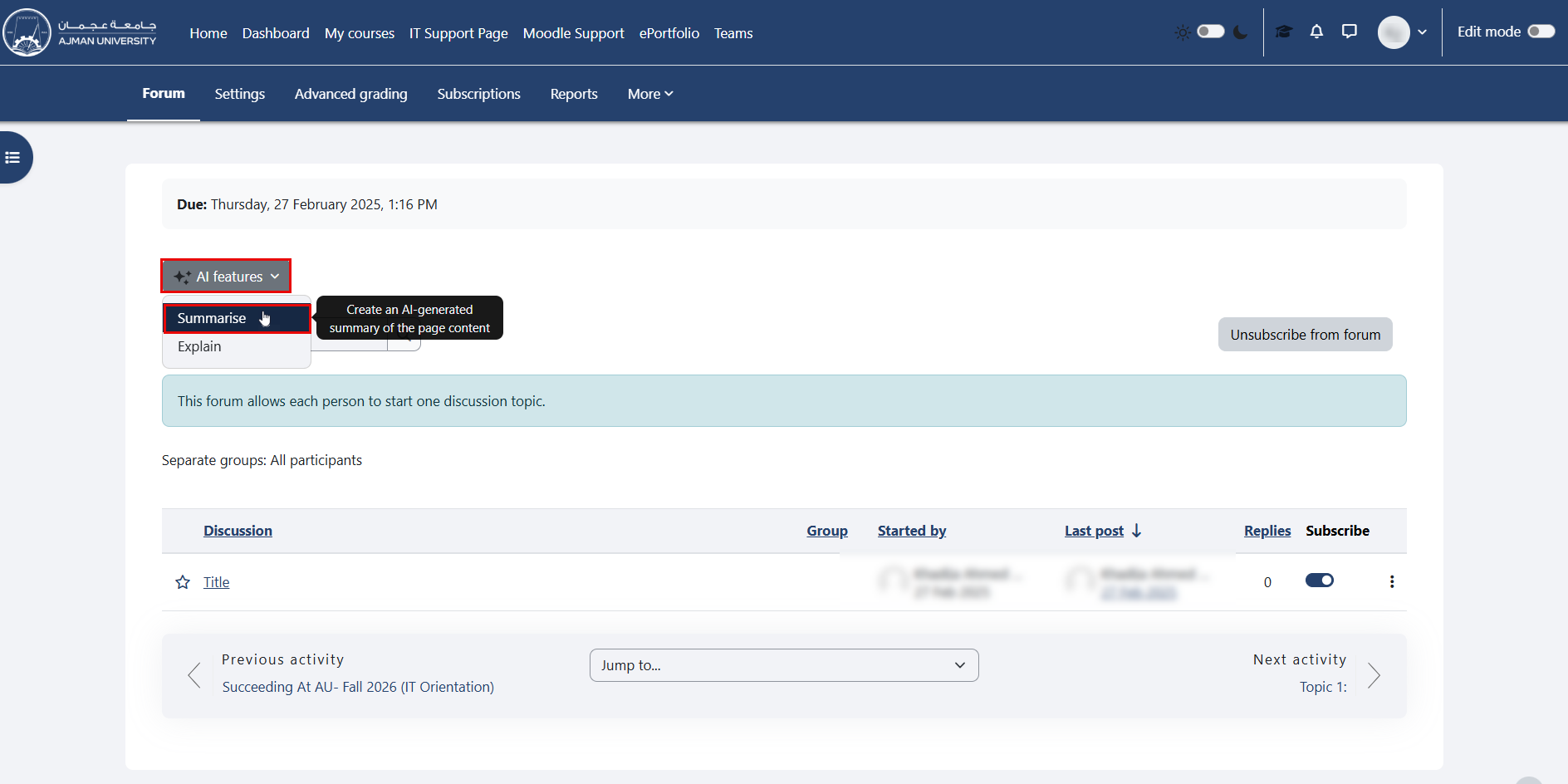
-
Moodle will generate a concise summary of the page's main content and display it on the right side of the page. Review the summary to quickly identify the key points.
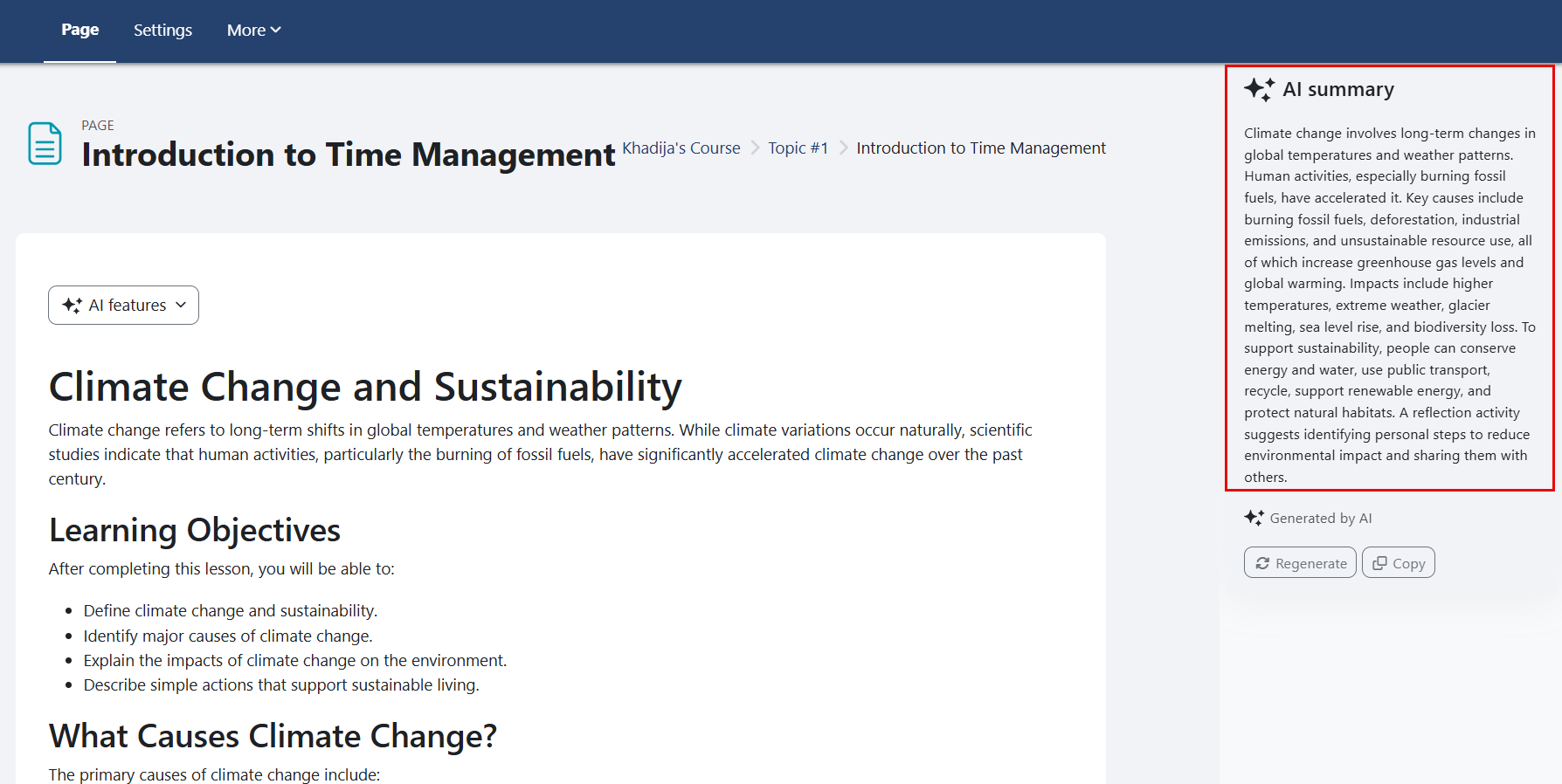
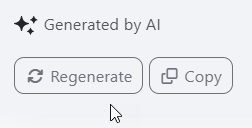
After the summary is generated, you can click Copy to copy the content to your clipboard or Regenerate to generate a new version.
Explain Text Feature
- Open any course page containing text content.
- Click AI features, then Explain Text.
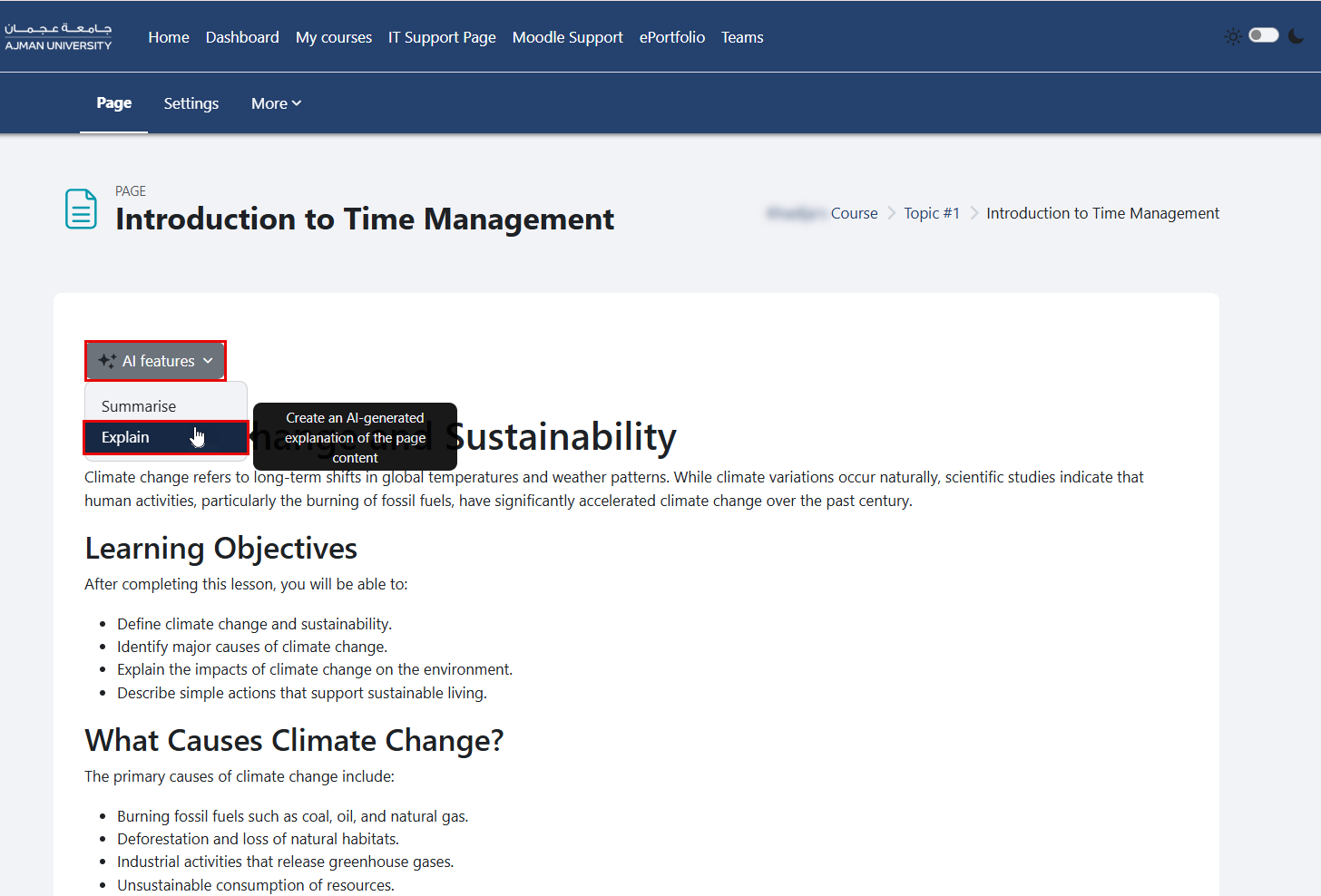
- Moodle will generate a simplified, easy-to-understand explanation of the page's main content and display it on the right side of the page. Review the explanation to gain a better understanding of the content.
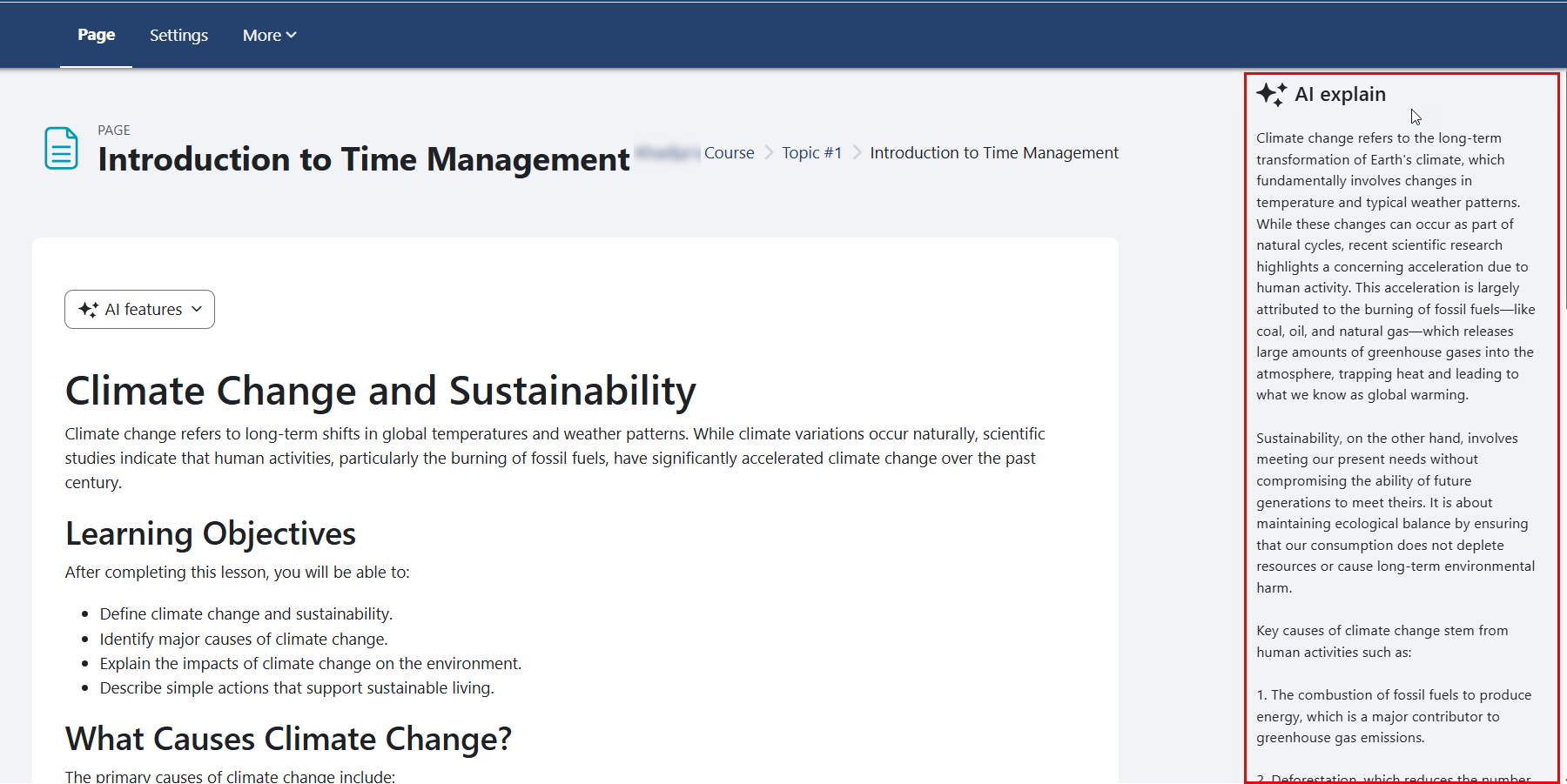
After the explanation is generated, you can click Copy to copy the content to your clipboard or Regenerate to generate a new version.