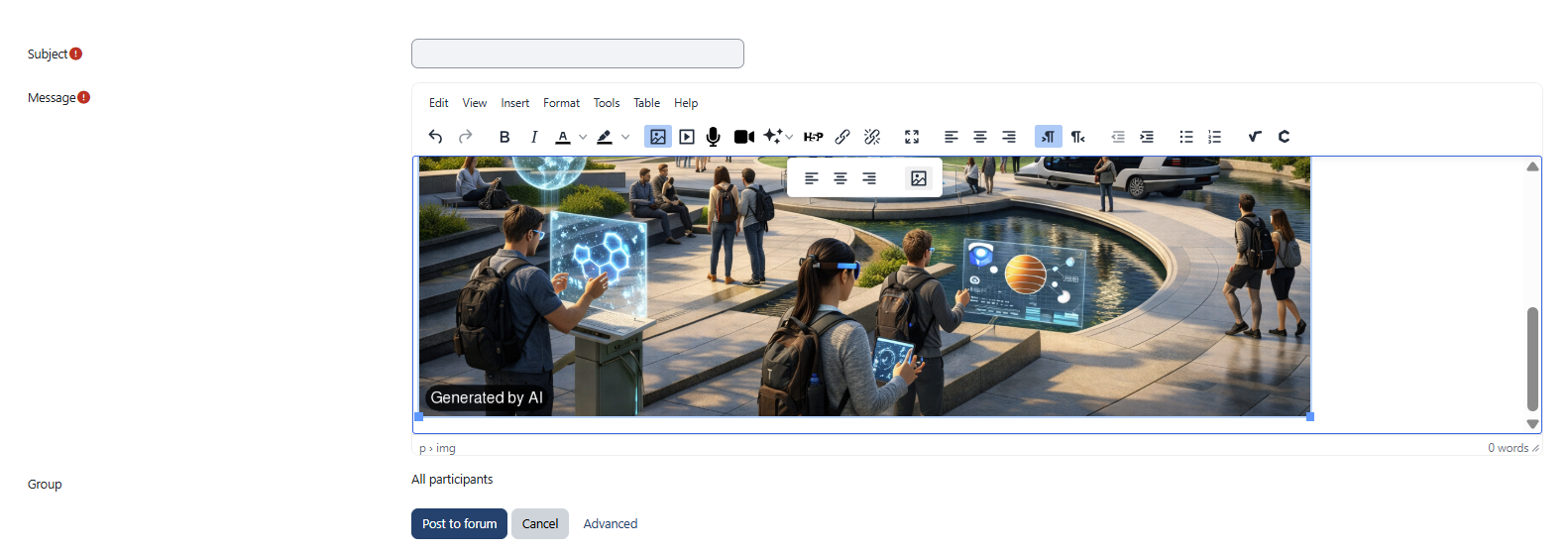
The AI Text Editor helps instructors create and enhance course content directly within Moodle. It allows users to generate text from prompts and create AI-generated images, making content development faster and more efficient.
These features are available in any text editor within activities and resources across your course pages.
The AI Text Editor includes the following two actions:
- AI Generate Text
- AI Generate Image
AI Usage Policy
When you use the AI Text Editor for the first time, the AI Usage Policy will be displayed. Please read the policy carefully, then select Accept and Continue to proceed and use the AI Text Editor.
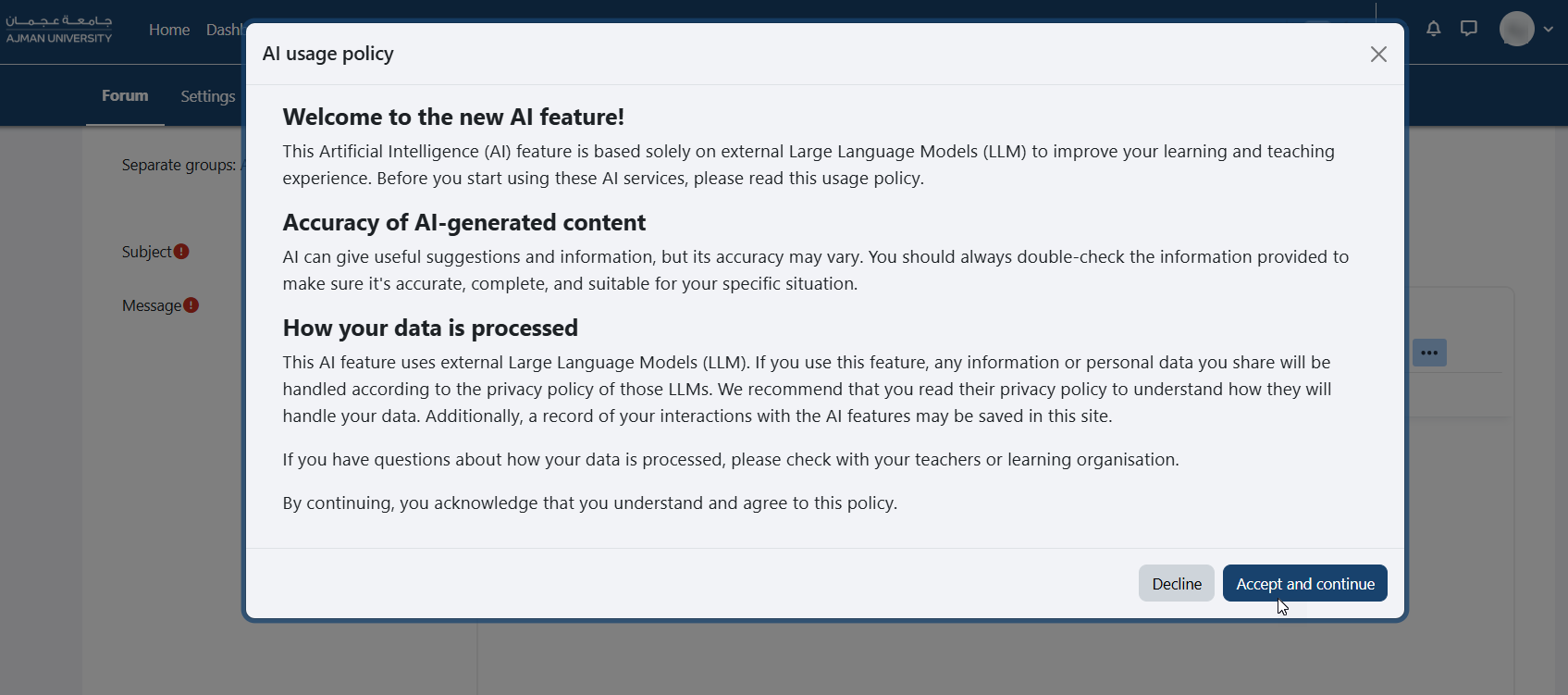
AI-generated content may not always be accurate. Please review and verify all AI-generated text and images before using them in your course.
AI Generated Text
Create course content, instructions, announcements, discussion topics, and other educational materials using AI-generated text.
You can generate AI text by following the steps below:
-
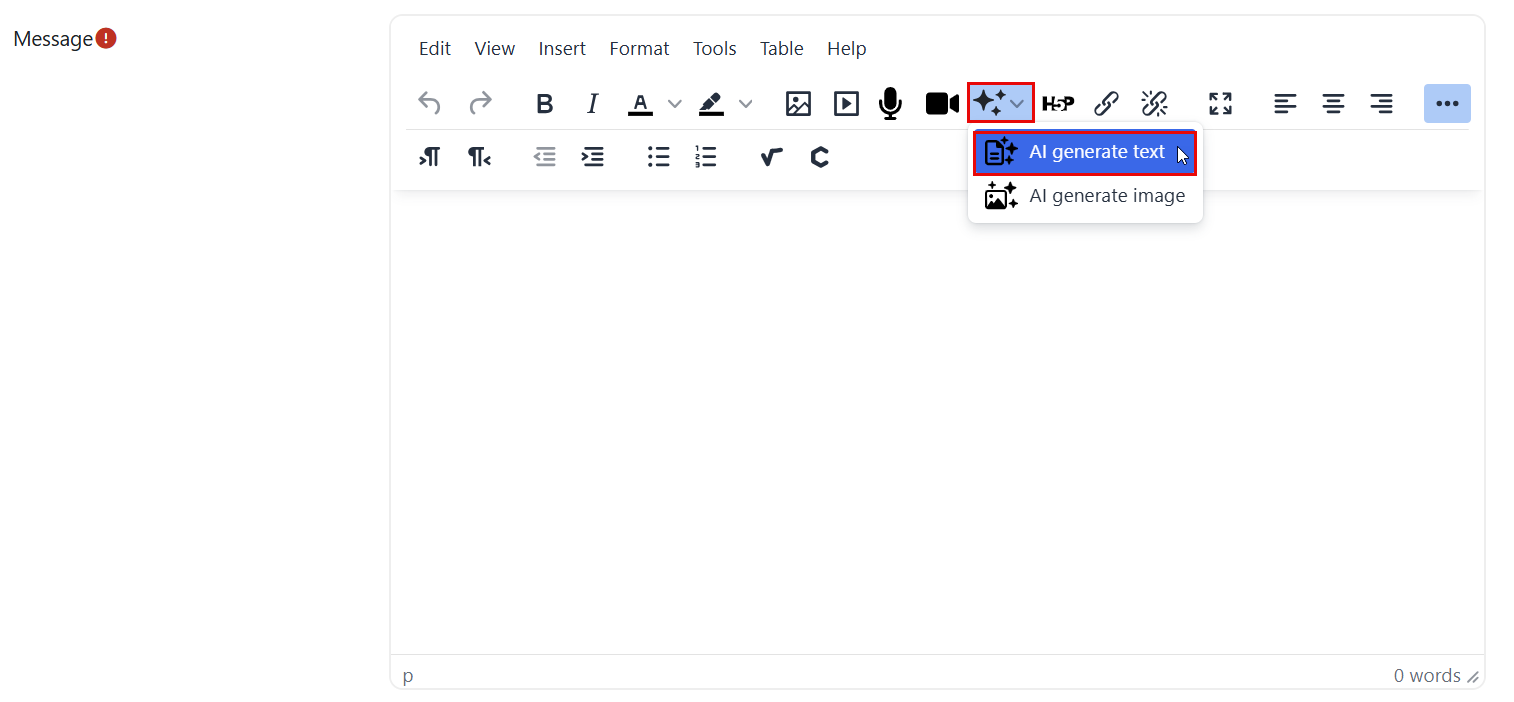
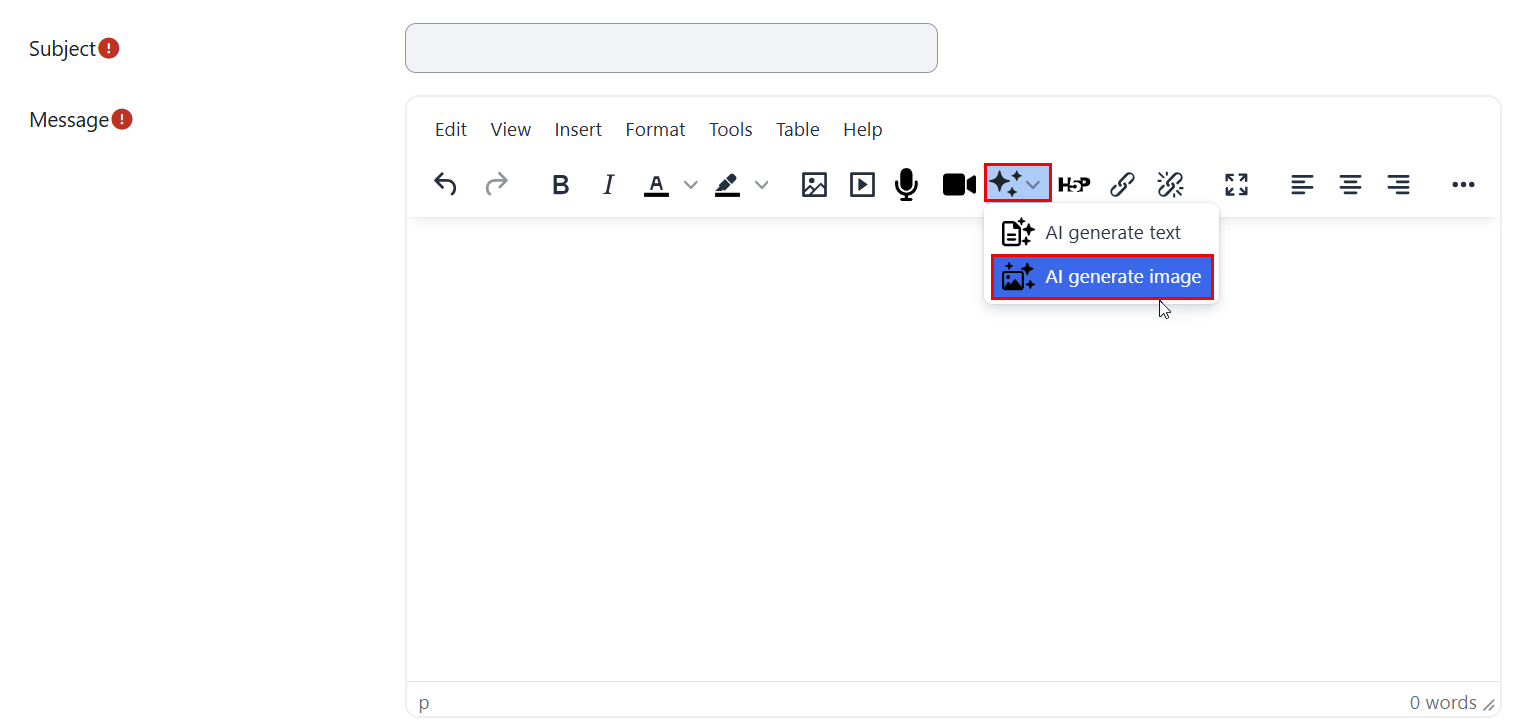
In the text editor within your created activity or resource, click the Generate AI Content icon, then click AI Generate Text.
-
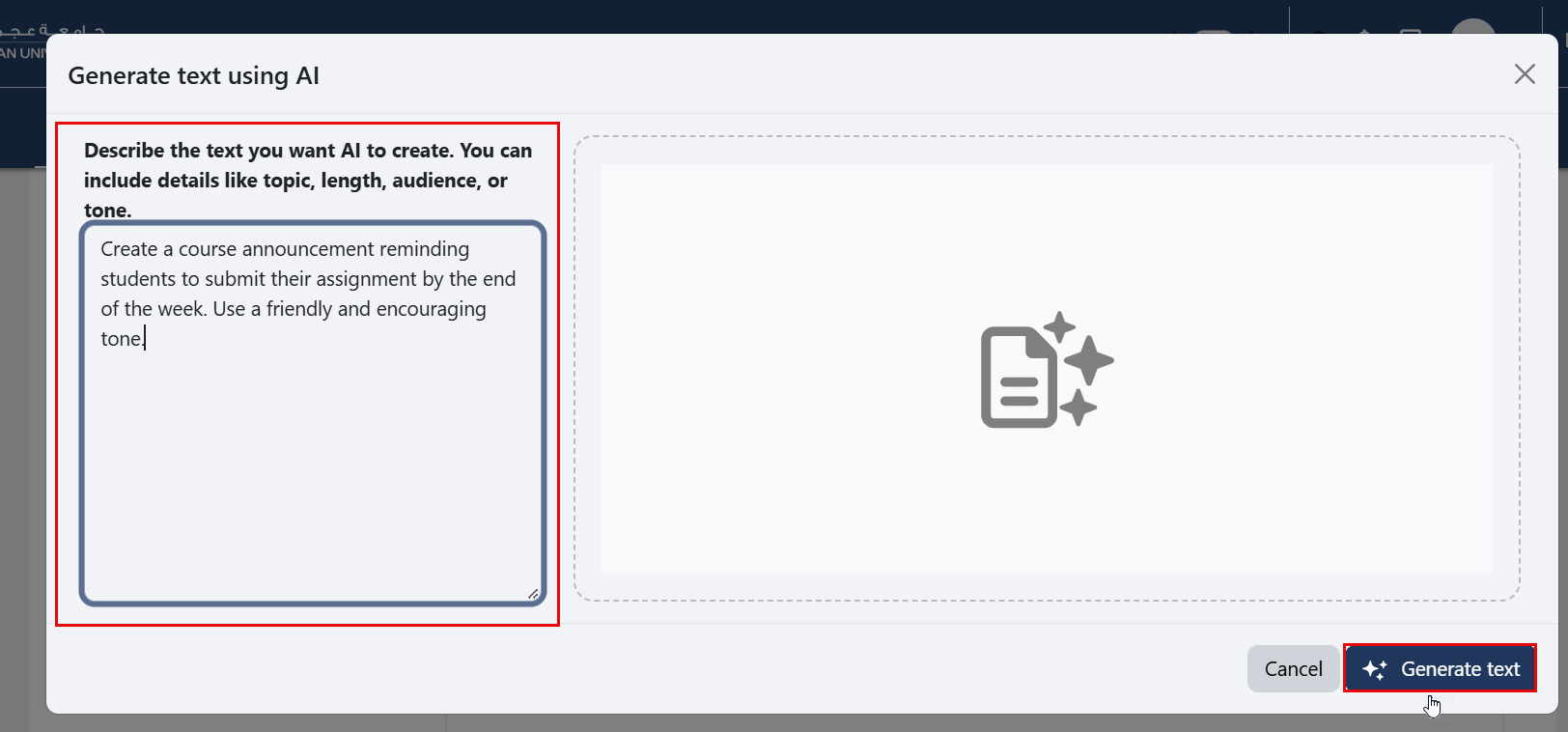
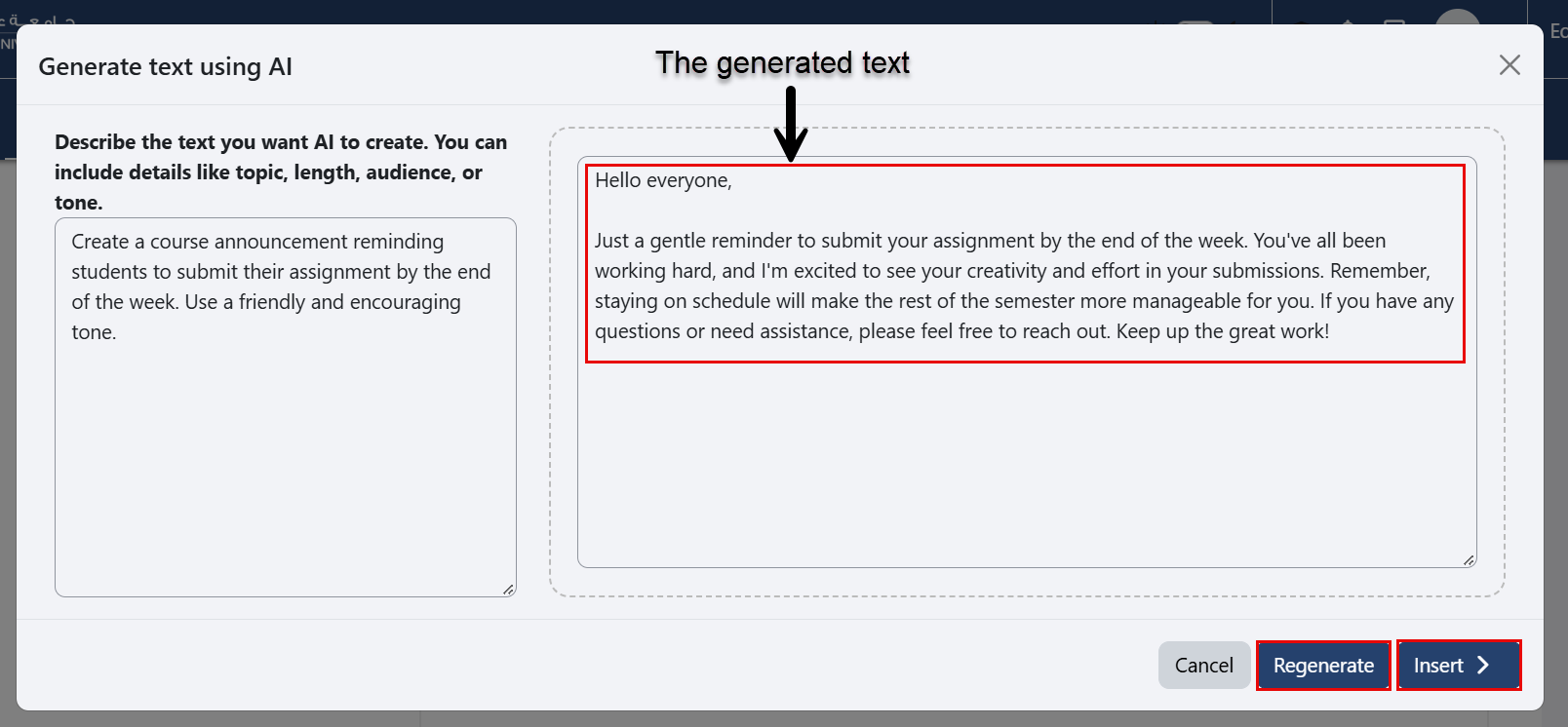
Enter a prompt describing the text you want the AI to create, including details such as the topic, length, target audience, and tone. Then, click Generate Text.
-
Review the generated text. If you are satisfied with the result, click Insert. To generate a new version, click Regenerate. You can also modify the prompt and regenerate the text.
-
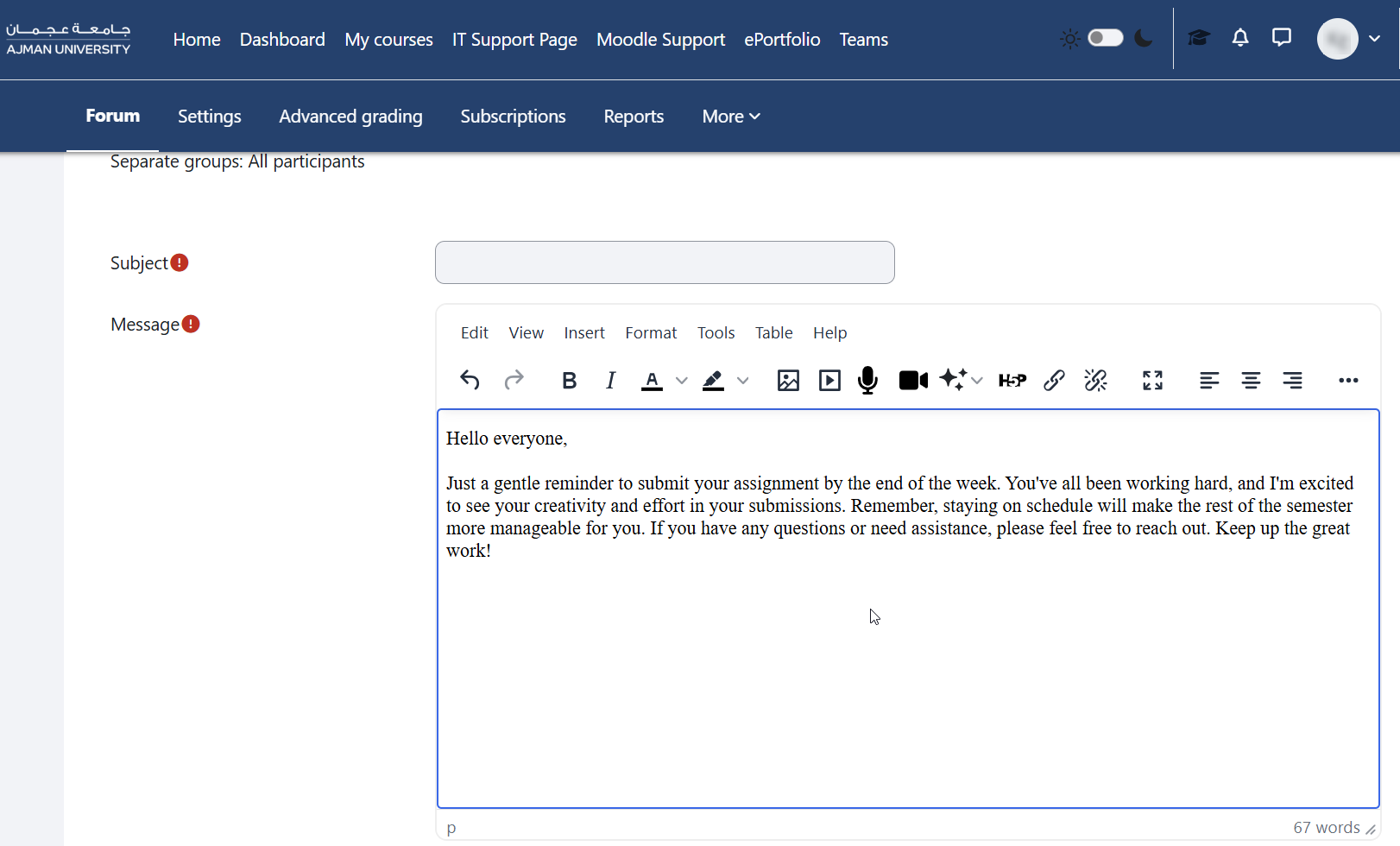
Once you click Insert, the generated text will be inserted into the text editor. You can then review, edit, and format the content as needed.
AI Generate Image
Create AI-generated images from a text description to enrich course content and boost visual engagement.
-
In the text editor within your created activity or resource, click the Generate AI Content Icon, then click AI Generate Image.
-
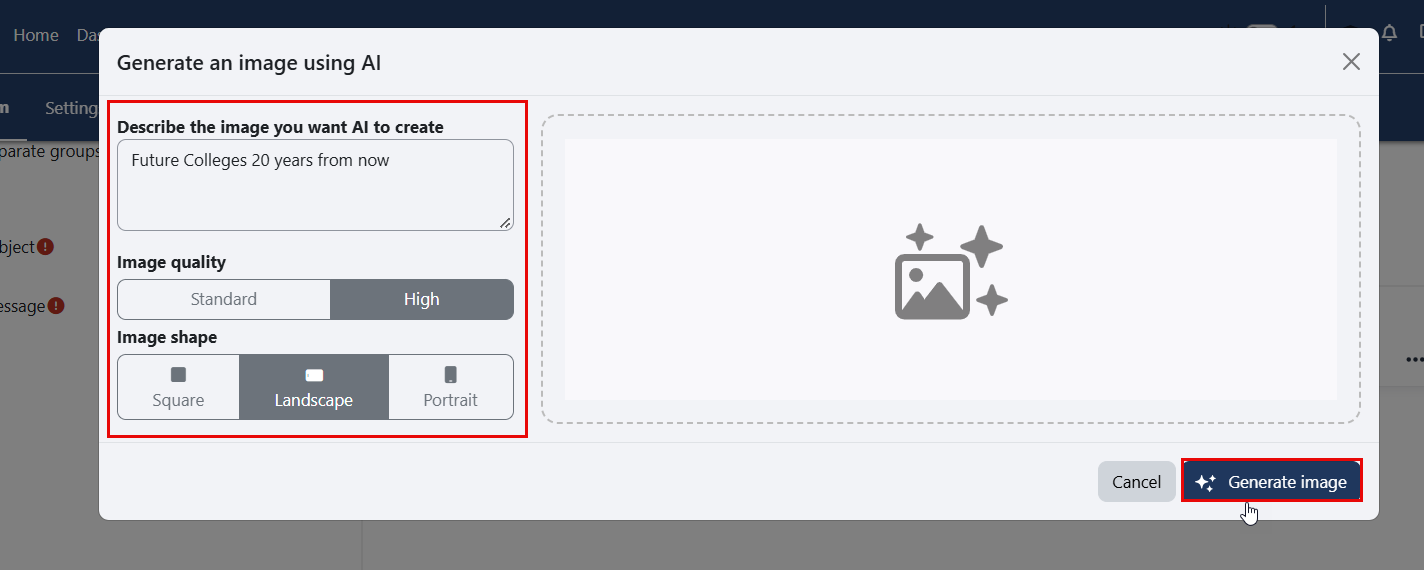
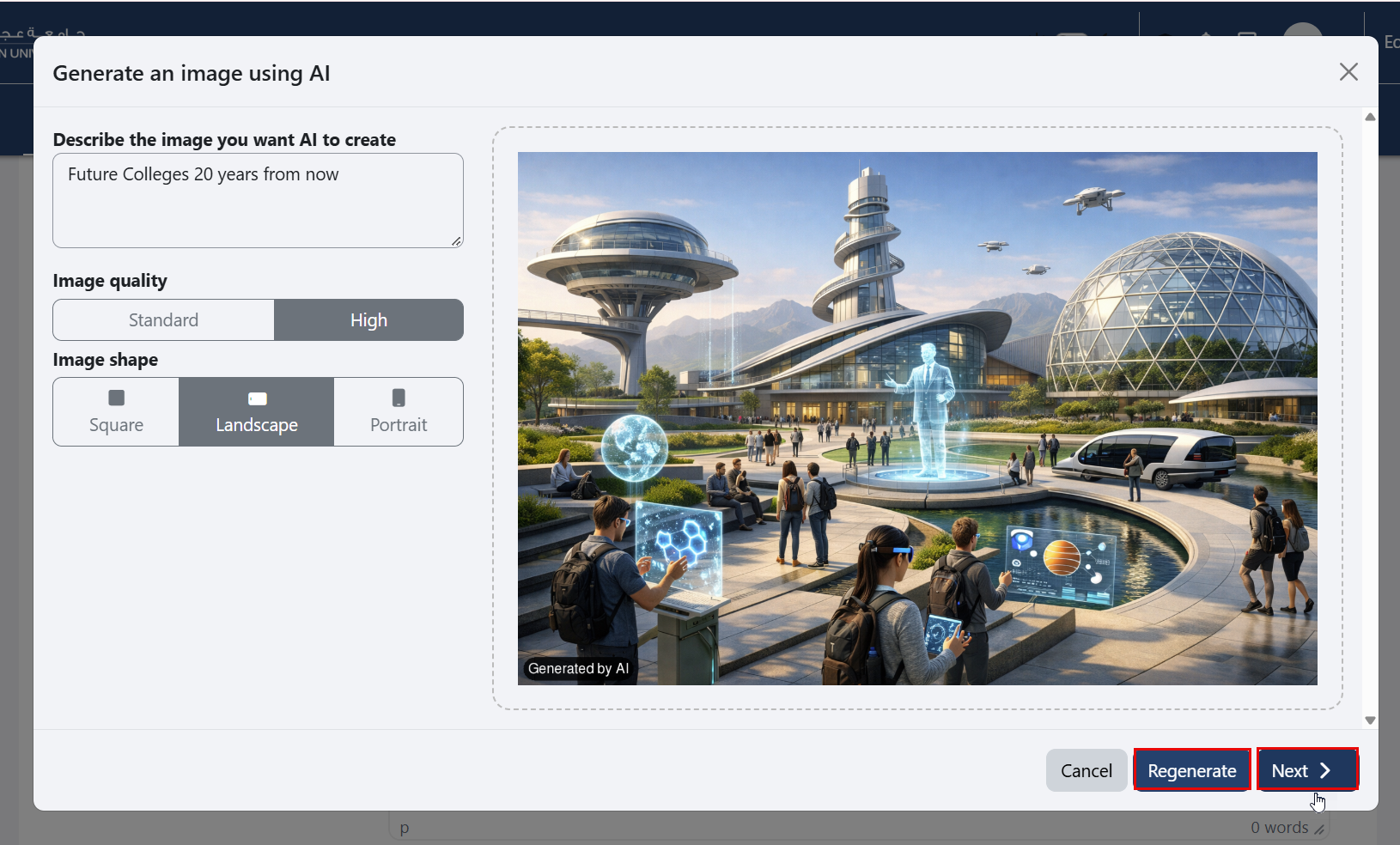
Enter a prompt describing the image you want the AI to generate. You can include details such as the subject, style, background, and colors. Select the desired image quality (Standard or High) and image shape (Square, Landscape, or Portrait), then click Generate Image.
-
Review the generated image. If you are satisfied with the result, click Next. To generate a new image, click Regenerate. You can also modify the prompt, image quality, or image shape, and then click Regenerate to create a different image.
-
Once you click Save, the generated image will be inserted into the text editor.