An AI Question Builder plugin in Moodle is a tool that uses artificial intelligence (AI) to automatically generate quiz or assessment questions from course content. It is designed to help instructors create quizzes more quickly and efficiently within the Moodle Learning Management System (LMS).
Typically, instructors select from the previously uploaded course materials, and the AI analyzes the content to identify key topics and concepts. Based on this analysis, the system generates several types of questions, including:
- Multiple-choice
- True/False
- Short-answer
- Essay
In addition, the AI Question Builder plugin provides flexibility in controlling the difficulty level of generated questions. Instructors can choose from predefined levels such as easy, medium, and hard, or select a mixed difficulty option that includes questions of varying complexity. This functionality helps instructors create questions aligned with different learning goals and difficulty levels.
Furthermore, the plugin allows instructors to review, modify, approve, or regenerate the AI-generated questions before publishing them in quizzes or adding them to the question bank. This ensures that instructors maintain full control over the quality, accuracy, and relevance of the assessment content.
To use the AI Question Builder plugin in Moodle, follow the steps below to generate and manage AI-based quiz questions.
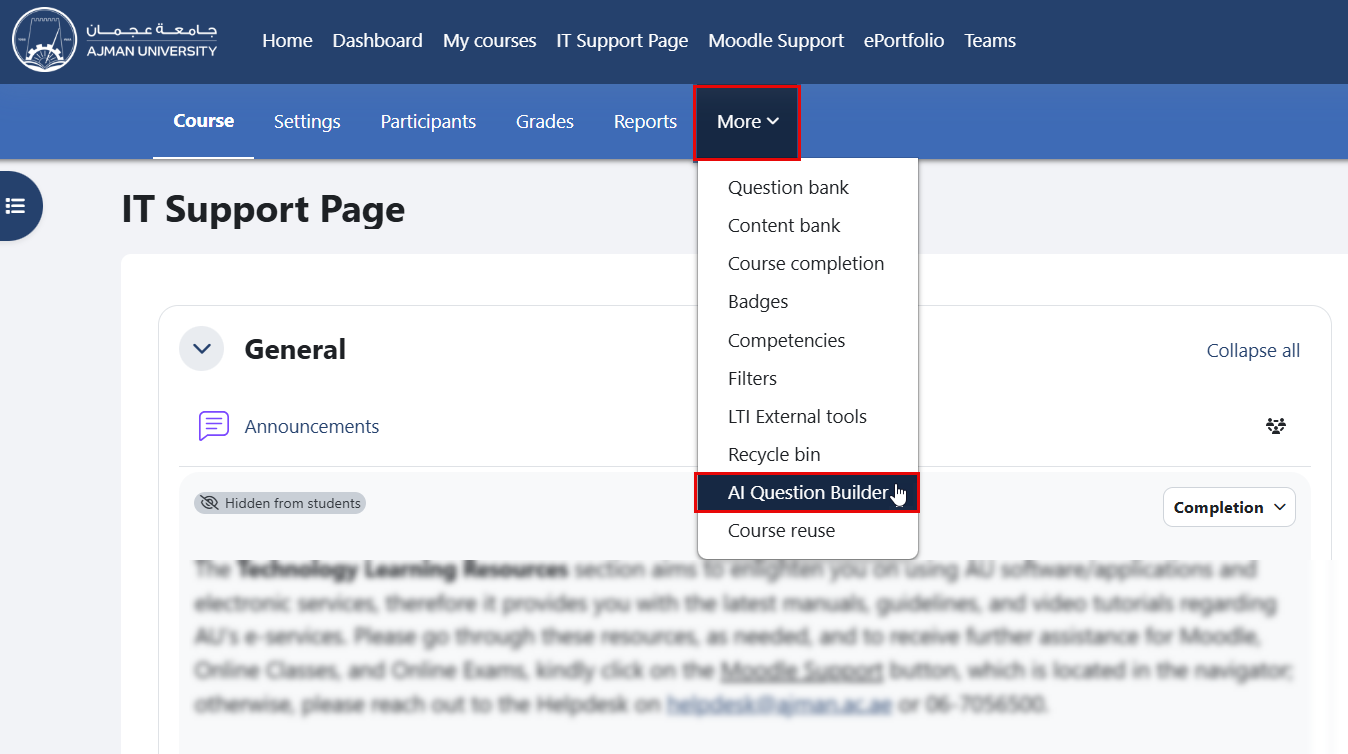
- Within the course page, navigate to "More" in the secondary menu, then click on "AI Question Builder".
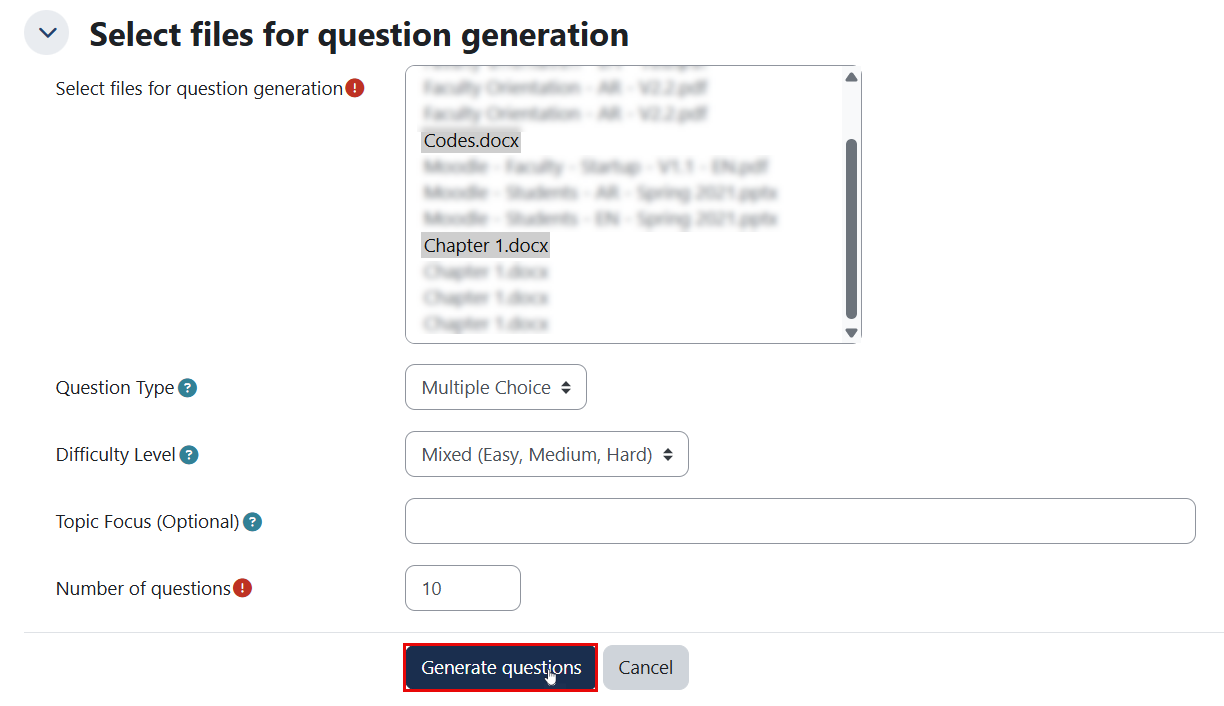
- Select the course materials that will be used to generate quiz questions.
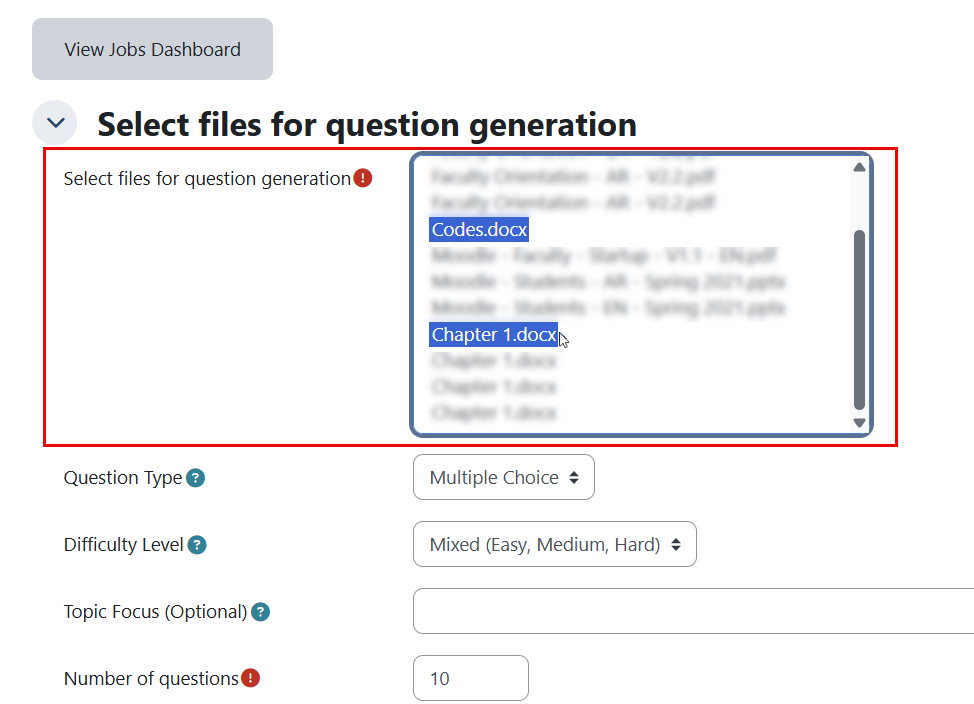
- You can select one or more files that have already been uploaded to the course (such as PDFs, lecture notes, or other learning resources).
- To select multiple files, hold Ctrl (Windows) or Cmd (Mac) while clicking on the desired files.
- Configure Question Settings
Set your preferences before generating questions:
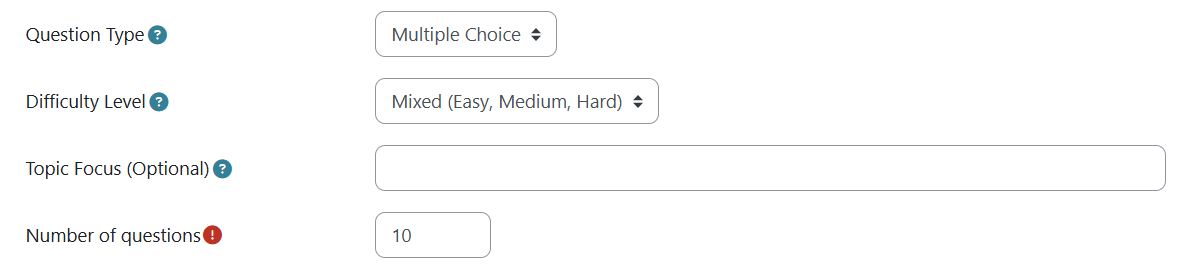
- Question Type: Choose one of the following formats: Multiple Choice, True/False, Short Answer, or Essay.
- Difficulty Level: Select Easy, Medium, Hard, or Mixed (a combination of different difficulty levels).
- Topic Focus (Optional): Specify particular topics if you want the questions to focus on a specific part of the content.
- Number of Questions: Enter the number of questions you want the AI to generate.
- Click the “Generate Questions” button. The AI will process the selected files and automatically create questions. For multiple-choice questions (MCQs), it will generate both the question choices and the correct answer.
- Click on "View Questions" to review the AI-generated questions. To generate questions again, click on "Create New Job" and follow step 3.
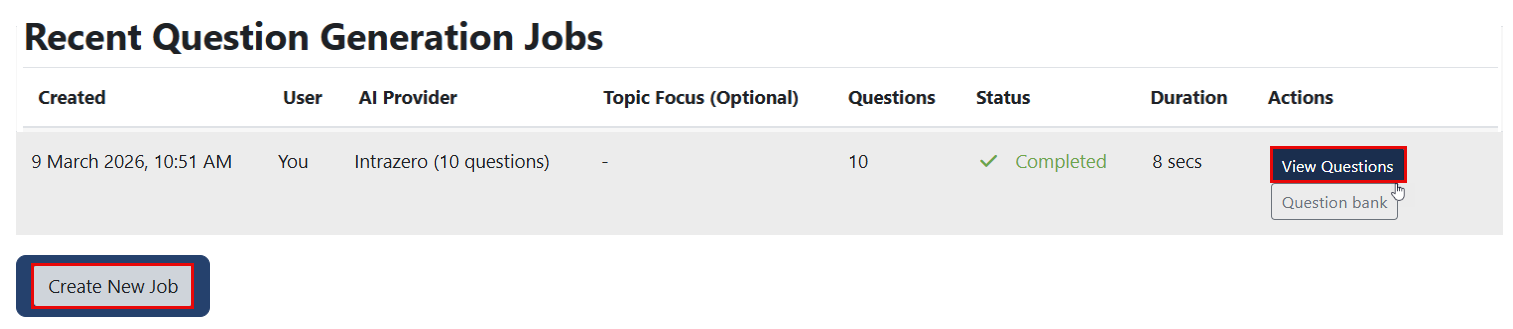
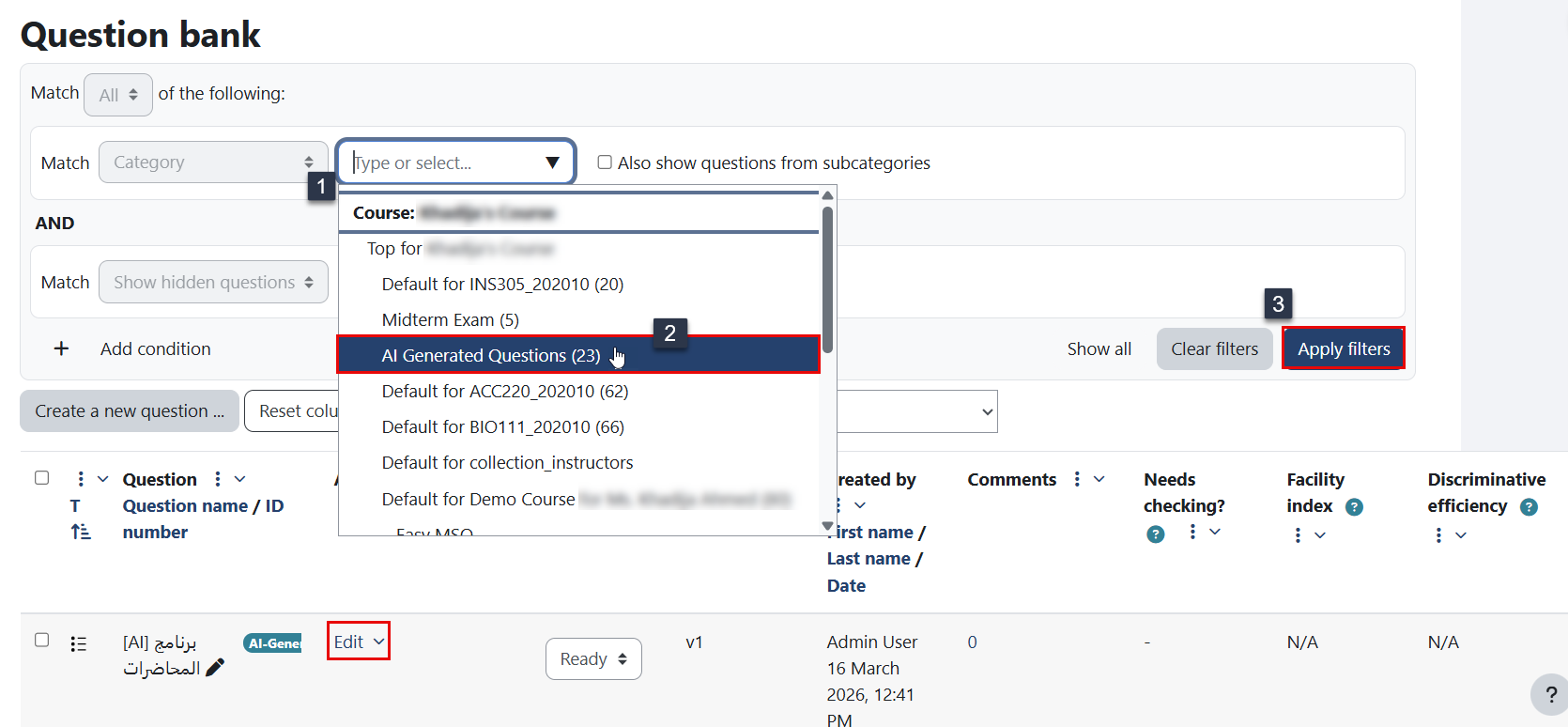
- The questions will automatically be added to the Questions Bank of the course.
- Questions can be edited from the Question Bank page.
- To view and edit questions, go to the Question Bank, click on the category “AI Generated Questions,” and then click the “Apply filters” button. The AI-generated questions will be displayed. Click “Edit” next to the question you want to modify.