The "Amazon Payment Services" feature provided by Amazon and integrated into our Banner system allows you to split your fees into installments, whether you are on or off campus. To process your installment payment online, please follow the steps below:
- Log in to Banner
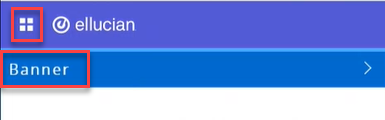
- Click on the menu located on the left, then click on Banner.
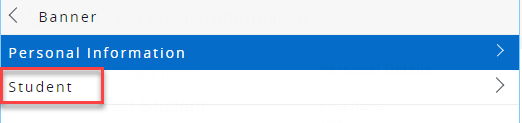
- Click on Student.
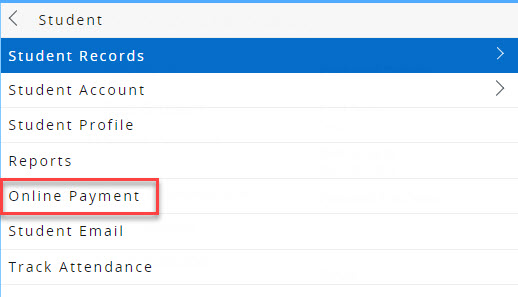
- Click on Online Payment.
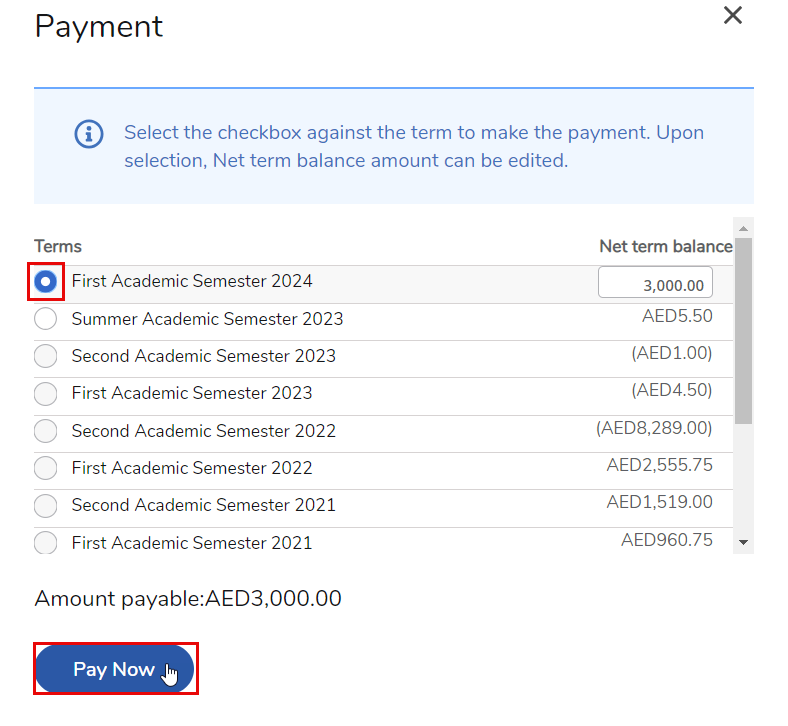
- Click on Pay Now.
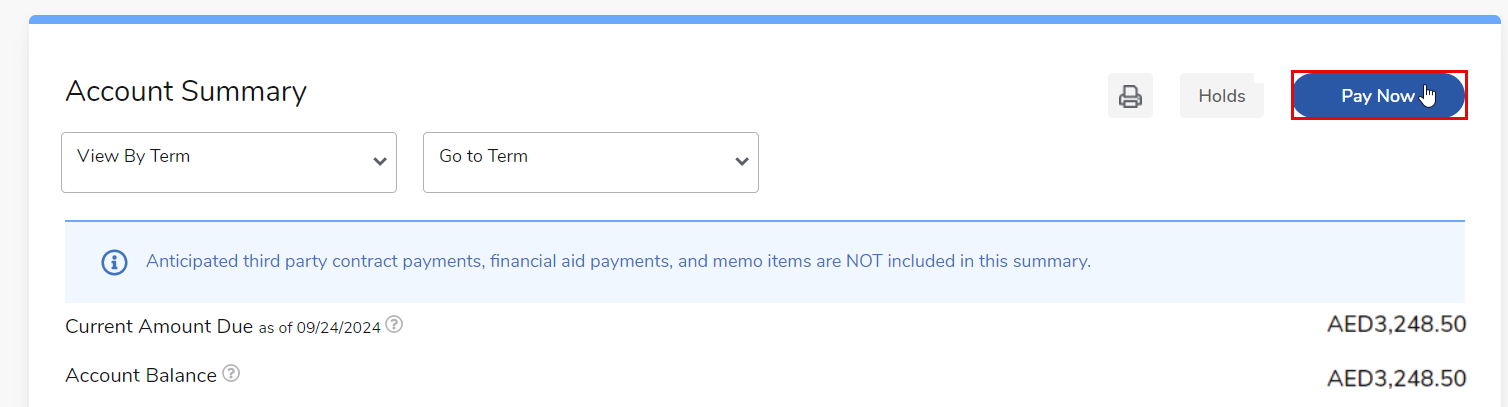
- Select the term you want to pay for, enter the desired amount, and ensure that the amount is a positive number and not negative. Then click "Pay Now."
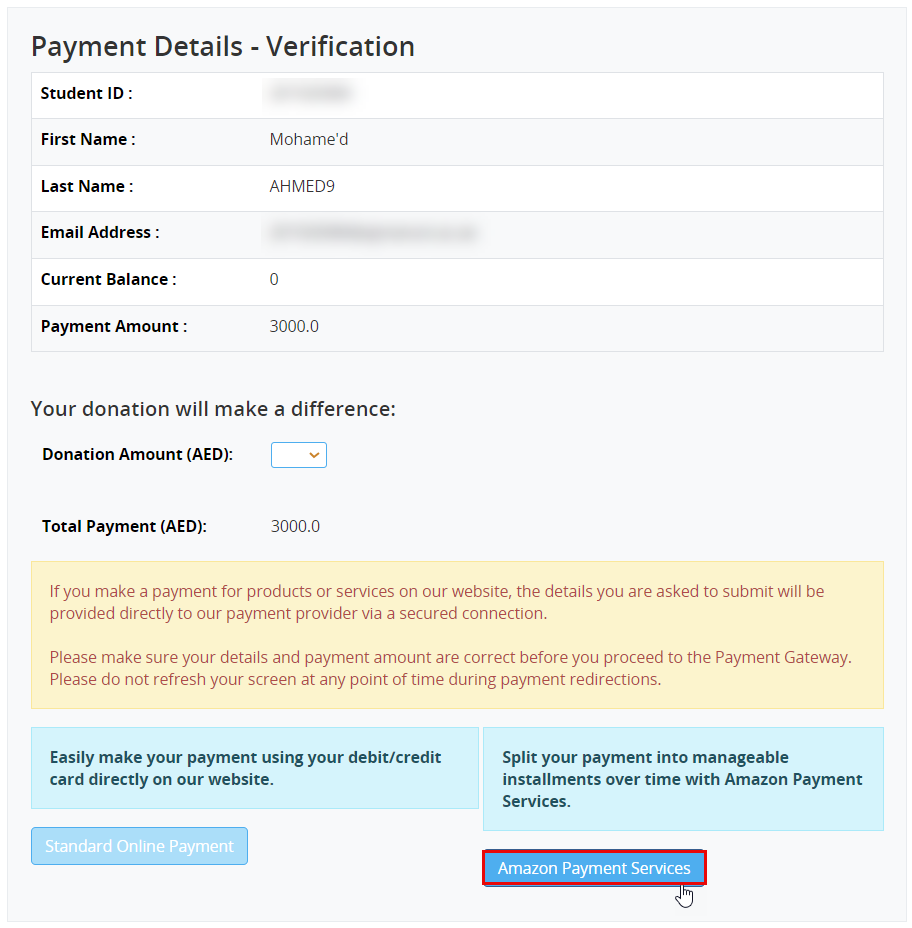
- Review your payment details, including your name, current balance, and payment amount. If everything is correct, click Amazon Payment Services.
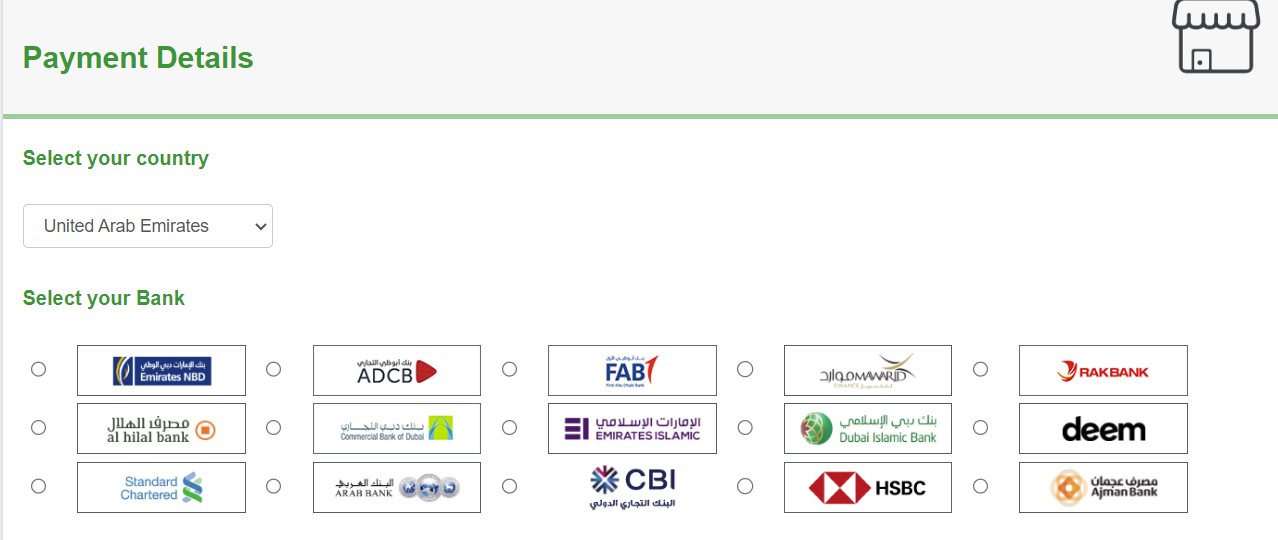
- Select the United Arab Emirates from the country drop list, and select the bank that issued your credit card from the list of supported banks displayed on the page.
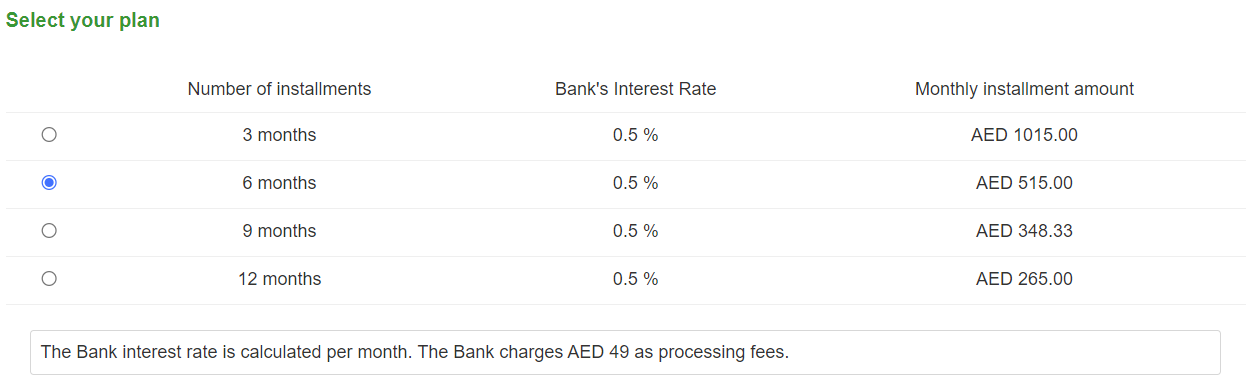
- Decide which plan to select based on the number of installments, the bank's profit rate, the monthly installment amount, and any applicable processing fees. Then, choose that plan.
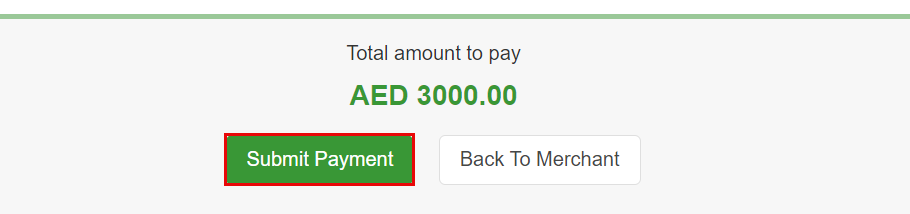
- Enter your credit card details, review the terms and conditions, and agree to the bank's payment-related terms. Then, click on "Submit Payment".
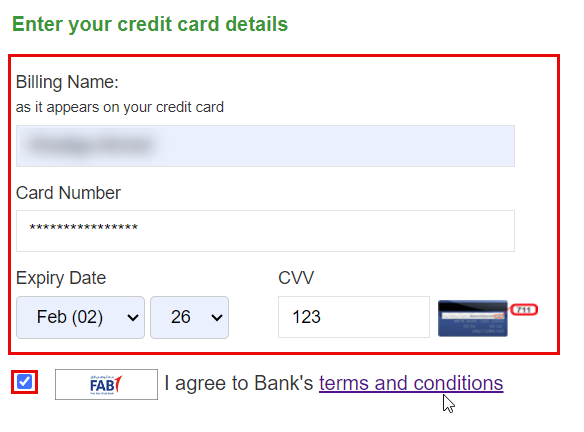
- Click on Submit Payment
 Note:
Note:- You will be redirected to the APS payment gateway as the page loads. After completing your payment successfully, a confirmation message will appear on your screen, and you will also receive a confirmation email with the payment details.
- It is important to note that the full amount will be deducted from your card balance. Your bank (card issuer) will contact you within 2-4 business days to confirm the selected installment plan and apply it to your payment.