You can approve purchase requisitions in Dynamics 365 by following these steps:
-
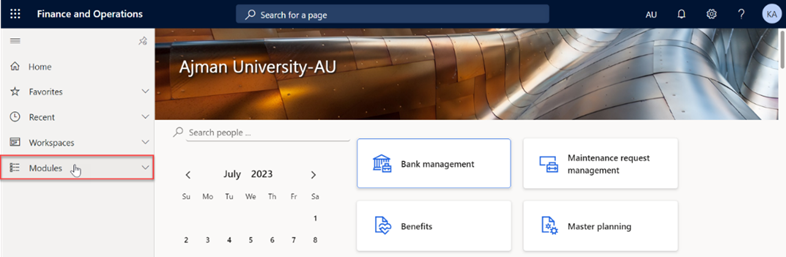
Once you have logged in, you will be on the Dynamics 365 home page. On the left-hand navigation pane, click on Modules.
-
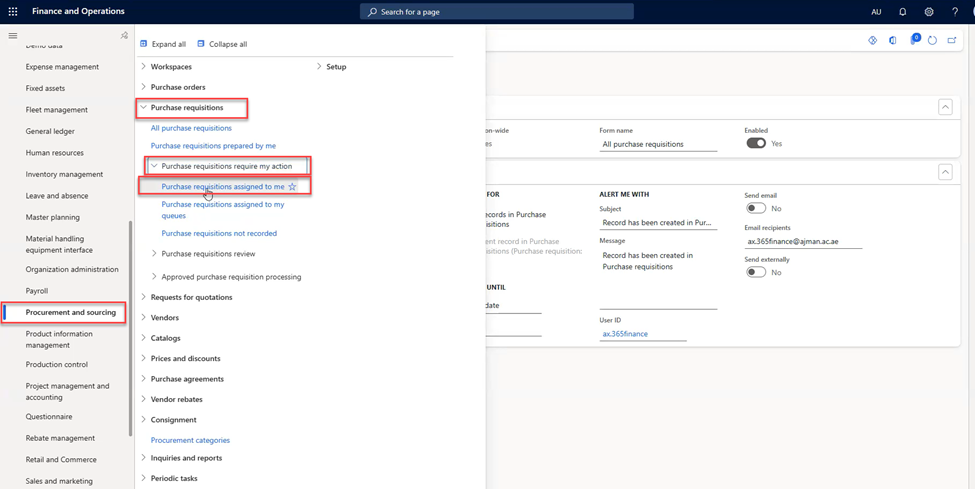
Click on the** Procurement and sourcing** module, then click on “Purchase requisitions assigned to me”, located under “All purchase requisition” > “Purchase requisitions require my action”.
-
In this module, you will typically see a screen with a list of existing purchase requisitions for your Office/College that require your action. Double-click on the request to review it before approving it.
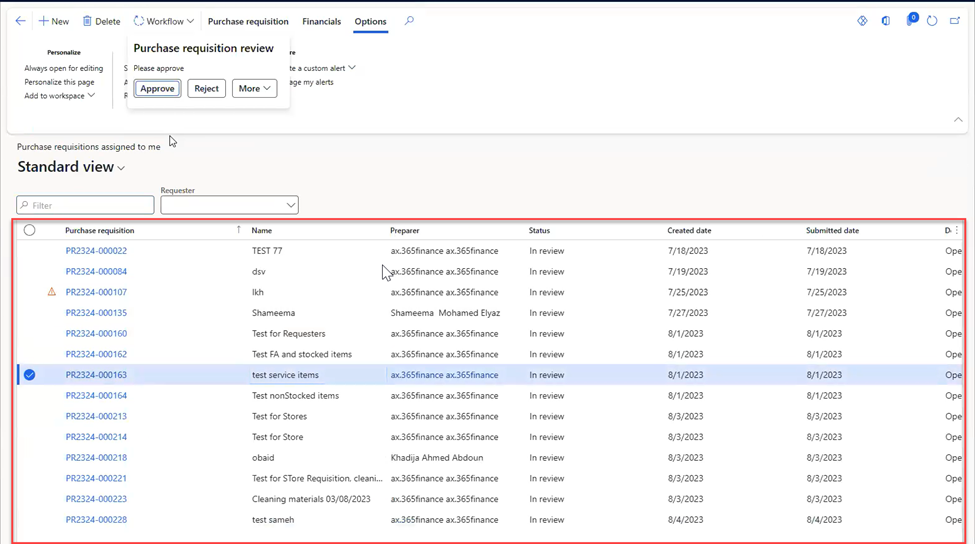
Approvers can only view and take action on their own purchase requisitions.
-
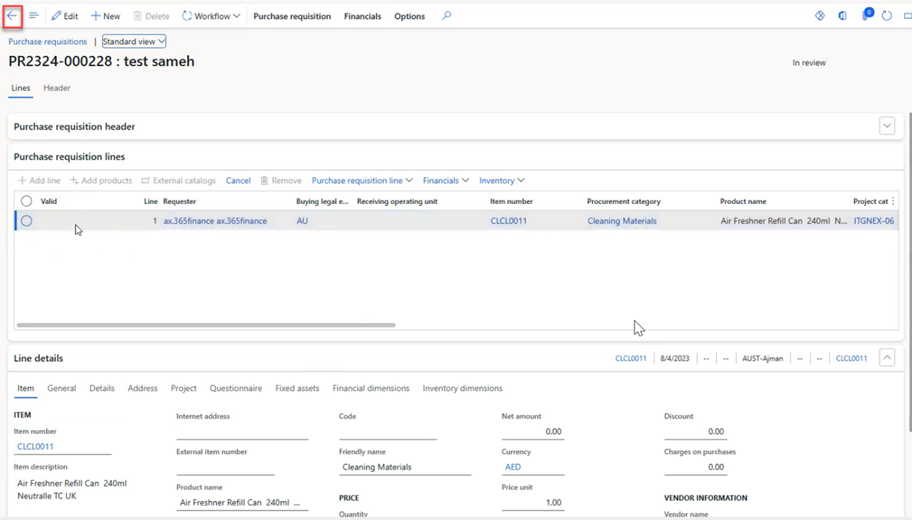
Review the details of the requisition, after reviewing it, click on the “Arrow” icon to navigate to the previous page.
-
Click on Workflow, then “Approve”.
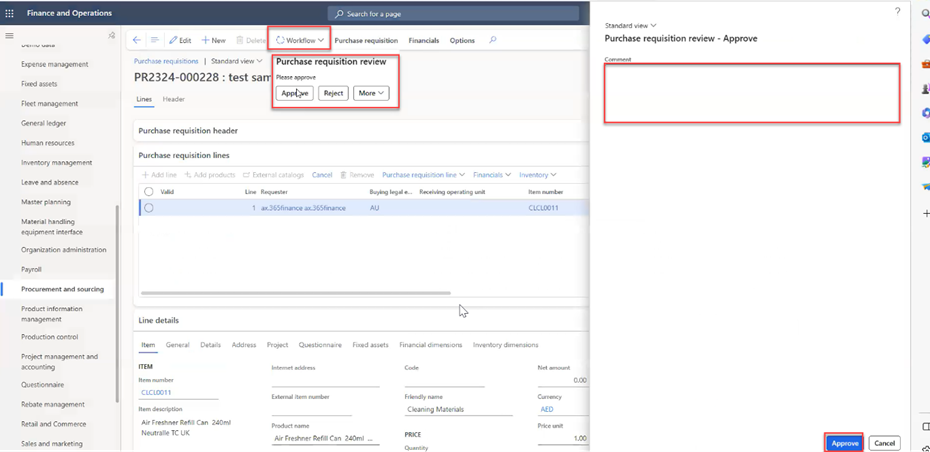
Type your comments if any, then click on Approve.