The process begins when the HR team initiates the Annual Goal Plan campaign. During the campaign, employees create and submit their goals for review.
Once a direct report submits their goals, the system automatically notifies the manager to review the submission. The manager can then approve the goals, reject them, or request additional information from the employee before the goals are finalized.
Actions that can be taken on submitted goals include:
- Approve: Confirm and accept the goal.
- Reject: Decline the goal. Please note that rejecting a goal will permanently delete the records and cannot be recovered.
- Request Information: Return the goal to the employee for modifications or additional details.
To review and approve employee goals, follow the steps below:
-
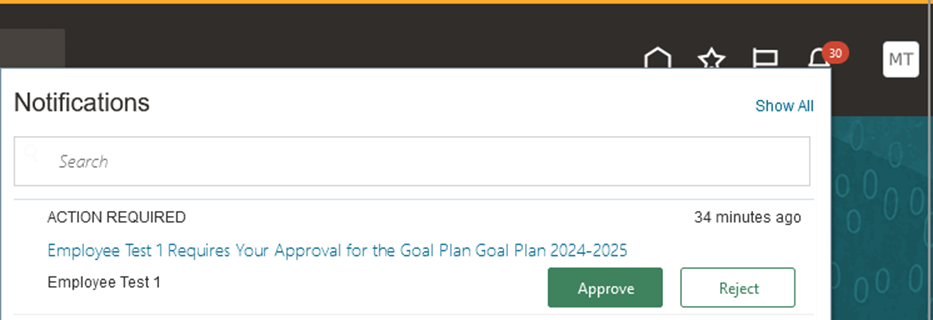
Open the notification you received.
-
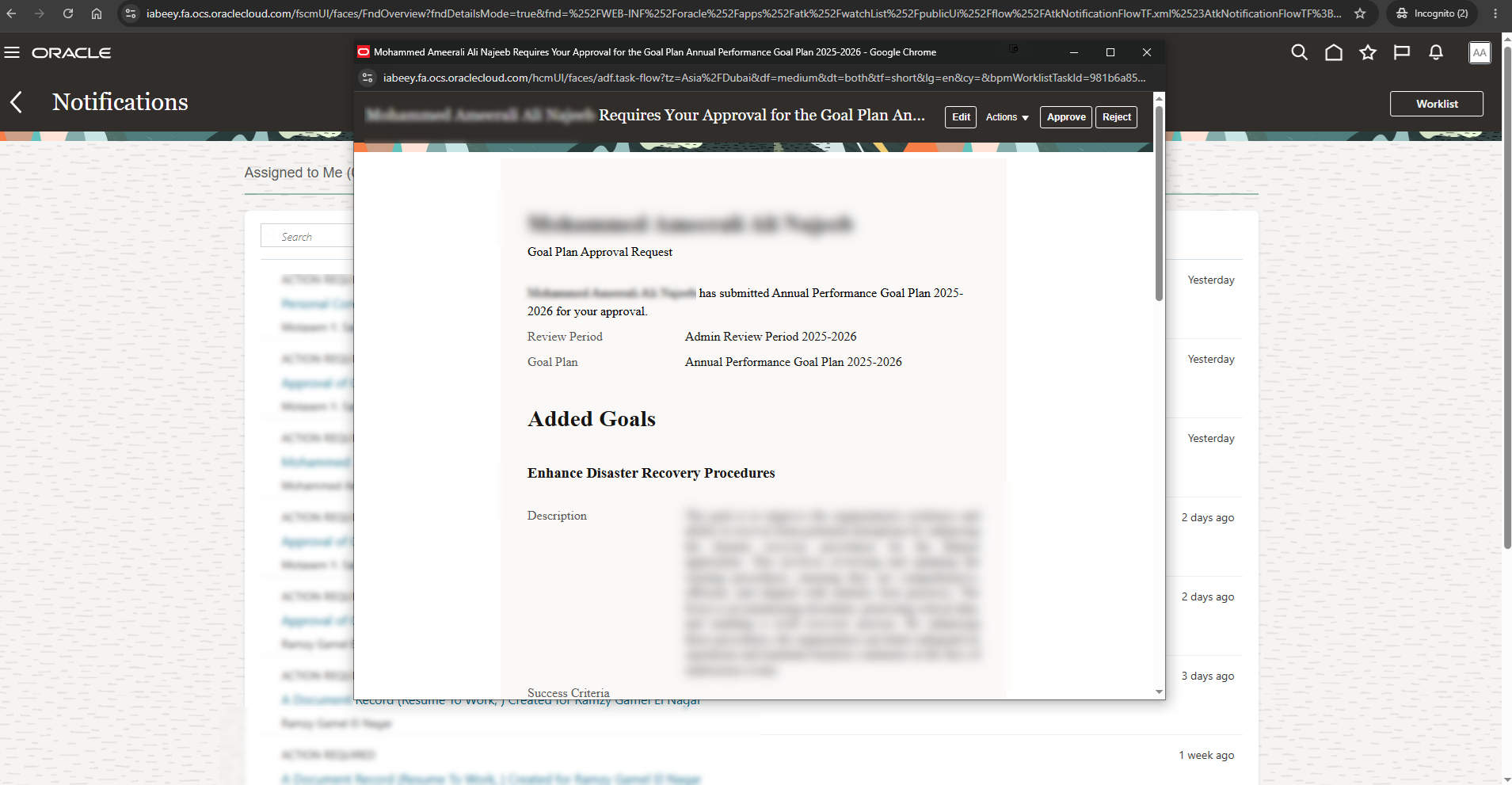
Review the goals submitted by the employee. If you need to make changes, click "Edit".
-
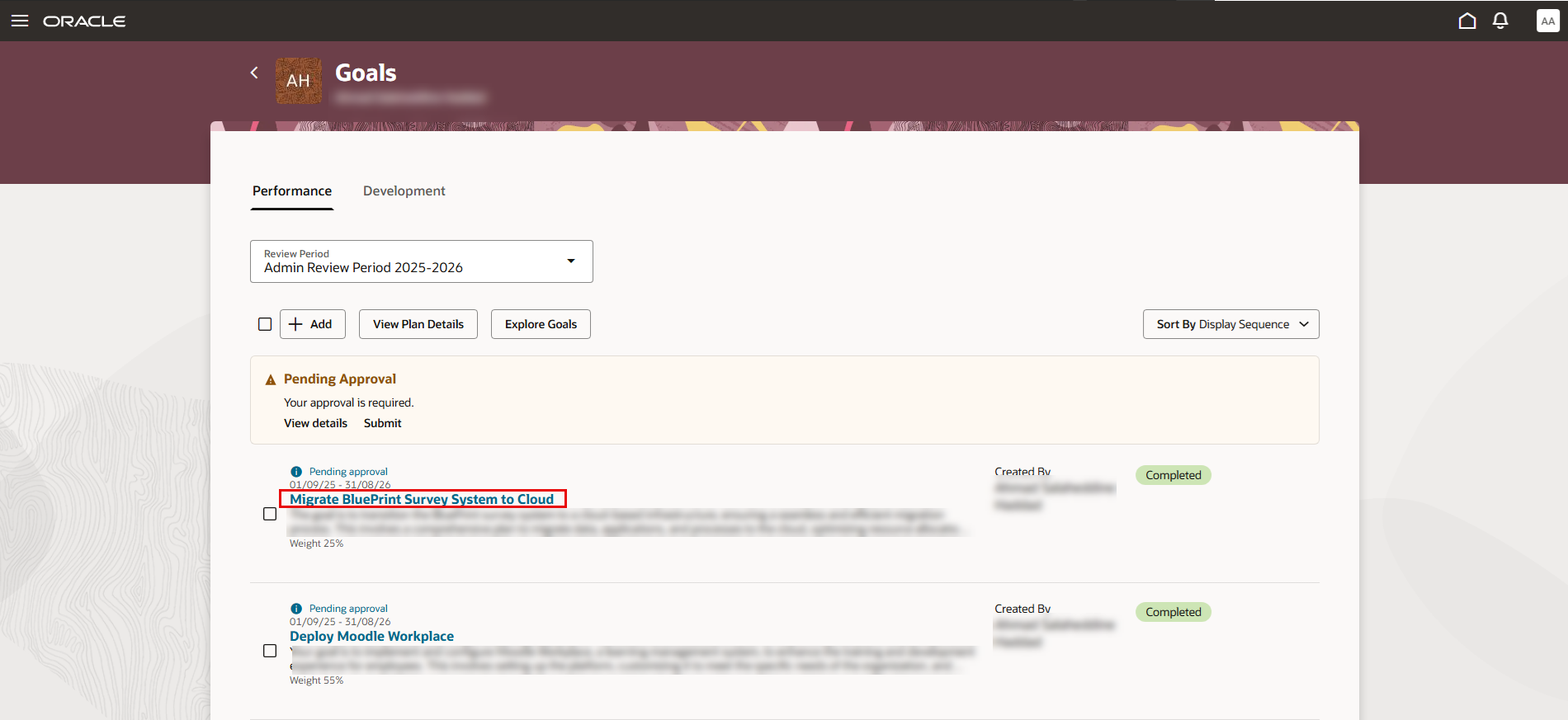
You will be redirected to the Goals Center. Open the goal that you want to review or edit.
-
Review the goal details. To make changes, click "Edit Goal Details".
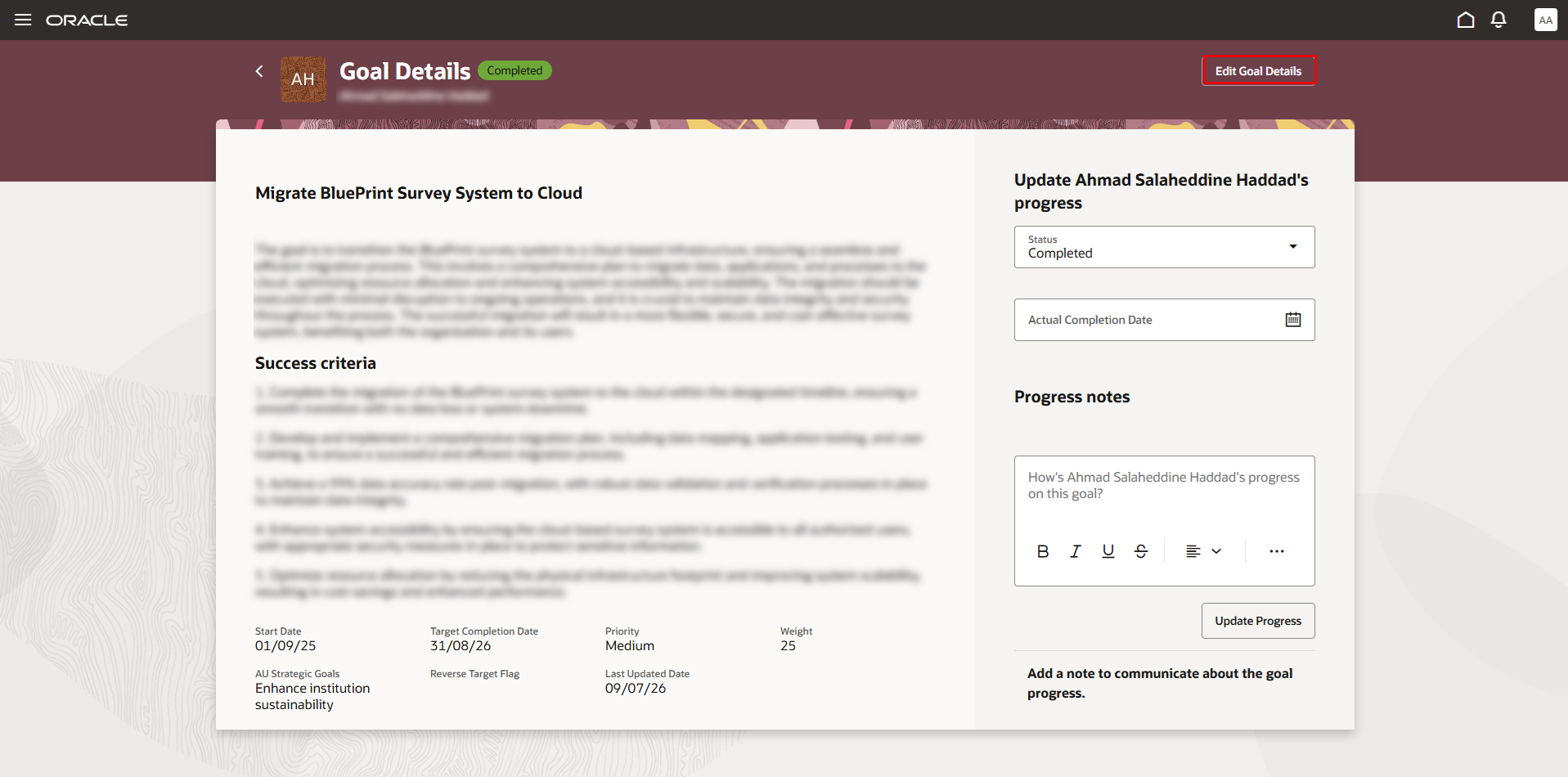
-
Update the goal details as needed, then click "Update".
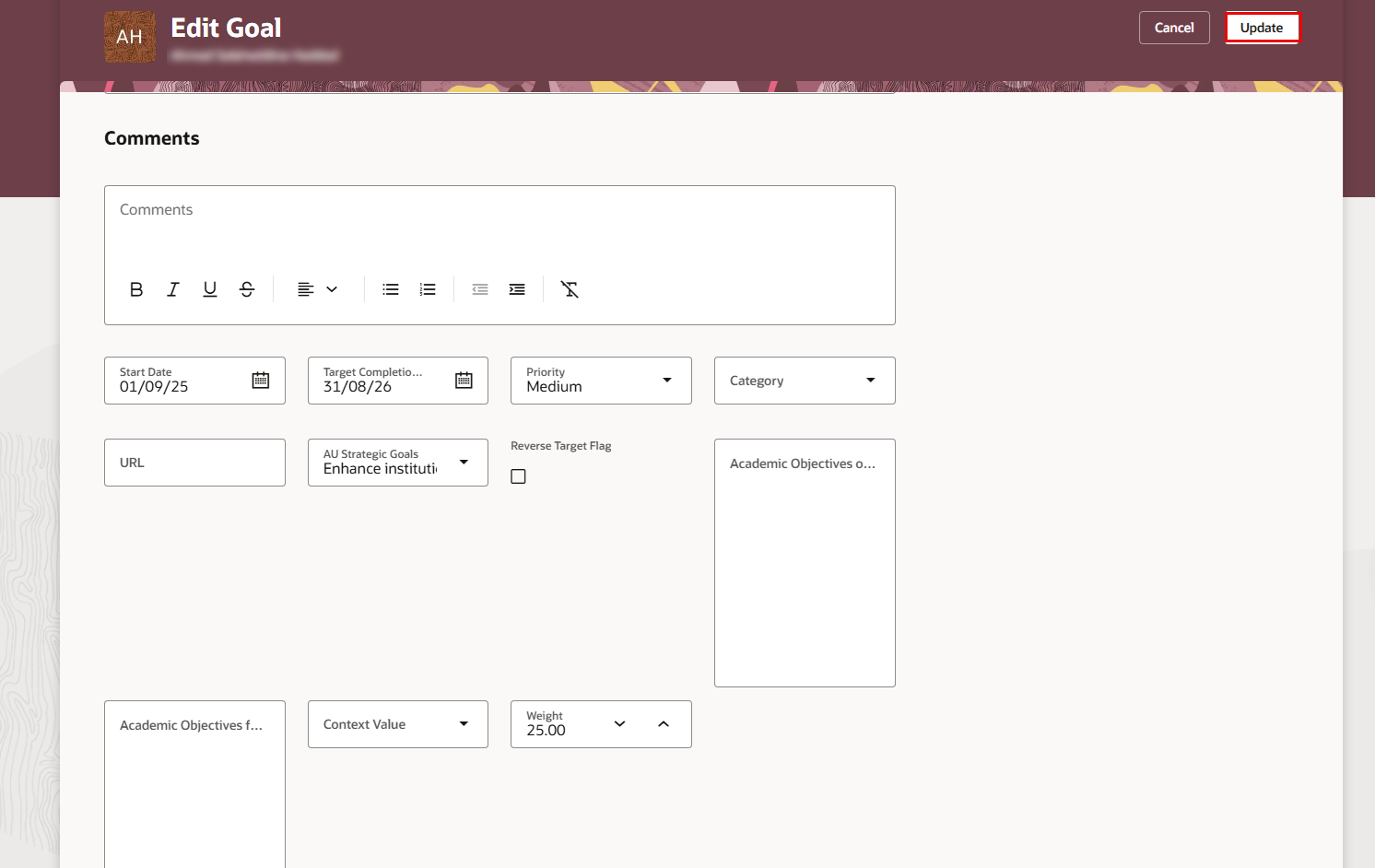
-
Return to the Goals page. Under Pending Approval, click "Submit" to submit your approval on the goals.
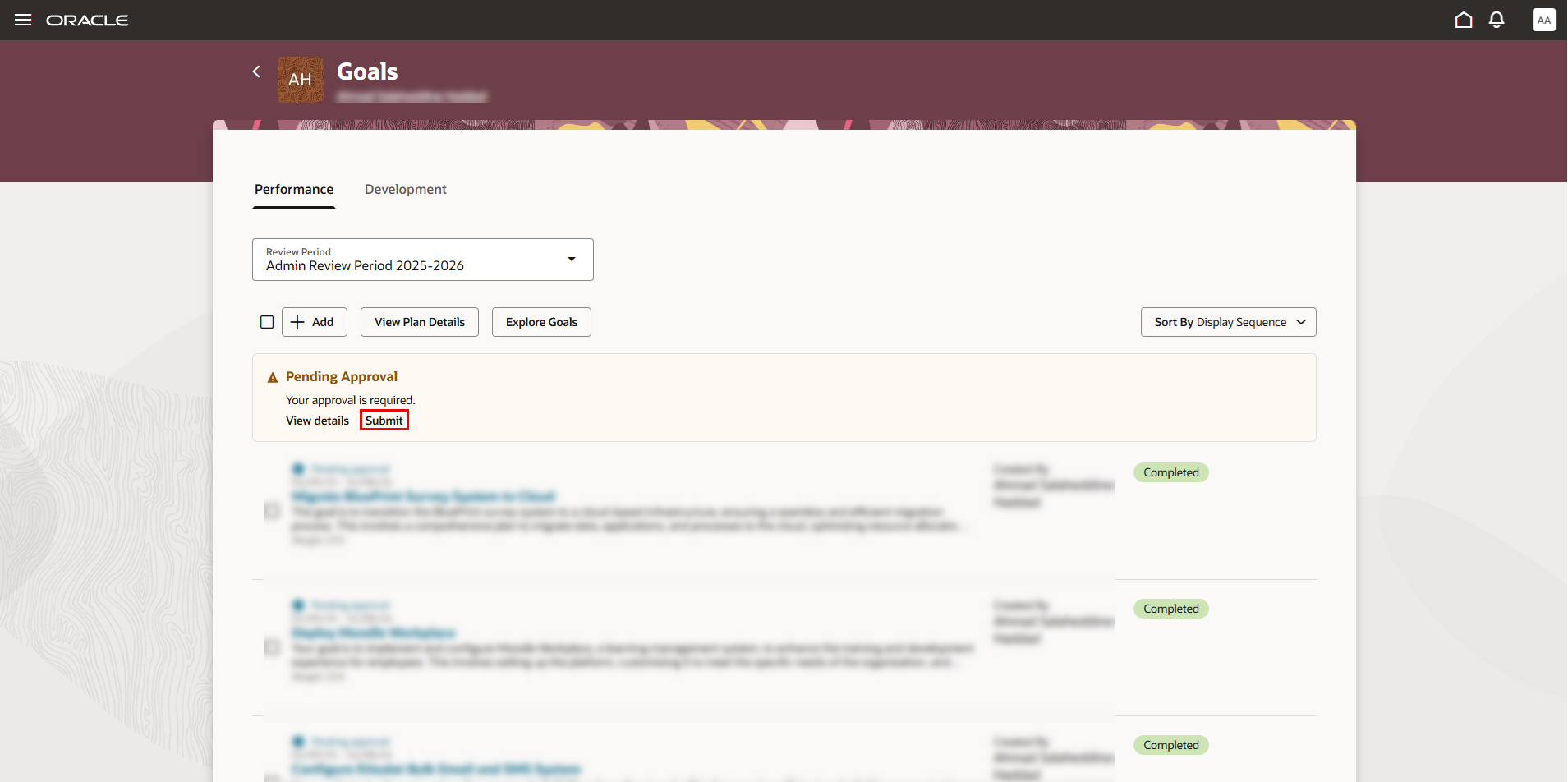
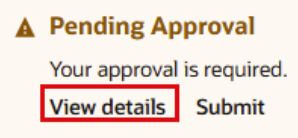
You can click "View Details" to access additional actions, such as Reject or Request Information. These actions can also be performed by opening the notification, where you will see the available options to Approve, Reject, or Request Information.
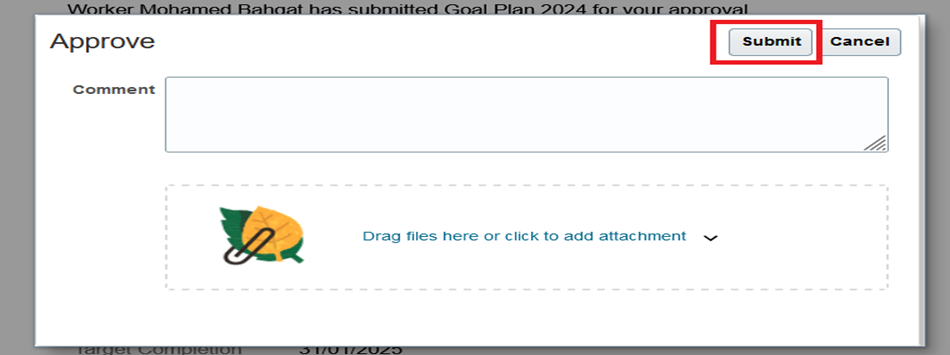
- Enter a comment if necessary, then click "Submit".