To transfer ePortfolio data, you can Import/export as a SCORM-zip-file. Ensure that you select the specific view you wish to export/import before proceeding.
For more details follow the steps below:
Export your ePortfolios
-
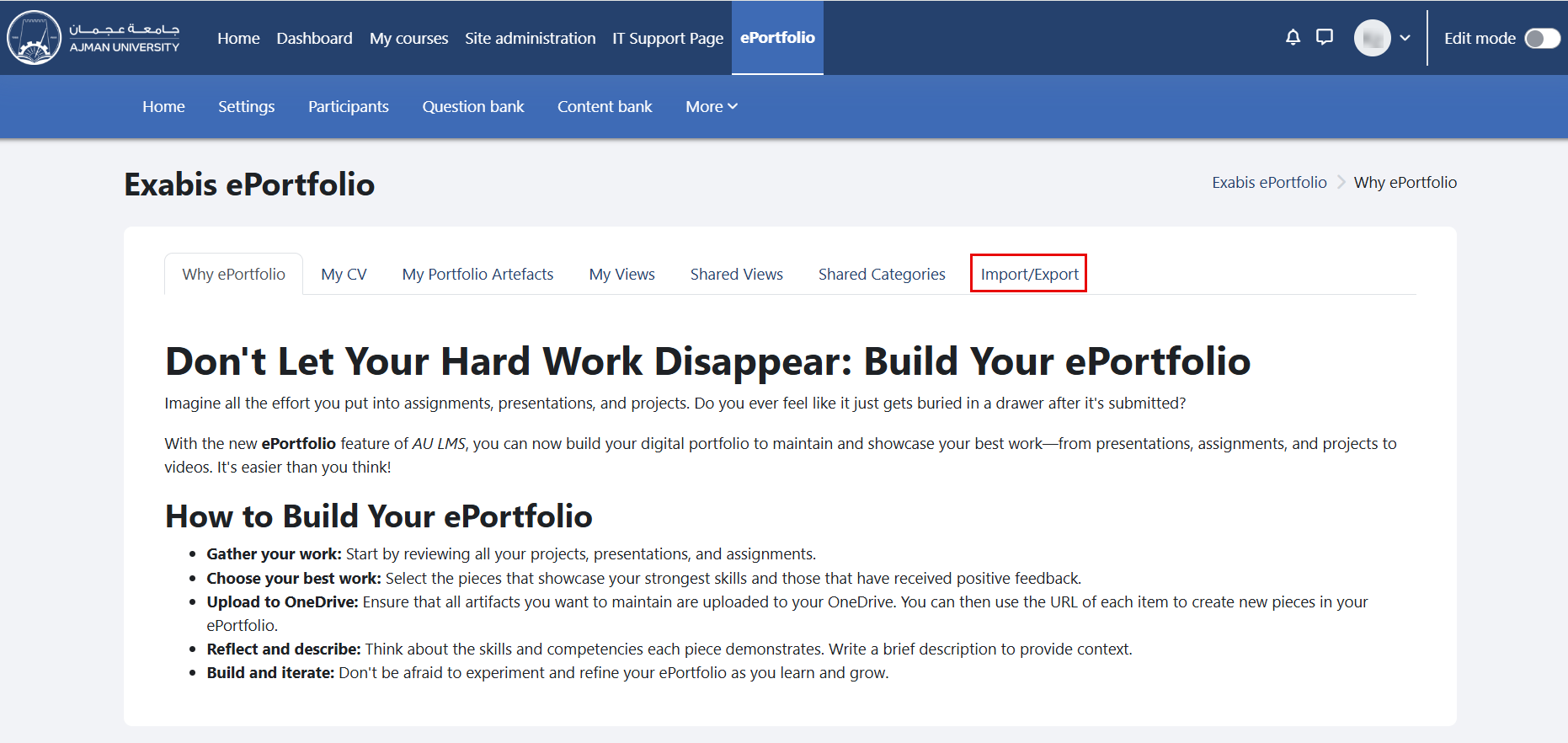
In the ePortfolio page, click on the tab "Import/Export".
-
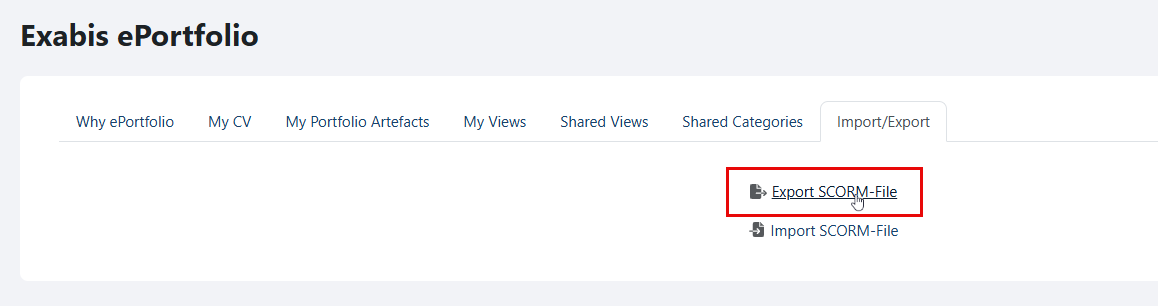
Click on "Export SCORM-File".
-
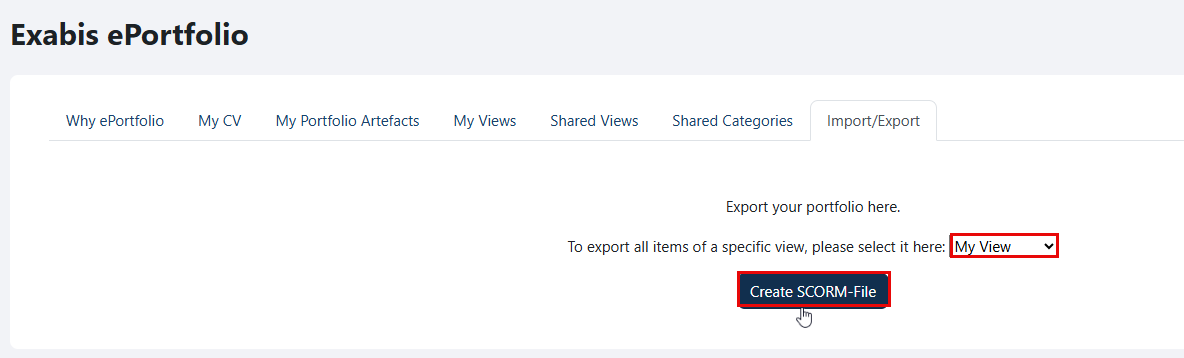
Select the view you wish to export from the drop-down menu, and then click on the "Create SCORM-File" button.
-
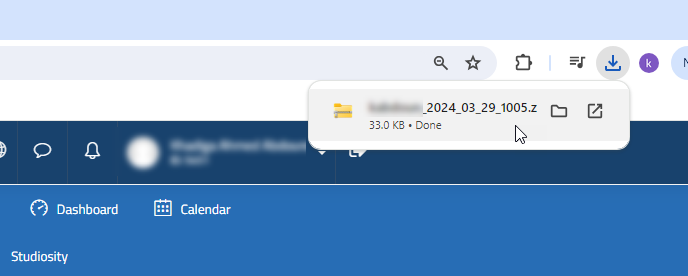
The exported file will be saved to your device.
Import your ePortfolios
-
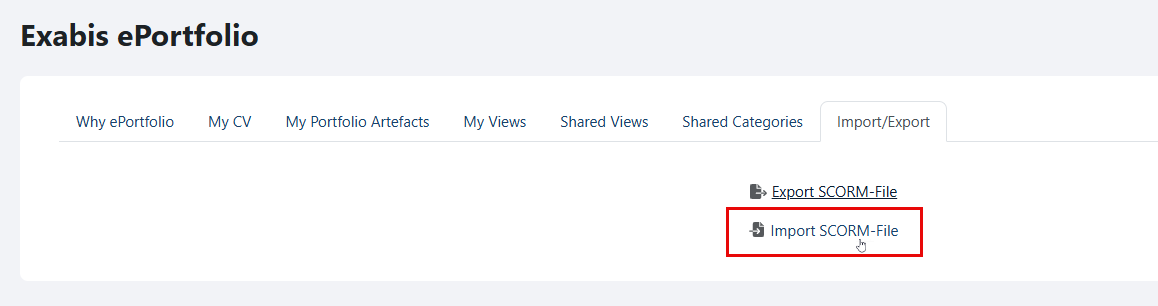
Click on the arrow located inside the course, and then click on the tab "Import/Export".
-
Click on "Import SCORM-File".
-
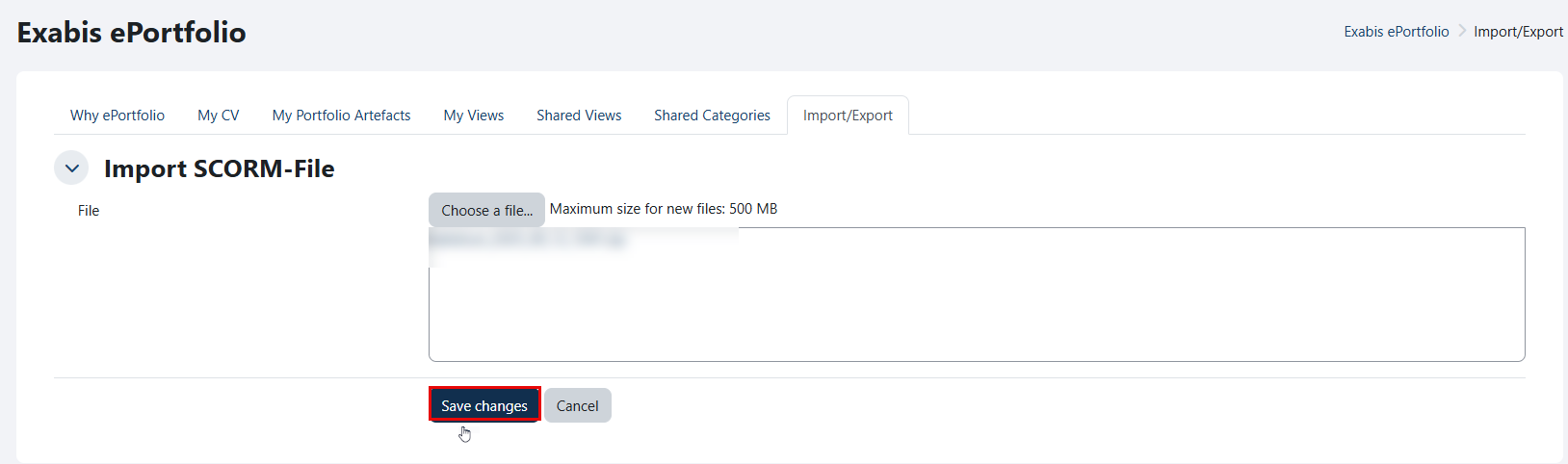
Upload the file either by selecting the "Choose a file" option or by drag and drop.
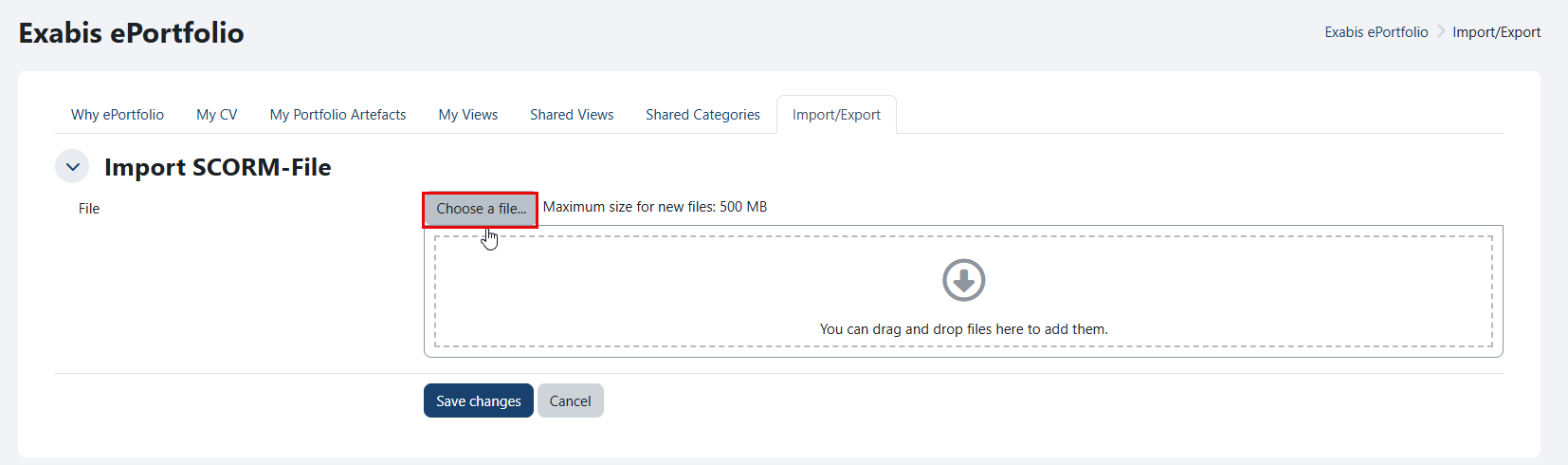
Maximum size for new files: 500MB.
-
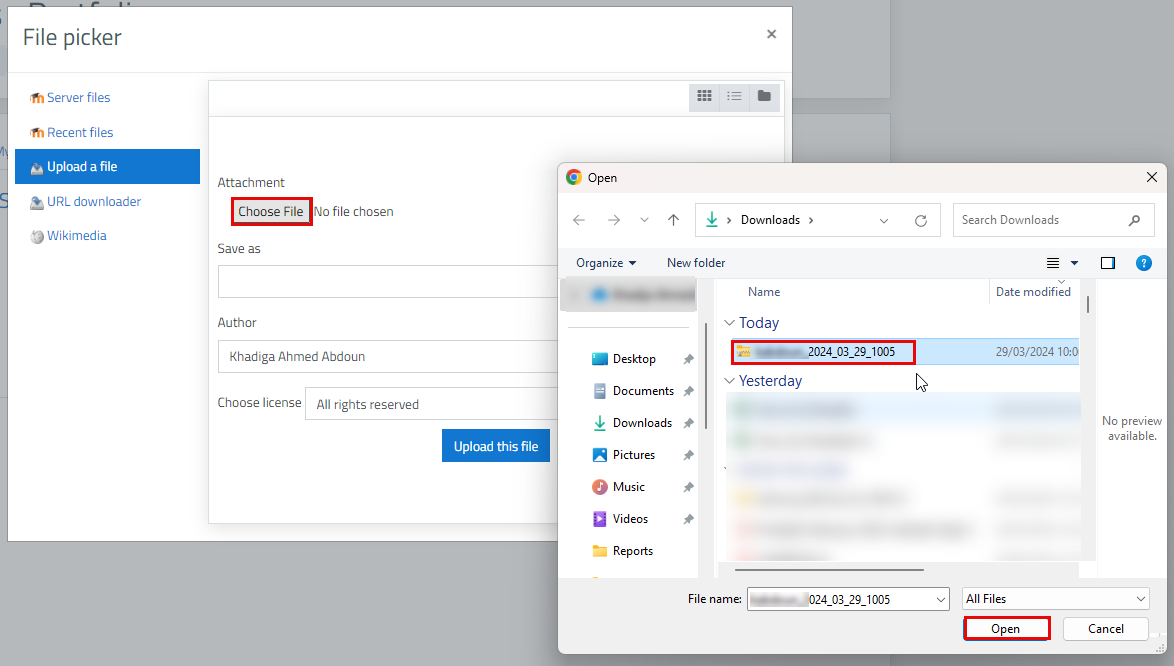
Click the "Choose File" button, browse your device to select the file, and then click "Open".
-
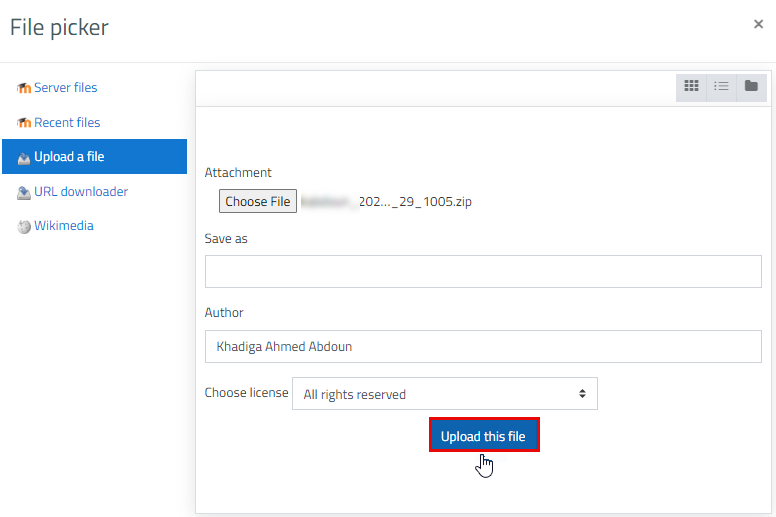
Click on the "Upload this file" button.
-
Click on "Save changes".
-
The file is imported successfully.
