The process begins when the HR team launches the Annual Goal Plan campaign. The system automatically sends a notification to employees, informing them about the campaign and inviting them to start setting goals. This notification serves as the starting point, ensuring employees are aware of the timeline and expectations for goal setting.
-
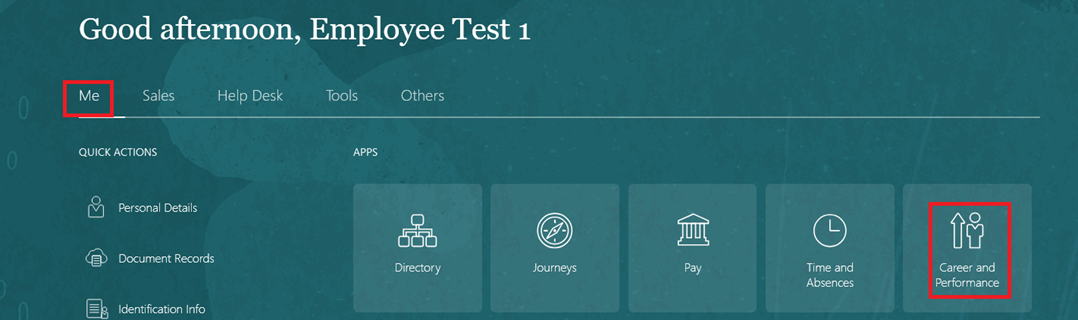
On the Home page, click on "Me", then select "Career and Performance".
-
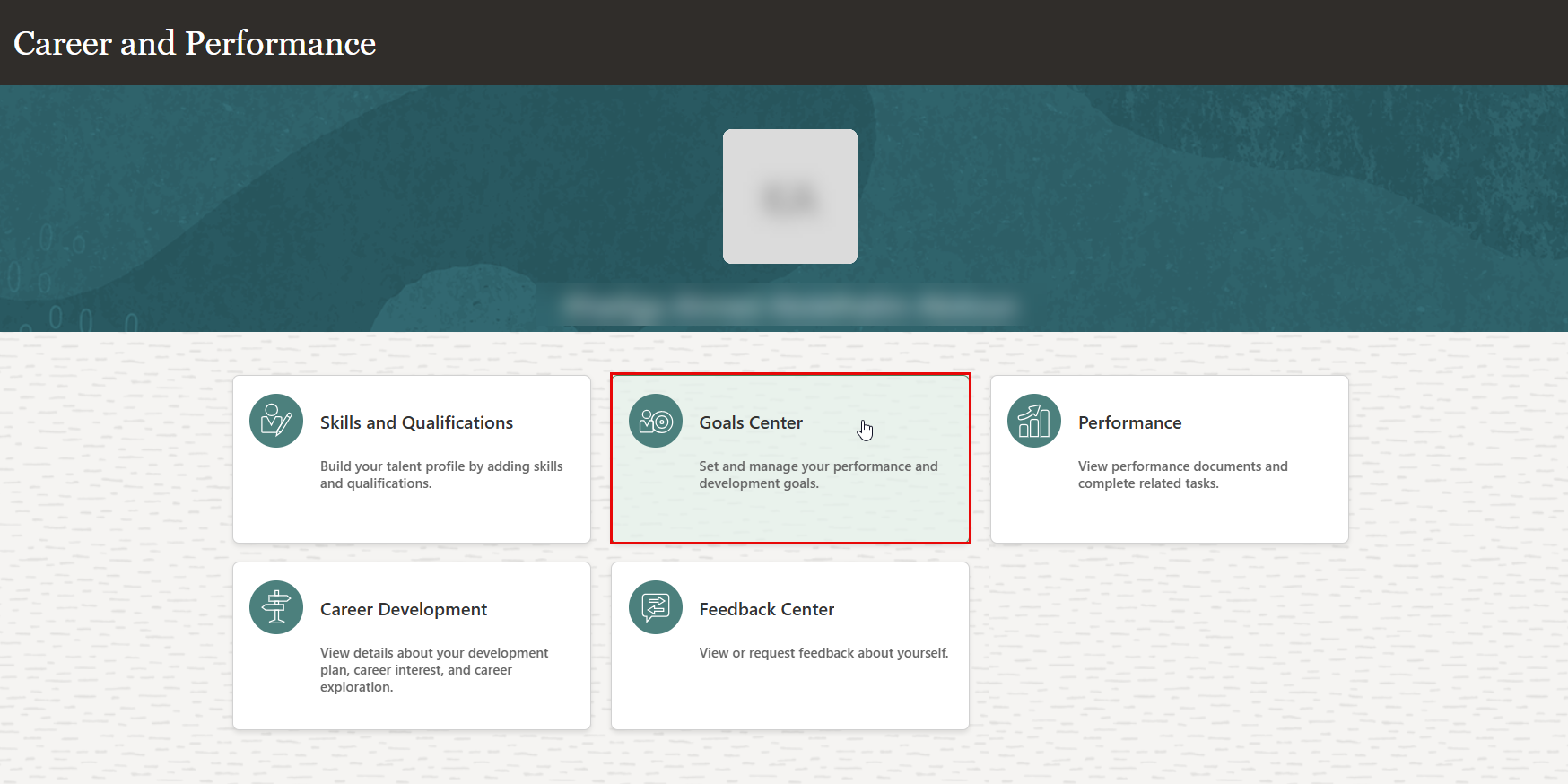
Click on "Goal Center" to start setting your performance goals.
-
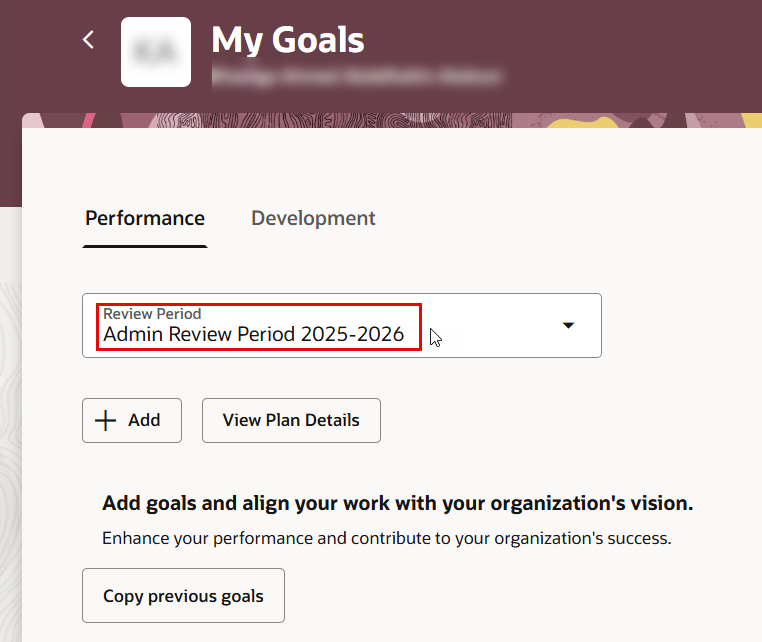
The screen below displays the review period. Change it to the current review period, for example: Admin Review Period 2025–2026.
-
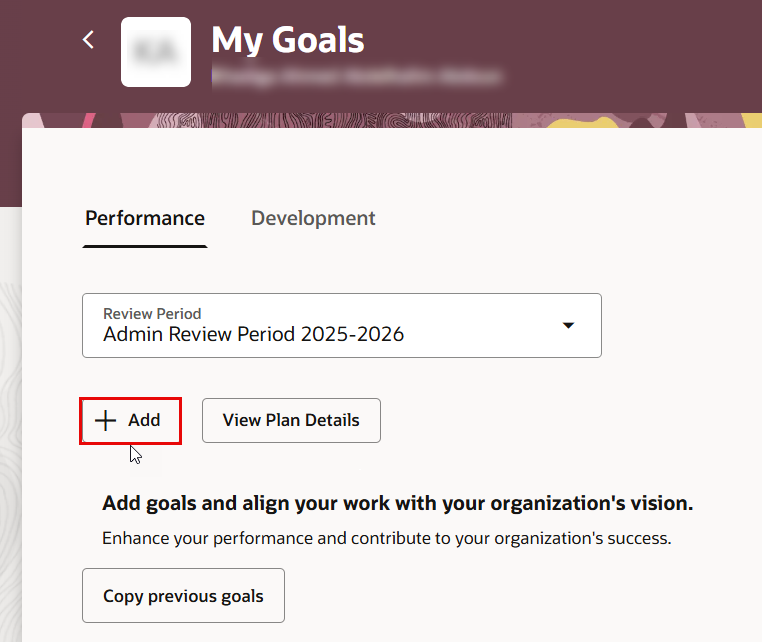
Click "Add" to set your goals/KPIs
-
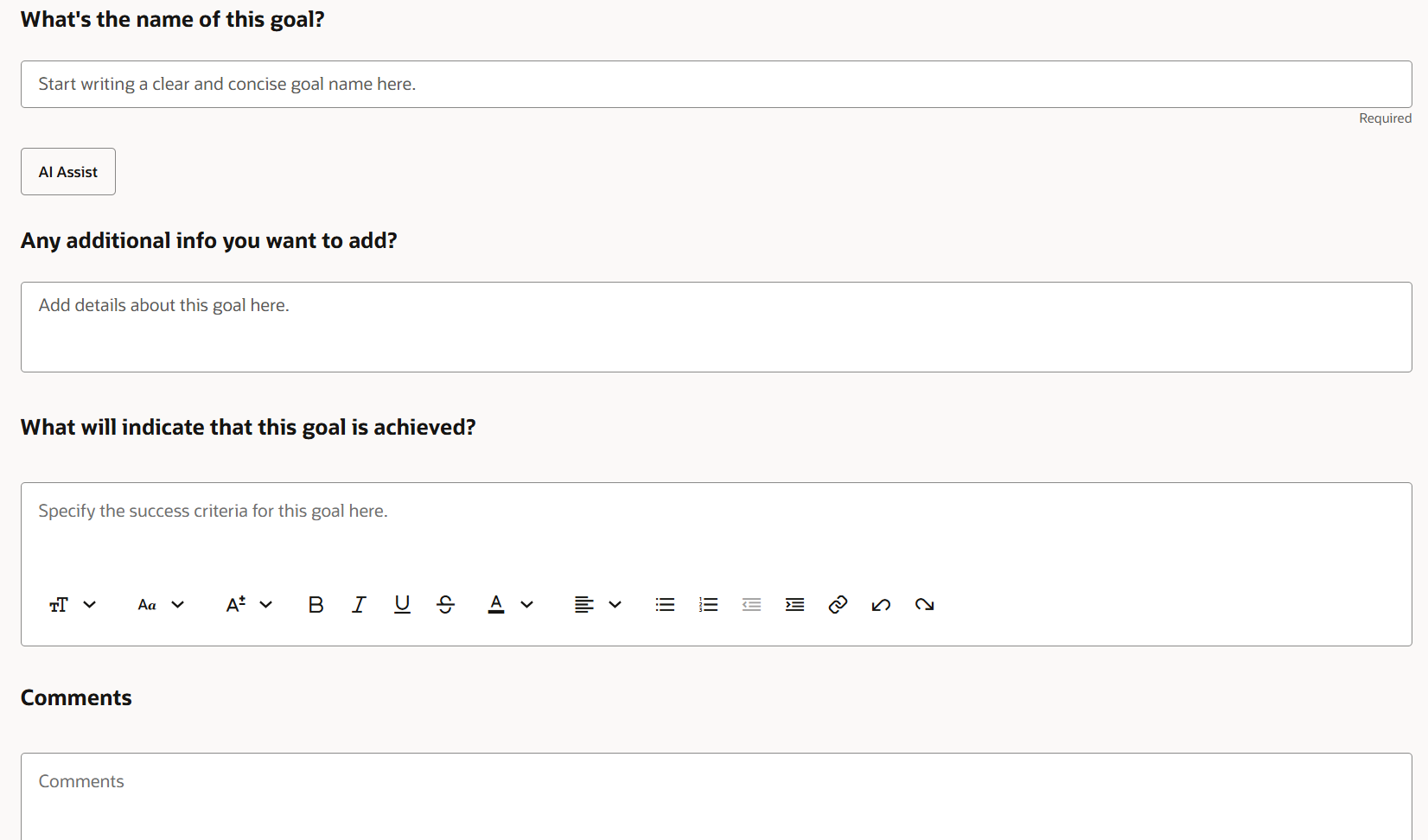
Fill out the goal Info section, including the goal name, any additional info, and what will indicate that this goal is achieved?
-
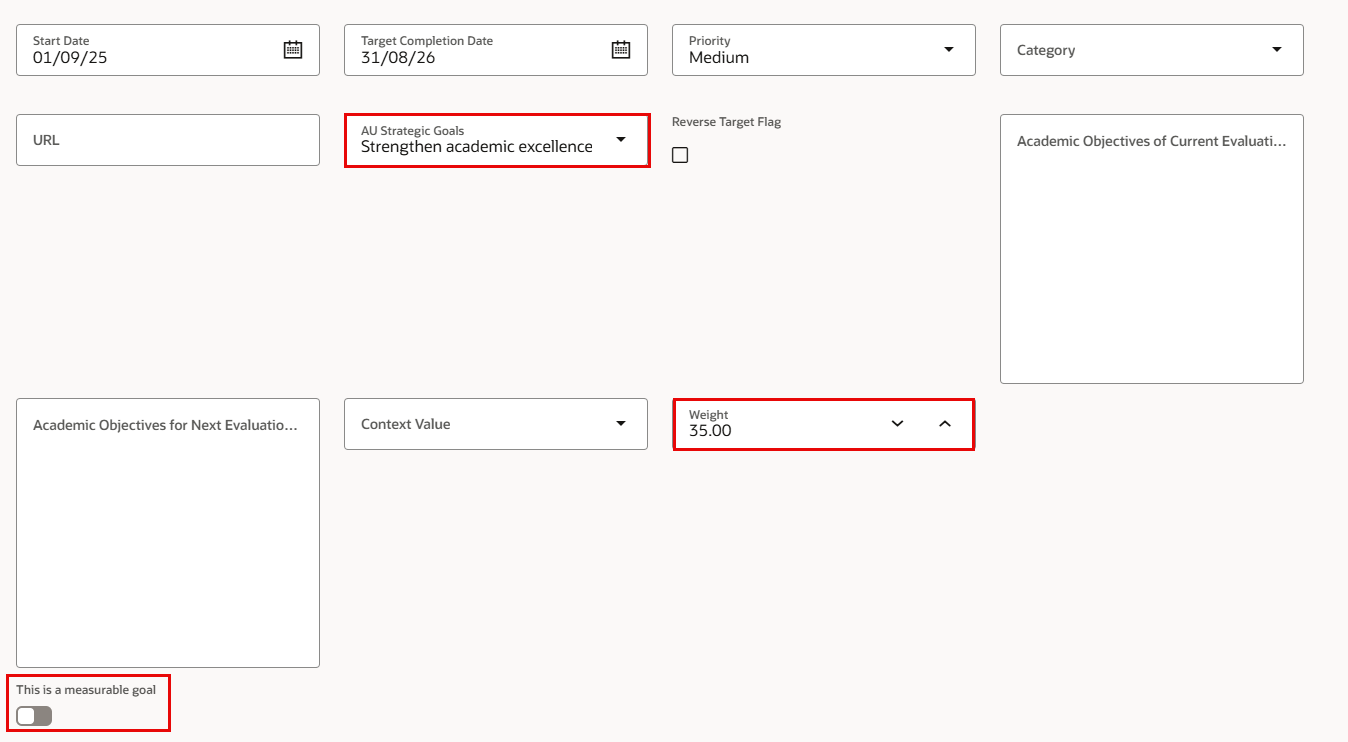
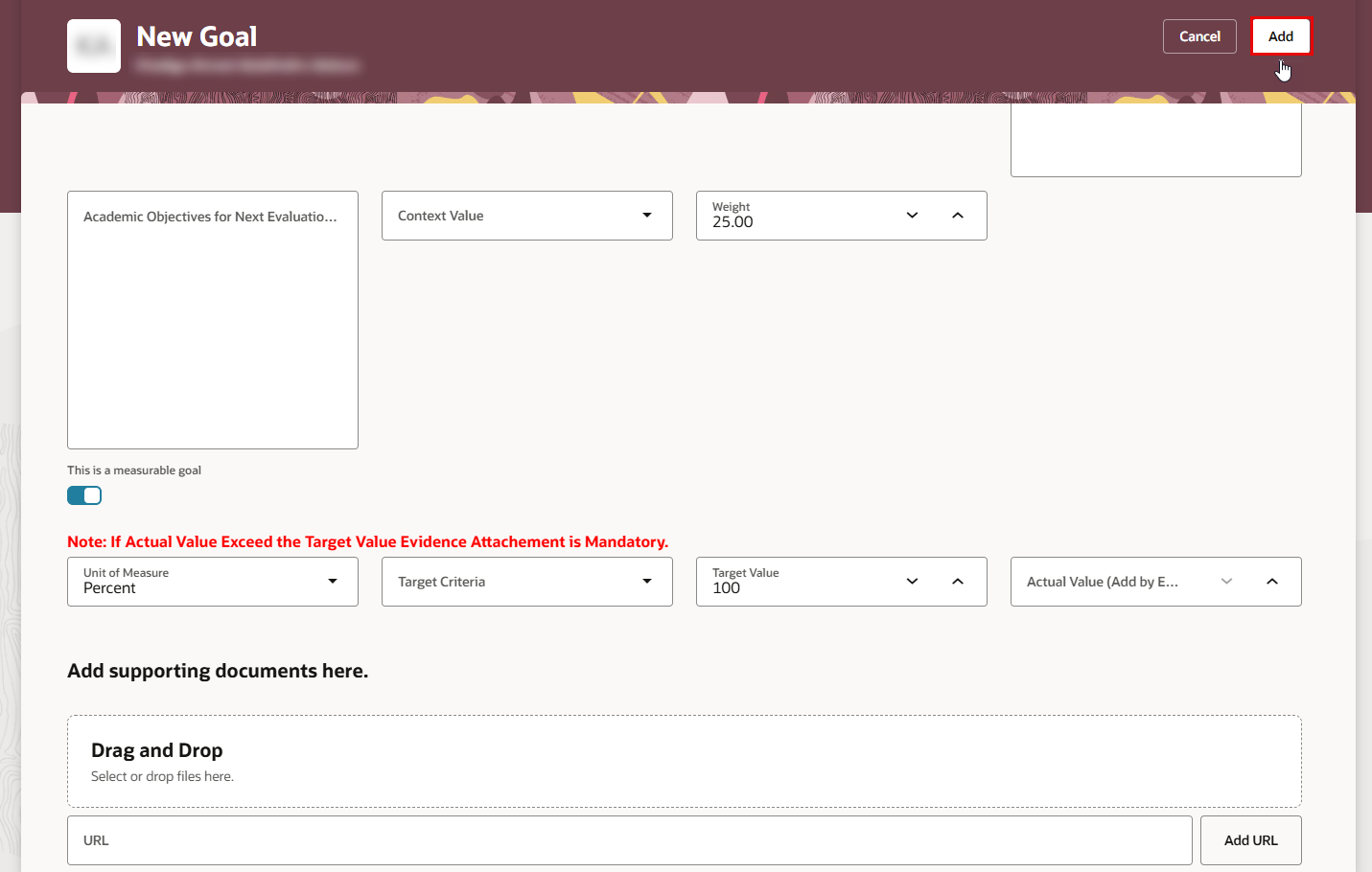
Select an AU strategic goal to link to your goal and assign it a weight. Then, enable “This is a measurable goal” to set a target and define how the goal will be measured.
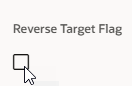
- You can enable the reverse target flag, if your goal is defined by avoiding an unwanted outcome, meaning success is measured by what does not happen rather than what is achieved.
-
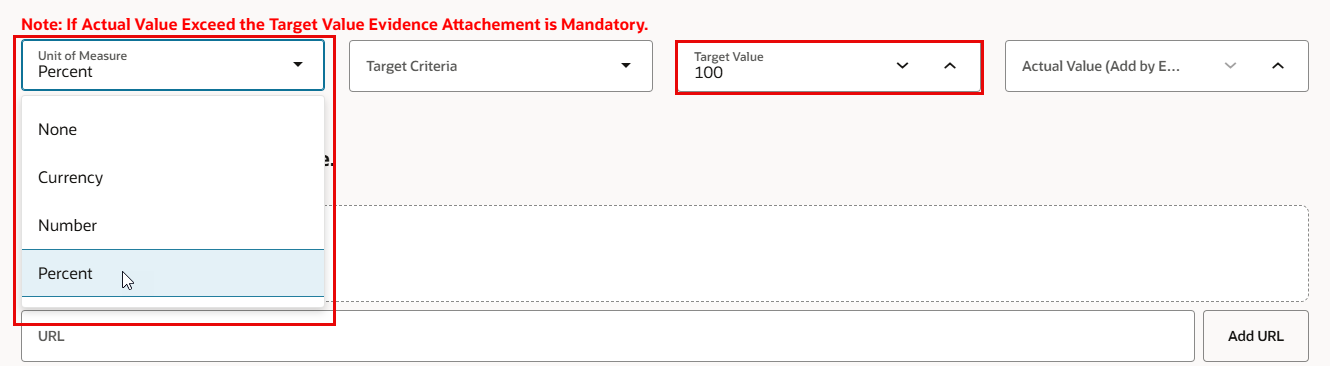
Select the unit of measure and specify the target value.
-
Click "Add".
- Repeat the same steps to add the remaining goals.
- Ensure that the total weight of all your goals adds up to 100.
- Review your goal plan and ensure that each goal has a measurement unit and a target.
- Click "Submit" for approval.
- The newly added goals will be sent to your line manager for approval.
- Once your line manager approves or rejects your goal plan, you will receive both a system notification and an email notification.