Please Note:
This user manual is currently under review. Revised versions reflecting the new Redwood user interface will be available soon.
You can start working on your goal's progress, including changing the status and adding actual values, by following the steps below:
-
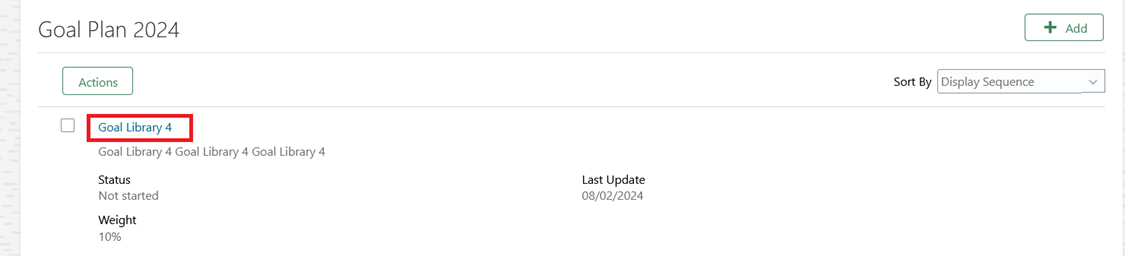
Open the goal you would like to update.
-
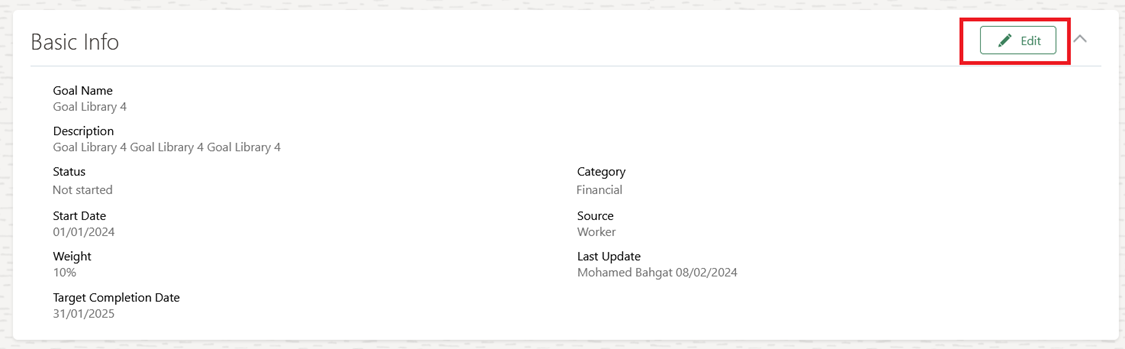
Click "Edit" to change progress status.
-
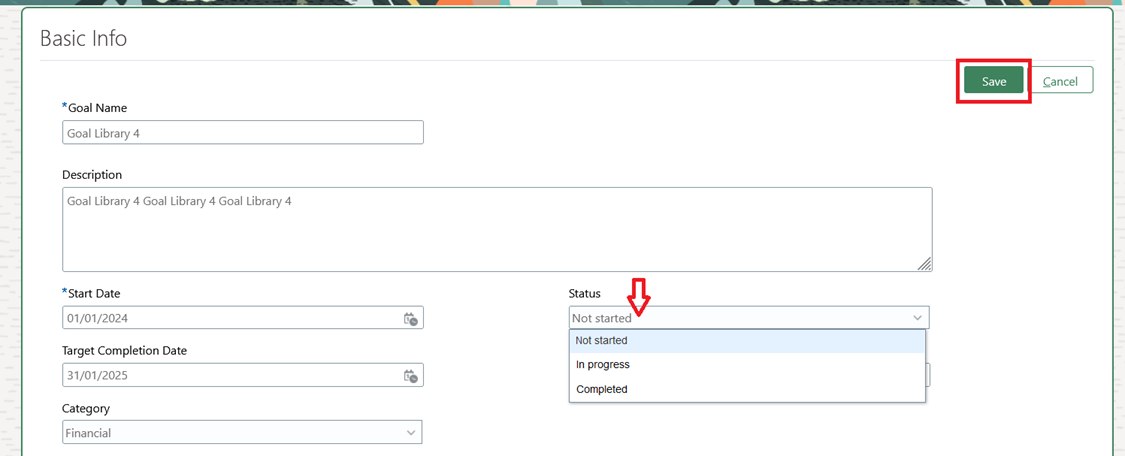
Change progress status, then click "Save".
-
In the Measurement section, select "Edit" to enter the actual value.

-
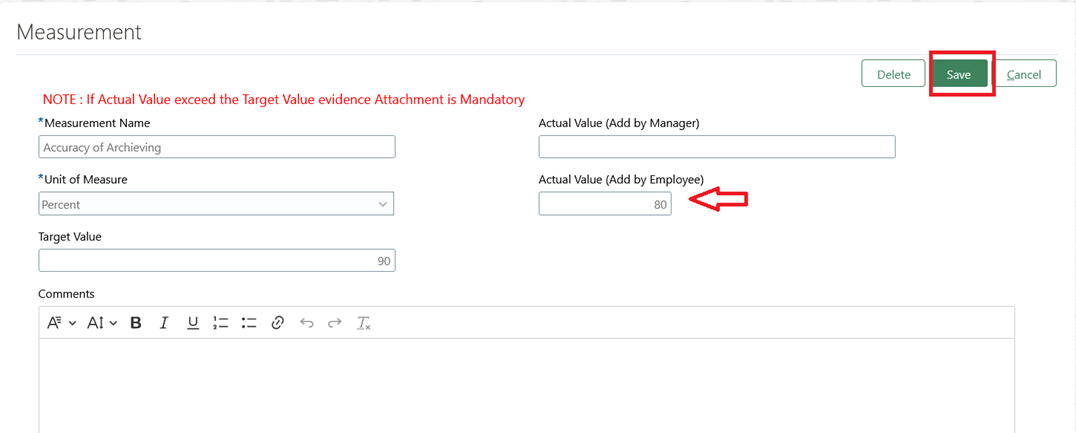
Click "Edit" to enter Actual Value (Add by Employee), add your comments, and then click "Save:.
Note:
- If Actual Value exceeds the Target Value, attaching evidence is Mandatory. Refer to the next article, “Attaching Evidence to Your Goals”, to learn more about adding attachments.
-
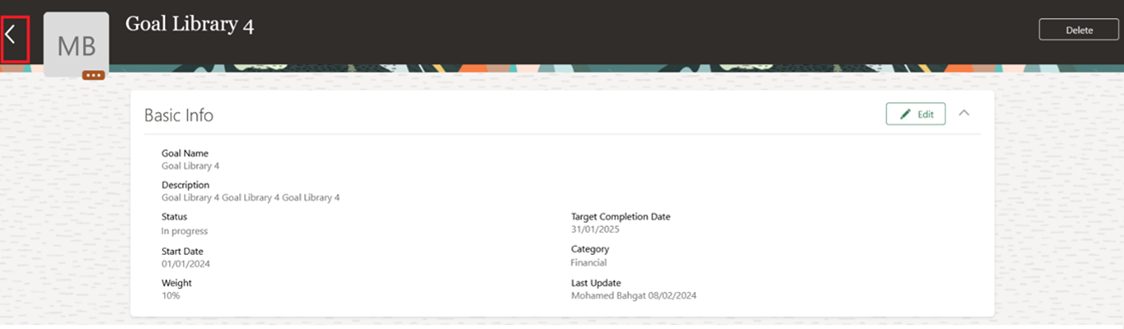
Click back to submit changes for approval.
-
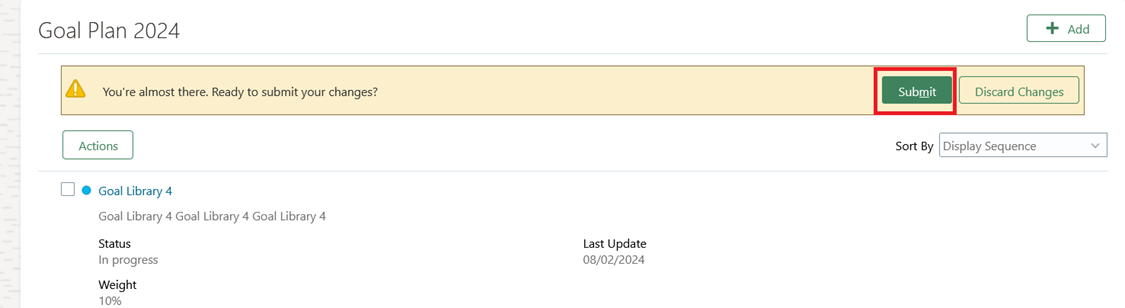
Click "Submit".
-
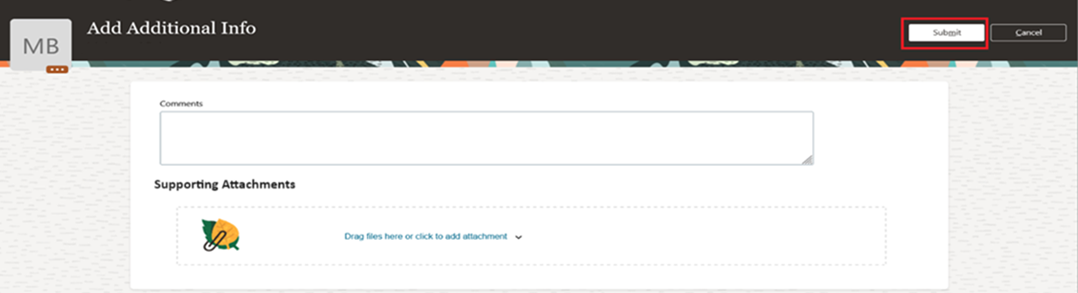
Write a comment if needed, then click "Submit".
Note:
- The changes will be sent to your line manager for approval.
- Once the line manager approves or rejects your changes, you will receive both a system notification and an email notification.